Types and Groups
Activity types are the things you track, such as Work, Sleep or Reading. Groups hold types, and other groups, the way folders hold files. If these words are new to you, read Main Concepts first.
The Types screen
Open the More tab and tap Types.
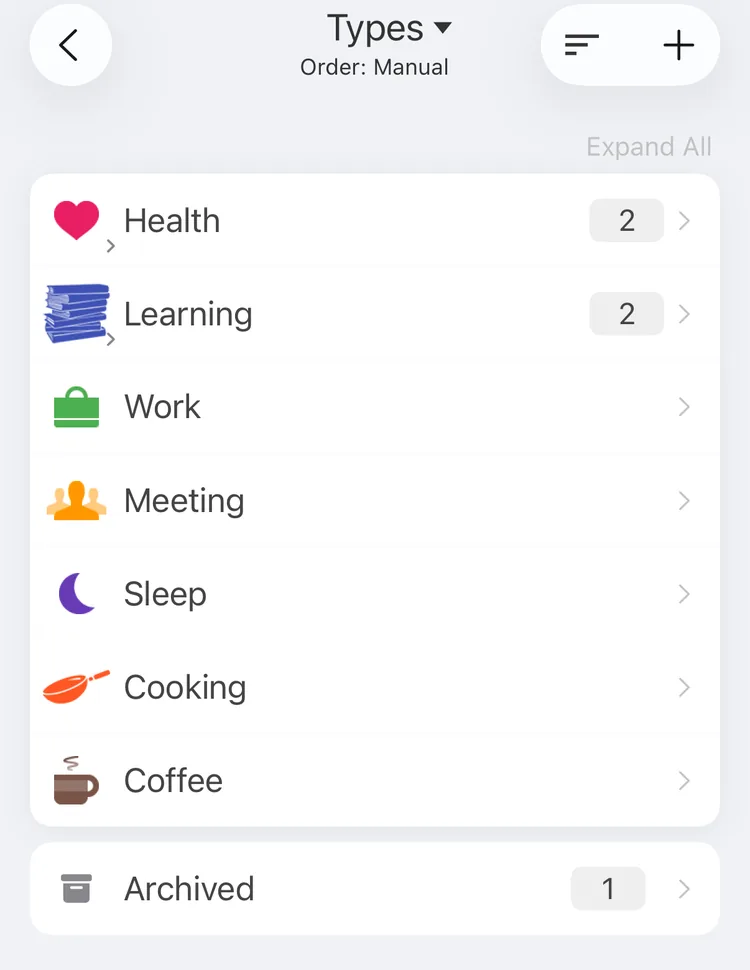
The Types screen
- A group shows how many types and groups it holds. Groups start folded: tap a group's icon to show what's inside, or Expand All at the top to unfold them all.
- Tap a row to open the type's or the group's details.
- Archived, at the bottom, holds the types you have archived. See Archiving.
Creating a type or group
- Tap + in the top right corner of the Types screen.
- To make a group, turn on Group. To make an occurrence type, turn on Occurrence; see Occurrence types.
- Enter the Name and pick the Icon and the Color.
- Add Tags and a Calendar if you want; see below.
- Tap Save.
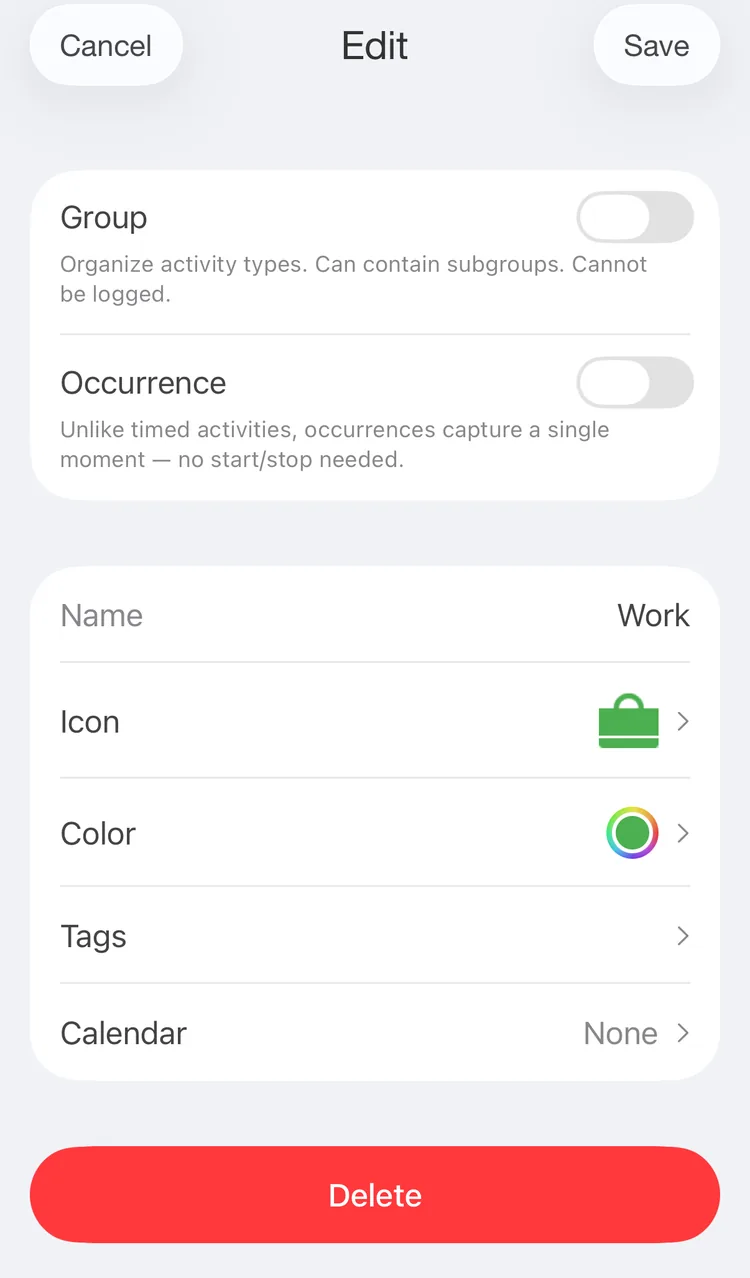
Editing Work
The new type is added at the top level; in Manual order, at the end. To put it into a group, see Putting a type into a group.
Create new, the last tile on the Activities tab, opens the same editor. It makes a type, not a group.
Group and Occurrence are chosen when you create a type. They can't be changed later.
Info
Creating and editing types is a premium feature.
Icon and colour
Icon opens Select icon, with the Free and the Premium icons and a search field. Plain icons take the type's colour; coloured icons keep their own. + at the top lets you use a PNG image of your own from Files. The Premium icons are a premium feature.
Color opens the colour picker. The colour marks the type in charts.
Tags
A tag on a type counts for every record of the type, past and future, as if each record had it. A tag on a group counts for every type in it. Tags on types are a premium feature. See Tags.
Calendar
Pick a calendar, and the app posts the activities of this type to it as events. None turns this off. The list holds the calendars set up in Settings → Features → Calendar; Add calendar offers your other calendars. Groups don't have this row. It is a premium feature. See Calendar.
URL Scheme
With Settings → Advanced → URL Scheme on, the editor also has Start URL, Stop URL, Pause URL and Resume URL: links the app opens when you start, stop, pause or resume this type on the Activities tab. See Automation.
Occurrence types
An occurrence type records that something happened, not how long it took: a coffee, a pill, a glass of water. Tapping it on the Activities tab adds a record at the current time. See Activities.
- Turn on Occurrence when you create the type. A group can't be an occurrence type, and an existing type can't become one.
- Statistics count its records instead of adding up time.
- A goal can count them too: "two coffees a day at most".
Occurrence types are a premium feature.
Groups
A group adds up its types: its details show their statistics together, and so does the Statistics tab. On the Activities tab a group is a tile that opens its types; to see every type in the grid instead, see Groups on the Activities tab.
Putting a type into a group
There are three ways:
- From the type. Open its details, tap Move to and pick the group, or Move to top level. Only groups can be picked, and a group can't move into a group inside itself.
- From the group. Open the group's details and tap + next to Items. Pick a type, or tap + to create a new one in the group. This is a premium feature.
- By dragging. On the Types screen, in Manual order, drag the type onto the group. See Order.
Groups move into other groups the same ways.
Order
Tap Types at the top of the Types screen to choose the order: Manual or By Name. The line under the title shows the one in use. The Activities tab follows the same order.
To change the Manual order:
- Tap the button next to +.
- Touch and hold a row, then drag it. Hold it over a group to drop it inside; drag it to the left to take it out of its group.
- Tap Save, or Cancel to keep the old order.
You can also order the types inside one group: open the group's details and tap the button next to + in Items. Drag the rows by their handles and tap Save. This is a premium feature.
Type details
Tap a type on the Types screen.
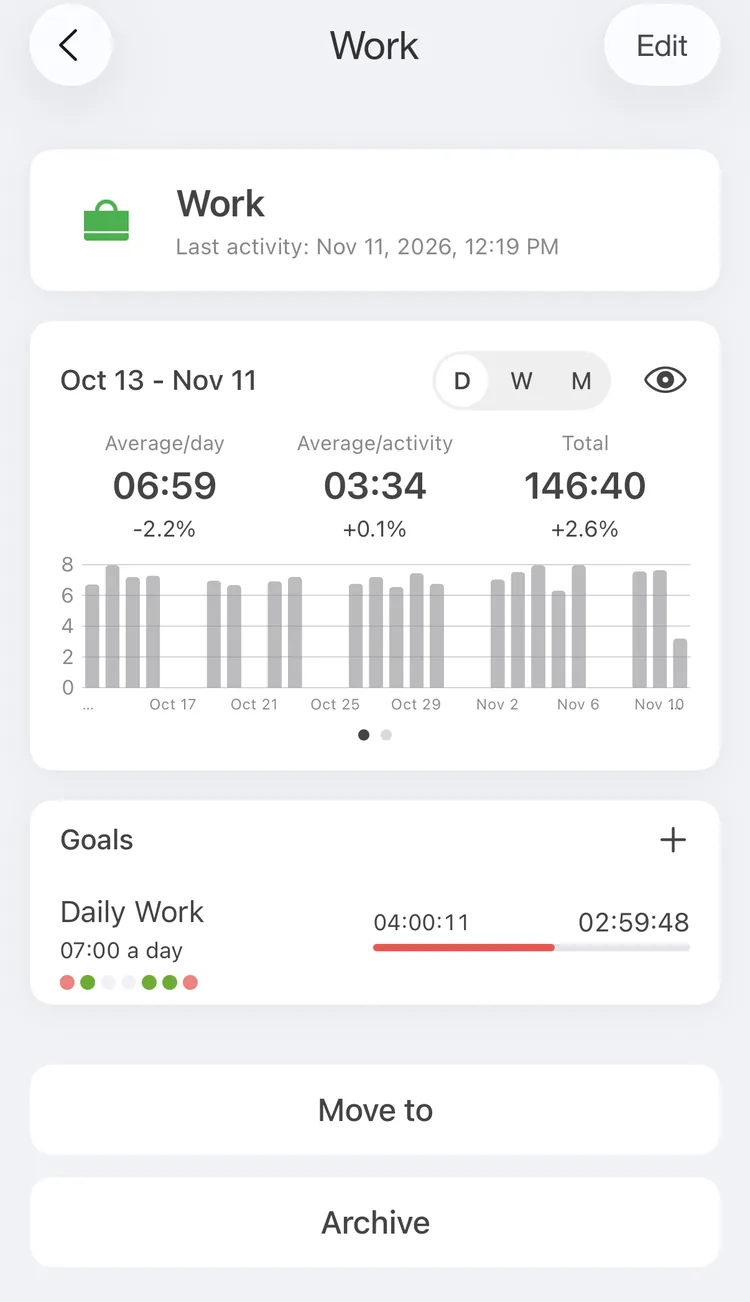
The details of Work
- At the top, the type and its Last activity.
- D, W and M show the last 30 days, 12 weeks or 12 months, a bar per day, week or month.
- Average/day (/week, /month): the time per day on which you tracked the type; days without it don't count. Average/activity: the time divided by the number of intervals. Total: all the time. Under each number, the change against the period before.
- Tap a bar to see its value. Swipe the chart to the left for the hourly distribution: the hours of the day when you do it. The hourly distribution is a premium feature.
- Goals: the goals that include this type. Tap one to open it, or + to add a goal for this type. See Goals.
- For a group, Items: the types and groups in it.
- Move to and Archive, at the bottom.
- Edit, in the top right corner, opens the editor.
For an occurrence type the numbers are counts: records per day, the number of Days with records, and the Total.
Type history
The eye button, next to D W M, opens the history of the type:
- Pick the period at the top, as on the Statistics tab.
- The same numbers as on the details, for that period.
- Bars or lines: the line chart draws the period as a solid line over the period before, dashed.
- Swipe the card to the left for the hourly distribution.
- Below, the records day by day. Tap one to open it in the editor.
The type history is a premium feature.
Archiving
When you no longer do something but want to keep its history, archive the type instead of deleting it.
Tap Archive at the bottom of the type's details and confirm. The type leaves the Activities tab and the Types screen. Its records stay: they still show in History and count in Statistics.
Archived types are behind Archived at the bottom of the Types screen. A type archived inside a group is behind Archived in the group's Items. Open the type and tap Unarchive to bring it back.
Deleting
Open the type's details, tap Edit, then Delete at the bottom of the editor, and confirm.
Warning
Deleting a type also deletes all its activities, and takes the type out of the goals that include it. Deleting a group deletes the types and groups in it too, with all their activities. You can't undo this. To keep the history, archive the type instead.