Goals
The goals feature in aTimeLogger helps you set, track, and achieve various personal and professional objectives. This feature is designed to promote positive habits and limit negative ones by providing clear targets and progress tracking.
There are different goal properties
Reach vs Limit
Reach Goals: These goals are for positive habits you want to increase or maintain regularly.
Examples:
- Sleep at least 8 hours a day: Ensuring you get sufficient rest each night.
- Drink water at least 10 times a day: Staying hydrated by tracking your water intake.
Limit Goals: These goals are for negative habits you want to decrease or eliminate.
Examples:
- Watch TV less than 5 hours a week: Reducing screen time to allocate more time for productive activities.
Time vs Occurrence
Time-Based Goals: These goals track the duration of activities.They ensure you spend enough or not too much time on certain activities.
Examples:
- Sleep: Set a goal to sleep at least 8 hours daily.
- Work: Aim to work more than 40 hours weekly.
Occurrence-Based Goals: These goals track the frequency of activities. They are useful for habits that are measured by the number of times they occur.
Examples:
- Drink Water: Track the number of times you drink water in a day.
- Exercise: Aim to exercise a certain number of times per week.
Create a Goal
- Go to 'Goals' tab: press the '+' button in the top right corner
-
Enter Goal Details:
-
Name: name of the goal
- Goal type: Choose between Reach or Limit
- Based on: Select Duration or Occurrence
- Duration: (if goal is based on duration)
- per activity
- per interval
- per day
- per week
- per month
- Occurrence: (if goal is based on occurrence)
- per day
- per week
- per month
- Types: Select at least one activity type
- Tags: Add relevant tags
- Alerts: Set notifications for when the goal is reached or the limit is exceeded. Alerts can be set for before, during, or after the event.
- Alert sound: Choose a notification sound
- Days of week: Specify the days when the goal is active (e.g., exclude weekends for a work goal).
Info
Note: For Statistics it often makes sense to use per activity or per interval. For example, instead of 8 hours per day use 8 hours per activity to get precise Sleep statistics
Editing and Deleting a Goal
- Go to Goals tab: Press on the goal you want to edit. The 'Goal Details' screen will appear
- Edit Goal: Press on 'Edit' button in the top right corner. You can edit any fields or delete the goal by pressing on red 'Delete' button in the bottom
Goals tab
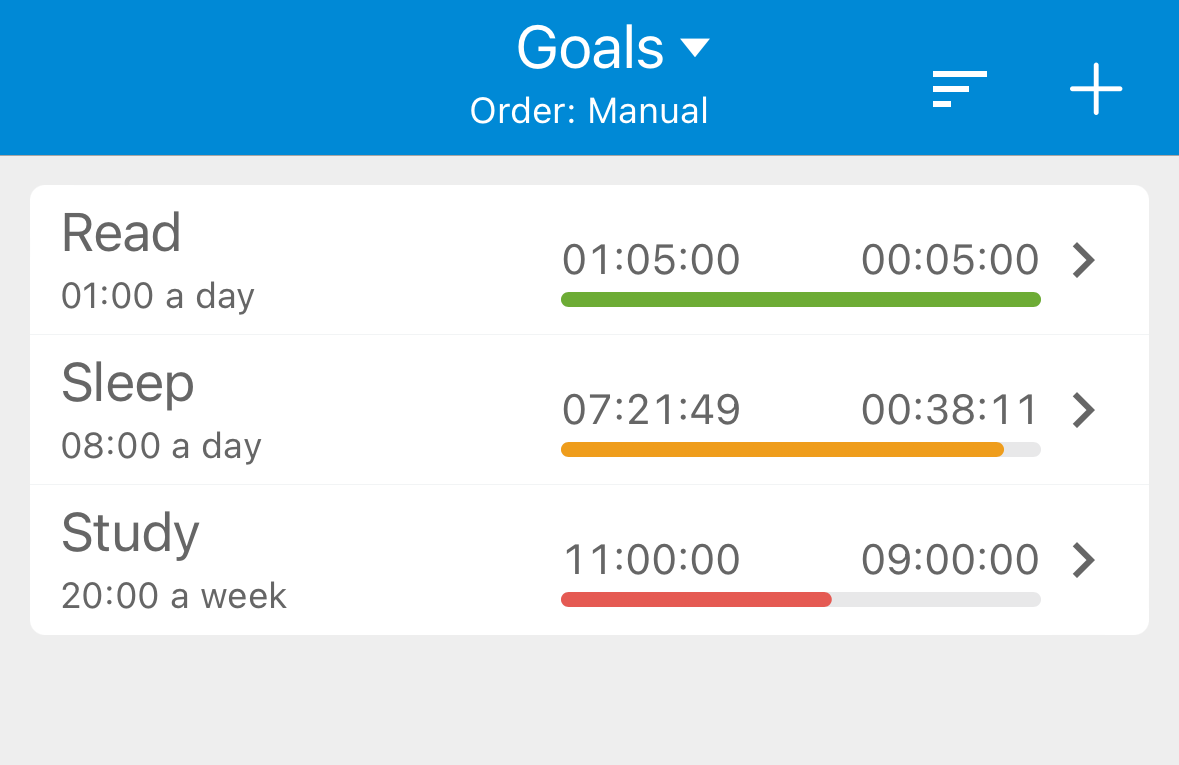
The Goals tab shows a list of your goals along with their progress for the current period (today, this week, this month).
Statistics and History
-
View Goal Statistics:
-
Go to the 'Goals' tab and press on the goal to see the 'Goal Details' screen
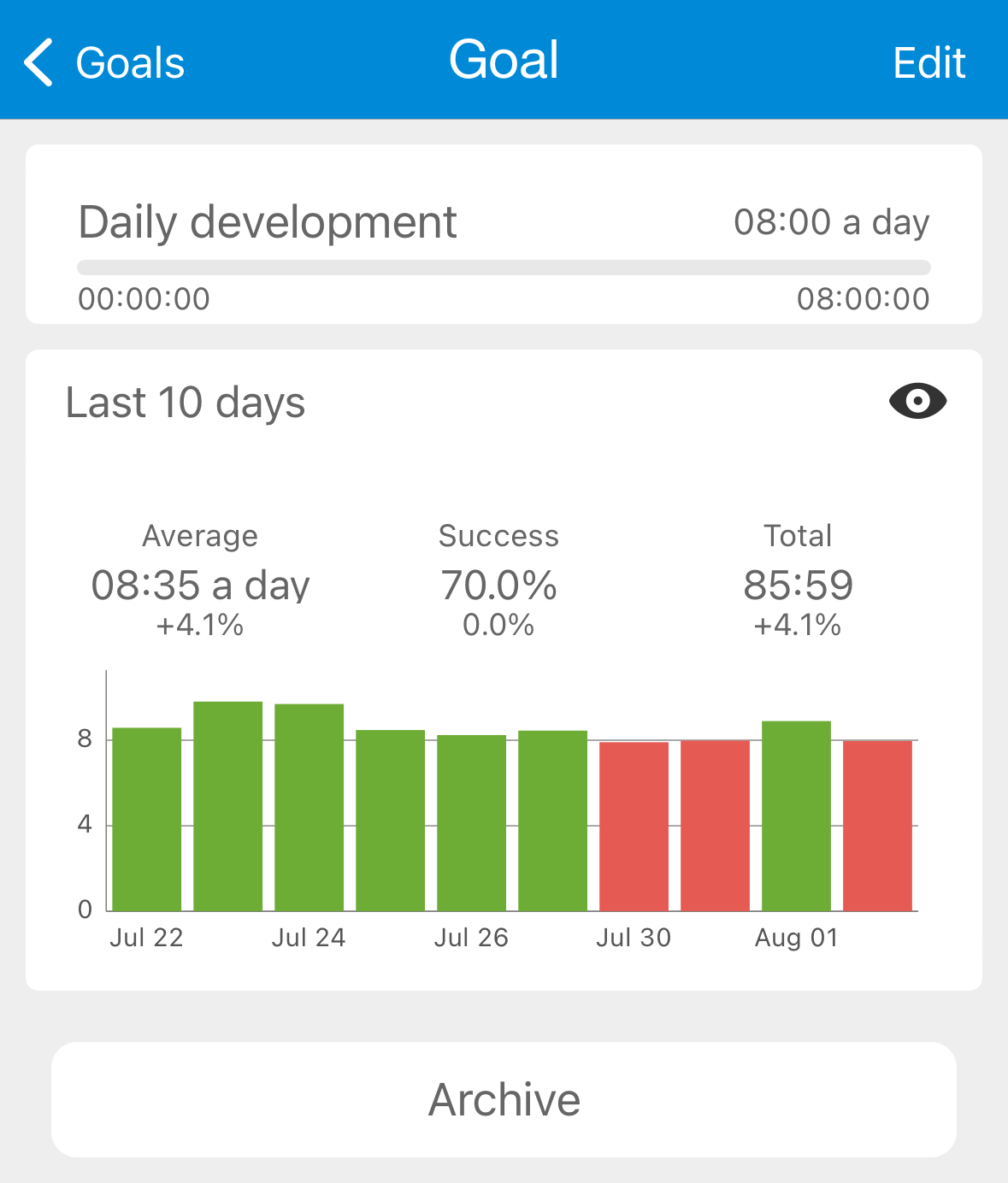
- This screen shows statistics for a selected period, including:
- Average (time or occurrences)
- Success Percent
- Total (time or occurrences)
- Example: The ‘Daily Development’ goal shows statistics for the last 10 days, including an average duration of 8 hours 35 minutes per day and a success rate of 70%. Successful days are green, and unsuccessful ones are red on the bar chart.
-
Detailed View:
-
Press the Eye icon to see more detailed statistics and history, similar to the 'Type Details' screen, where you can navigate between different periods
Reordering Goals
- Go to ‘Goals’ Tab: Press on the ‘Goals’ title at the top
- Reorder Menu: The reorder menu will appear with the following options:
- By Name: Goals are sorted alphabetically.
- Manual: You can specify the sort order manually. This is done similarly to other reorder functionalities in the Types. See Types and Groups
Archiving Goals
If you don't need goal but still want it to be stored, maybe plan to unarchive it later, you can archive it.
- Go to the 'Goal details' screen and press the 'Archive' button at the bottom
- Archived goals are displayed at the bottom of the 'Goals' tab
Info
Note: Calculating goal progress utilizes CPU resources, which may slow down the app if you have many active goals. Archiving unused goals can help maintain app performance.
Goal widgets
You can quickly access goal progress for selected goals using desktop widgets. Check Widgetsfor details