Editing Intervals
An activity's time is made of intervals, each running from a start to an end; every pause closes one (see Main Concepts). This page shows how to change an interval's start, end and length.
Where to tap
Open the activity in its editor: tap its row on the Activities tab or in History. Under Intervals, each row shows an interval's start, its end and its length, newest first:
- Tap the start time to change the start.
- Tap the end time, or the empty space after it, to change the end.
- Tap the length or the arrow to open the whole interval.
- Swipe a row to the left to delete the interval, or tap + to add one that starts now.
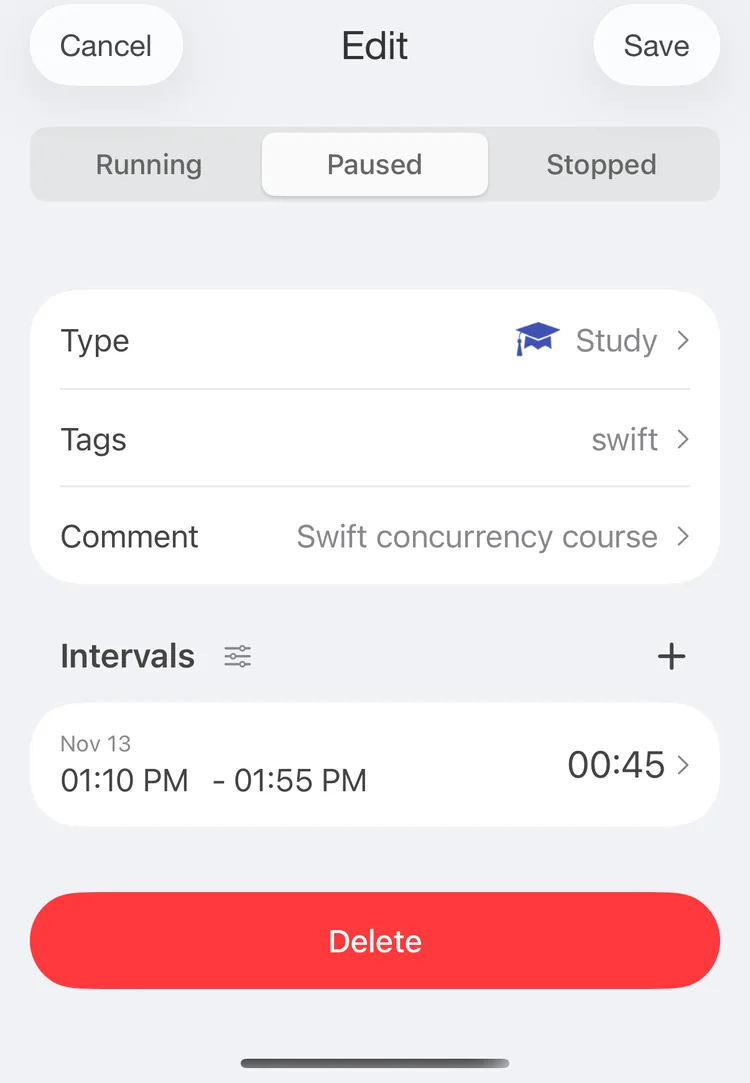
The intervals of the paused Study
By default, a tap on a time or on the length opens the interval screen, on the time you tapped or on From. The button next to the Intervals title can open the screen on a fixed time instead, or change starts and ends in a popup right in the editor: see Editing options.
The interval screen
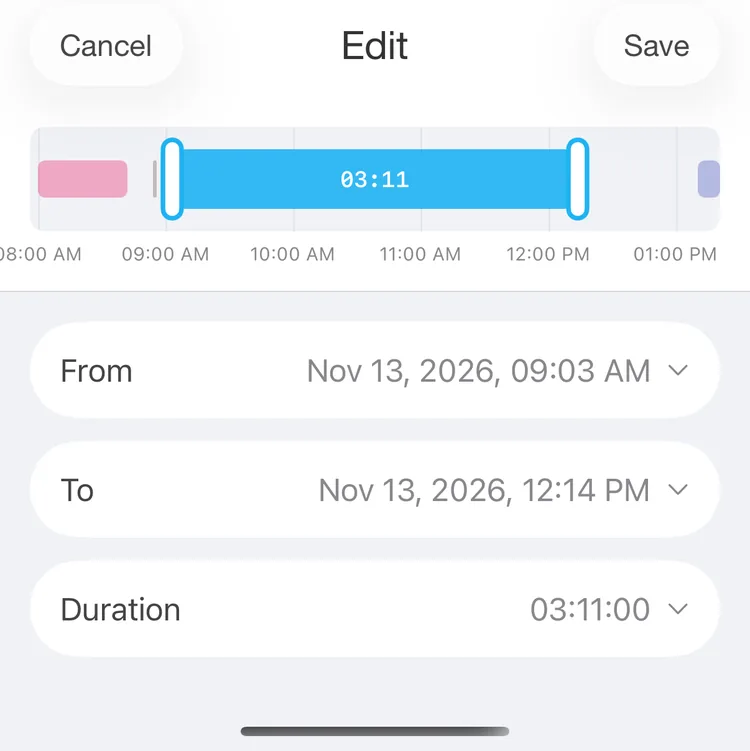
The interval screen, every card closed
The timeline
At the top, the interval is a bar on a timeline, with the records around it in their types' colours and a red line at the current time. The bar shows the interval's length.
- Drag the left or the right handle to change the start or the end.
- Drag the bar itself to move the whole interval; its length stays the same.
A dragged edge snaps to the start or end of a record next to it, and to the current time, with a light vibration. Elsewhere it moves in steps of Picker increment from Settings, and dragging can't make the interval shorter than one step. When you let go, the timeline zooms to fit the interval again. With VoiceOver, swipe up or down on a handle to move it by one step.
From, To and Duration
Under the timeline, From, To and Duration are cards. Tap one to open it: its title and time turn bold, its row is tinted, the chevron points up and its wheel appears under it. One card is open at a time; tap the open one to close it. The wheels move in steps of Picker increment too.
From is the start, with its date. Now sets it to the current time; Last finish sets it to the end of the record before, shown under the button.
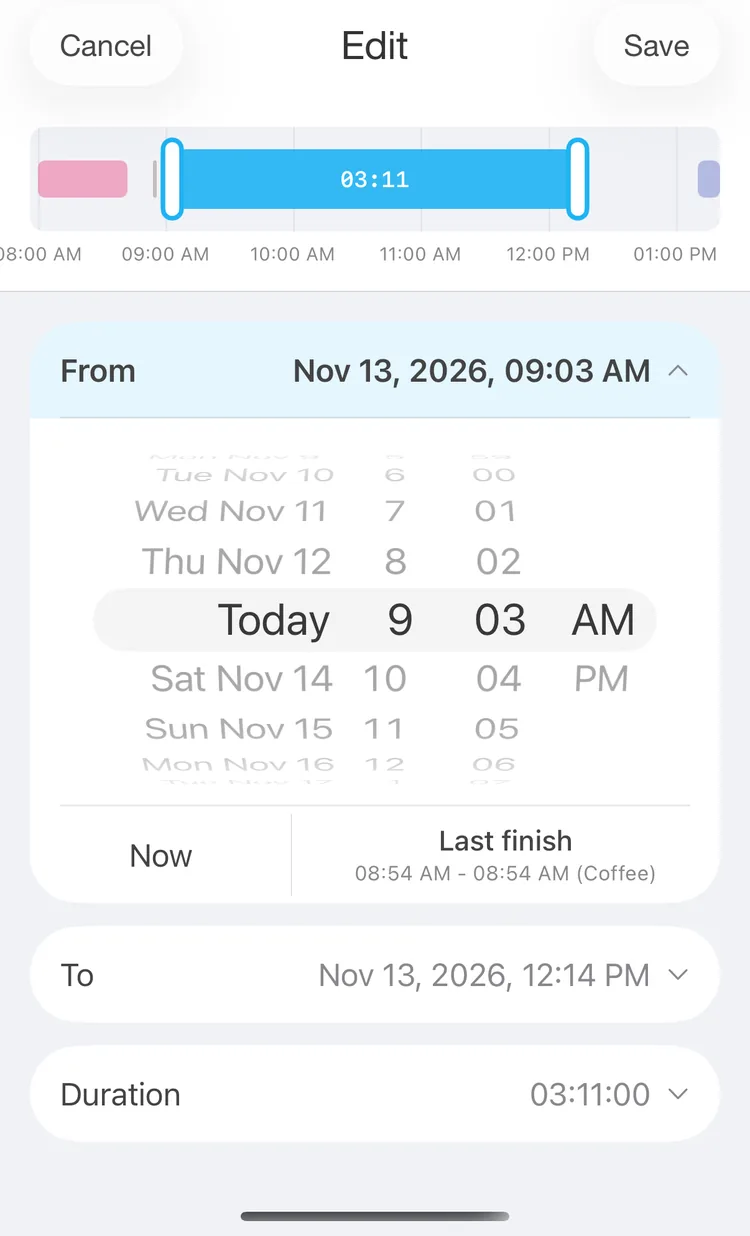
Changing the start
To is the end. Now sets it to the current time; Next start sets it to the start of the record after. A button with no record to point at is greyed out.
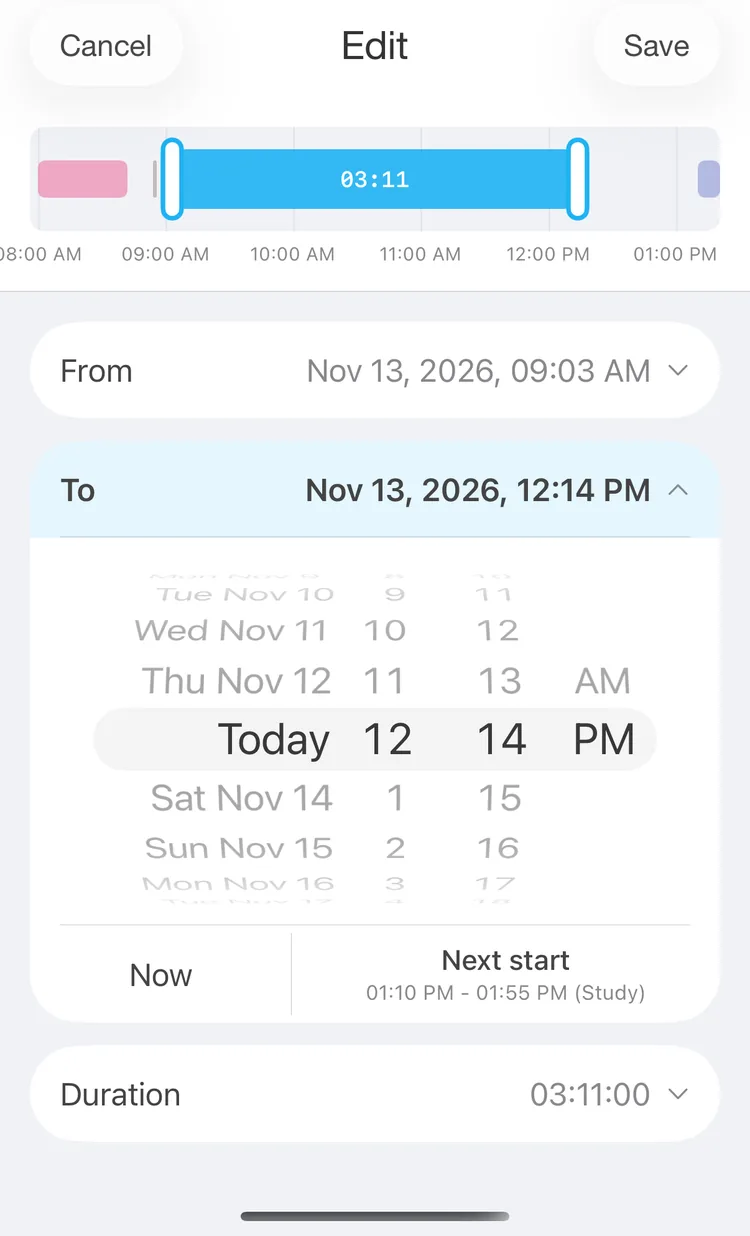
Changing the end
Duration is the length in hours and minutes. A new length keeps the start and moves the end.
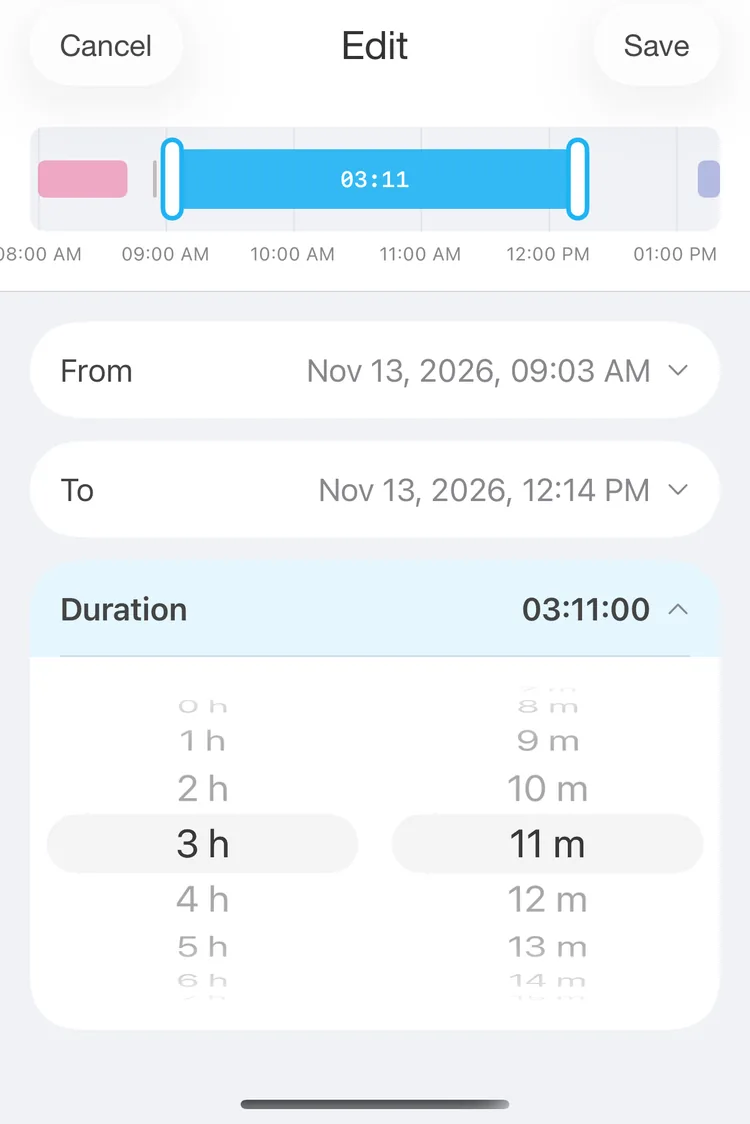
Changing the length
Saving
Tap Save to keep the new times or Cancel to drop them. While From is later than To, Save does nothing. Opened from the activity editor, the screen hands the times back to it, and they are stored when you save the activity; opened with Edit in History, it saves the interval at once.
If the interval has a calendar event, Calendar event at the bottom opens the Calendar app on that day; see Calendar.
Editing options
The button with the sliders next to the Intervals title in the activity editor opens Editing intervals. The choice is kept on this device; your other devices keep their own.
On a separate screen
The default. Start and end times open the interval screen described above. Under The screen opens on, choose the card that is open:
- The time you tapped: the start opens on From, the end on To. The length and + open on From.
- From or To: always that card, whatever you tap in the row. + and Edit in History open on it too.
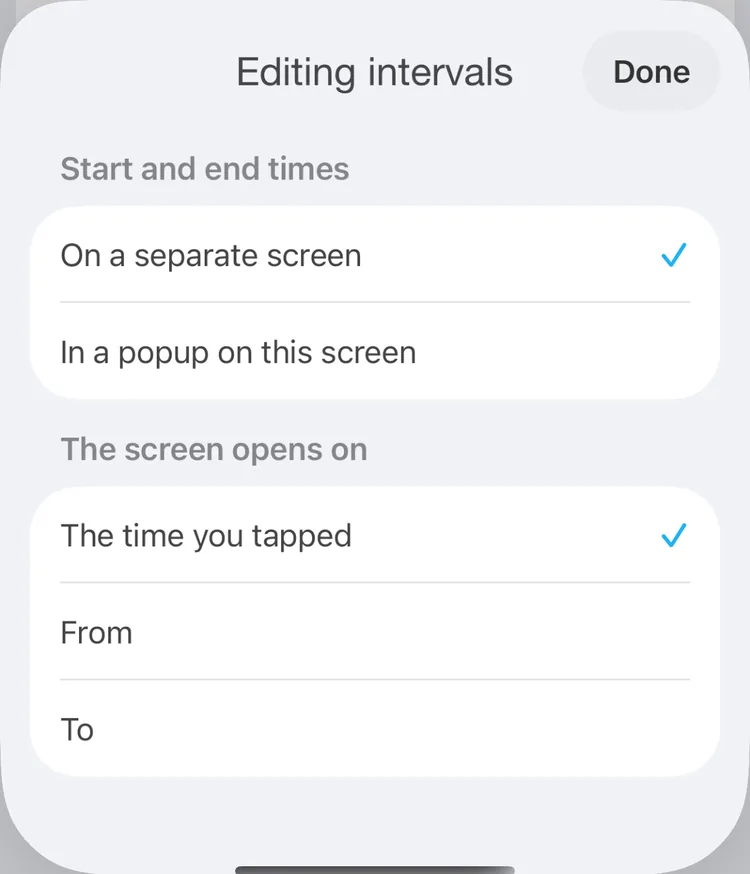
Editing options
In a popup on this screen
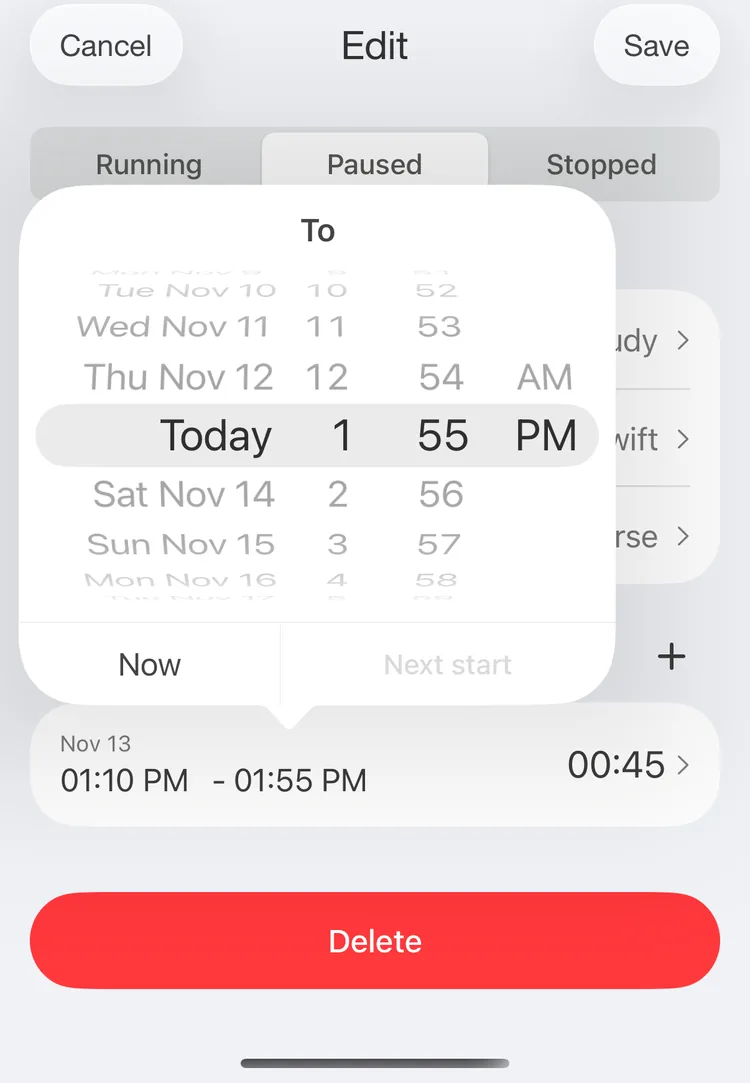
A start or end time opens a popup right above it, titled From or To, with the wheel and the same buttons as on the interval screen. The row underneath changes as you turn the wheel; tap outside the popup to close it. The length side of the row and + still open the interval screen, on From.
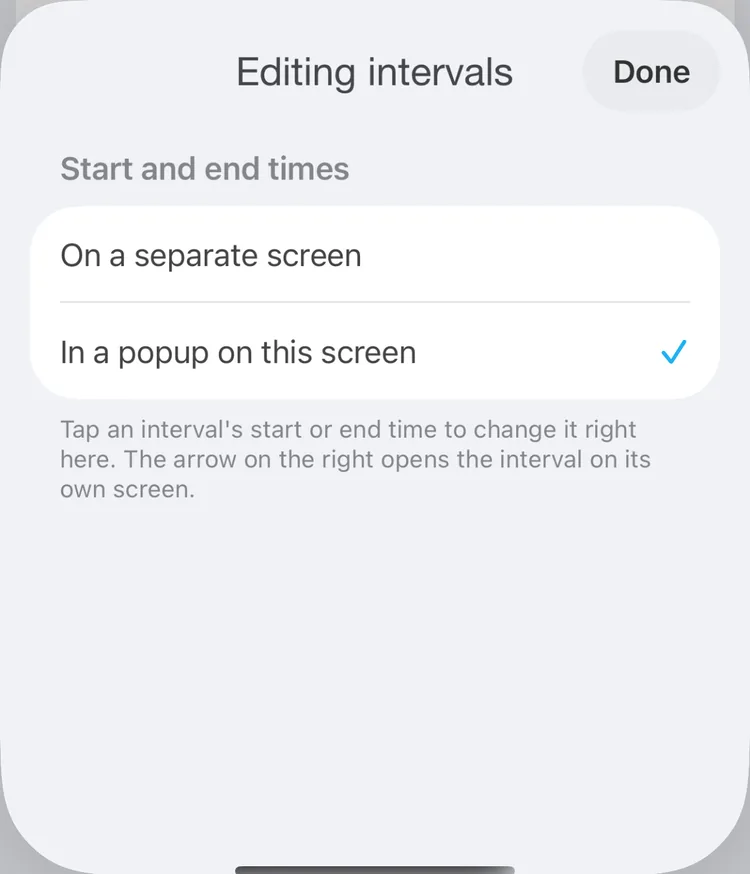
The popup mode
The popup changes the activity in the editor: Save keeps the change and Cancel drops it. If a start ends up later than its end, the editor tells you so when you save, and doesn't save.
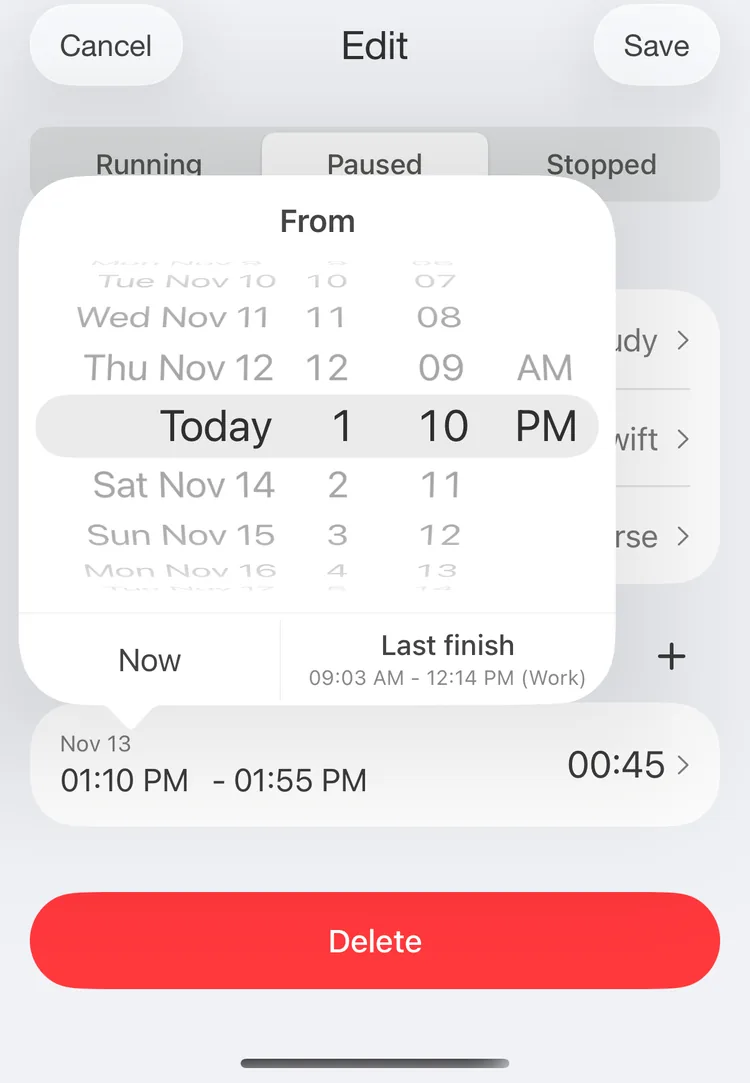
Changing a start in the popup
Changing an end in the popup