Calendar
Recorded activities can be automatically saved to your system calendar, so your tracked time appears alongside meetings and events in the calendar app you already use. Follow these steps to set it up:
- Enable Calendar Integration: Go to Settings / Calendar and enable the calendar integration
- Add a Calendar:
- Press the '+' button in the Calendars section
- A system dialog will appear asking for permission to access your calendars. Grant the necessary permissions
- Select one of your calendars from the list
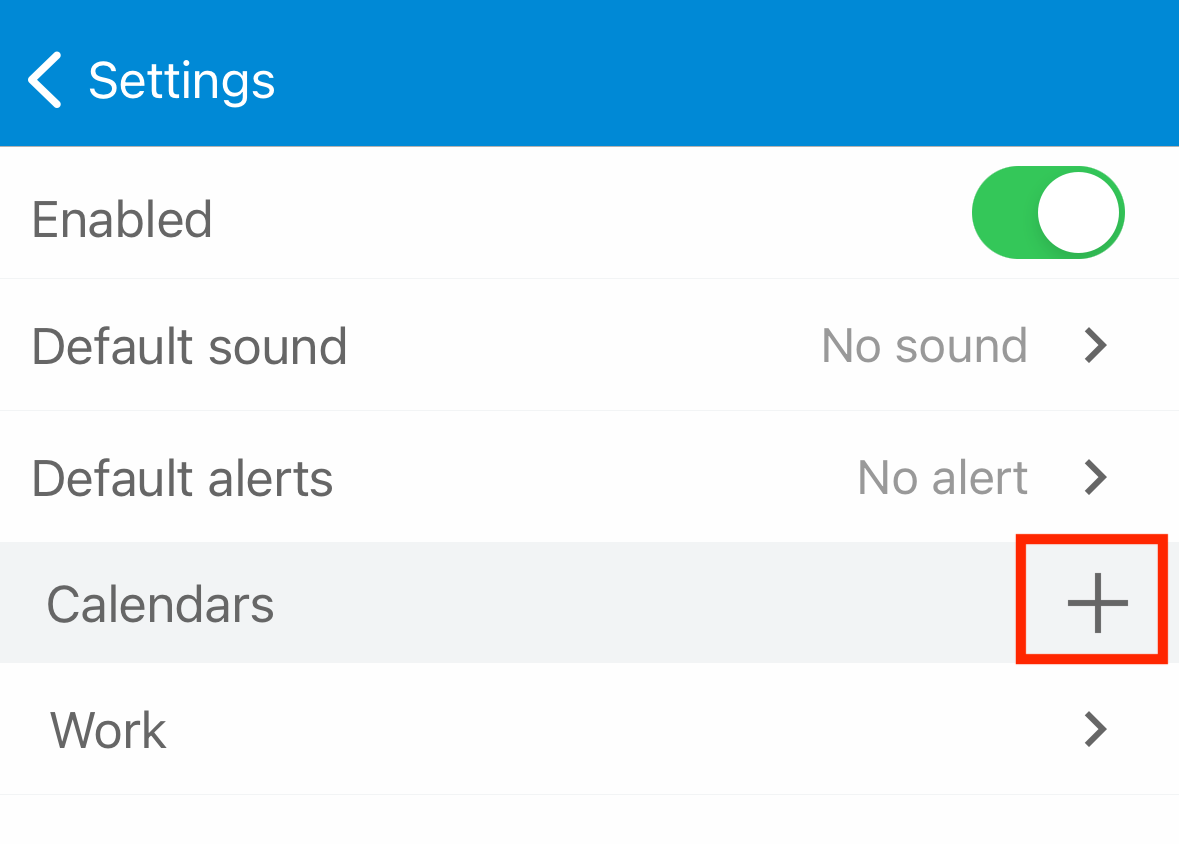
Added Work Calendar
- Configure Calendar Settings:
- After adding a calendar, press on it to view the settings.
- Enable ‘Post activities to calendar’.
- Add the activity types that you want to be saved to the calendar.
- You can save comments to calendar if needed
- Press the ‘Save’ button to confirm your settings.
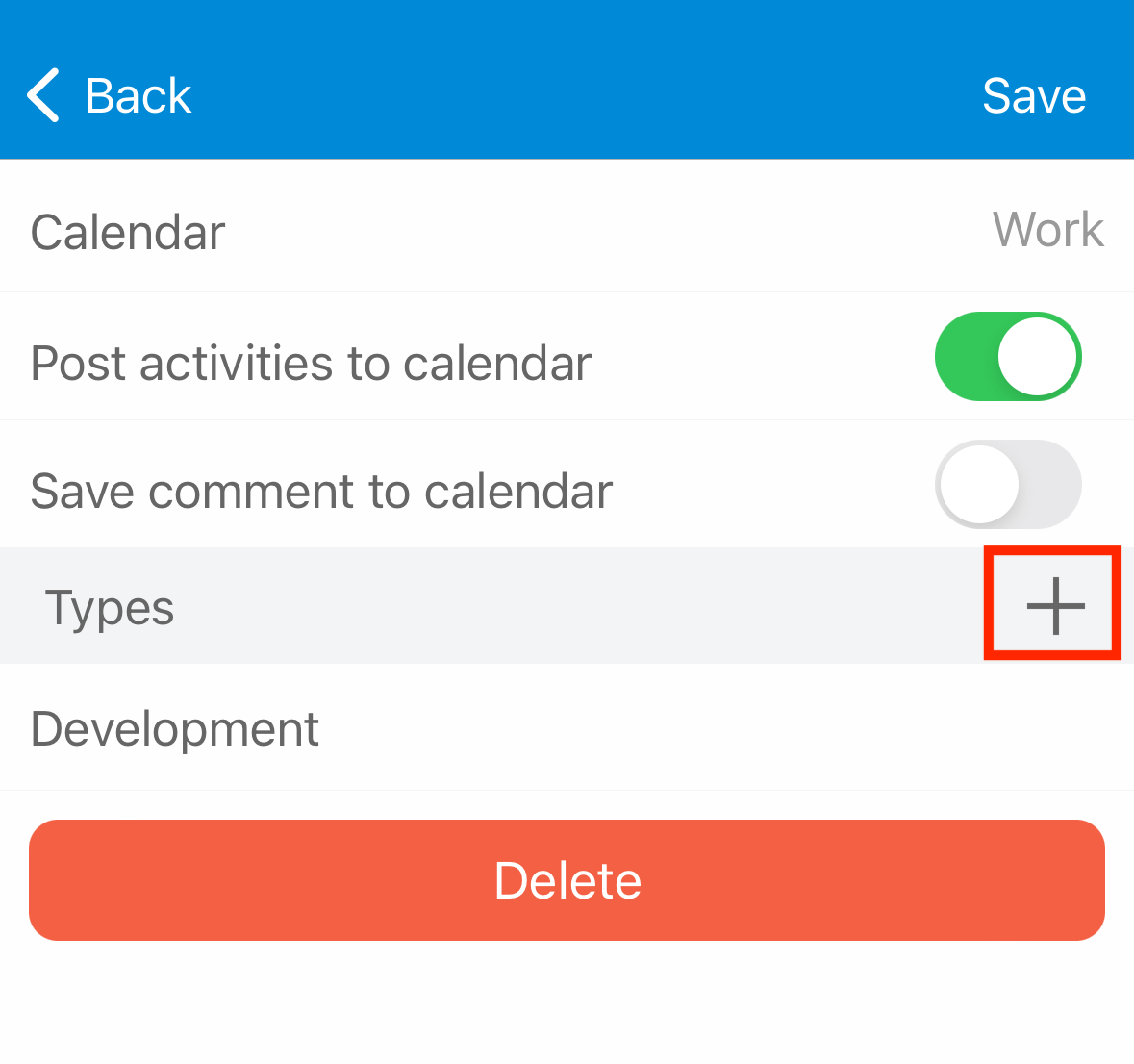
Calendar Settings
Example
In the screenshots above, I added a ‘Work’ calendar, enabled ‘Post activities to calendar’, and added the ‘Development’ activity type. This means that every time the ‘Development’ activity is paused or stopped, a record is created in the calendar. If you update or delete the activity record, these changes will also be reflected in the calendar.
Info
Note: changes made in calendar are not reflected in the app