Filters and Export
The History and Statistics tabs show every record of the period. A filter narrows them down to the types and tags you care about: "only work", or "only what I tagged project-beta". You can save a filter to pick it again in one tap, and the share button of either tab exports the records to a file.
Filters
Tap the filter button at the top left of the History or Statistics tab. The Filters sheet opens:
- Types: the activity types to keep, All at first. Ticking a group ticks the types in it.
- Tags: the tags to keep, All at first. A record is kept when it has one of them, or when its type does.
- Apply turns the filter on and closes the sheet.
- Save keeps the types and tags as a saved filter, see below. It appears once you have picked some.
- Under Filters, your saved filters, if you have any. Tap one to turn it on.
- Clear, at the top right while a filter is set, turns it off. Close leaves everything as it is.
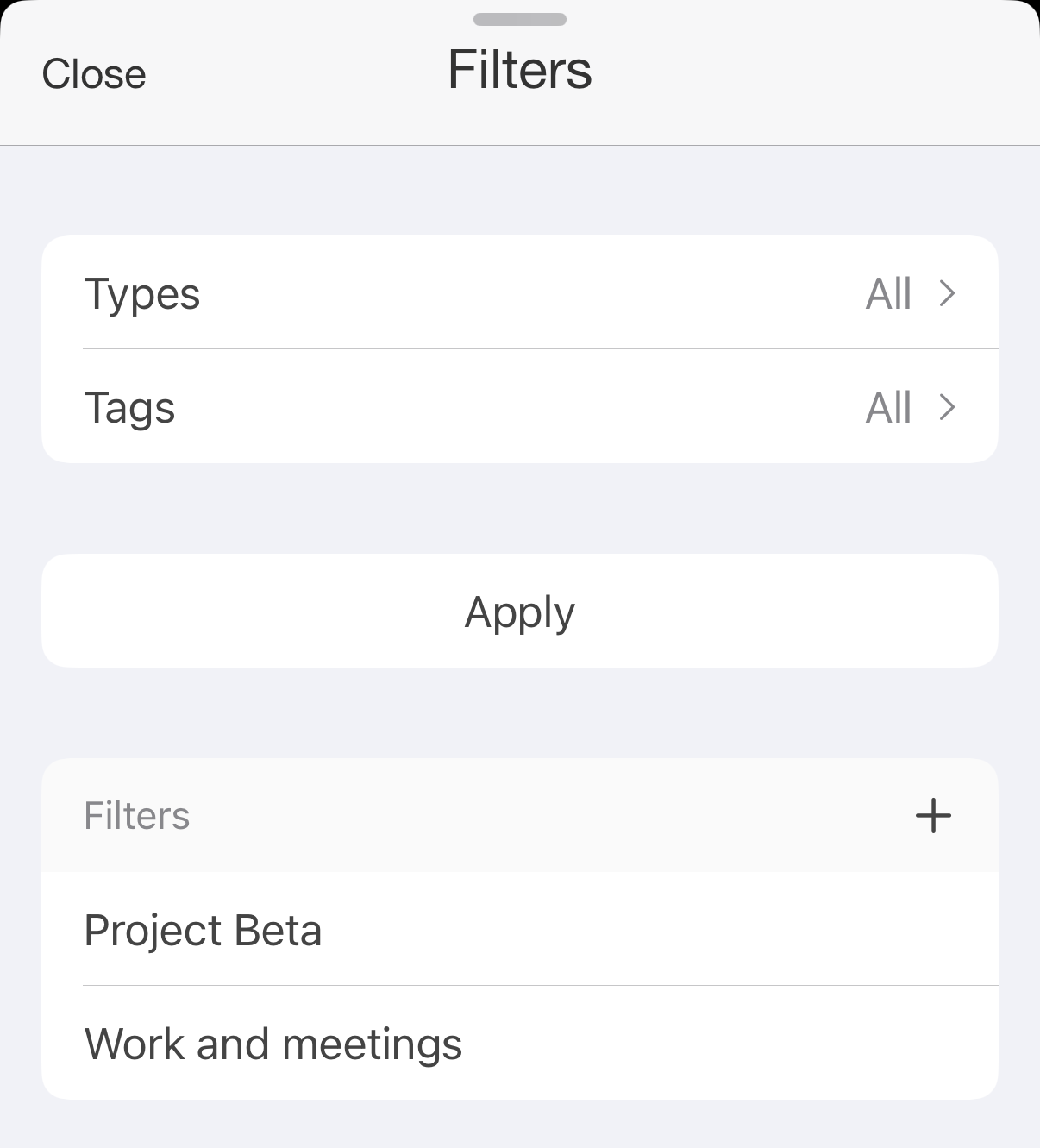
Filters
With both types and tags picked, a record has to match both.
On the History tab, the filter applies to the list, the calendar, the blocks and the export. On the Statistics tab, to the charts, the comparison with the previous period and the export, but not to the pomodoro and goal statistics. Each tab keeps its own filter.
While a filter is on, the History list shows a Filter active bar under the search field: tap it to change the filter, or tap its × to turn the filter off. A saved filter also puts a dot on the filter button.
Saving a filter
- Open the filter sheet, pick the Types, the Tags or both, and tap Save. Once you have a saved filter, + next to Filters starts a new one from scratch.
- Enter a Name, and check the Types and Tags.
- Tap Save. A filter needs a name and at least one type or tag.
The filter appears under Filters in the sheet: tap it there to turn it on. A saved filter holds types and tags only; the period comes from the tab. Touch and hold a saved filter for Edit and Delete. Saved filters are also listed on the Reports screen, see Batch Operations.
Saving and editing filters is a premium feature. Applying types and tags without saving them, and turning on a saved filter, are free.
Export
- Choose the period on the History or Statistics tab, and turn on a filter if you need one.
- Tap the share button at the top right.
- Choose CSV or HTML.
- In the menu that opens, save the file to Files, mail it or open it in another app.
Export is a premium feature.
What the file holds
- A row for each interval of the period that passes the filter: Activity type, Duration, From, To, Comment and Tags, then a column for each list custom field of those types, with each record's value. The text in the search field doesn't narrow the export.
- The totals by type, with their share in percent, and the total.
- The totals by tag.
The export of the Statistics tab follows its chart settings. When the chart counts a numeric custom field, the totals are its amounts instead of time, and the rows get a column with each interval's amount. When its rows are the values of a list field, the file has the time of each value instead of the totals by tag.
The CSV file gets an Apple Health column for records linked to Apple Health when Include Health data in export is on in the Apple Health settings: sleep stages, workout distance and energy, heart rate. See Apple Health.
Export settings
- Settings → Formatting → CSV Date Format: your own format for the dates and times in the file, CSV and HTML alike, for example
dd.MM.yyyy HH:mm. The screen lists the letters you can use. - Settings → Advanced → Separate groups column in csv report: the groups of a type go into columns of their own, before the type.
- Settings → Advanced → Display seconds: durations with seconds.
- Settings → History → History order: with Ascending, the rows of the CSV file go oldest first.