Activities
The Activities tab is the main interface where you start and stop activities. It’s crucial to understand and set it up well for better productivity as it’s the screen users visit most frequently.
How to start a new activity?
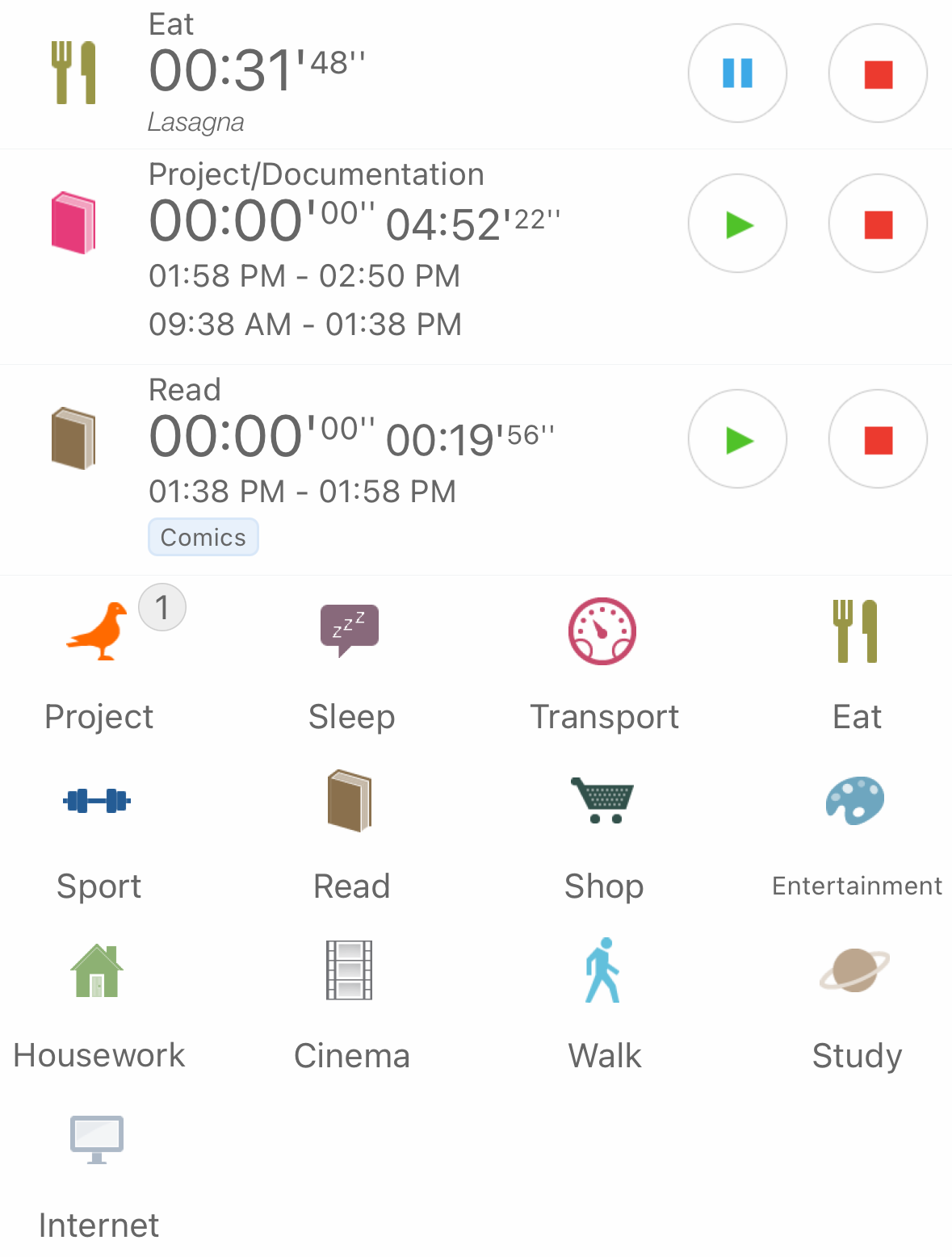
To start a new activity press the activity type icon on the Activities tab
How to Stop or Pause a Running Activity?
Press the 'Stop' or 'Pause' button on the running activity.
- If you press on 'Pause' the activity remains in the Activities tab and can be resume later.
- If you press 'on 'Stop' the activity moves to the History screen
What to Do If You Forgot to Start a New Activity
- Step 1: Press the '+' button in the top right corner
- Step 2: Select the activity type and press 'Save' in the top right corner.
- Note: The 'Start' time defaults to the end time of the previous activity
How to Edit an Activity
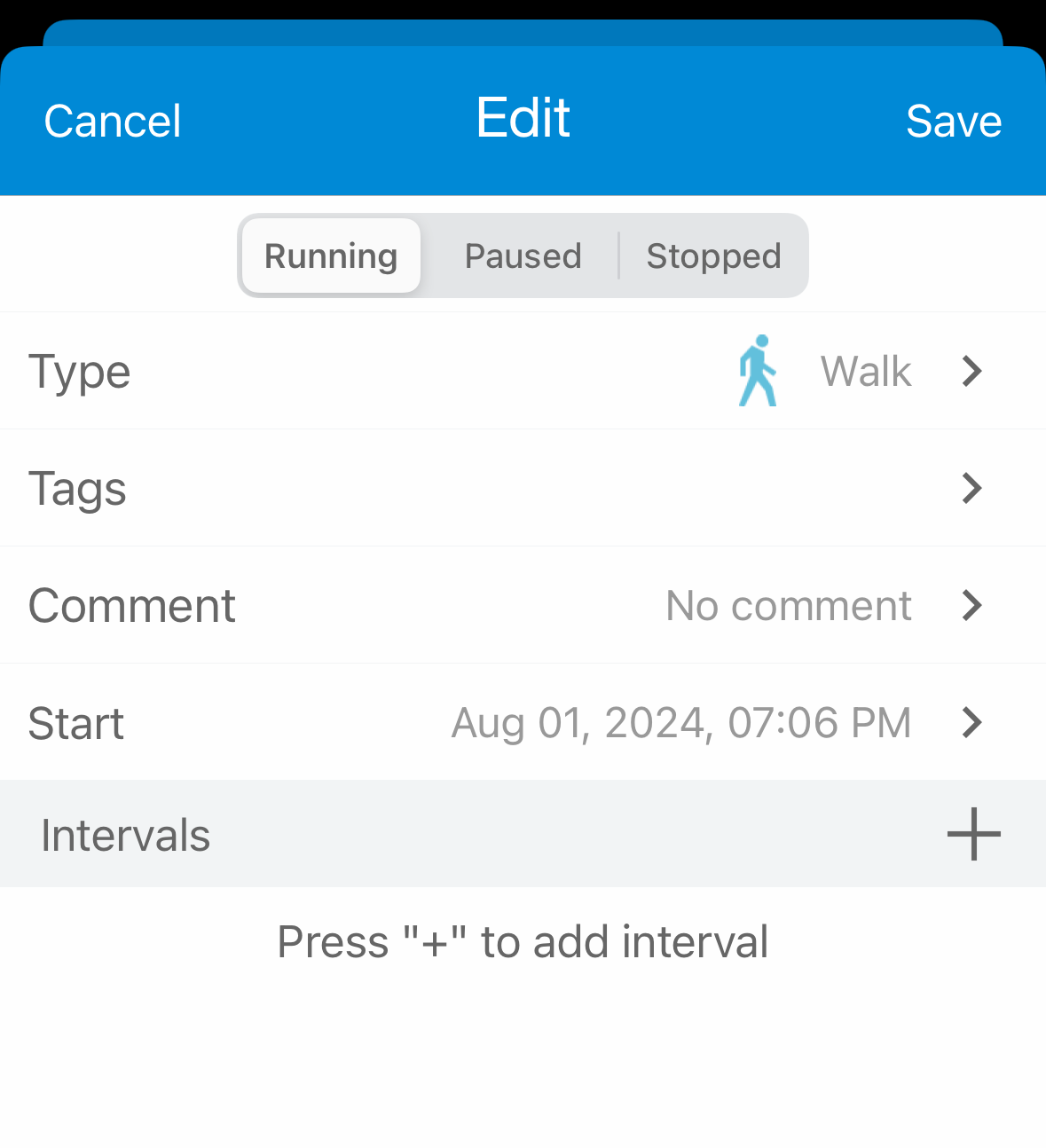
- Step 1: Press on the activity - the 'Edit activity' screen will appear
- Step 2: Change any details such as comment, tags, type or start time
- Step 3: Press 'Save' in top right corner
- Delete activity: Press the red 'Delete' button at the bottom
Edit activity screen
Info
If you want to edit or delete many activities - check Batch operations
Adding Comments or Tags to an Activity
There are 2 methods to do it:
- On the 'Edit activity' screen (check text above).
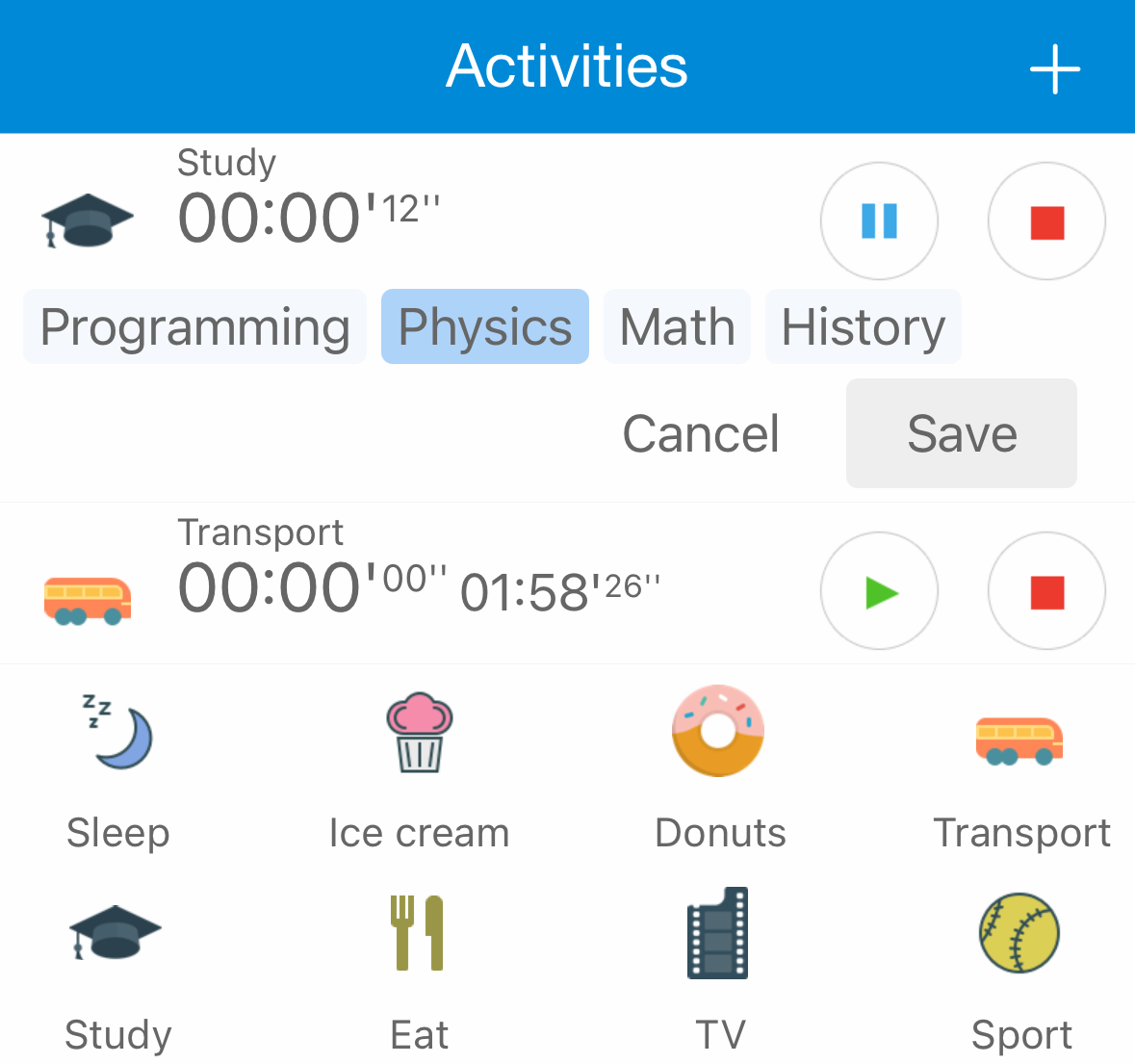
- Use 'Comment on start/stop' and 'Tag on start' features.
Pause vs Stop
- Pause: Adds an interval and keeps the activity visible on the Activities tab for resume. Interval moves to the History screen
- Stop: Adds an interval and moves the activity to the History screen.
You can change status from stopped to paused - find the activity in History screen, press on it and change the status at the top. If you are not aware of intervals please read Main Concepts
Simultaneous activities
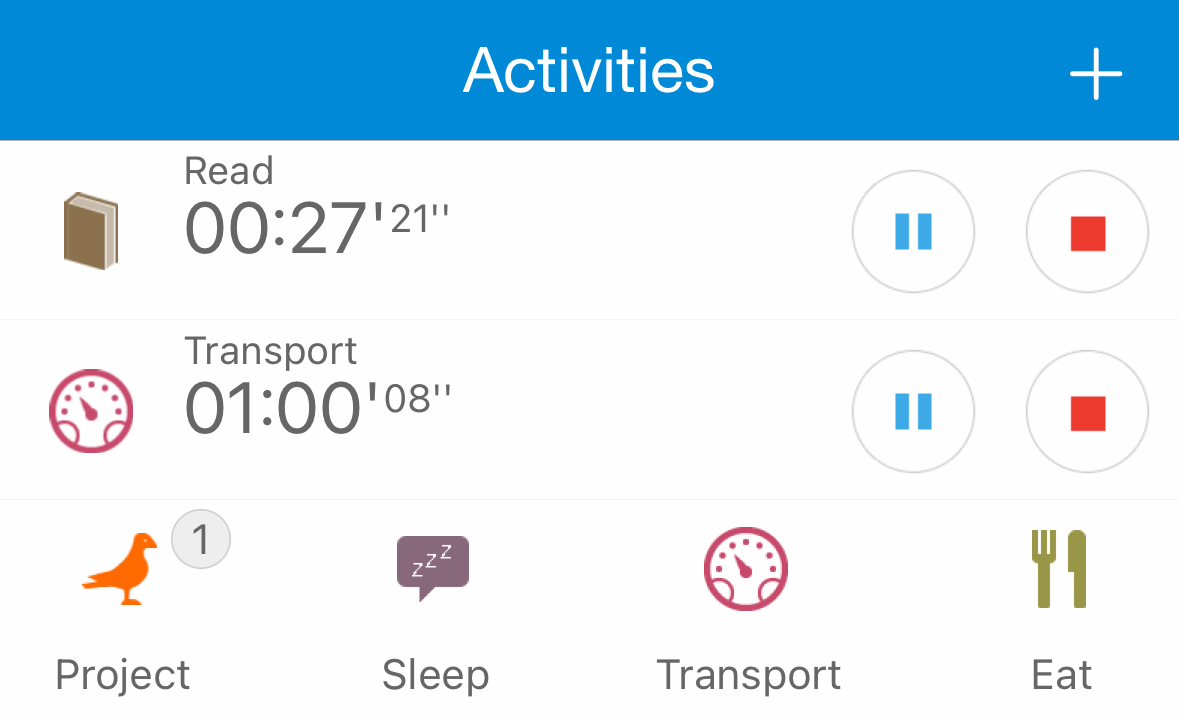
Sometimes we do multiple activities in parallel, for example Read during ride by Bus. Application also supports it. By default running activities are paused when you start a new one. You can change the behaviour - set 'Action on start' to 'None' in Settings. Alternative method is to start activity by pressing on '+' in the top right corner and selecting the activity type
Info
Simultaneous activities affect statistics calculation. You can read more about it at Statistics
Main and secondary timers
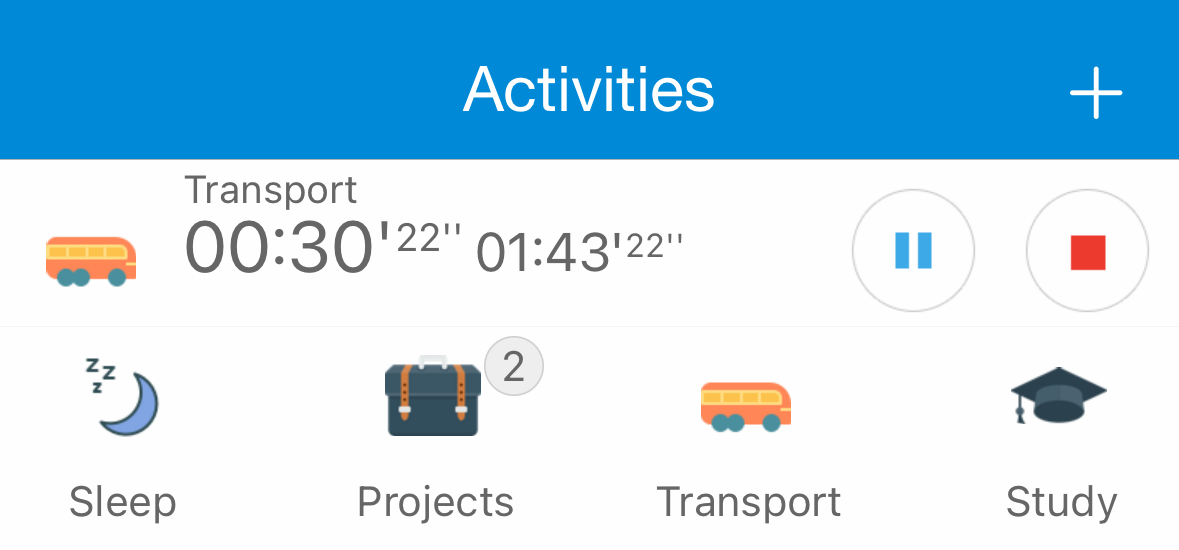
You can see 2 timers on activity - large and small. For example, you can display time since last activity start in large size and total activity time in small size. You can set it up in Settings. Also, secondary timer can be used for displaying of goal time left
Display or hide groups
Groups can be used for better organization (e.g you have lot of activity types) and/or for statistical needs. If you need it only for statistical needs and want to see types without groups then this option is for you.
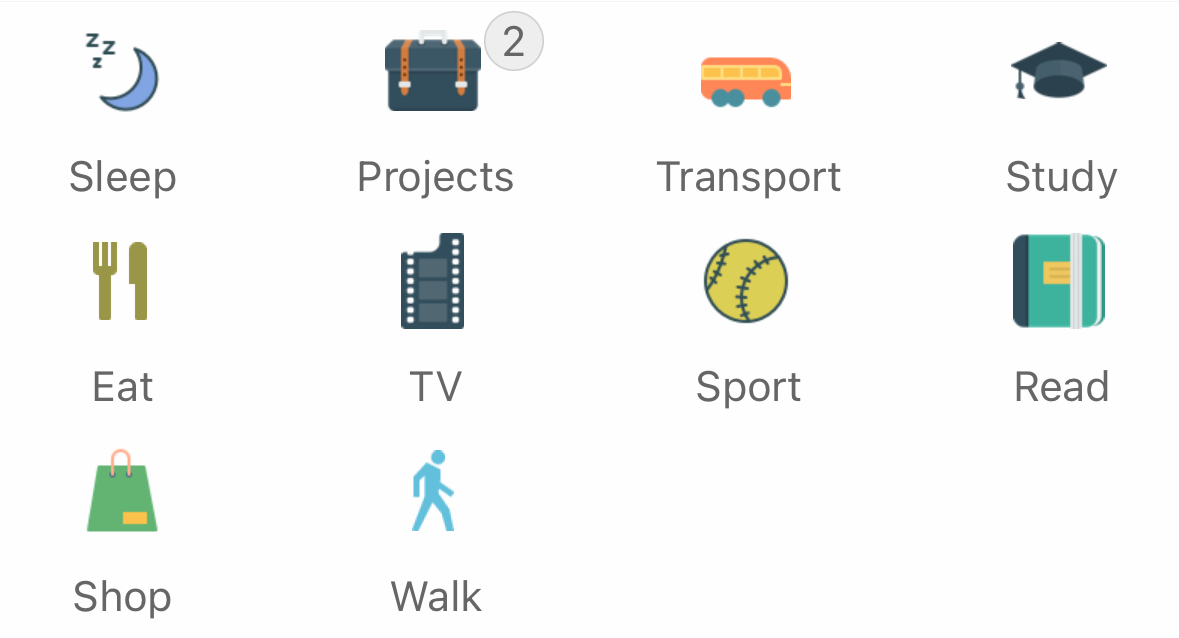
Groups displayed
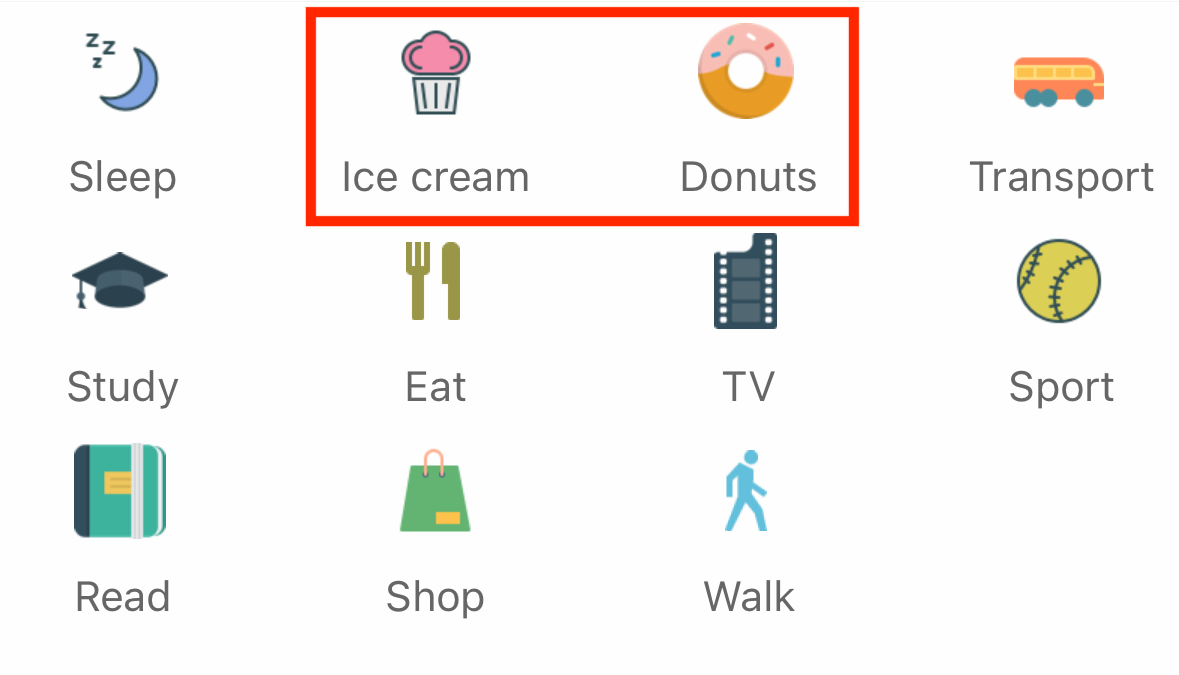
Groups hidden
Minimal duration
Purpose: Prevents saving activities started by mistake.
Functionality: If an activity is paused or stopped with a duration less than the set value, it's not saved. If the activity already has an interval logged, the new interval will not be saved, but the activity remains
Display path
Purpose: Display full path from group to acitivity type
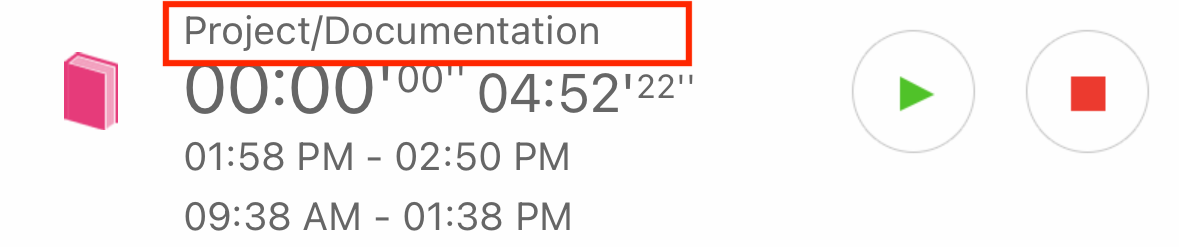
Example: Let's say you have group Project 1 with Documentation activity type inside and Project 2 with another Documentation activity type inside. If you enable this option then you will see Project 1 / Documentation or Project 2 / Documentation in running activity information. By default only activity type name is shown