Apple Health
Your Apple Watch, your iPhone and other apps write your sleep and workouts to Apple Health. aTimeLogger can read them and offer each night and each workout for your log, so you don't have to start and stop Sleep or Exercise yourself. Nothing goes into your log until you confirm it, and the app never writes to Health.
Info
Importing from Apple Health is a premium feature. Without premium you can still open More → Apple Health and its settings to see what the import does.
The Apple Health screen
Open More → Apple Health:
- Sleep and Workouts: the activity type each import logs to, or Not imported. Tap a row to open its statistics; while that import is off, the row opens the settings.
- To review, while an import is on: what Health recorded that your log doesn't match yet. The number beside it counts the cards waiting on the Activities tab. See To review.
- Settings: the import settings.
- Heart rate zones: see Heart rate zones.
On a device without Apple Health, the screen reads Health data is not available on this device.
Turning the import on
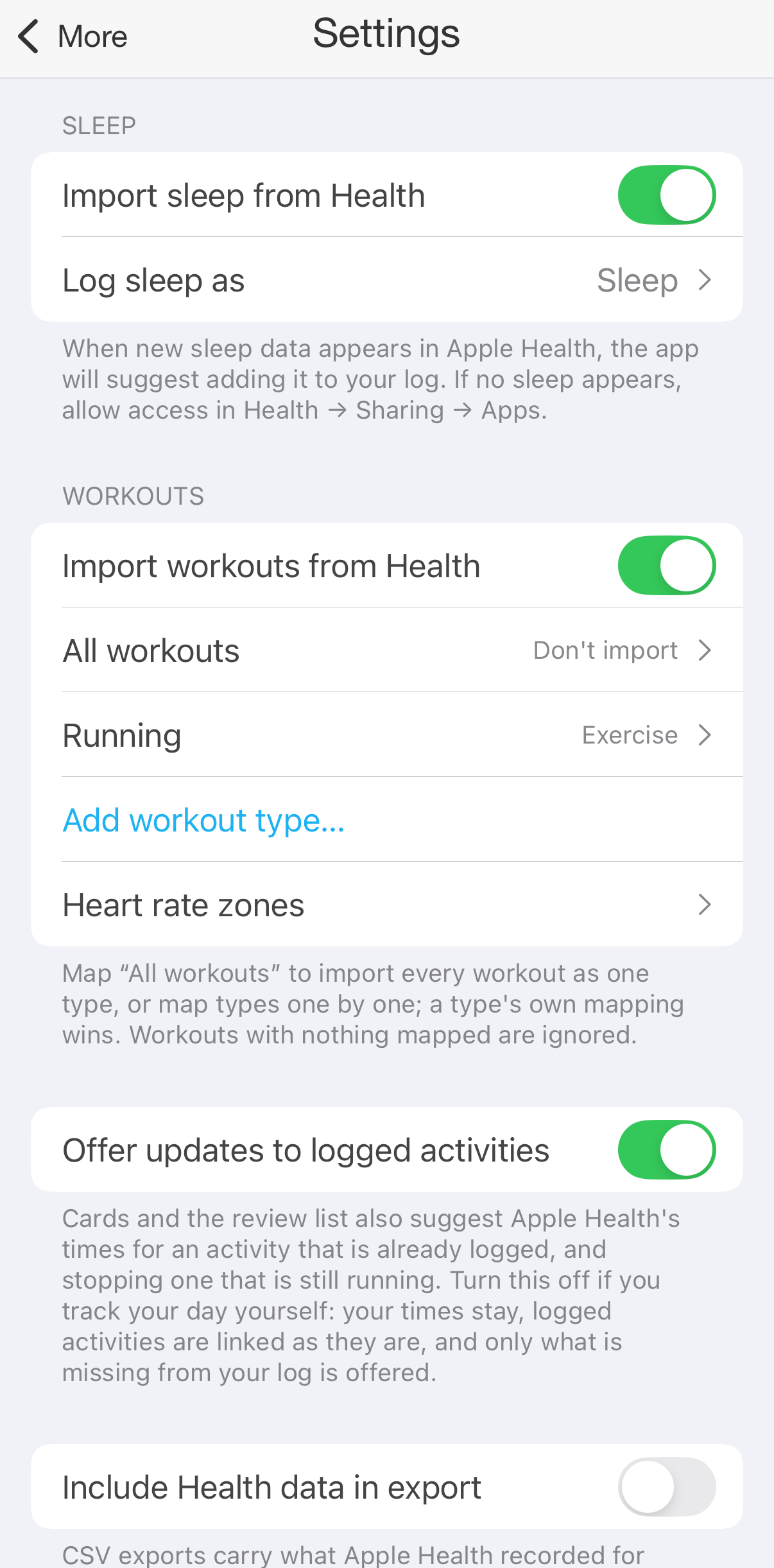
- Open More → Apple Health → Settings.
- Turn on Import sleep from Health, Import workouts from Health, or both.
- iOS asks what aTimeLogger may read. Allow Sleep for the sleep import and Workouts for the workout import.
- Check which activity types they go to: Log sleep as for sleep, the workout list for workouts. Both are explained below.
Sleep and workouts imported from Apple Health
If no sleep or workouts appear, check the permissions and activity types under If a record doesn't appear.
Turning an import off takes its cards off the Activities tab and hides its Health badges and details. The records it added stay in your log.
Sleep
Log sleep as is the activity type every night is recorded as. When you turn the sleep import on, the app picks your type named Sleep, if you have one. Otherwise the row reads Not set, and nothing is imported until you choose a type.
Workouts
You choose which kinds of workout go to which activity type:
- All workouts: one activity type for every workout, whatever its kind. Handy if you log every sport as, say, Exercise.
- Below it, the kinds of workout Health recorded in the last 90 days, the most frequent first. Tap one to give it a type of its own.
- Add workout type… lists every kind of workout, with a search field, for one you haven't recorded yet.
A kind with a type of its own goes to that type. Any other kind goes to the All workouts type, if it has one. A kind with neither is not imported.
Tapping a kind opens its settings:
- Log as: the activity type.
- Tags: added to every workout of this kind. With a single Exercise type for all sports, tags like running and cycling keep them apart. See Tags.
- Stop importing this type removes the kind's own type. If All workouts has a type, the kind goes there instead.
A workout recorded by several sources, such as your Watch and another app, is offered once.
Other settings
These appear once an import is on, and apply to both sleep and workouts:
- Offer updates to logged activities, on by default: offers Health's times for records you have already logged. Turn it off to keep your own times and see suggestions only for missing records.
- Include Health data in export, off by default: CSV exports get a column with what Health recorded for each linked record: sleep stages, workout distance and energy, heart rate. When it's off, nothing from Health leaves the iPhone.
- Heart rate interval, while the export switch is on: how finely workout heart rate is averaged in the export, from 30 seconds to 5 minutes (the default), or Every reading.
Heart rate zones
Zones split heart rate into bands, from easy to hard. They colour a workout's heart rate, its route and the workout statistics. Open them from More → Apple Health → Heart rate zones, from the workout settings, or with Zone settings… on a workout's details.
- Model:
- % of max heart rate (the default): zones based on your maximum heart rate.
- Heart rate reserve: uses your resting and maximum heart rate.
- Threshold: uses the Threshold heart rate you enter.
- Custom: you type each boundary, from 2 to 10 zones.
- Max heart rate, Source: estimate it from your Age with Formula, use Measured in Health, or enter it with Manual.
- Resting heart rate, for the reserve model: From Health, the latest one there, or Manual.
Resulting zones shows each zone in beats per minute.
Suggestions on the Activities tab
After a night or workout ends, open the app to see suggestions at the top of the Activities mode. Health data may take some time to arrive. Cards appear one at a time and stay until you choose what to do.
| The card | When | Buttons |
|---|---|---|
| You slept … / Workout … | Nothing of that type is logged at that time | Add adds a record, with the workout's tags. Dismiss: it isn't offered again. |
| Sleep is still running. Health shows … (or Workout is still running. …) | An activity of that type is running | Stop stops it, then the card asks whether to take Health's times. Continue keeps it running, and this session isn't offered again. |
| Health shows … your log has … | A recent record has different times | Update time sets the record's start and end to Health's. Keep mine keeps your times. |
For older records, open To review. If the app links an existing record without asking, your recorded times stay as they were.
To review
More → Apple Health → To review lists what Health recorded that your log doesn't match, a Week or a Month at a time. Use the arrows to go to earlier periods.
- Not in your log: Add or Dismiss each one, or Add all at once.
- Times differ from Health: Update time or Keep mine for each one. Above them, how Health's times differ from yours on average over the period (they start or end earlier or later, are longer or shorter), and buttons to update every sleep record or every workout at once.
Tap a row to see the sleep or workout details. You can review older periods too. Dismissed sessions are left out, and records with several intervals keep their times. With Offer updates to logged activities off, only missing records are offered.
If a record doesn't appear
- Check that the night or workout is in the Health app, and that aTimeLogger has permission to read it.
- In More → Apple Health → Settings, check that the import is on and an activity type is selected. For workouts, check the specific kind or All workouts.
- Recent sessions may arrive late. Open the app again later; on first use, suggestions cover the last seven days. Use To review for older periods.
- Naps shorter than three hours and workouts shorter than a minute aren't offered. A session you dismissed isn't offered again.
Records linked to Health
A record that the import added or matched is linked to its night or workout in Health:
- On the Activities tab and in History, it has a link icon next to its type name, with a moon for sleep or a running figure for a workout.
- In the editor, a row under the interval shows Sleep or the kind of workout, with the times Health recorded. Tap it to open the details. A record linked to both a night and a workout has a switch between Sleep and Workouts at the top of them.
Records you logged before you turned the import on get linked when you open them in the editor, if Health has a matching night or workout.
Sleep details
- At the top, when you fell asleep and woke up, and a chart of the night's stages: Awake, REM, Core and Deep, or Asleep from a source that doesn't record stages. Heart rate runs across it when Health has it.
- Breakdown: the time in each stage.
- Sleep score, from 0 to 100: an estimate based on sleep duration, efficiency, stages and heart rate, using the data available. It is the app's own estimate, not a medical measure.
- Night stats: Time asleep, Time in bed, Efficiency and Awakenings.
- Sources: the devices and apps that recorded the night.
- All nights opens the sleep statistics.
Workout details
- The figures: Duration, Distance, Average pace or Average speed, Active energy, Average heart rate, Max heart rate and the Weather, as far as the workout recorded them.
- The heart rate over the workout.
- Route: the map of an outdoor workout, coloured by heart rate zone (iOS 17 and later).
- Heart rate zones: the time in each zone.
- Source: the app that recorded it, and Open the Health app.
- All workouts opens the workout statistics.
Update time
The details opened from the editor compare your times with Health's. When they differ, Update time puts Health's times on the interval; tap Save in the editor to keep them. It is there only when the activity has a single interval.
Sleep statistics
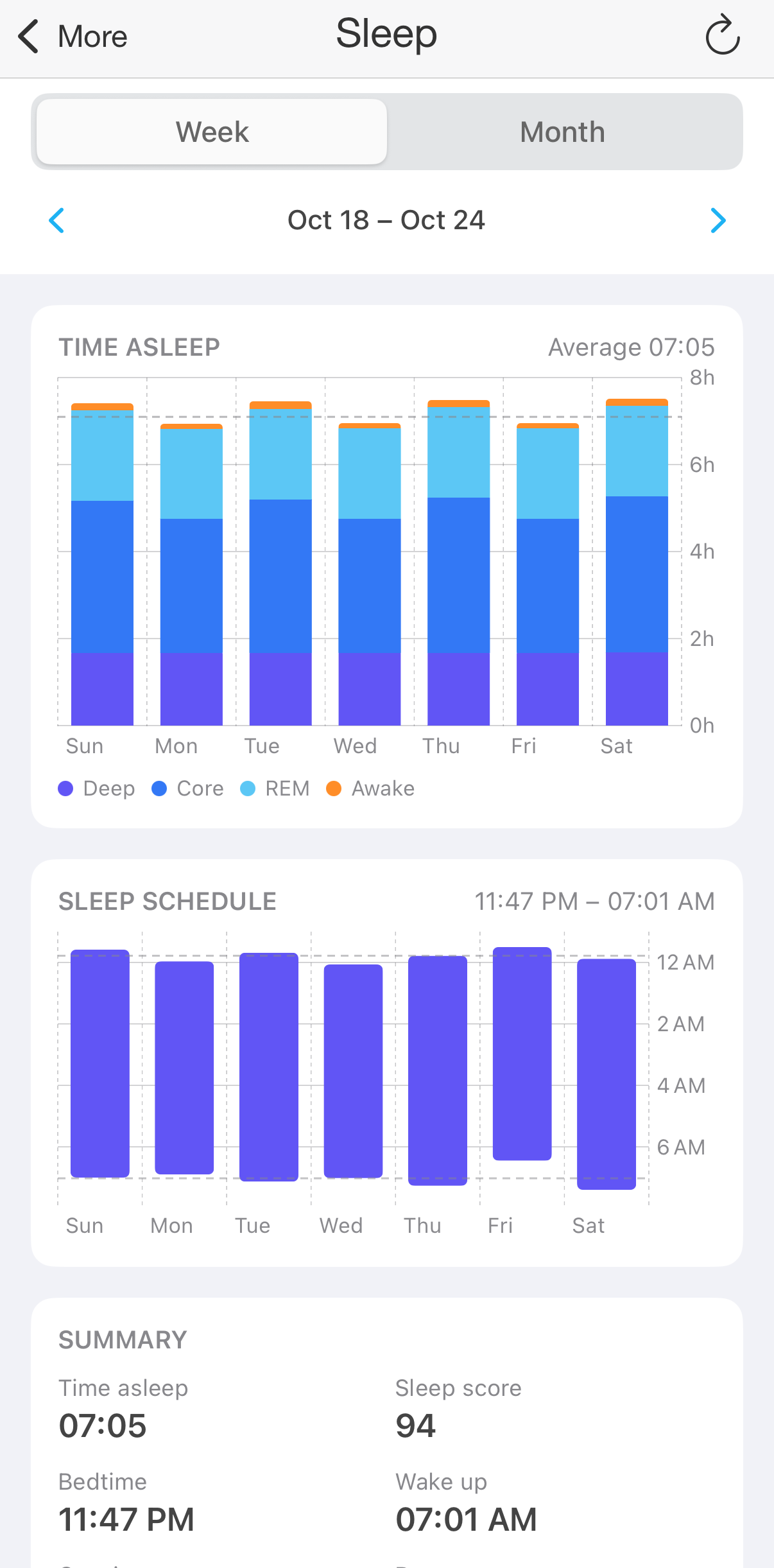
More → Apple Health → Sleep, or All nights on a night's details. The statistics show every night Health has, whether it's in your log or not.
A week of sleep
- At the top, Week or Month; the arrows move to earlier periods. Tap the selected period again to come back to the current one.
- Time asleep: a bar for each day, stacked by stage, deep sleep at the bottom. A night counts on the day it ended. Nights that aren't in your log are drawn faint. Tap a bar to see the day's sleep and score; tap it again to open the night.
- Sleep schedule: when you went to sleep and woke up, each day.
- Summary: the average Time asleep, Sleep score, Bedtime and Wake up; Consistency, how much your bedtime varies; the Deep and REM share; and Nights, how many of them are in your log. When some aren't, a link opens To review on the same period.
The refresh button at the top reads Health again, for data that arrived late. The workout statistics have the same button.
Workout statistics
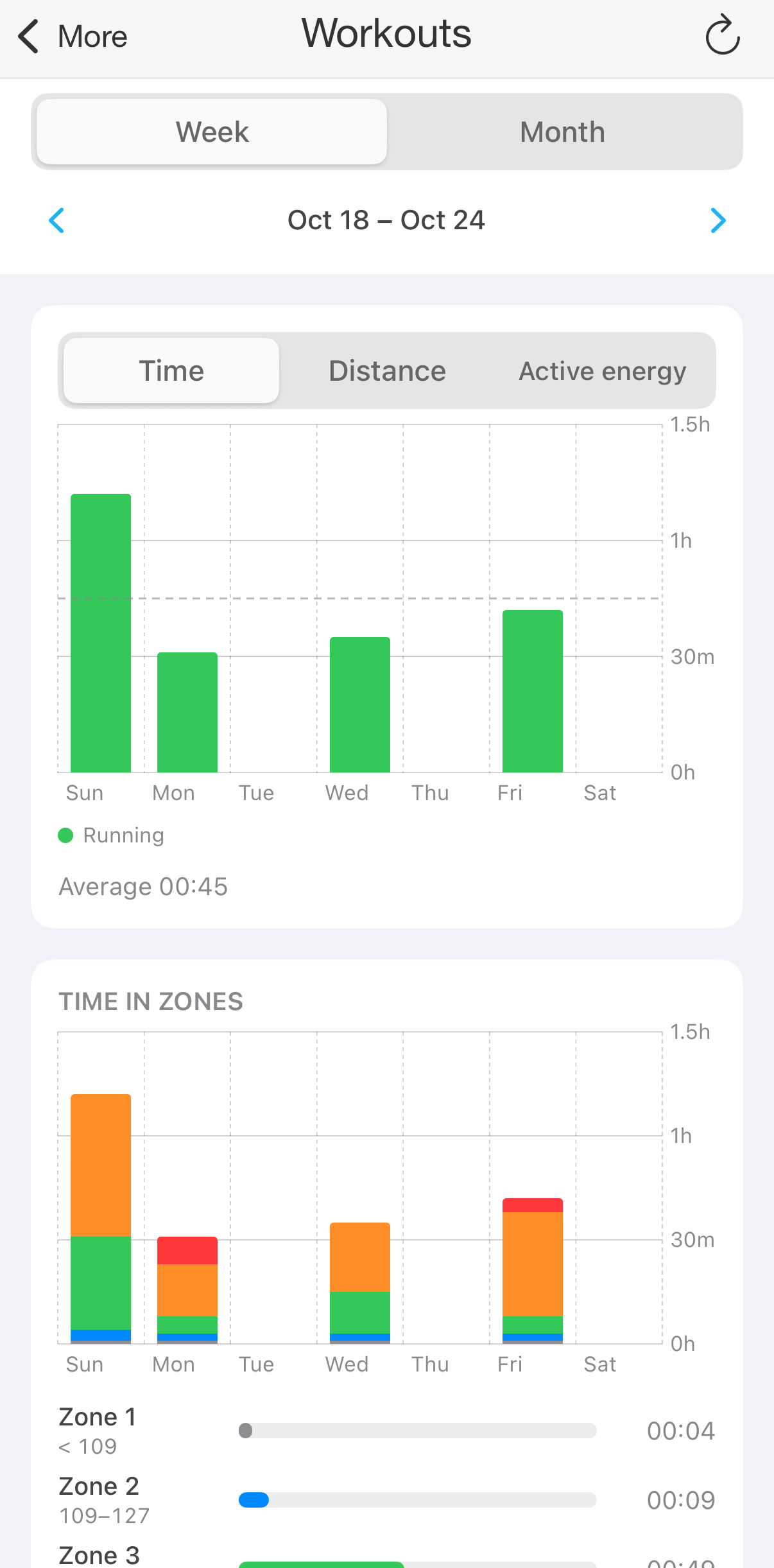
More → Apple Health → Workouts, or All workouts on a workout's details.
A week of workouts
- At the top, Week or Month with the arrows, and, when the period has several kinds of workout, a button for each kind to show only those (All shows them all).
- A bar for each day, stacked by kind. Switch it between Time, Distance and Active energy, when the period has them. Tap a day to list its workouts below the chart, and tap one to open its details.
- Time in zones: each day's time in each heart rate zone.
- Training load: a summary of workout duration and intensity, with Last 7 days compared against your 4-week average.
- Summary: Workouts, how many are In your log (of those you import), Total time, Distance, Active energy, Average heart rate and Training load. When some aren't in your log, a link opens To review on the same period.
Your Health data
- The app only reads from Health. It doesn't write to it.
- What it reads stays on this iPhone: the links between your records and Health, the details, the statistics and the scores. They are not sent to your account and not synced to your other devices. The records the import adds are ordinary activities and sync like any other. Another device with the import on links them to its own Health data.
- Health data leaves the iPhone only in a CSV export, and only with Include Health data in export on.
- Heart rate, resting heart rate and workout routes are separate permissions. iOS asks for them the first time you open a workout's details or the sleep or workout statistics.
- If your premium ends, the import stops and the Health badges and details are hidden. Your settings are kept, so it carries on when premium is back. You can always turn an import off.