Pomodoro
The Pomodoro technique is simple: work for a fixed time, take a short break, and after a few rounds take a longer one. The app runs the timer for you and records every pomodoro and every break as an ordinary activity, so your focused time shows up in History and Statistics with everything else.
Info
Pomodoro is a premium feature.
Before you start
The mode needs to know what you work on and what you do during a break. Tap the gear button on the Pomodoro dial and pick:
- Work types: the activity types you track as pomodoros, like Work or Study
- Break types: the types a break is recorded as, like Rest or Meditation
You need at least one of each; until both are set, Start shows a warning with a Settings button that opens these settings. Occurrence types are not offered.
The Pomodoro mode
Open the Activities tab and tap the alarm clock icon in the selector at the top.
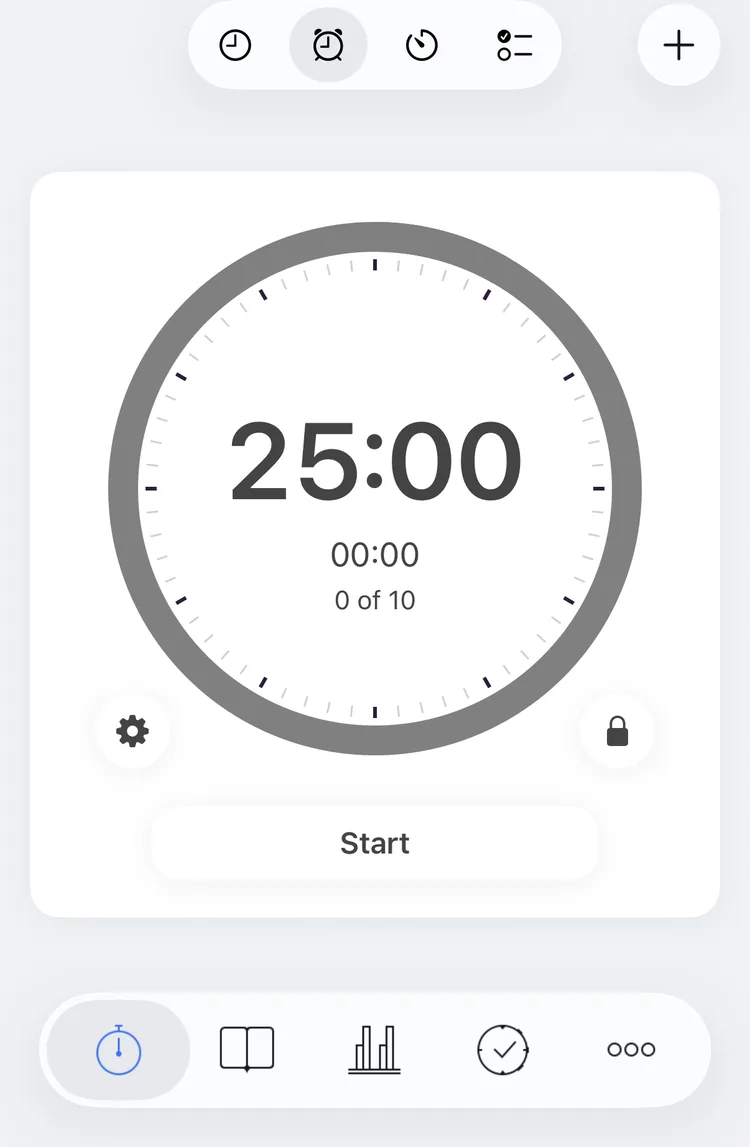
Ready to start a 25-minute pomodoro
With no pomodoro running, the dial shows the length of a pomodoro and how many you have completed today out of your daily goal, like 0 of 10.
- The gear button, bottom left, opens the Pomodoro settings.
- The lock button, bottom right, decides whether the screen may lock, see Screen lock.
Starting a pomodoro
- Tap Start.
- If you have more than one work type, pick one in the sheet that opens. With one work type, the pomodoro starts right away.
The pomodoro starts as a new activity of that type. The activities already running are paused, stopped or left running, as Settings → Activities → Action on start says (see Several activities at once).
While it runs, the dial shows the type, the time left in big digits, the time since the pomodoro started and today's count. The ring fills up as the time passes. Tap the time left to open the activity in the editor.
The buttons under the dial:
- Break · 5 min starts a break; the label says how long it will be. See Breaks.
- Reset starts the pomodoro over from its full length, after you confirm. The time so far stays in the record. The button is there until the time is up.
- Quit leaves Pomodoro mode, after you confirm. The activity keeps running as an ordinary one: stop it on the Activities mode when you are done.
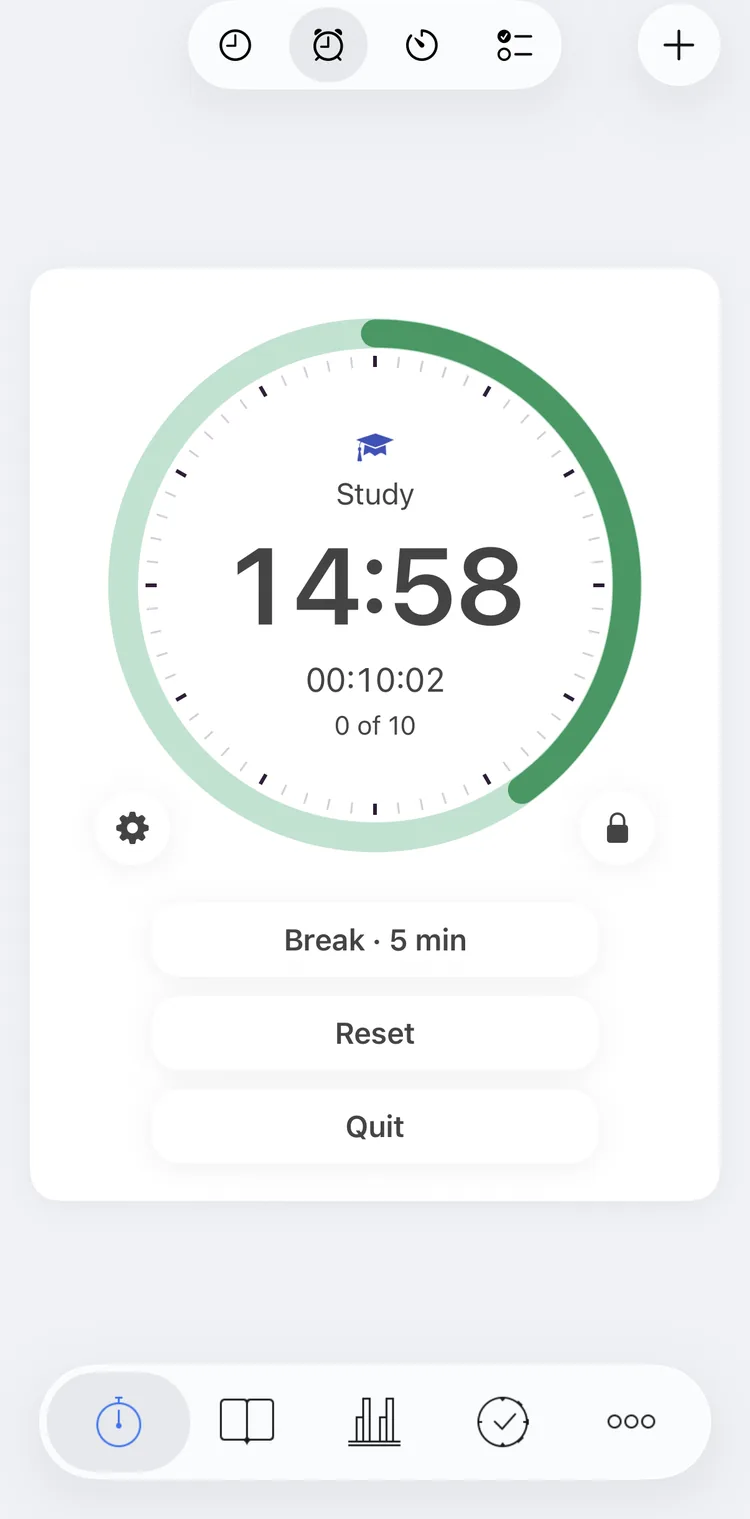
Ten minutes into a pomodoro of Study
When the time is up
The pomodoro doesn't stop on its own. The time left stays at 00:00 in red, the ring turns red, and the activity keeps running until you take a break.
A notification says Time to have a break. If you have a single break type, it has a Break button that starts the break. Remind in 5 min and Remind in 10 min bring the notification back later.
Strict mode
If you tend to cut pomodoros short, set Pomodoro mode to Strict in the Pomodoro settings. The Break button then stays grey until the pomodoro is over. In Default mode you can take a break at any time.
Breaks
After each pomodoro comes a short break. After every fourth pomodoro of the day comes a long one; Number of cycles sets how many pomodoros that takes.
When you tap Break, the work activity is paused and a new activity of the break type starts. If you have several break types, pick one in the sheet that opens. The paused work activity waits on the Activities mode.
During a break the dial counts down the break. The buttons:
- Resume ends the break and goes back to the work you paused, with a new pomodoro of the full length, after you confirm. The break activity is stopped, and the pomodoro goes on in the same record as before.
- Start New starts a new pomodoro, as a new record, of the work type you pick. The earlier work activity stays paused on the Activities mode, and the break is paused or stopped as Action on start says.
- Quit leaves Pomodoro mode. The break keeps running as an ordinary activity.
When the break is over, the time left stays at 00:00 in red, and a notification says You had short break. It's time to work or You had long break. It's time to work. Its Resume Previous button goes back to the work you paused.
Pomodoros in your records
Pomodoros and breaks are ordinary records: each pomodoro is an interval of its work activity, each break a record of the break type. They appear in History and Statistics and count toward goals.
- A pomodoro is Completed when it lasted at least the Pomodoro Length.
- It is Uncompleted when it ended earlier, for example with Break before the time was up.
- If you Quit before the time is up, the time stays in the record as ordinary time and doesn't count as a pomodoro at all.
Settings
The gear button on the dial opens them:
| Setting | What it does |
|---|---|
| Work types | Choose the types you track as pomodoros |
| Break types | Choose the types used to record breaks |
| Pomodoro Length | How long you work before a break; 25 minutes by default |
| Short Break Length | How long a short break lasts; 5 minutes by default |
| Long Break Length | How long a long break lasts; 20 minutes by default |
| Number of cycles | How many pomodoros of a day lead to a long break; 4 by default |
| Pomodoros a day | Your daily goal |
| Pomodoro mode | Strict keeps Break grey until the pomodoro is over |
| Work alert and Break alert | Choose the notification sounds when work or a break ends |
| Work tick sound and Break tick sound | Add a ticking sound while working or resting |
| Mix tick with other audio | Let the tick play alongside music or podcasts. When off, other audio stops while the tick plays |
Tap a sound to preview it, or choose No sound to silence it.
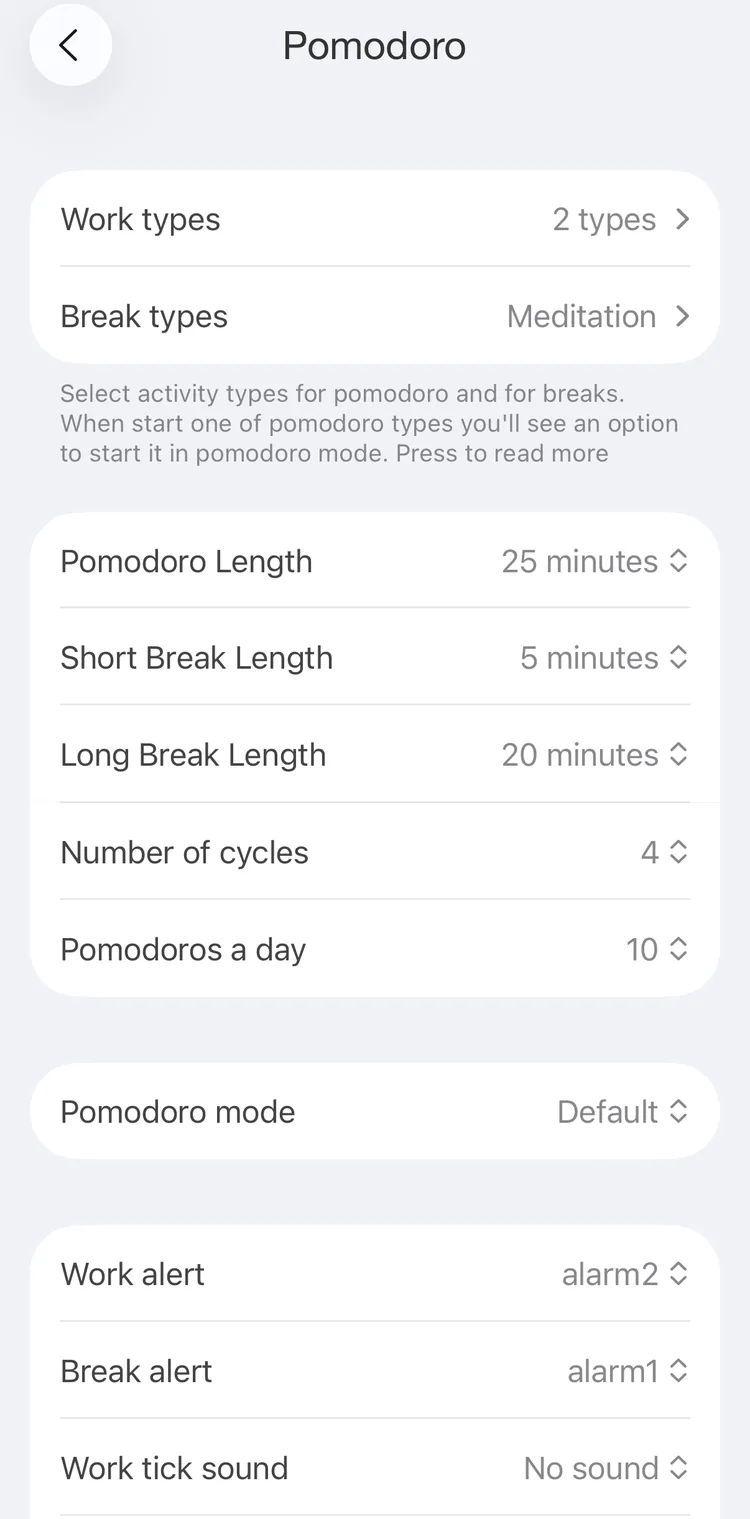
Pomodoro settings
Screen lock
While the Pomodoro mode is open, the screen stays on, so you can watch the timer. To let the phone lock as usual, tap the lock button on the dial: a message says Screen will lock automatically. Tap it again to keep the screen on: Screen will not lock automatically. The same choice applies to the Countdown mode.
History and statistics
More → Pomodoro shows how your pomodoros went.
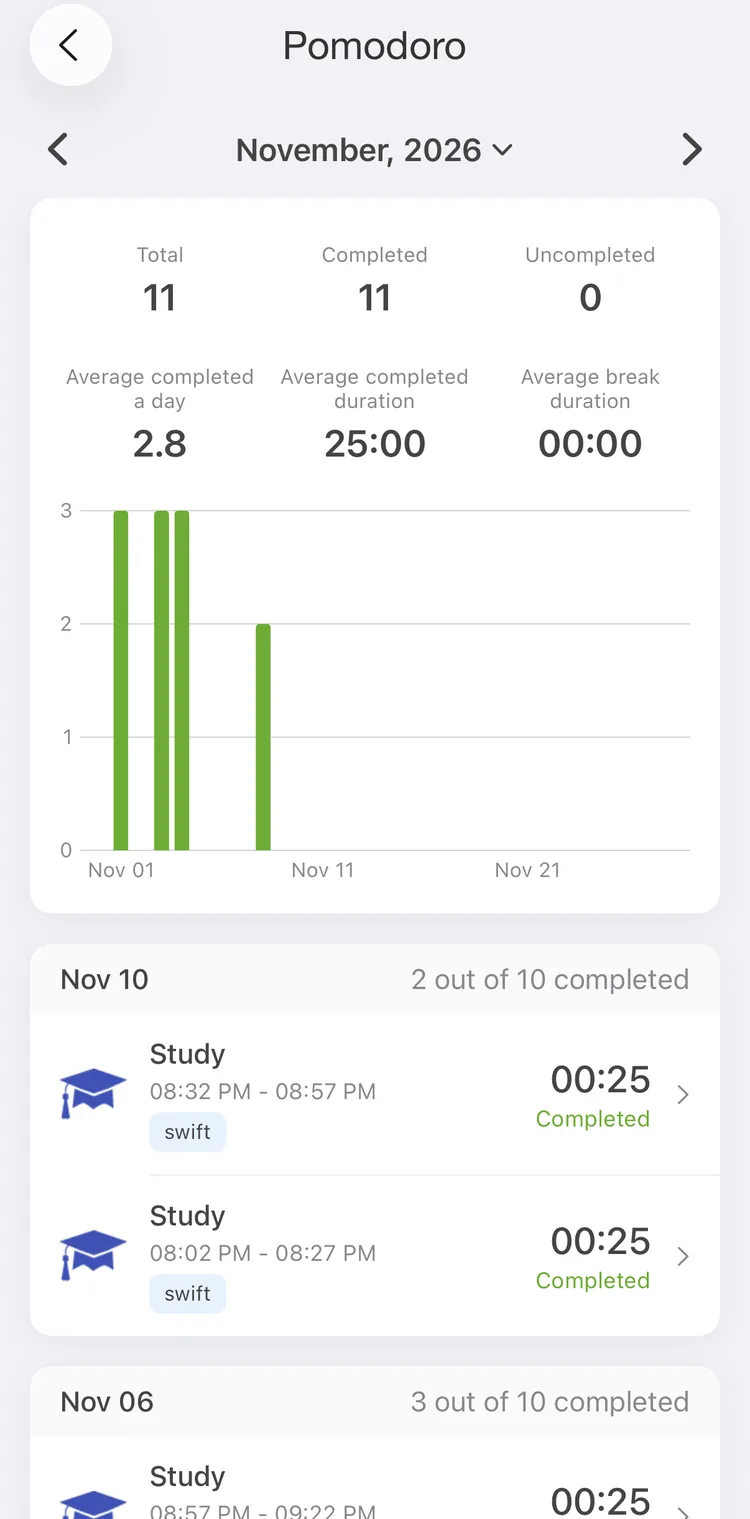
A month of pomodoros
Pick the period at the top, a month at first, and move to earlier ones with the arrows. The card shows:
- Total, Completed and Uncompleted: the pomodoros of the period
- Average completed a day: completed pomodoros per day, counting only the days with pomodoros
- Average completed duration and Average break duration, in minutes and seconds
- a chart with a bar per day: completed pomodoros in green, uncompleted ones in grey on top
Below the card come the days, newest first. Each day's header shows how many pomodoros you completed out of Pomodoros a day, like 3 out of 10 completed. Each entry shows the type, the time, the tags, the length, and Completed, Uncompleted, Short Break or Long Break.
- Tap an entry to open its activity in the editor.
- Touch and hold an entry for Remove from pomodoros only, which keeps the time as an ordinary record, or Remove completely, which deletes it.
Completed and uncompleted are measured against the current Pomodoro Length. If you change it, past pomodoros are counted again with the new length.
The Statistics tab shows the same card for its own period: tap the second icon at the top of the tab.
Widget
The Running activity home screen widget shows a running pomodoro or break too. See Widgets.