History
The History tab, the second one, holds everything you have logged. You look back at your days there, add what you forgot to track and fix what went wrong.
At the top of the tab there is a selector with three icons, one for each view of the same records:
| Icon | View | What it shows |
|---|---|---|
| List | List | The records day by day, with their times, tags and comments |
| Calendar | Calendar | The days side by side as a timeline, like a calendar app |
| Grid | Blocks | Each day as a grid of quarter hours, coloured by type |
The tab opens in the view you picked last. On the left of the selector is the filter button, on the right the share button and +.
Choosing the period
Under the toolbar you see the period: its dates, with an arrow on each side.
- The arrows move to the previous or the next period.
- Swiping sideways does the same: swipe to the left for the next period, to the right for the previous one. This works in the list, and in the calendar while it shows a day or a week.
- Tap the dates to show the kinds of period: D (day), W (week), M (month), 30d, 90d, and the calendar icon for a range of your own. Tap the dates again to hide them.
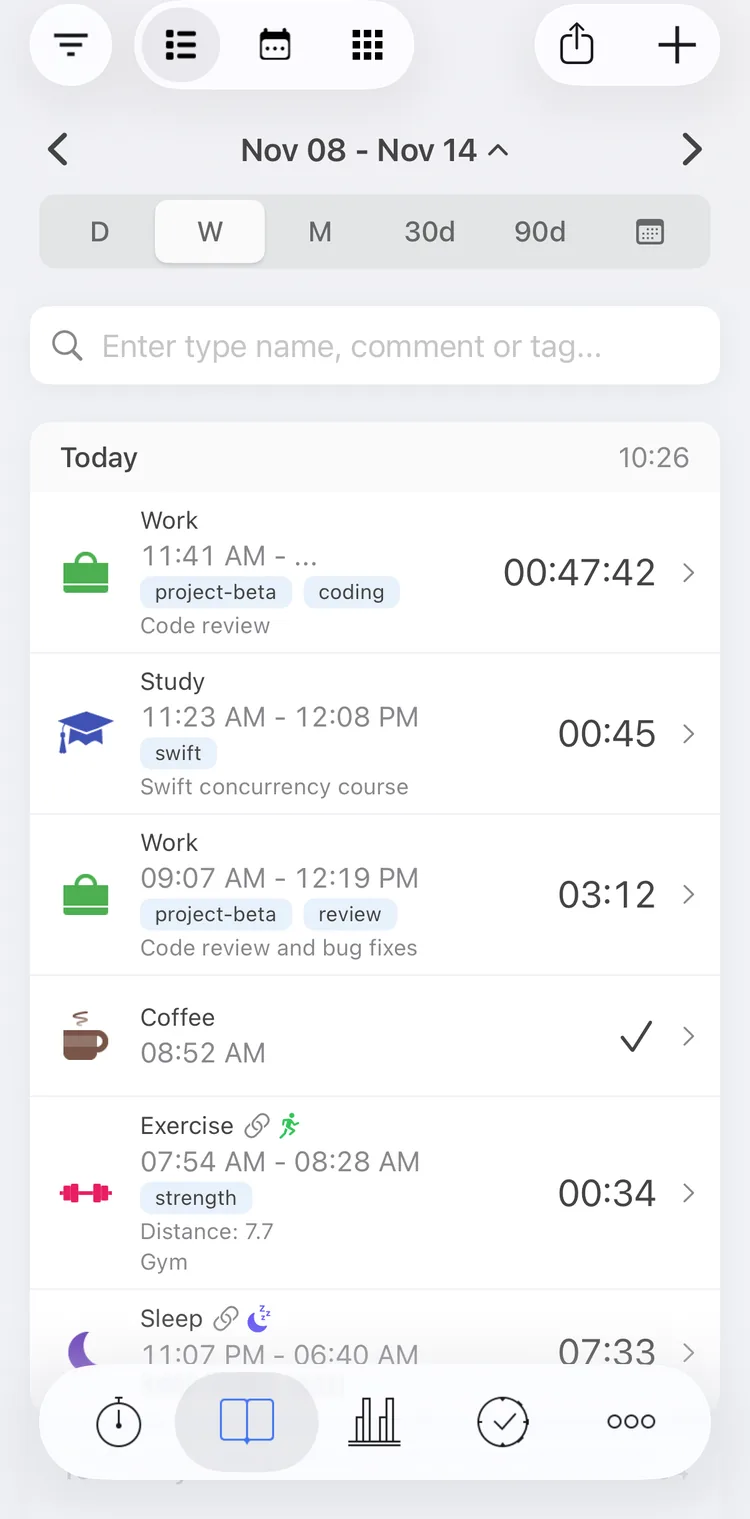
The kinds of period
A few things to know:
- Switching to another kind of period keeps you where you were looking. From a past month, Day takes you to the middle of that month; from the current week, it takes you to today.
- Tapping the selected kind again brings you back to the current day, week or month.
- 30d and 90d are the last 30 or 90 days, ending today. The arrows move them by 30 or 90 days.
- The calendar icon opens a calendar: pick the first and the last day of the range. Days after today can't be picked. The arrows move a range of your own by its length.
The period is shared with the Statistics tab: change it on one tab and the other follows. The app remembers the kind of period, except a range of your own, and opens on the current period.
A week starts on the day set in Settings → Advanced → First day of week. A day starts at midnight, unless you move it with Settings → Advanced → Day start: from 9:00 pm the day before to 6:00 am. Day start is a premium feature.
The list
The list shows the records of the period, grouped by day, newest first. Each day starts with its name (Today, Yesterday or the date) and the time tracked in it.
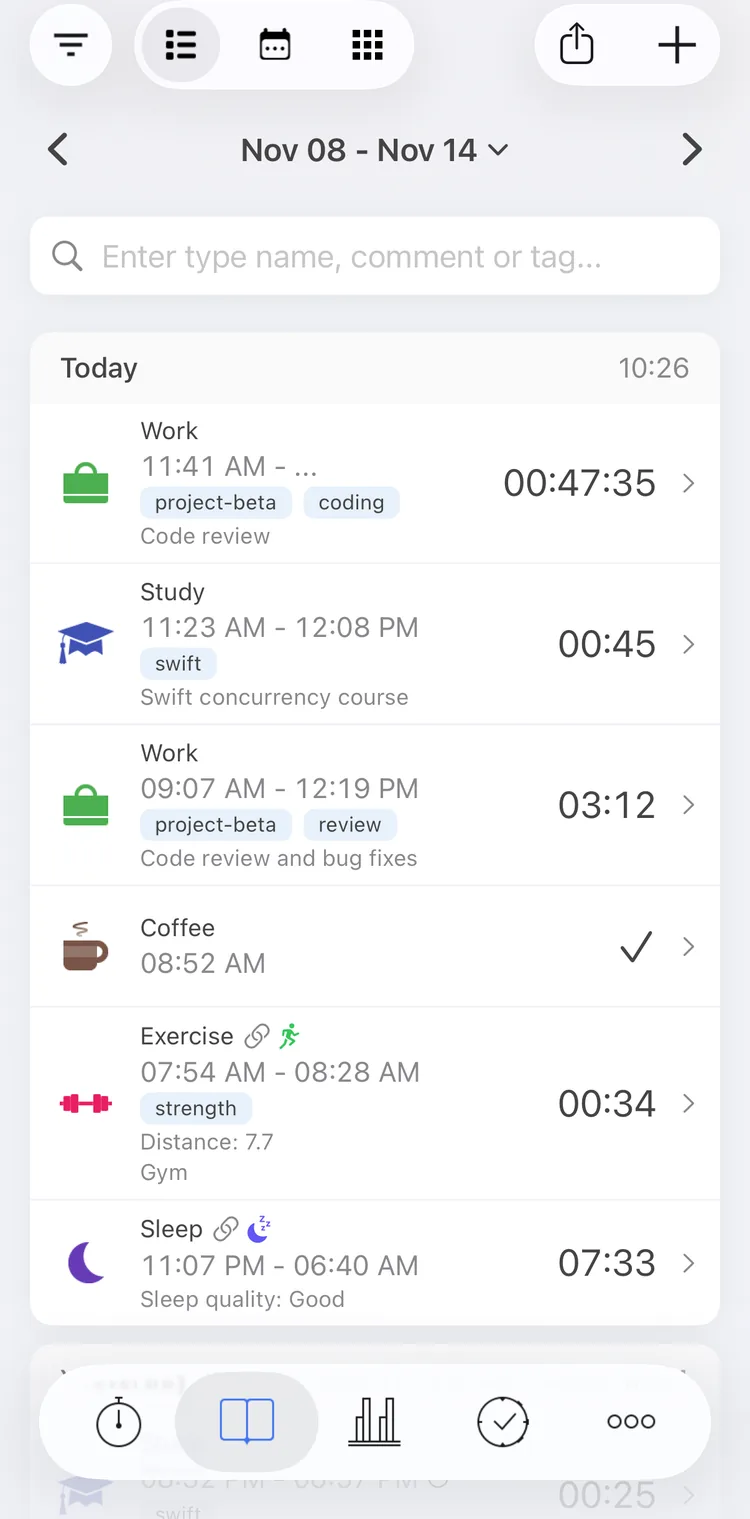
This week in the list
Each row is one interval of an activity. An activity you paused and resumed has a row for each part. A row shows:
- the icon and name of the type. A link badge marks a record linked to Apple Health; a pin and a name, the place where it was recorded;
- the start and end time. A running activity has ... for its end, and its time counts up. A timer icon marks a pomodoro;
- the tags, the ones of its type included. To hide those, turn on Settings → Advanced → Hide inherited type tags;
- the values of the custom fields that have Show in history on, like Sleep quality: Good;
- the comment;
- on the right, the duration. An occurrence has a check mark instead.
An occurrence logged while another record was running appears under that record, a little indented.
Tap a row to open the activity in the editor, see Activities.
Order
Settings → History → History order: Descending, newest first (the default), or Ascending, oldest first. It orders both the days and the records in each day. Ascending is a premium feature.
Records that cross midnight
A night from 23:00 to 7:00 belongs to two days. Settings → Advanced → Multi-Day Records decides where the list shows it:
- Show Primarily on Main Day (the default): under the day that holds the larger part of it, here the second one. A record of 12 hours or more is shown under every day it touches.
- Show on Both Days: under both days.
The calendar follows the same setting. The time next to each day counts only the part of a record inside that day, whatever the setting. How statistics count such records is explained in Statistics.
Search
The field at the top of the list, Enter type name, comment or tag..., finds records by:
- the type name, the comment or a tag;
- the name of the place where it was recorded;
- the value of a list custom field that has Show in history on.
Letter case doesn't matter. The search looks only inside the selected period, so pick a longer one, like 90d or a range of your own, to search further back.
Adding a record
Tap + at the top right. The editor opens for a new stopped record with one interval. The interval starts where the last record of the period ends, or at the start of the period if it has none, so a forgotten day fills up record by record without gaps.
Pick the Type, tap the interval's end time to set it, and tap Save. The editor is described in Activities.
The calendar and the blocks have quicker ways to fill a gap, see below.
Changing and deleting records
Touch and hold a row for its menu:
| Item | What it does |
|---|---|
| Edit | Opens the interval on its own screen, see Editing Intervals. On a running activity it opens the activity's editor instead. An occurrence doesn't have it |
| Insert before | Opens the editor for a new record that fills the gap between the record before and this one, if a record ended in the 12 hours before |
| Resume pomodoro | On a pomodoro: starts that record again as a pomodoro |
| Delete | Deletes this interval after you confirm. If it was the activity's last one, the activity is deleted. On a running activity it deletes the whole activity |
Delete at the bottom of the editor deletes the activity with all its intervals.
Info
To delete many records at once, see Batch Operations.
Calendar
The calendar lays the records out as a timeline. A day shows one column, a week seven. For a month or a longer period a few days fit on the screen; scroll sideways for the others.
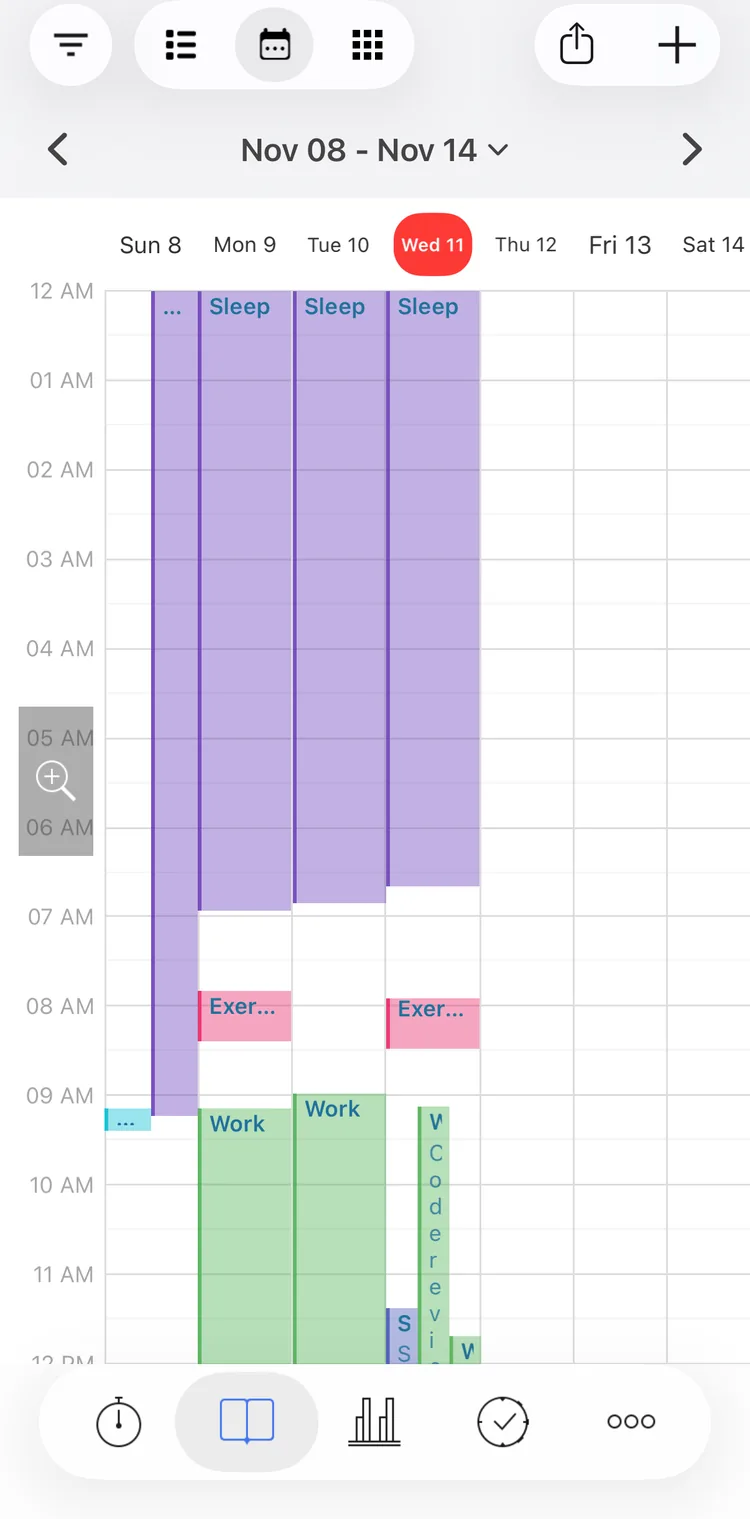
This week in the calendar
- Each record is a block in its type's colour, with the type name and the comment. A running activity reaches up to now.
- Tap a record to open it in the editor.
- Touch and hold an empty space between two records to add one: the editor opens with an interval that fills the gap exactly. This doesn't work while a saved filter is on.
- The button with the magnifier on the left makes the hours taller: each tap doubles them, up to four times, then they go back. The app remembers the zoom.
Blocks
The blocks show each day of the period as a grid. A row is an hour, from the start of your day, and its four squares are quarter hours, coloured by the types recorded in them. Where two records overlap, the square is split between them.
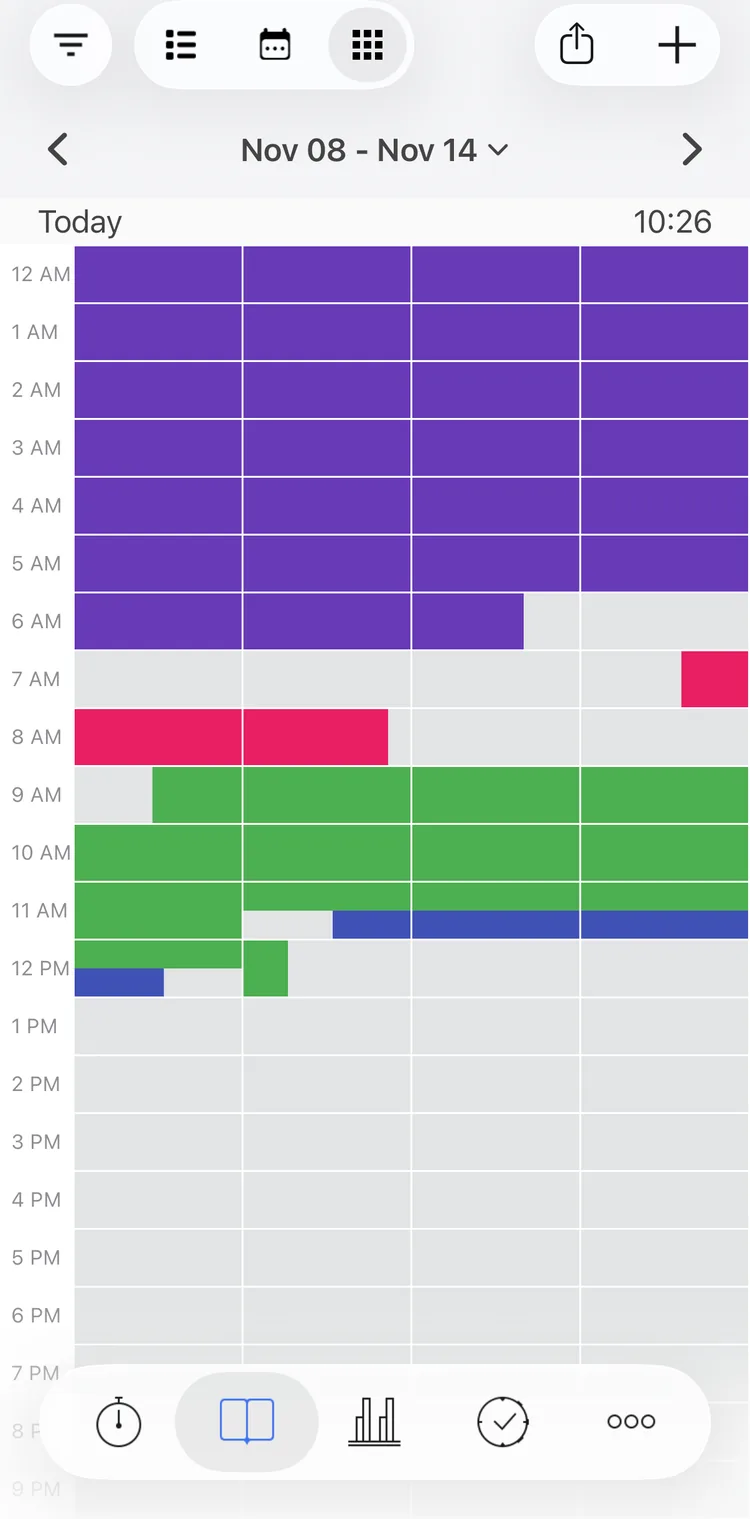
Today in the blocks
Tap a square, or touch and hold one and drag over others in the same day, to pick a stretch of time:
- Empty time: pick a type, and the time is recorded as that type. If a record of that type ends right where your stretch begins, or starts right where it ends, it is stretched over it instead.
- Time with records: a sheet lists them. Tap one to open it in the editor. Swipe it to the left, or touch and hold it, for Delete and Cut. Cut takes the stretch you picked out of the record: it shortens the record or splits it in two. It isn't offered when the stretch covers the whole record, or for an activity that is running.
An activity that is running appears in the blocks once you pause or stop it.
The blocks are a premium feature.
Filters and export
The filter button narrows the list, the calendar and the blocks down to chosen types and tags. While a filter is on, a Filter active bar appears under the search field: tap it to change the filter, or tap its × to turn it off.
The share button exports the records of the period to a CSV or HTML file. Both are described in Filters and Export.