Todo List
The Todo mode of the Activities tab keeps a list of the things you mean to do. Each todo is linked to an activity type, so starting a todo starts tracking it and ticks it off at the same time: you don't plan in one app and track in another.
Info
Todos are a premium feature.
The Todo mode
Open the Activities tab and tap the list icon in the selector at the top.
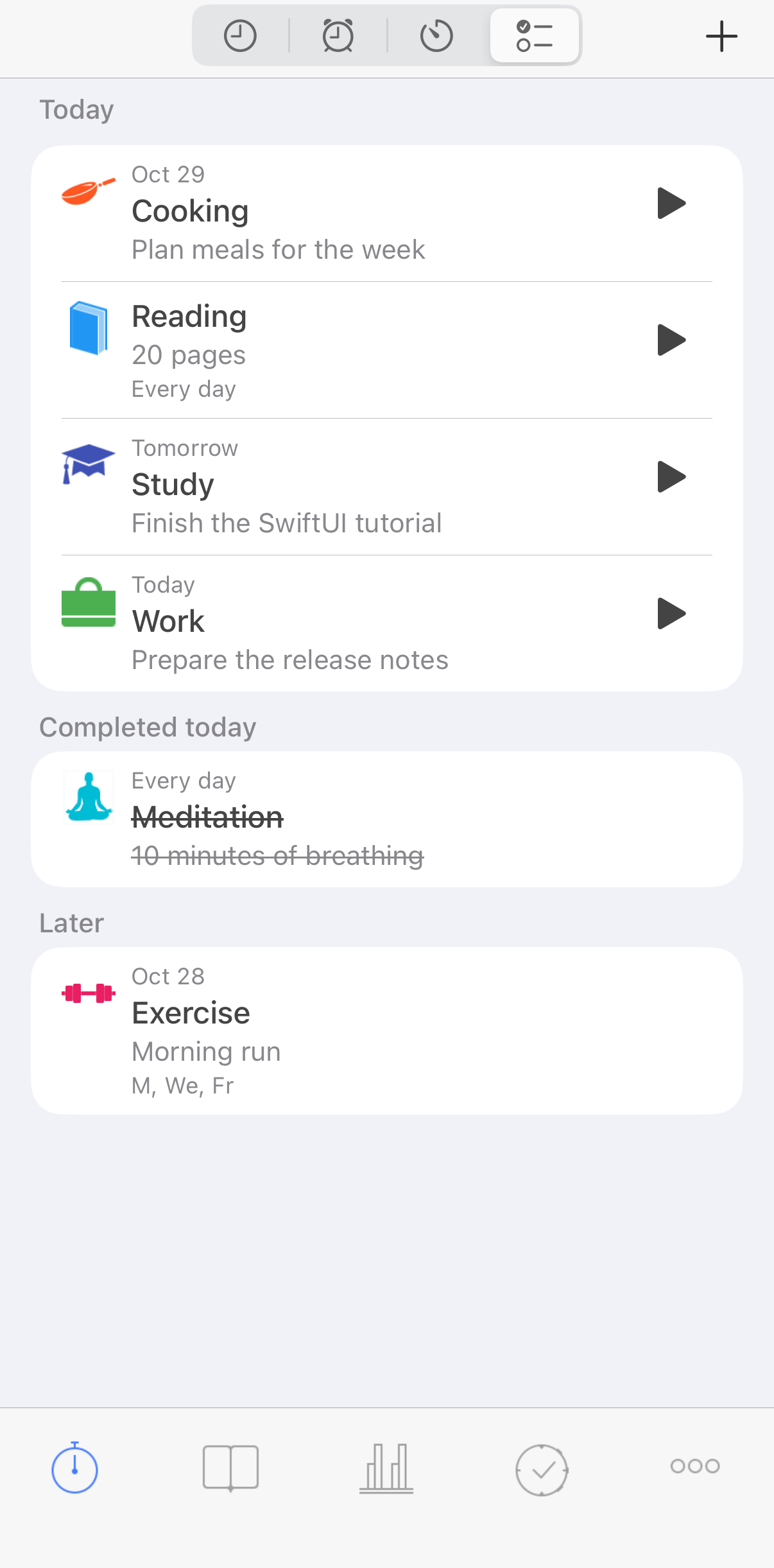
Four todos left today, one done, one for later
The list has three sections:
- Today: what is left to do. Every one-time todo you haven't done yet, whatever its due date, and the recurring todos that repeat today.
- Completed today: what you have done today, struck through, with the time its activity ran.
- Later: recurring todos that don't repeat today, soonest first, with the date they come back.
A row shows the type, the todo's comment, and:
- for a one-time todo with a due date, the date above the type: Today, Tomorrow, a date, or Overdue in red once the date has passed;
- for a recurring todo, the days it repeats: Every day, Weekdays, Weekends or the days, like M, We, Fr;
- under Today and Later, the routine time before the type, if the todo has one.
Todos with a routine time are grouped in Today by the time of day: Morning (5:00 to 11:59), Afternoon (12:00 to 16:59), Evening (17:00 to 20:59) and Night (21:00 to 4:59), each in time order. Todos without a routine time come last, by type name, under No time. If none of your todos has a routine time, the section is simply in order of type name.
Creating a todo
- In the Todo mode, tap + in the top right corner. New Todo opens.
- Tap Select type and pick the activity type.
- Type a Comment if you want: a few words on what to do, shown under the type.
- Choose One-time or Recurring. You can't change this later.
- For a one-time todo, turn on Set due date and pick the date, or leave it off for a todo without a date. For a recurring todo, tap the days it repeats on: M, T, We, Th, Fr, Sa, Su.
- If you want, turn on Set routine time and set the Routine time: when you usually do it. It is also what the reminders count from, see Reminders.
- Tap Save. Save works once a type is picked.
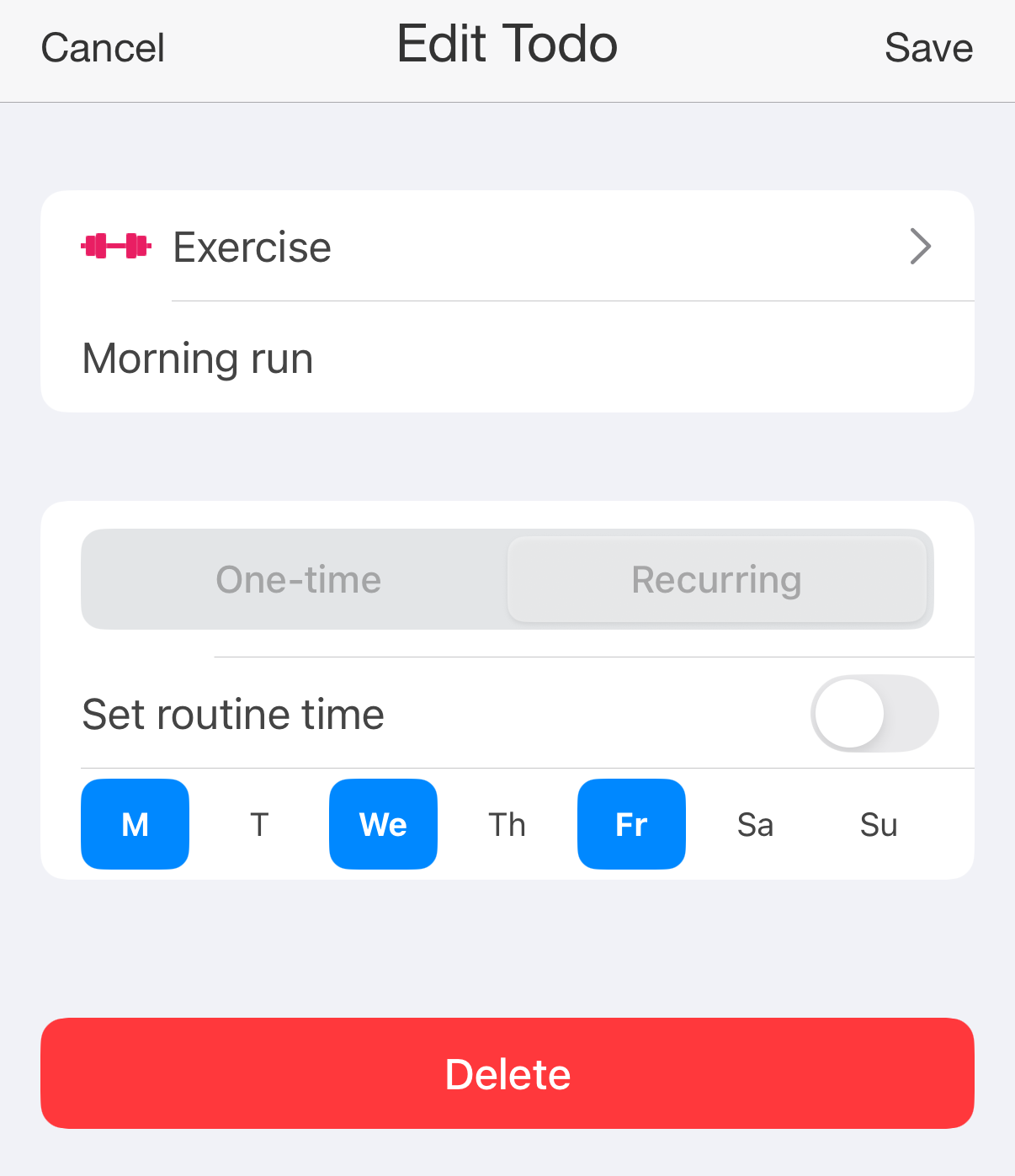
Editing the todo Morning run
One-time and recurring todos
A one-time todo stays in Today until you do it, whatever its due date; the date tells you when it is due. Once done, it moves to Completed today for the rest of the day, then leaves the list.
A recurring todo comes back on each of the days you picked, and you do it separately each day: doing it today doesn't mark it done tomorrow. On the days it doesn't repeat, it waits under Later.
Starting a todo
Each todo under Today has a button on the right:
- The play button starts an activity of the todo's type and marks the todo done.
- An empty square, for an occurrence type, records one occurrence and marks the todo done.
The todo moves to Completed today. An activity started this way is an ordinary one: it shows on the Activities mode, you stop it there, and the activities already running are paused, stopped or left running, as Settings → Activities → Action on start says.
If you delete the record you started from a todo, the todo is marked as not done again.
Reminders
A todo with a routine time can remind you. In the editor, tap Remind and tick one or more:
- At the time
- 5 minutes before, 10 minutes before, 15 minutes before, 30 minutes before, 45 minutes before
- 1 hour before, 2 hours before
The row then reads No reminder, the one you picked, or the number of reminders.
The notification shows the type, the comment, and when the todo is due, like In 30 minutes or At the time. Its Start now button starts the activity and marks the todo done, the same as the play button.
- A recurring todo reminds you on each of its days.
- A one-time todo reminds you on its due date. Without a due date, its reminder is set for the current day only, so it comes on the days you have used the app before the routine time.
- No reminder comes for a todo you have already done that day.
Open the app regularly to keep receiving future reminders. Turning off Set routine time removes the todo's reminders.
Editing and deleting
Tap a todo, in any section, to open Edit Todo. Change the type, the comment, the routine time, the reminders, the due date or the days, and tap Save.
Delete at the bottom deletes the todo after you confirm. The records you started from it stay.
Without premium
Without premium, the Todo mode shows a sample list and an Upgrade button, and + opens the offer to upgrade. Your todos are kept and come back with premium; until then, their reminders don't come.