Tags
Tags add a flexible extra dimension to your tracking: label individual sessions (a client, a project, a book) and then filter statistics and history by tag. Tags can be applied to both individual activities and activity types
Applying Tags to Activity Types
When you assign a tag to an activity type, it is considered as if all activities of this type automatically have this tag.
Example: if you assign the tag "Work" to the activity type "Programming", every time you log a "Programming" activity, it will be tagged with "Work" by default
Applying Tags to Individual Activities
Tags can also be applied directly to specific activity entries, providing flexibility and more detailed categorization.
Example: If you log a “Meeting” activity and want to tag it as “Client” or “Internal”, you can do so individually
How to Create a Tag?
- Go to 'Edit Activity' or 'Edit Type' screen
- Press on 'Tags'
- Enter Tag Name:
- Type the name of the tag and and press 'Enter'
- You can enter multiple tags by repeating this step
- Press 'Save' to save the activity type or activity with the new tags
Editing or Removing Tags
Removing a Tag from an Activity or Activity Type
- Go to the Edit Screen
- Press on 'Tags'
- Delete the rtag you want to remove
- Press 'Save' to update the type or activity
Removing or Renaming a Tag Completely
- Go to 'Tags' Screen
- Select Tag
- Press on the Tag - 'Tag Details' screen will appear
- Press on 'Edit' button in the top right corner
- Edit or Delete
- Change the name and press 'Save' to rename the tag
- Press the 'Delete' button to remove the tag complete
Statistics and History for Tags
There are 2 places in the app where you can find Statistics and History:
- Tag Details Screen
- History/Statistics tab
Tag Details Screen
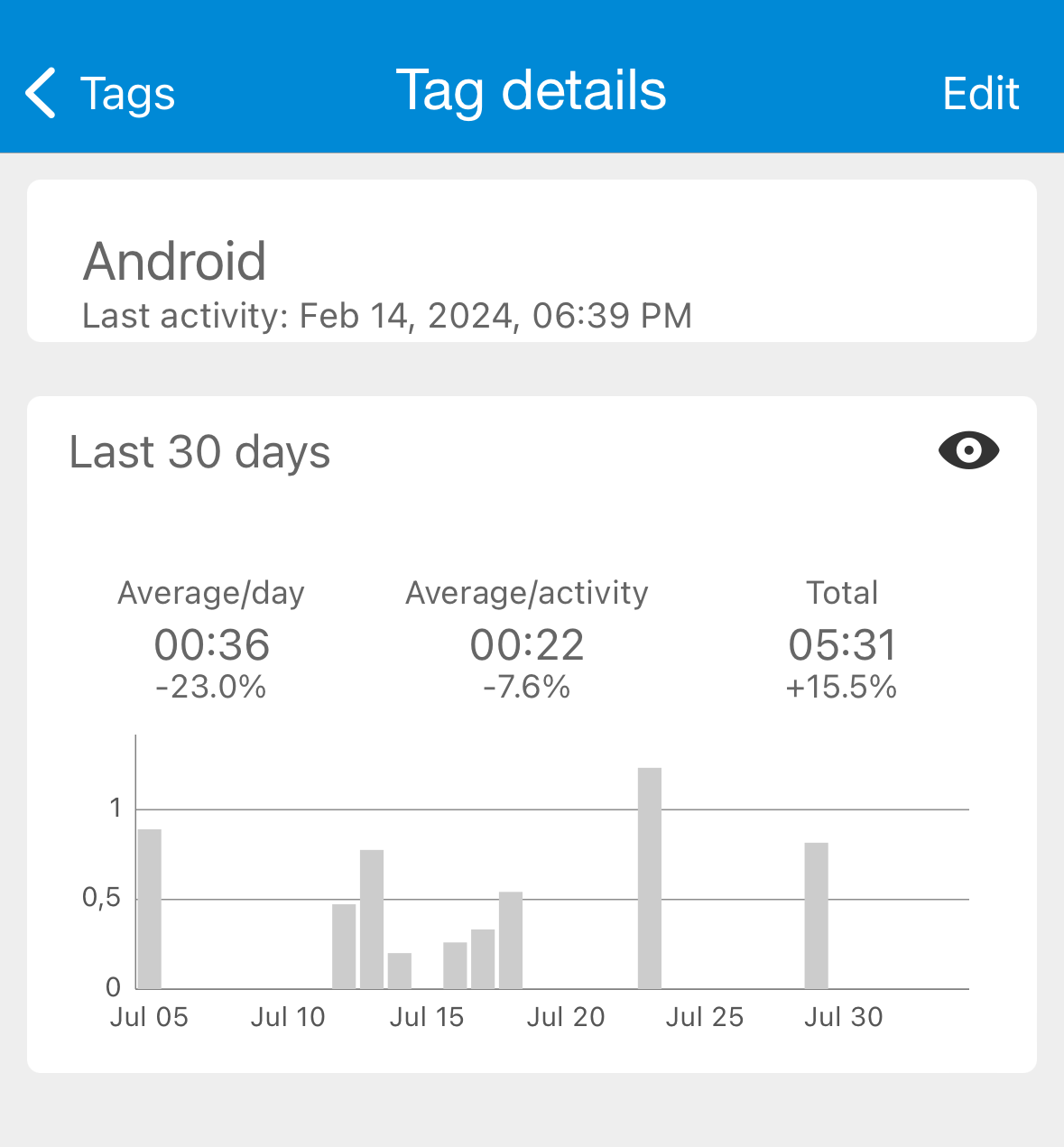
The Tags screen, located on the last tab, displays a list of all tags. By pressing on a tag, you can access the Tag Details screen. This screen functions similarly to the Type Details screen but focuses exclusively on the selected tag. Check Types and Groups in Types and Groups for more information about this screen
History/Statistics tab
- Select filter if you want to view statistics for specific tags or activity types
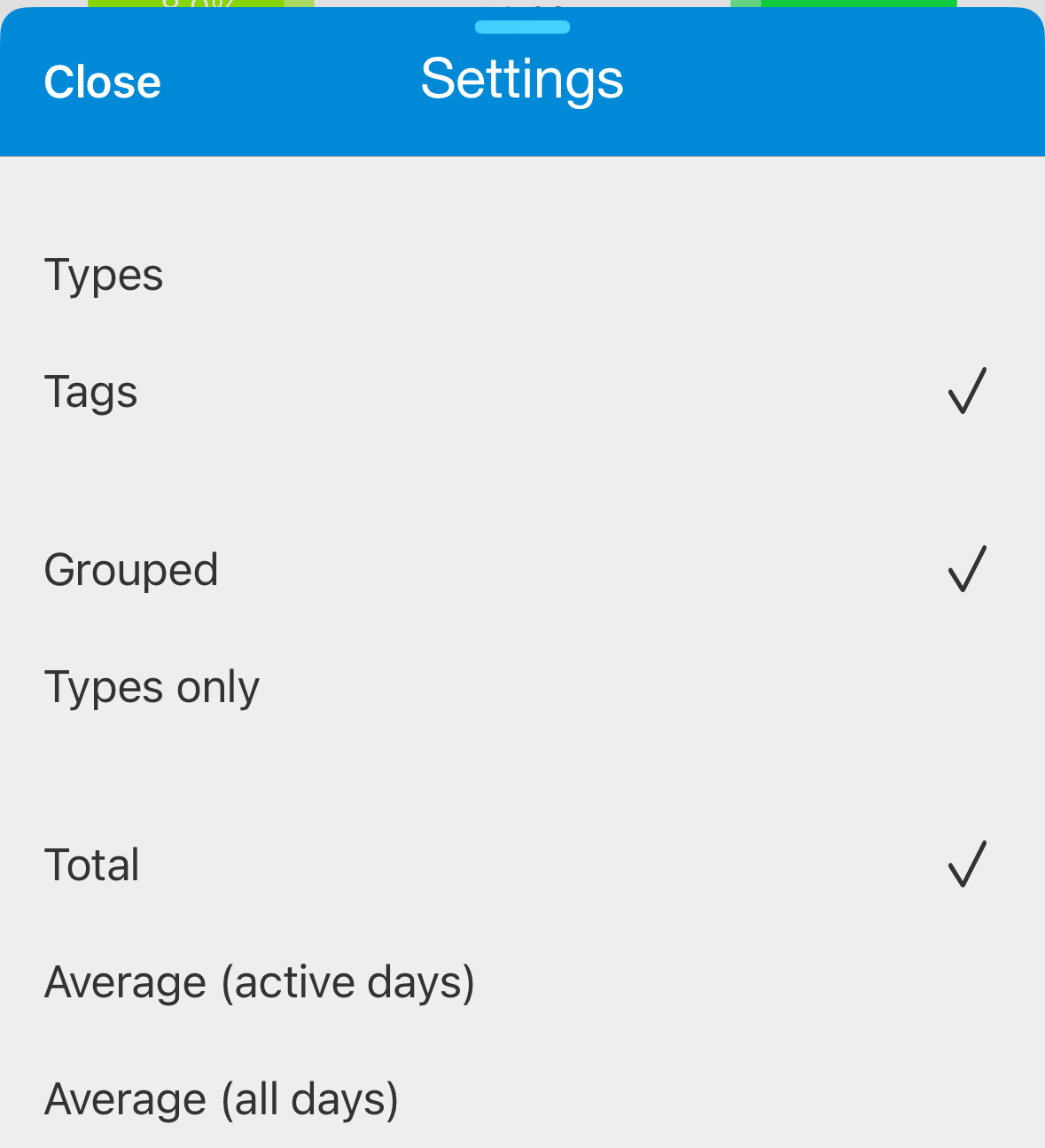
- Select 'Tags' in statistics settings
See Statistics for more detailed explanation