Tags
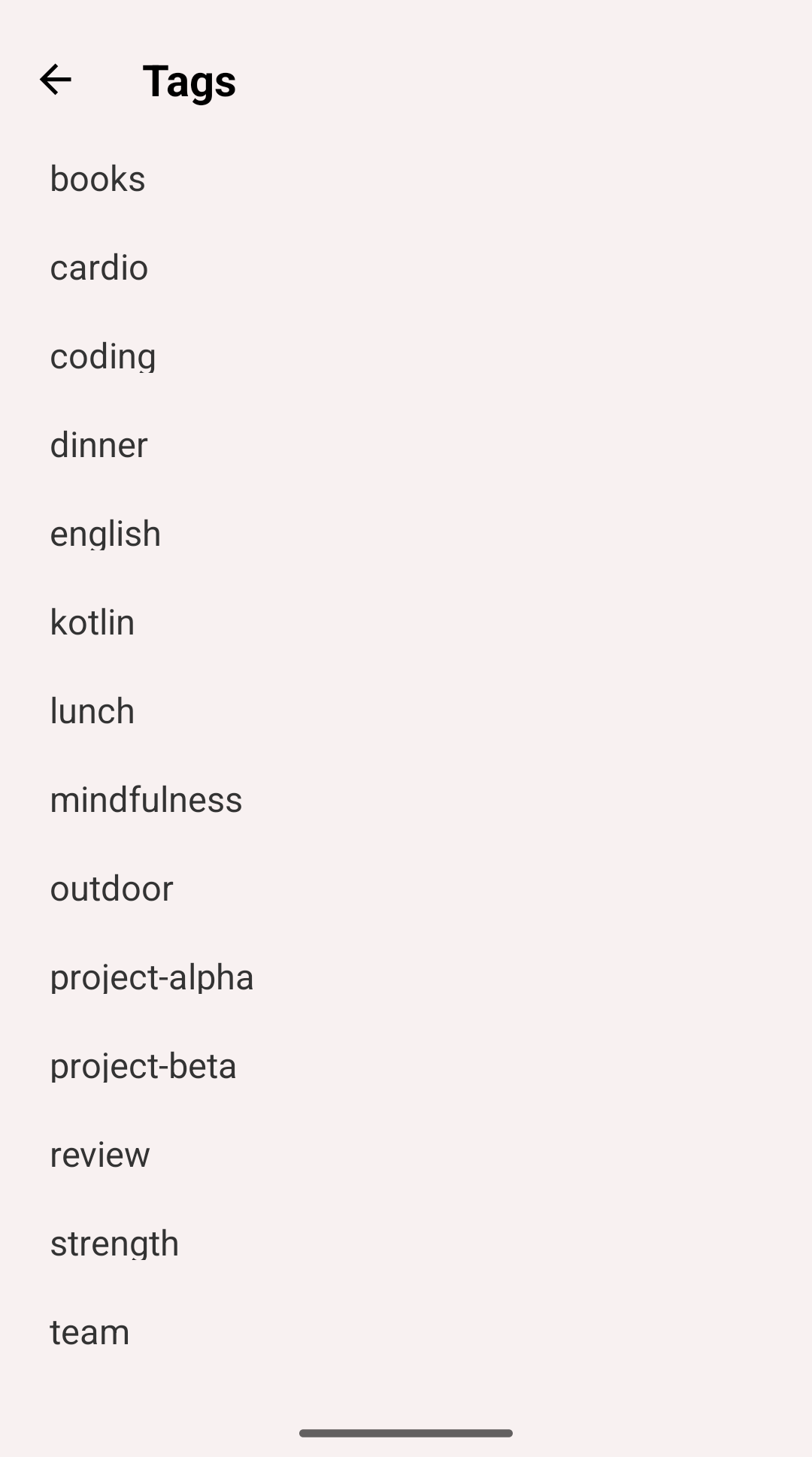
Tags screen
Tags provide flexible categorization for activities and activity types.
Tag Types
Activity Type Tags
When you assign a tag to an activity type, all activities of that type automatically inherit the tag.
Example:
- Tag "Work" assigned to type "Programming"
- Every "Programming" activity automatically has "Work" tag
- Useful for grouping related types in statistics
Activity Tags
Apply tags directly to specific activity entries.
Example:
- "Meeting" activity can be tagged "Client" or "Internal"
- "Reading" activity can be tagged "Fiction" or "Non-fiction"
- Provides detailed categorization
How to Create a Tag?
- Open 'Edit Activity' or 'Edit Type' screen
- Tap on 'Tags' field
- Enter Tag Name:
- Type the tag name
- Press 'Enter' or select from AutoComplete suggestions
- Add multiple tags by repeating
- Tap 'Save'
Features:
- AutoComplete suggests existing tags
- Free-form text entry
- Case-sensitive (or not - depends on app settings)
Editing or Removing Tags
Remove Tag from Activity/Type
- Open Edit screen
- Tap on 'Tags' field
- Remove the tag (tap X or delete)
- Tap 'Save'
Rename or Delete Tag Completely
- Go to 'Tags' screen (on More tab)
- Tap on the tag
- 'Tag Details' screen appears
- Tap 'Edit' button in top right
- Edit or Delete:
- Change name and tap 'Save' to rename
- Tap 'Delete' button to remove completely
Renaming a tag updates it across all activities and types
Statistics and History for Tags
Two places to view tag statistics:
Tag Details Screen
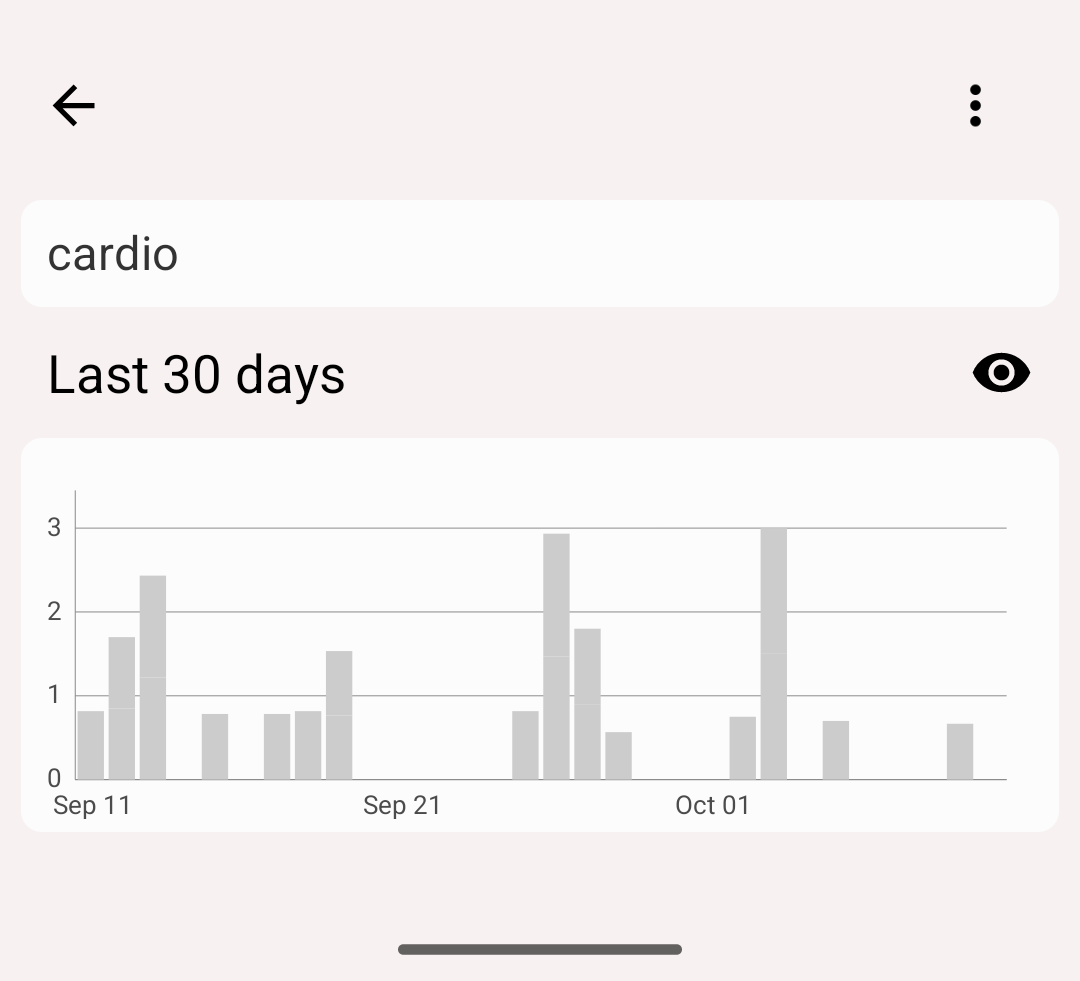
Tag details
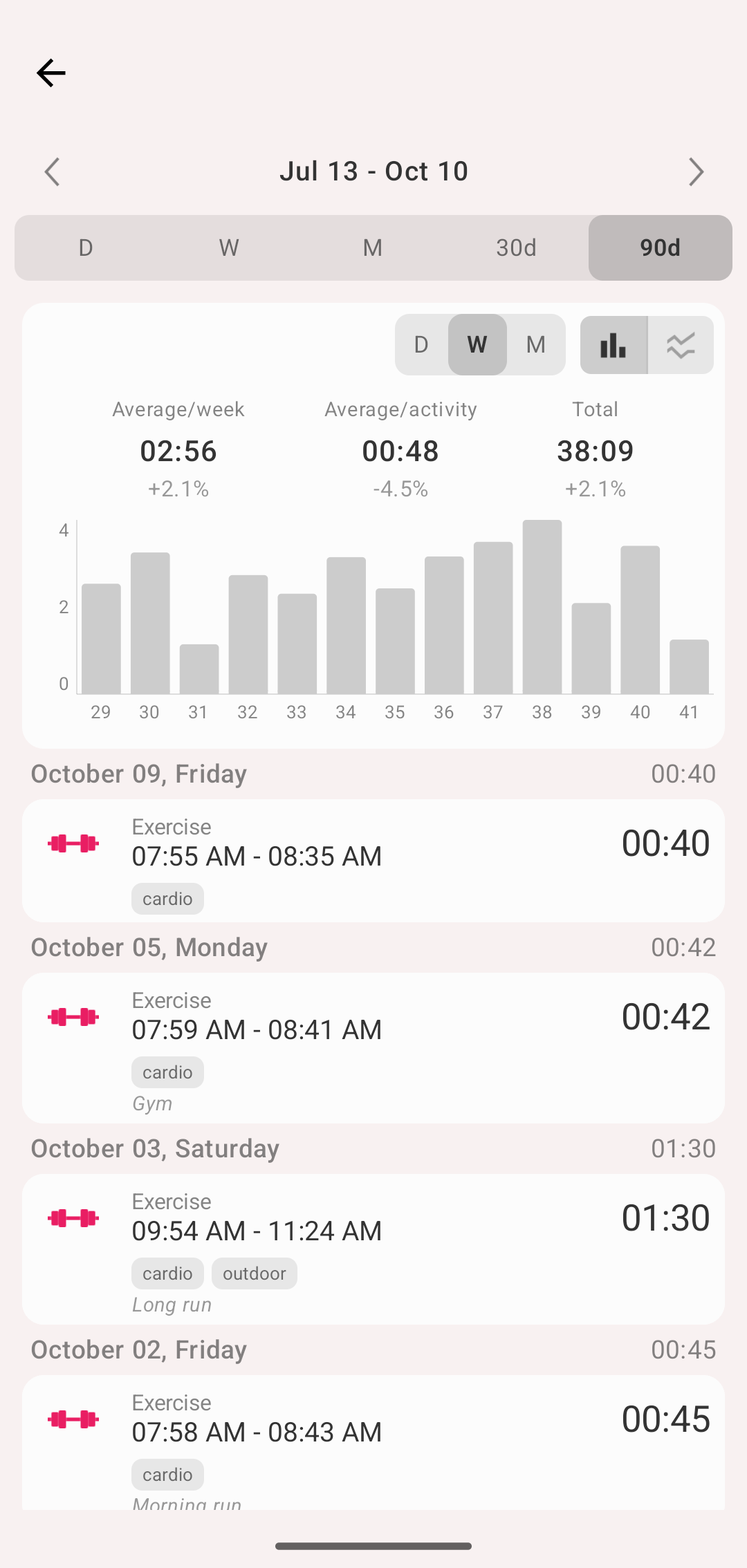
Tag history
- Go to Tags screen (More tab)
- Tap on a tag to open Tag Details
- Tap the eye icon to open the tag history
The tag history works like the type history: the period header with D / W / M / 30d / 90d, the bar or line chart with the bar width switch, the averages and the total with the change against the previous period, and the tag's records grouped by day.
History Tab
- Open the Statistics view of the History tab
- Tap the ⚙️ gear and select Group by → Tags [Premium]
- The pie, the rows and the bars now show tags instead of types
- Apply a filter to limit the statistics to some tags
See Statistics screen for details.