Types and Groups
Activity types are the building blocks of the app — every record you log belongs to one. Groups let you organize types into a hierarchy and get statistics for a whole area of your life at once.
If you are not familiar with the difference between a type, a group and a record, read Main Concepts first.
Creating a type or group
- Open the Types tab
- Tap the '+' button in the bottom right corner
- Fill in the details:
- Name
- Icon — pick one of the built-in icons
- Color — used in pie charts, the activities grid and widgets
- Tags — tags added automatically to every record of this type
- Group — turn on to create a group instead of an activity type
- Occurrence — turn on for things you count rather than time (see below)
- Tap Save
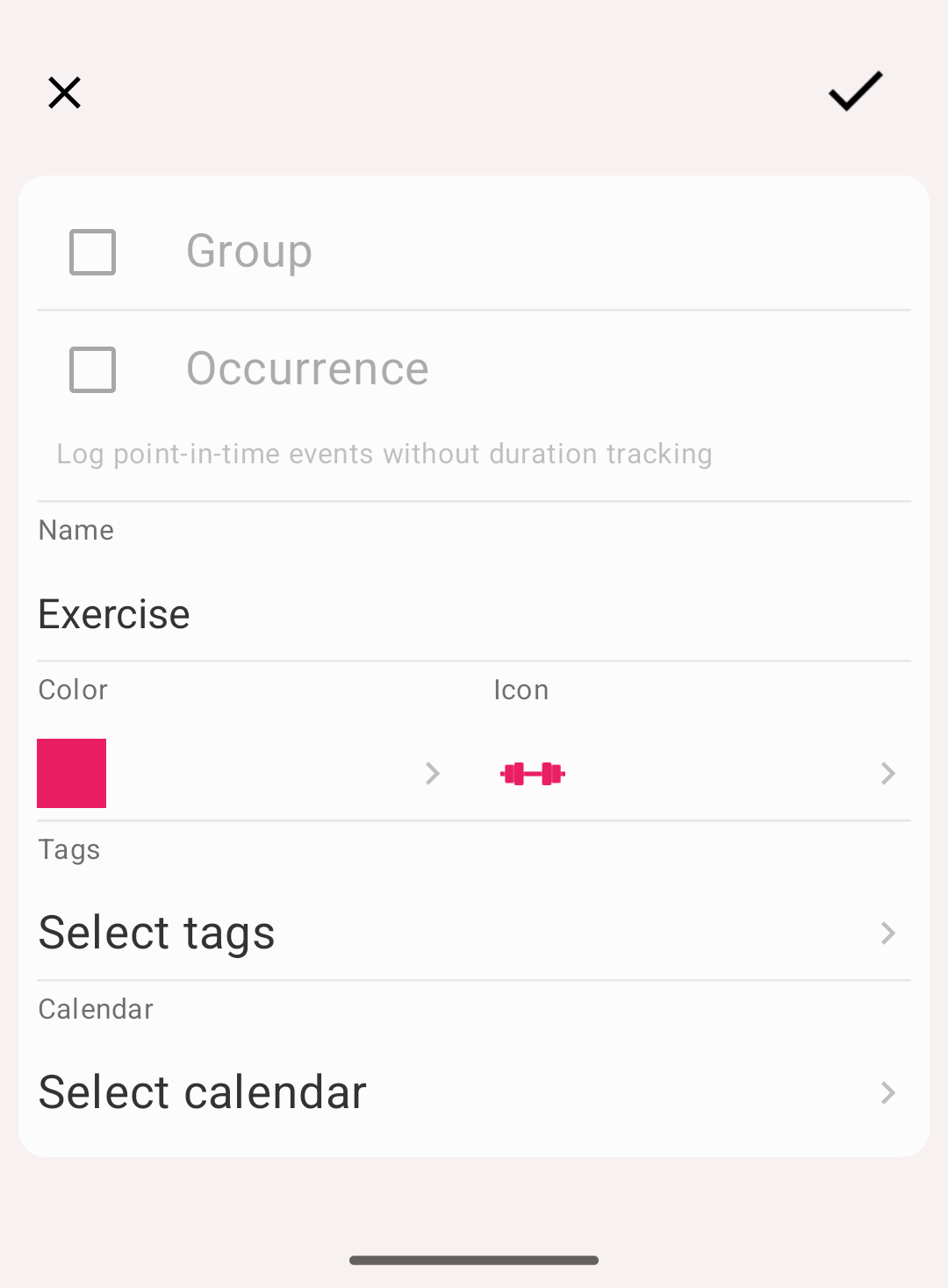
Creating an activity type
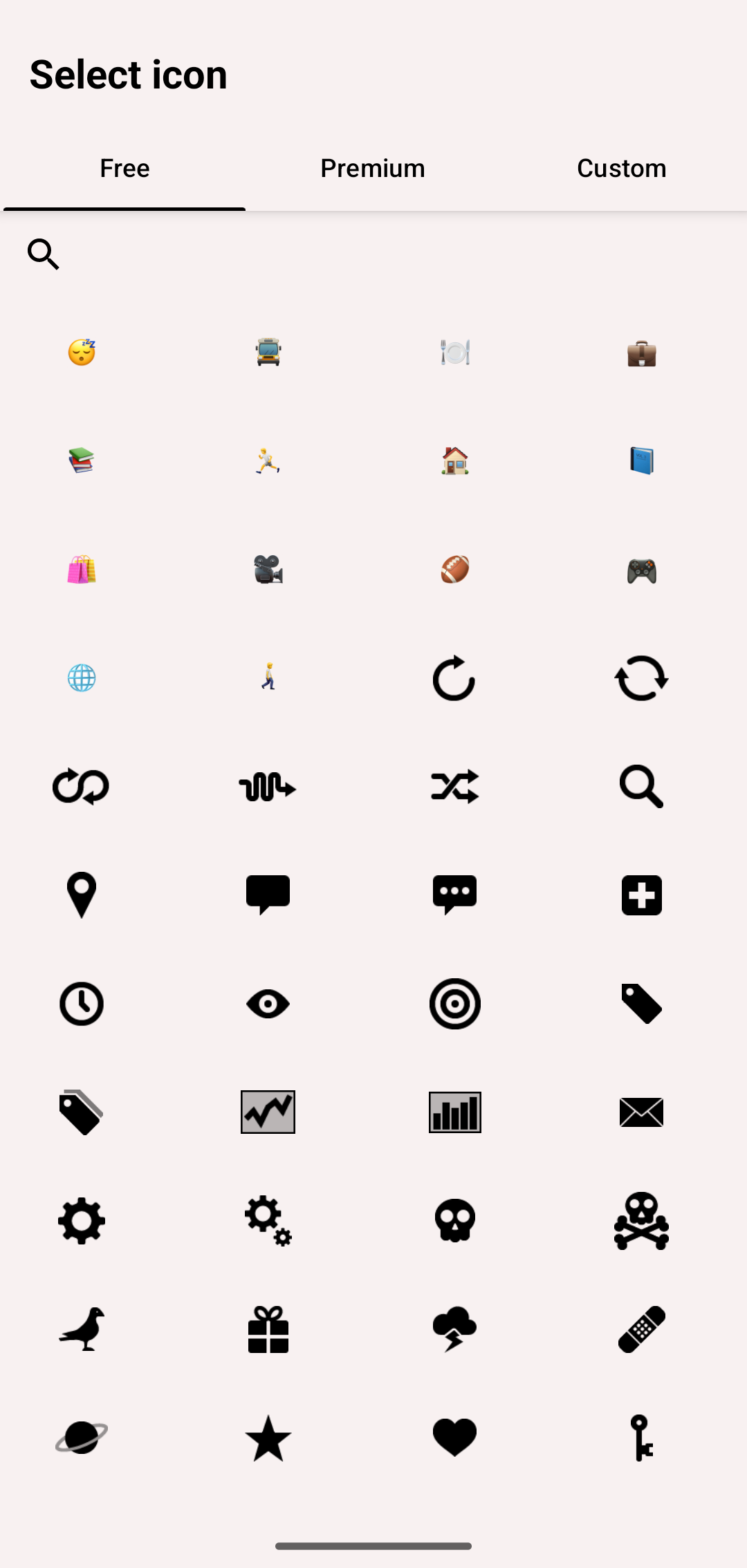
Choosing an icon
Info
A type cannot be turned into a group later, and a group cannot be turned into a type. If you need to change this, create a new one and move the existing records with Batch operations.
Occurrence types
An occurrence type records that something happened, without measuring how long it took — took a pill, drank a glass of water, weighed yourself.
- Tapping it on the Activities tab logs one occurrence instantly, with no timer
- Statistics count how many times, not how long
- Goals for such types are counted in times per day/week/month
Occurrence types require a premium subscription.
Decide when you create the type: the switch is only on the screen of a new type, so an existing type can't become an occurrence type, or stop being one, later.
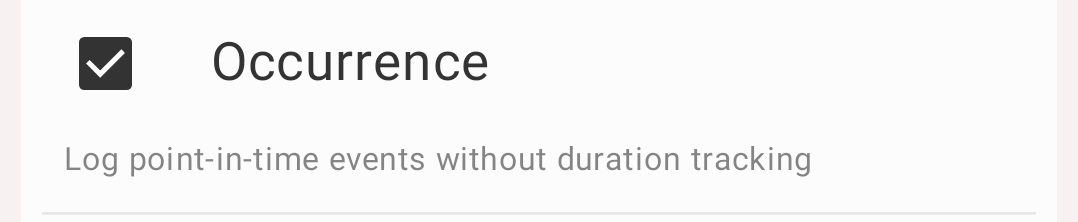
The Occurrence switch of a new type
Editing a type or group
- Open the Types tab and tap the type or group — the Type details screen appears
- Open the actions menu (top right) and choose Edit
- Change the name, icon, color or tags
- Tap Save
The actions menu on the Type details screen contains:
| Action | What it does |
|---|---|
| Edit | Opens the edit screen |
| History | Opens the history of the type or group |
| Move to… | Moves it into another group, or out of its group to the top level |
| Archive / Unarchive | Hides it from the Activities tab while keeping all history |
| Delete | Removes it together with all its records |
Deleting
Deleting is permanent and takes the history with it:
- Deleting a type also deletes every activity logged with that type
- Deleting a group also deletes all types and groups inside it, and their activities
Warning
If you only want to stop using a type but keep its history in reports, archive it instead of deleting it.
Archiving
Archiving hides a type or group without touching its records. A type archived inside a group is listed in that group's own Archived section.
- Open the type or group → actions menu → Archive
- Archived items disappear from the activities grid
- They stay in statistics and history for past periods
- The Types tab shows an Archived entry at the bottom with the number of archived items — tap it to see them and unarchive anything you need back
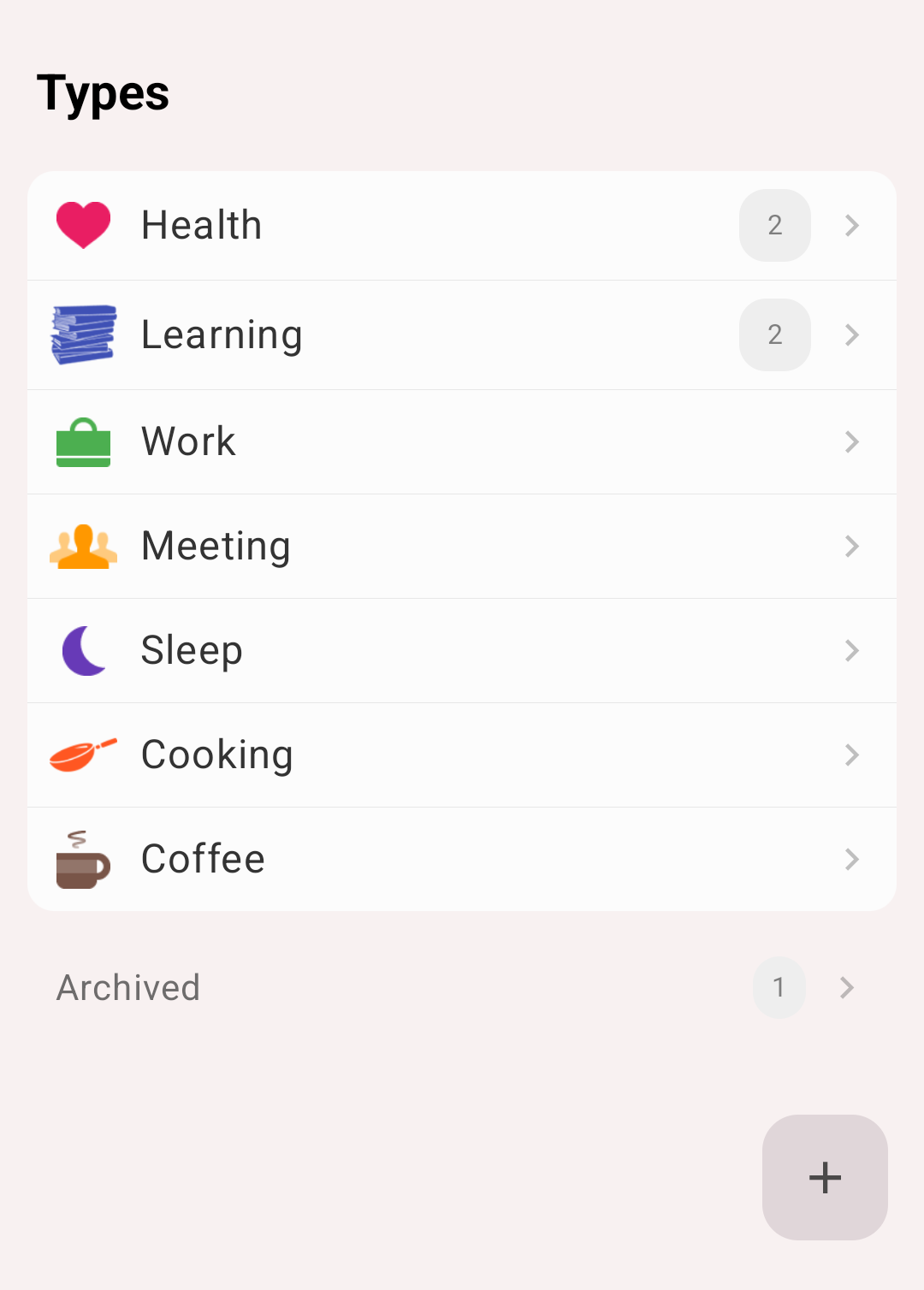
Archived types and groups
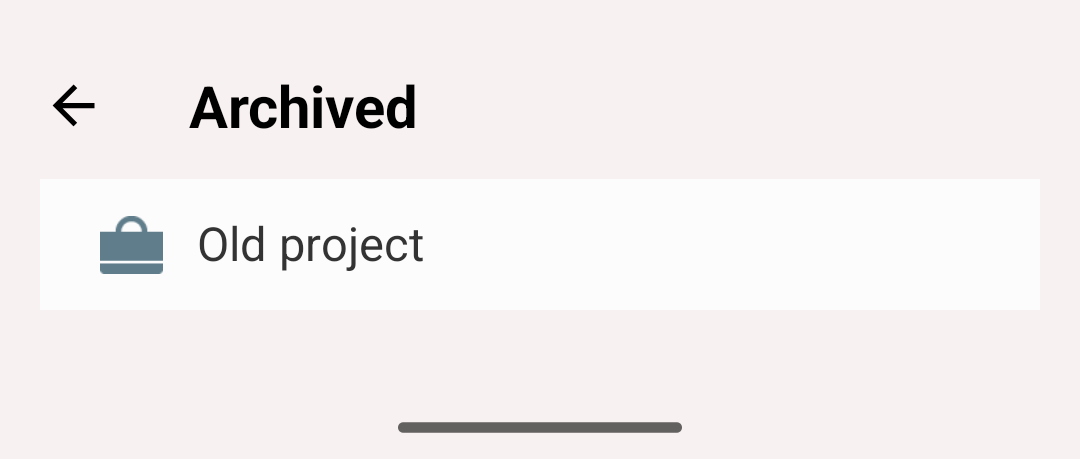
Archived screen
Putting a type into a group
There are two ways:
From the group. Open the group on the Types tab and add the type from its list of items — you can pick an existing type or create a new one on the spot.
From the type. Open the type and use Move to top to pull it out of a group back to the top level.
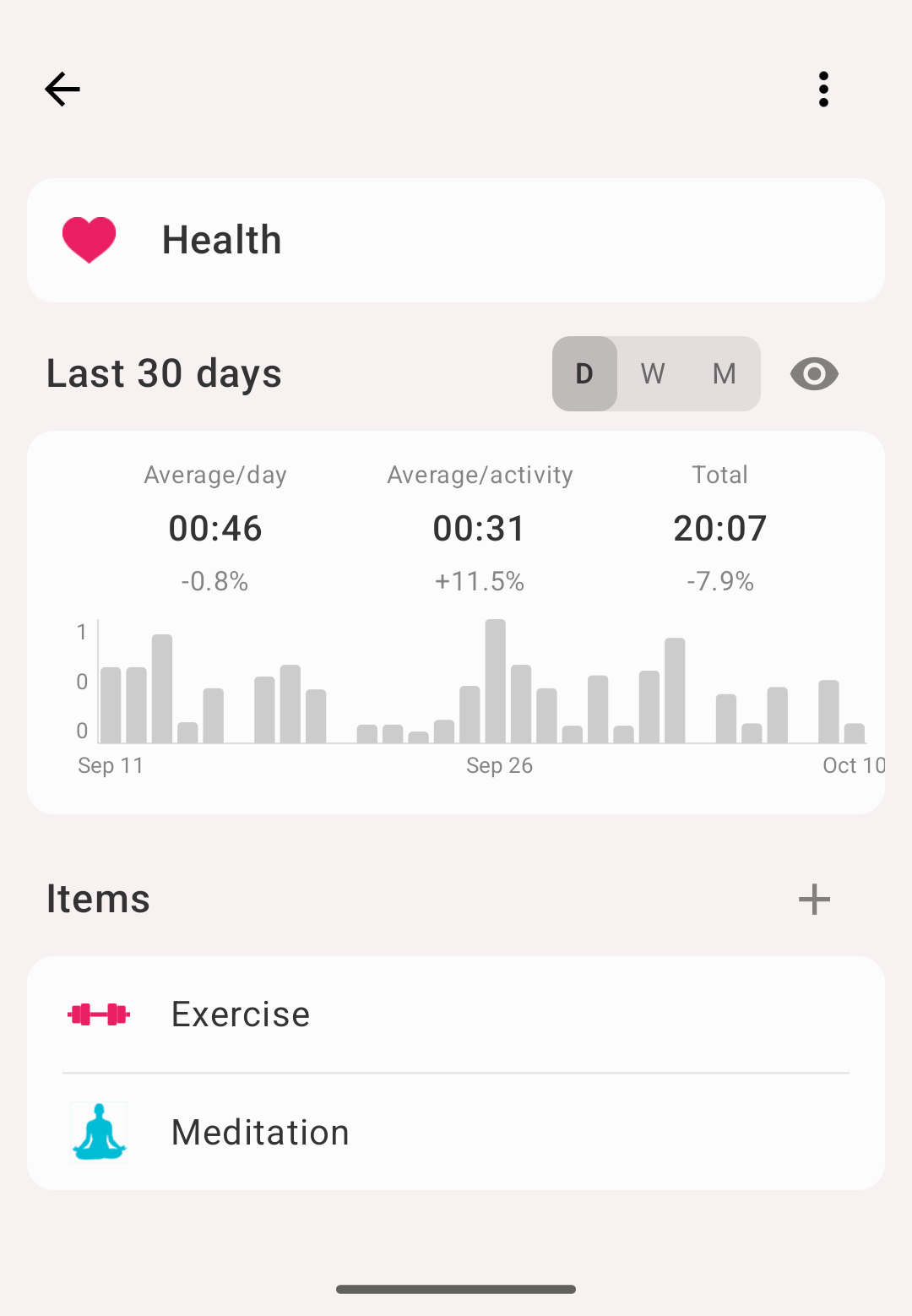
Types inside a group
Statistics and history for a type
Read Statistics for how these numbers are calculated, especially if you track overlapping activities.
Type details
Tap a type or group on the Types tab. The Type details screen shows a statistics card for it. Use the D / W / M switch next to the card title to choose the period:
| Switch | Title | Period | Bars |
|---|---|---|---|
| D | Last 30 days | 30 days ending today | One per day |
| W | Last 12 weeks | 12 whole weeks ending with the current week | One per week |
| M | Last 12 months | 12 whole months ending with the current month | One per month |
The card shows:
- Average/day, Average/week or Average/month, matching the switch
- Average/activity — not shown for occurrence types
- Total
- A small bar chart. Tap a bar to see its date and value
Each number shows the change against the previous period of the same length — the 30 days, 12 weeks or 12 months right before.
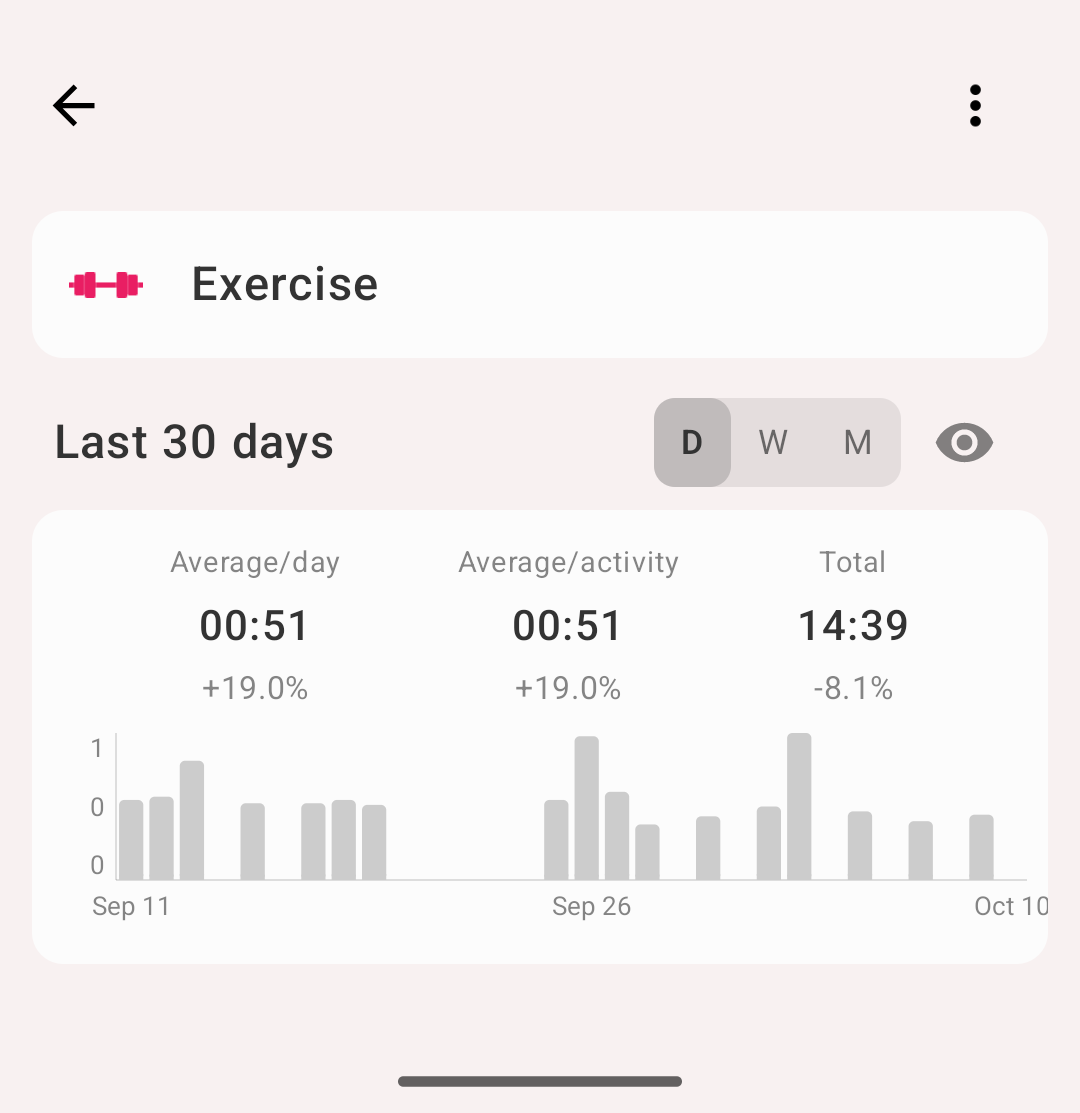
Type details with the statistics card
Type history
Tap the eye icon on Type details to open the full history of the type:
- Period header — ‹ and › arrows, the period title and a D / W / M / 30d / 90d switch under it. Tap the title to go back to the current period. Swipe the header or the list sideways to change the period
- Chart card:
- Bars / Lines switch. Lines adds a dashed line for the previous period
- D / W / M bar width, when the period allows more than one — see Periods and bar width
- Average/day, Average/week or Average/month (averaged over the days, weeks or months with data), Average/activity and Total, each with the change against the previous period
- Hourly distribution — the share of the type's time in each hour of the day. See Hourly distribution
- Records — the type's records in the period, grouped by day
The selected period type and bar width are shared with the tag history. The screen always opens on the current period.
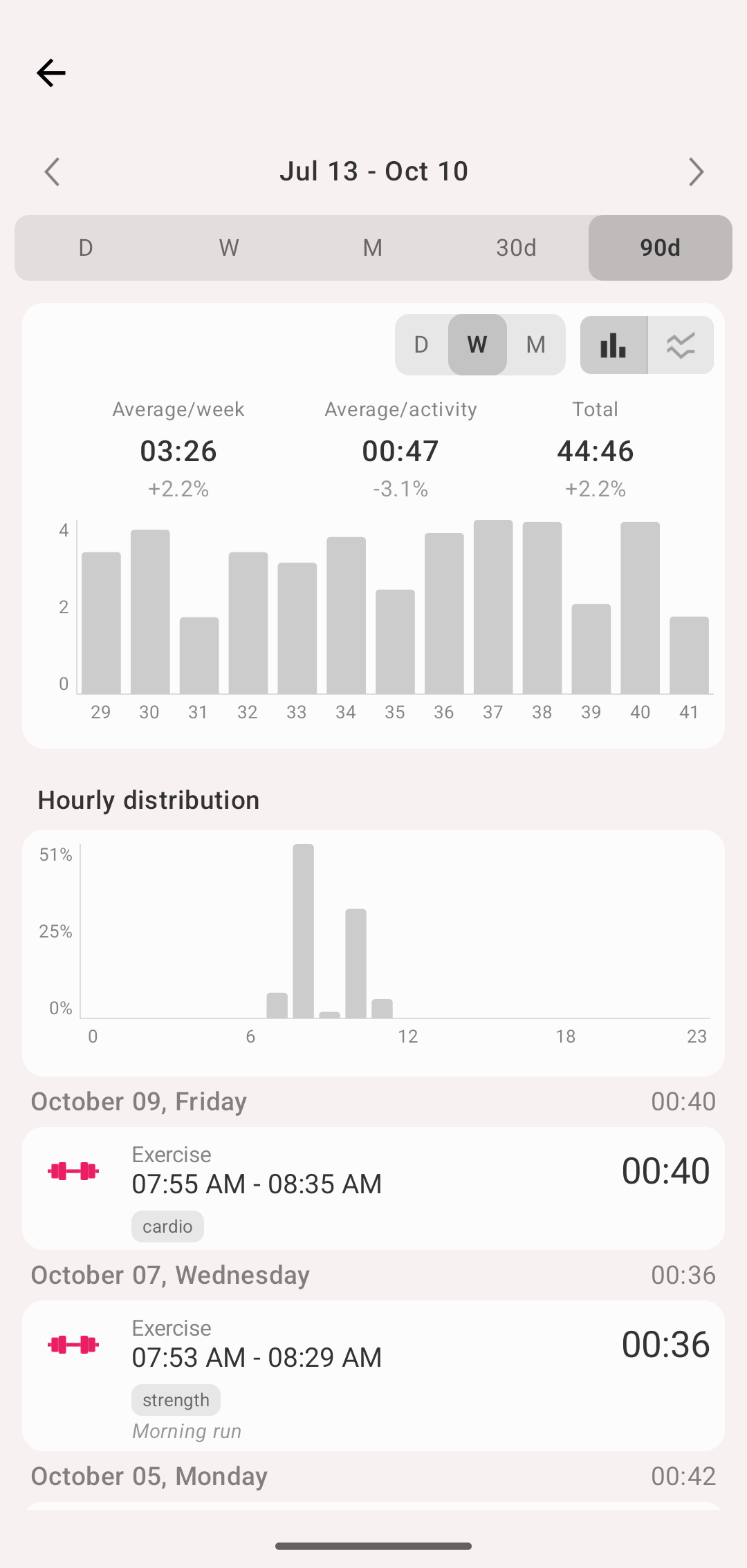
Type history
Info
Week and month bars count each record once, even if it crosses midnight: a night of sleep is one sleep in the week, not two halves.
Info
Moving to other periods and switching the period type need a premium subscription, and so does Hourly distribution. Without it, the arrows and the switch show the upgrade prompt and the swipe is off. Bar width can be changed by everyone.
Reordering
The order of types on the Types tab is the order used everywhere else, including the activities grid.
Press and hold a type, then drag it to a new position. The new order is saved as soon as you drop it. The same works inside a group.