Countdown Timer
The countdown timer runs an activity for a fixed length of time and tells you when it's up — a 20-minute nap, a 45-minute study block, 15 minutes of tidying up. Unlike Pomodoro there is no work/break cycle: you choose a duration, it counts down, it ends.
Countdown is a premium feature.
Starting a countdown
- Open the Activities tab and select Countdown in the mode selector
- Set the hours and minutes on the wheel. It starts at the duration you picked last time
- Tap Start and pick the activity type
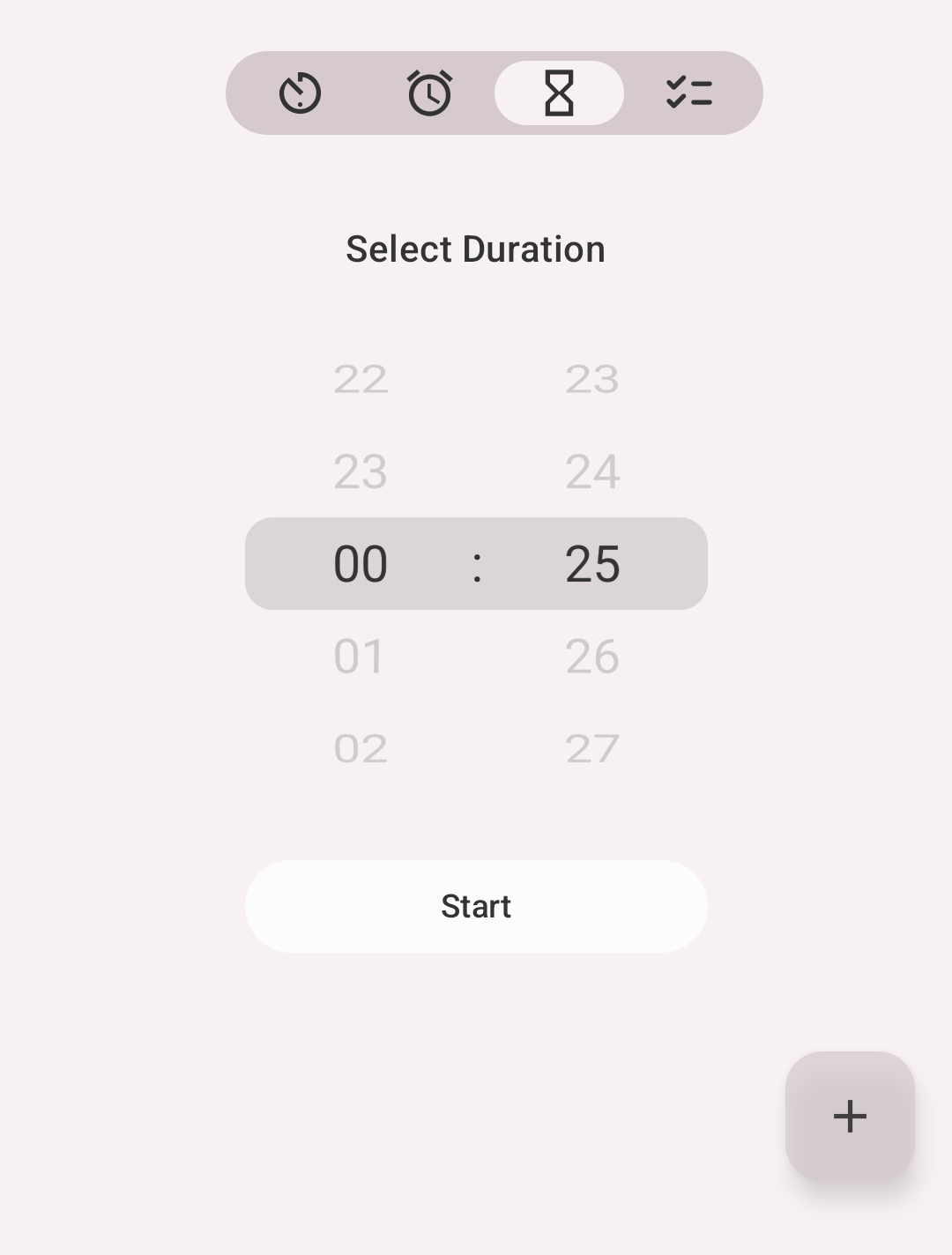
Choosing a duration
While it runs
The countdown fills the screen: the big number is the time left, the small one under it the time gone. The activity is tracked normally the whole time, so it lands in History like any other record.
Quit ends the countdown but not the activity: it keeps running as a usual timer on the Activities tab, where you stop it when you are done.
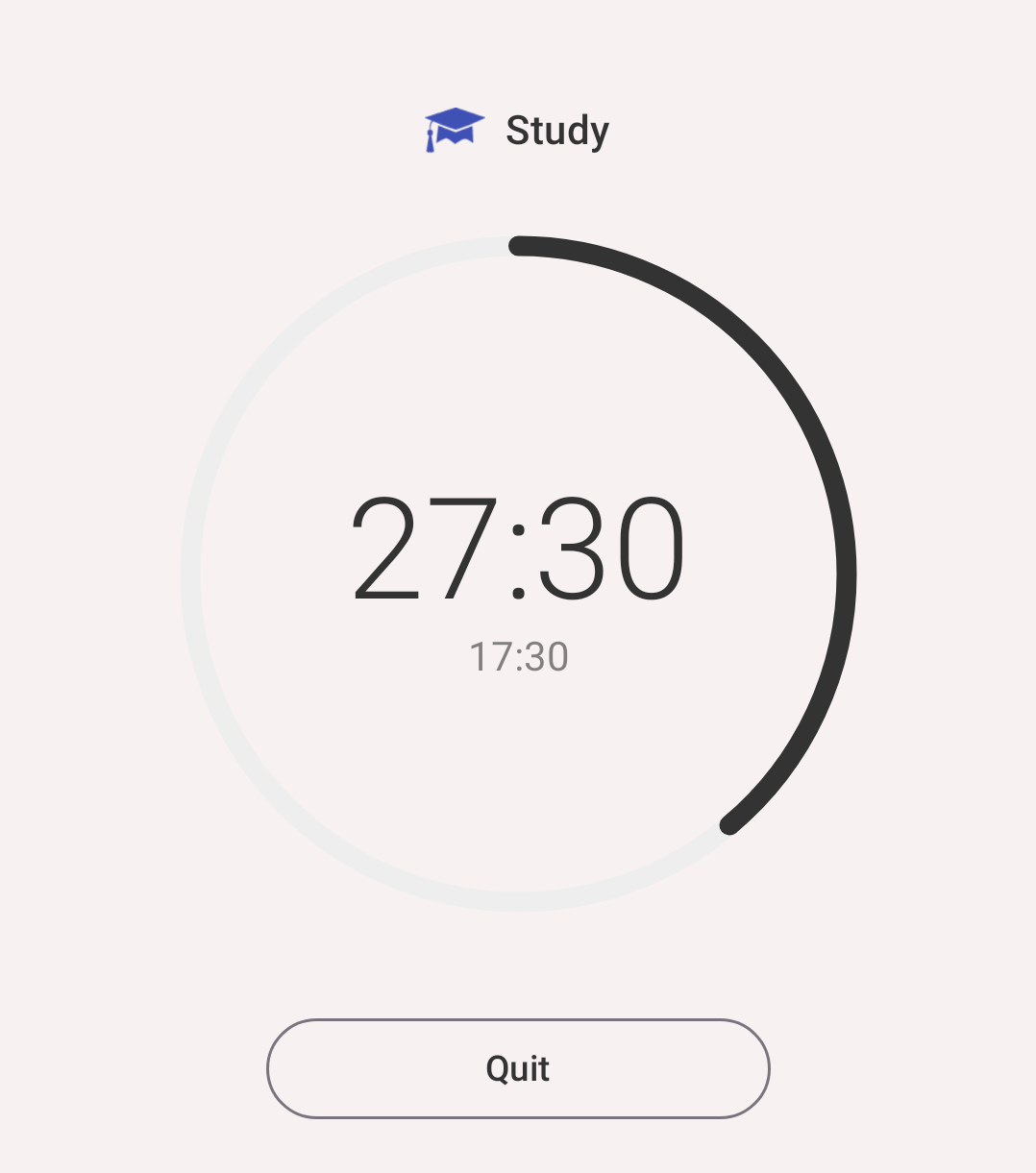
45 minutes of Study: 27:30 left, 17:30 gone
When the time is up
An alert sounds, the screen shows 00:00 and asks Need more time?
- Set the minutes on the wheel and tap Add more to carry on
- Tap Quit to end the countdown. The activity keeps running as a usual timer
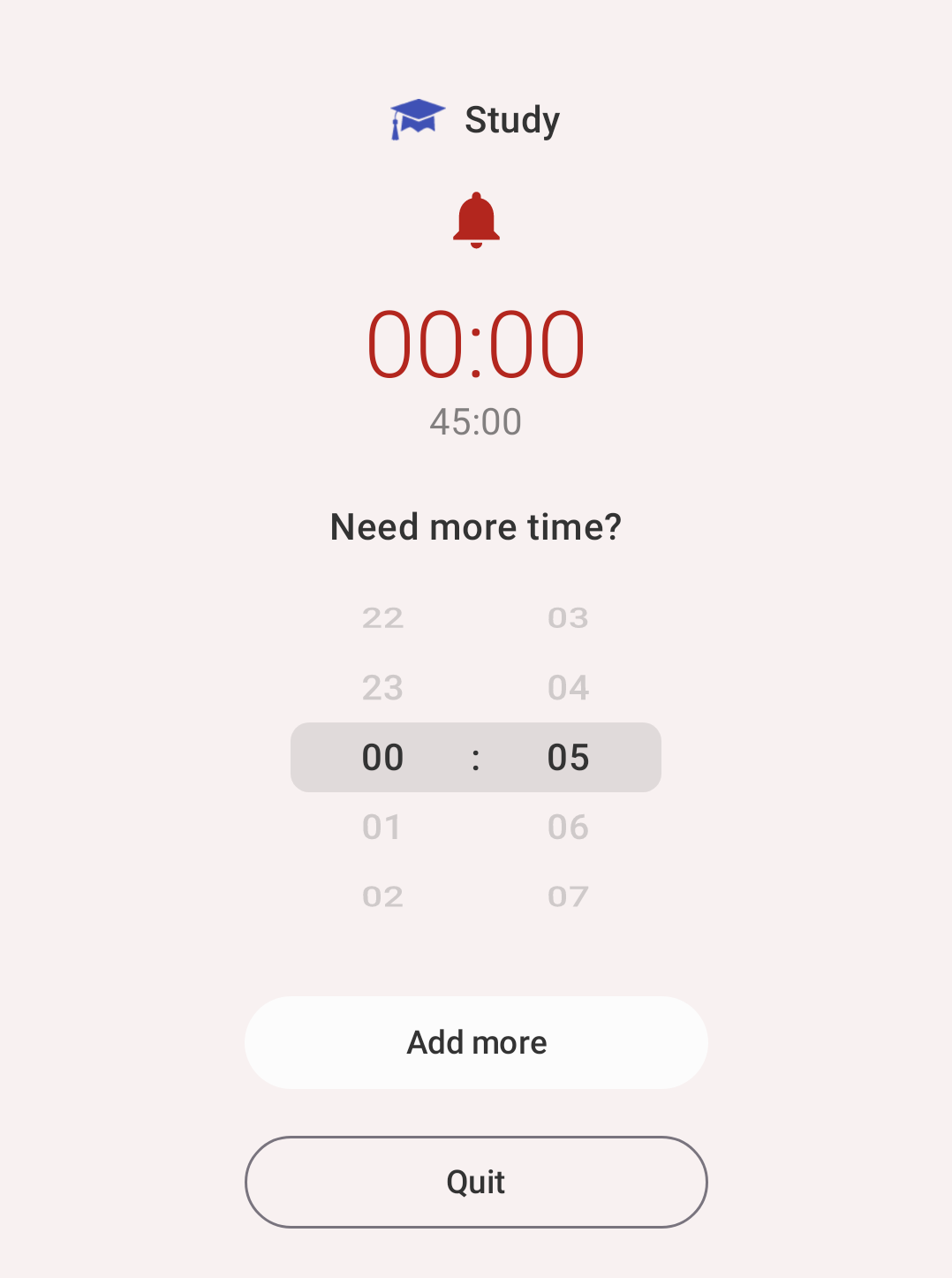
Time's up
Settings
Settings → Countdown:
- Countdown — turn the mode on or off
- Timers — the durations offered as presets, and the activity types the countdown can be used with
- Alert sound — what plays when the time is up
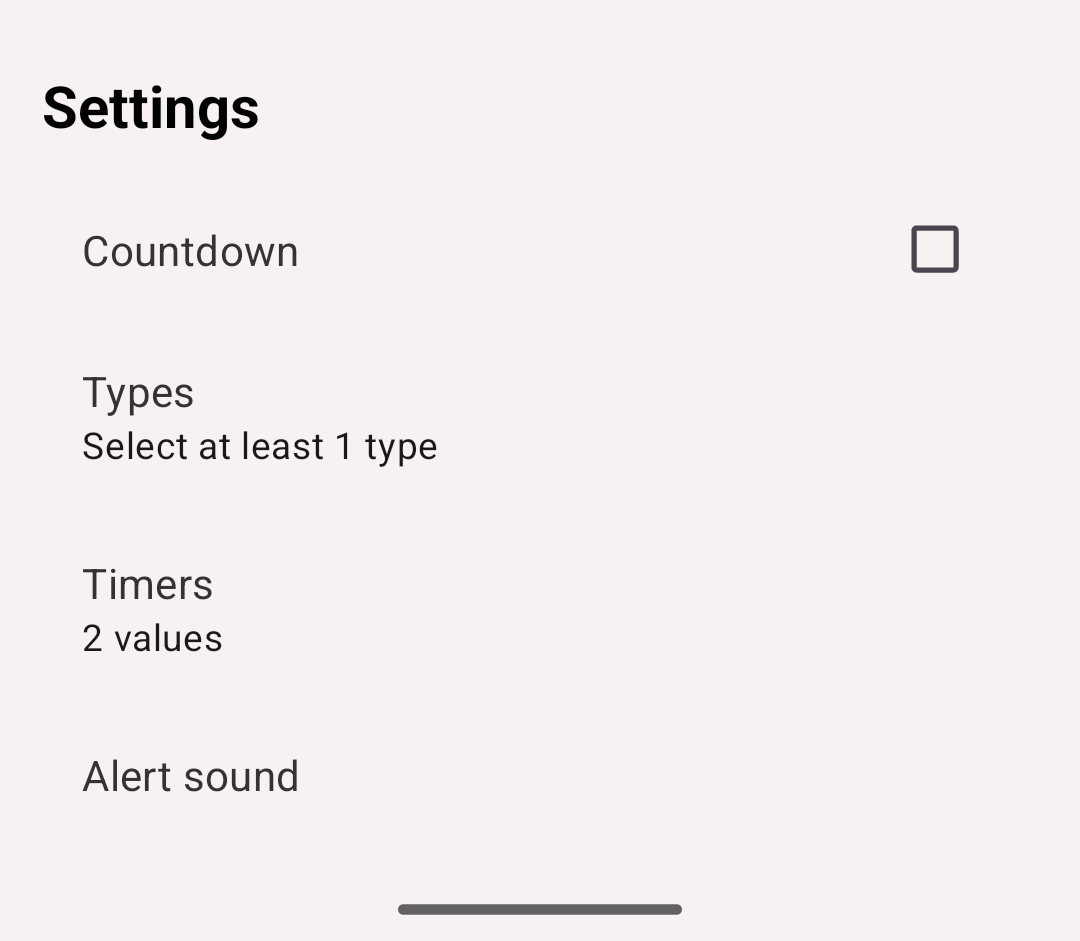
Countdown settings
Permissions
To fire the alert exactly on time even when the app isn't open, Android needs permission to schedule exact alarms. The app asks for it the first time you start a countdown; if you decline, the alert may arrive late.
Leaving the mode
Switching away from Countdown while a timer is running asks for confirmation, so you don't lose the countdown by tapping the wrong tab.