Health Connect
Available on Android only.
Your watch, ring or fitness app already records when you sleep and when you work out. aTimeLogger can read those records from Health Connect and put them next to your own log:
- See sleep stages, heart rate and workout details right on the activities you log
- Add a night or a workout you forgot to log with one tap
- Fix the start and finish of a logged activity to the times your watch recorded
- View sleep and workout statistics: sleep score, sleep schedule, heart rate zones, training load
Health Connect is a premium feature.
Info
The app only reads from Health Connect. It never writes or changes your health data.
Requirements
- Android 9 or newer. On Android 9–13, install the Health Connect app from Google Play — the app shows an Install Health Connect button if it's missing. On Android 14 and newer, Health Connect is part of the system
- An app that saves sleep or workouts to Health Connect, for example the app of your watch or ring
- Premium. Without it you can open the Health Connect screens and connect, but sleep and workouts are not imported or shown
Info
Health Connect is not available in the Huawei version of the app.
Opening Health Connect
Go to More → Health Connect. The screen shows:
- Sleep — the activity type your sleep is logged as. Opens the sleep statistics
- Workouts — how many workout types are mapped. Opens the workout statistics
- To review — the number of sleep and workout sessions that don't match your log yet. See To review
- Settings — connection, sleep and workout settings
- Heart rate zones — see Heart rate zones
While sleep or workouts are turned off, their rows show Not imported and open the settings instead.
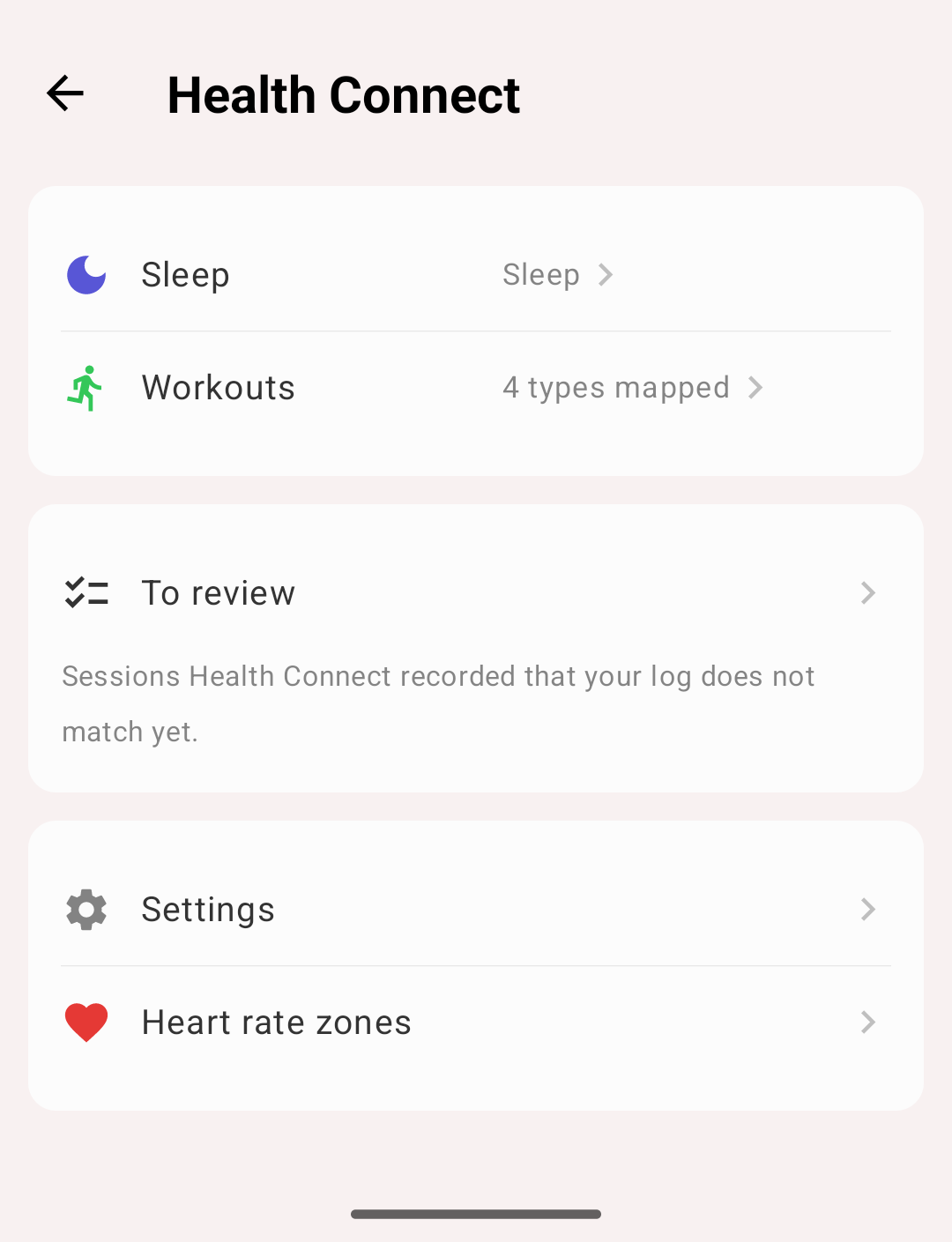
Health Connect screen
Connecting
- Open More → Health Connect → Settings
- Tap Connect and allow access in Health Connect
The app asks to read:
| Data | Required | Used for |
|---|---|---|
| Sleep | Yes | Nights, sleep stages, sleep score |
| Exercise | Yes | Workouts |
| Heart rate | Yes | Heart rate charts, zones, training load |
| Distance | Yes | Distance, pace and speed of workouts |
| Active calories | Yes | Active energy of workouts |
| Resting heart rate | No | Recovery part of the sleep score, heart rate reserve zones |
| Past data | No | Data older than 30 days |
The settings screen shows the connection status:
- Connected — everything is shared
- Some data is not shared. Connect again, or allow it in Health Connect. — some data types are not allowed. Data you didn't allow is simply missing; there is no error
- Allow past data — Health Connect shares only data from 30 days before you first connected. Allow past data to see sleep and workouts on older activities
Info
If you deny access twice, Android doesn't ask again. Tap Open Health Connect and allow access there.
To disconnect, remove the access in the Health Connect app. Turning Sleep or Workouts off in the settings stops the import but keeps your type mapping.
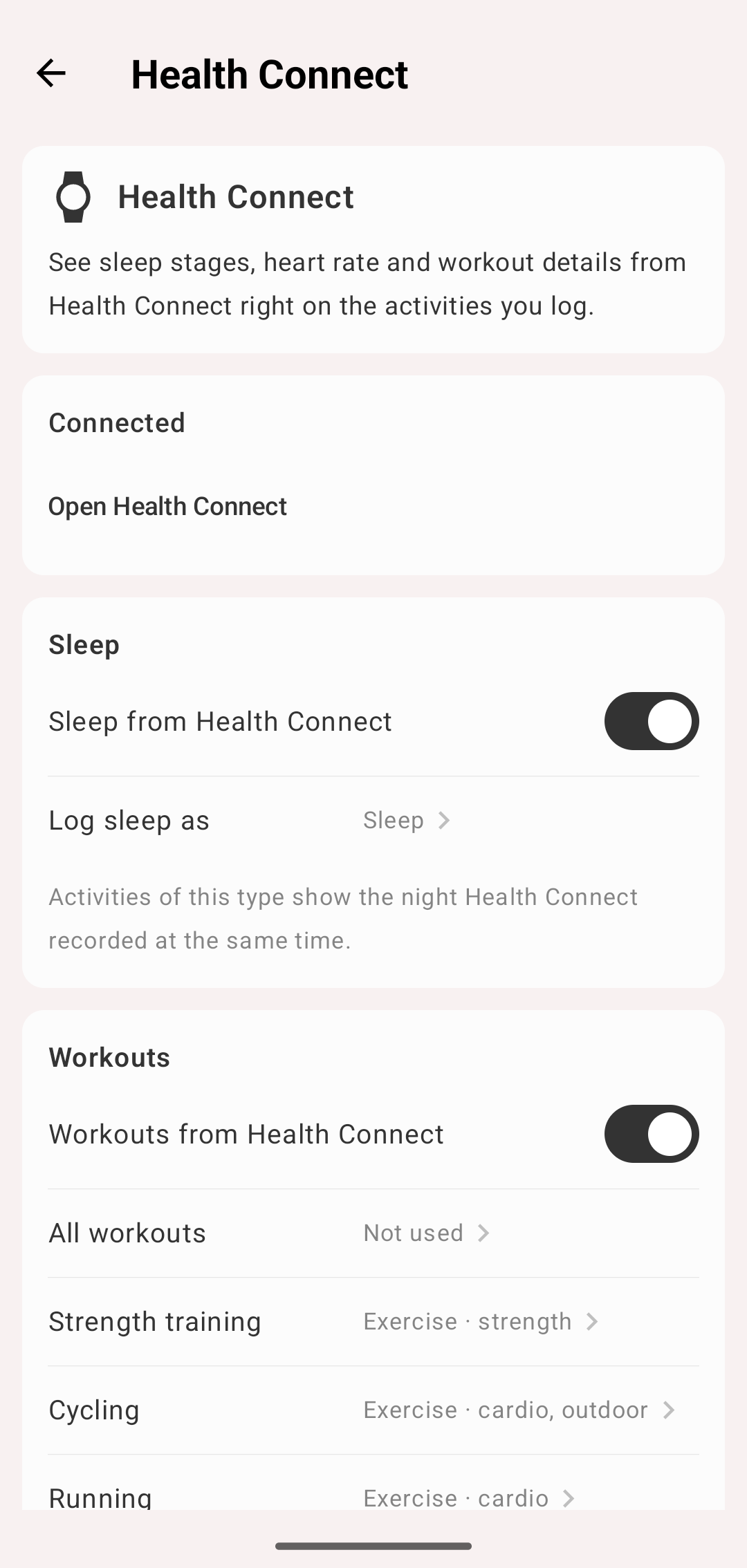
Health Connect settings
Sleep
In Settings, turn on Sleep from Health Connect and choose Log sleep as — the activity type for your sleep. If you have an active type named "Sleep", it's selected for you. Until a type is set, the row shows Not set and nothing is imported.
Activities of this type show the night Health Connect recorded at the same time.
Workouts
In Settings, turn on Workouts from Health Connect. The list shows the workout types recorded in the last 90 days, most frequent first. Each one starts as Not used.
Tap a workout type to map it:
- Log as — the activity type for this kind of workout
- Tags — tags added to the activity. Useful if you track every sport under one type, for example Exercise with the tags "running" and "cycling". See Tags
- Stop using this type — remove the mapping
Tap Add workout type… to map a type that isn't in the list yet. The catalogue has a search field.
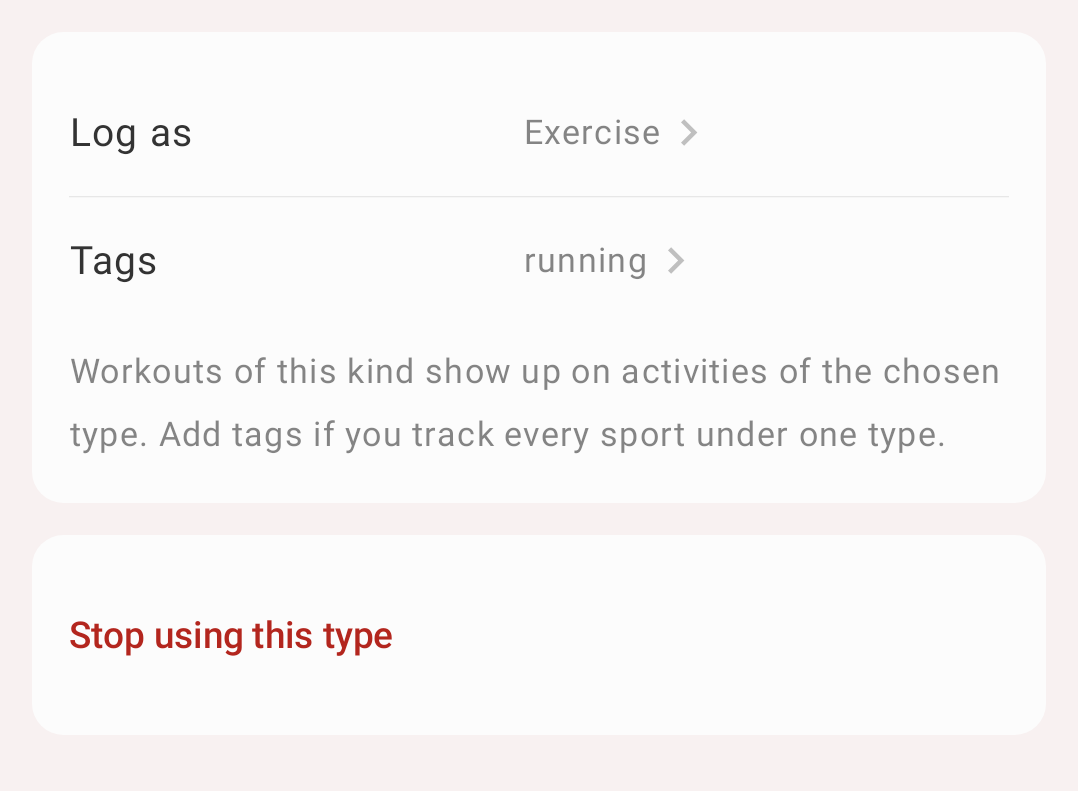
A workout kind logged as Exercise with the tag running
Info
Only mapped workout types are used. Several workout types can map to one activity type.
Health on your activities
Open an activity of a mapped type (Edit activity screen). Under the intervals, the Health section lists the sleep or workout Health Connect recorded at the same time, for example Health: 23:10 – 07:02. Tap it to open the details.
This works for activities you logged yourself too: the app finds the session by time.
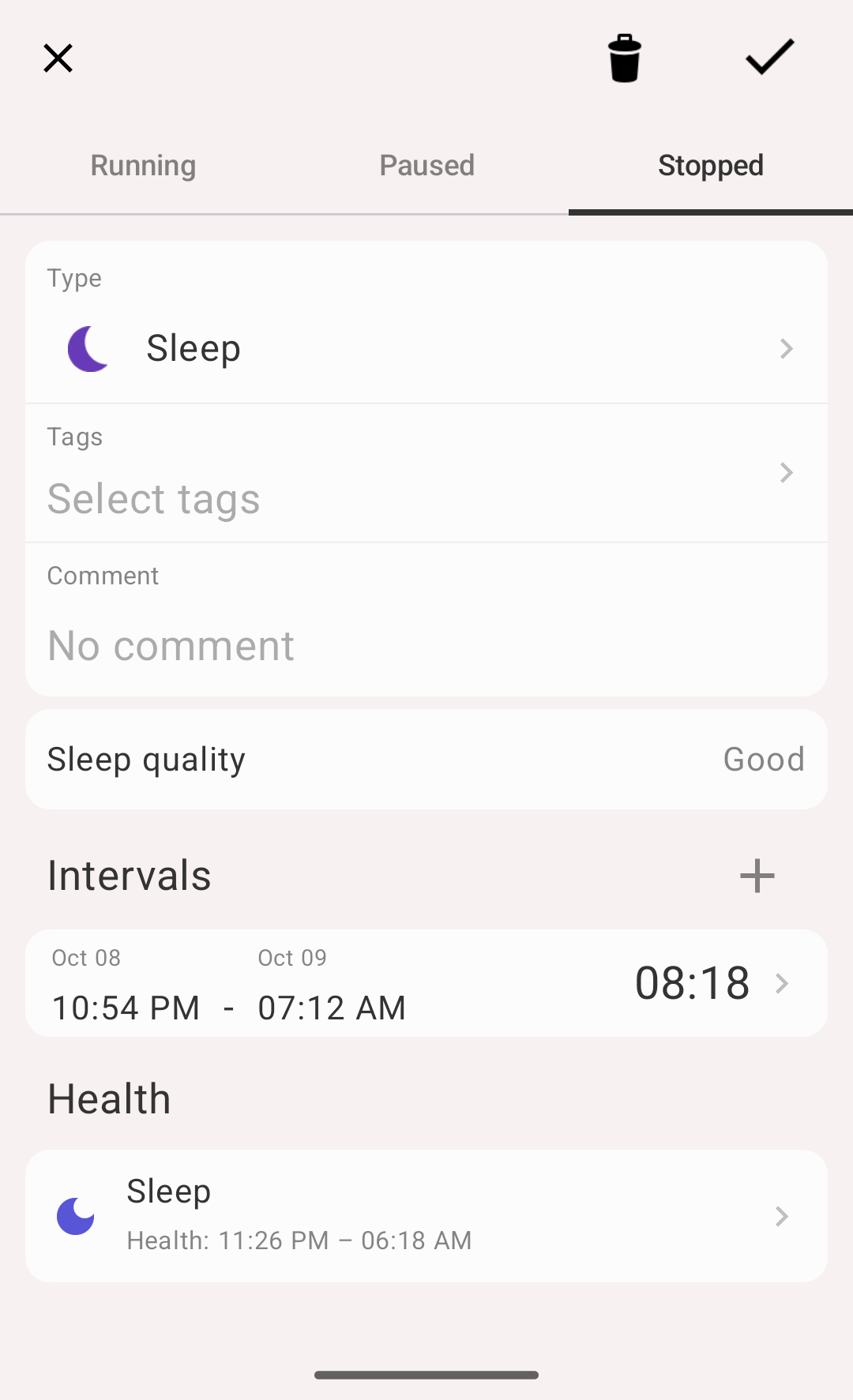
Health section on the Edit activity screen
Workout details
- Heart rate chart
- Heart rate zones — the time in each zone, based on your max heart rate. Tap Zone settings… to change the zones
- Summary — Duration, Distance, Average pace, Average speed, Active energy, Average heart rate, Max heart rate (only what was recorded)
- Source — the app that recorded the workout, with Open Health Connect
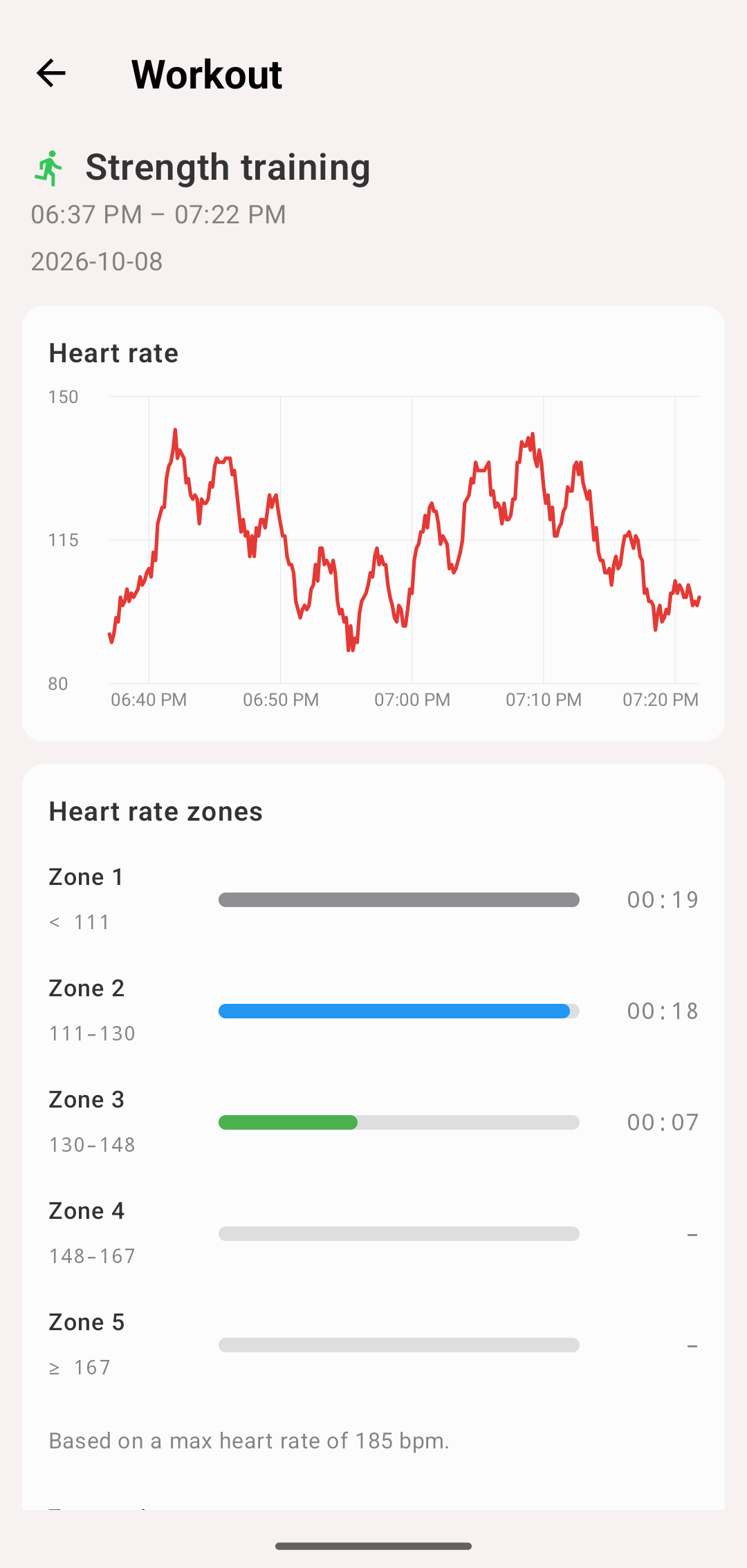
Workout details
Sleep details
- Sleep stages chart (Awake, REM, Core, Deep) and the heart rate during the night
- Breakdown of the stages
- Sleep score — see Sleep score
- Night stats — Time asleep, Time in bed, Efficiency (needs sleep stages), Awakenings
- Sources — the apps that recorded the night
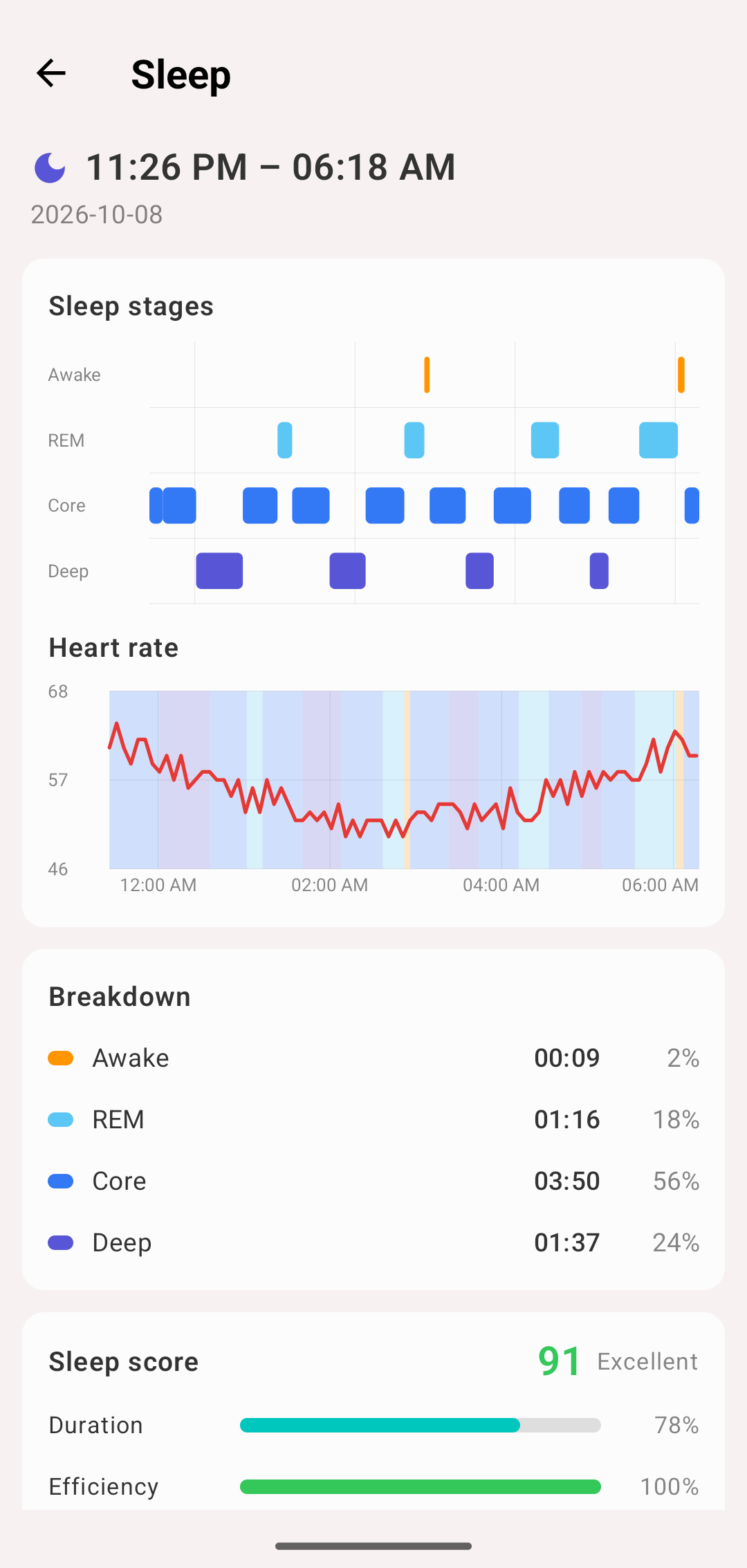
Sleep details
Use Health times
If the times of your activity and of the Health session differ, the details show both — Health: … and Your log: …. Tap Use Health times to copy Health's times into the activity, then save the activity. Available for activities with one interval.
Import suggestions
When you open the app, it checks Health Connect for new sessions (at most once every 15 minutes) and shows a card at the top of the Activities tab:
| Card | Buttons | What happens |
|---|---|---|
| You slept 23:10 – 07:02 / Workout 18:00 – 18:48 | Add / Dismiss | Add creates a stopped activity of the mapped type, with the mapped tags, at Health's times |
| Sleep is still running. Health shows 23:10 – 07:02 | Stop / Continue | Stop stops your running activity |
| Health shows 23:10 – 07:02, your log has 23:30 – 07:00 | Update time / Keep mine | Update time changes the activity's interval to Health's times |
Workout cards also show the details, for example 48m · Running · 8.24 km · 512 kcal.
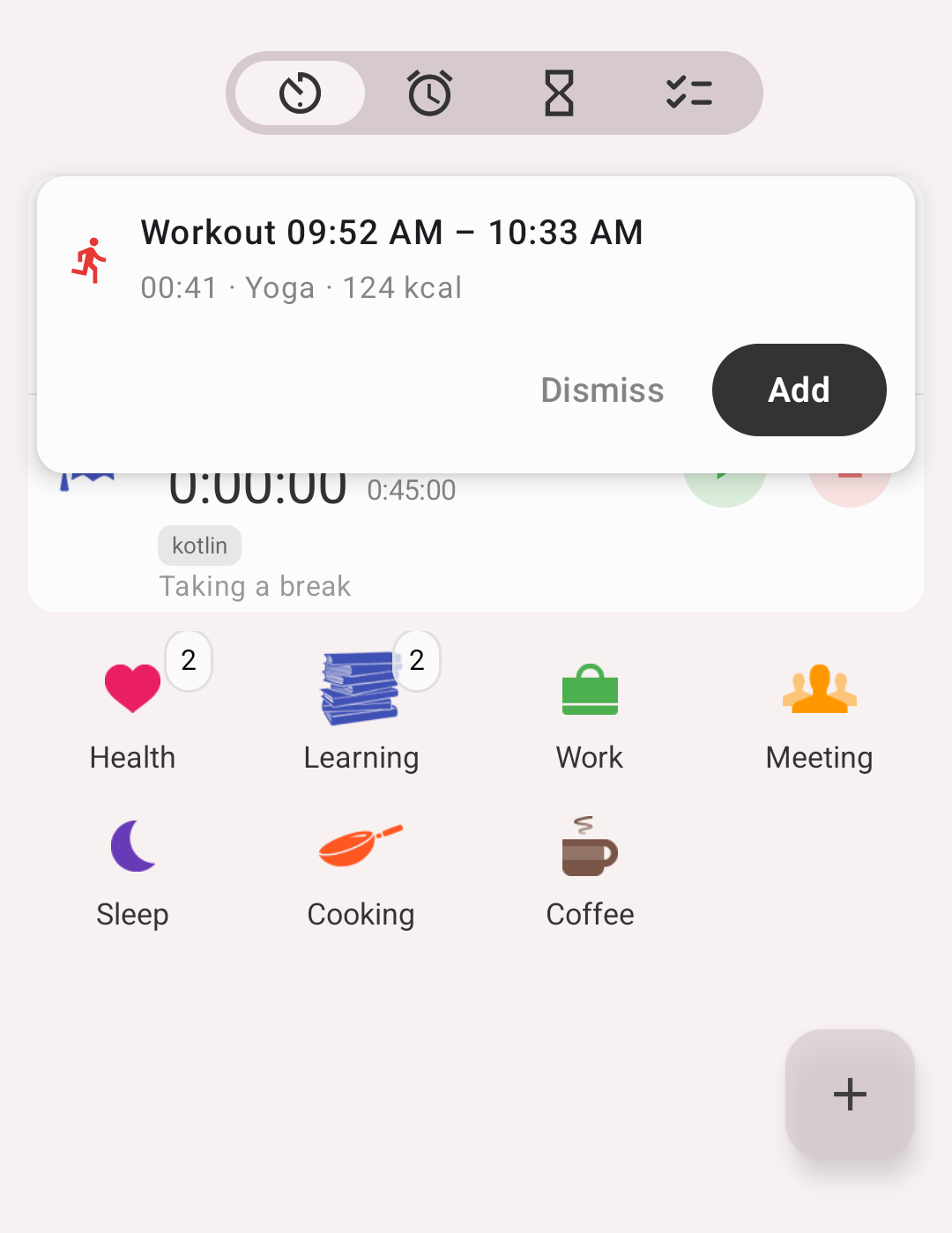
Import card on the Activities tab
How the cards work:
- The app waits a little after a session ends before suggesting it: 20 minutes for sleep, 10 minutes for workouts
- Only nights of 3 hours or more get a card. Naps don't
- Workouts shorter than 1 minute are ignored
- If two apps recorded the same session, it's shown once
- Times that differ by less than 1 minute count as the same. Update time is offered only within 24 hours after the session, when the times differ by more than 5 minutes and the activity has one interval
- Dismiss, Keep mine and Continue are remembered — the same card doesn't come back
Info
The app checks Health Connect only while it's open. There is no import in the background.
To review
More → Health Connect → To review lists everything in a week or month that doesn't match your log, including older sessions that never got a card:
- Not in your log — sessions without an activity. Add or Dismiss each one, or Add all
- Times differ from Health — activities whose times differ. Update time or Keep mine for each one, or update them all at once. A line above shows the average difference, for example Starts 12m later in Health
Each row shows the Logged and Health times. Tap a row to open its details. When everything matches, the screen shows Nothing to review.
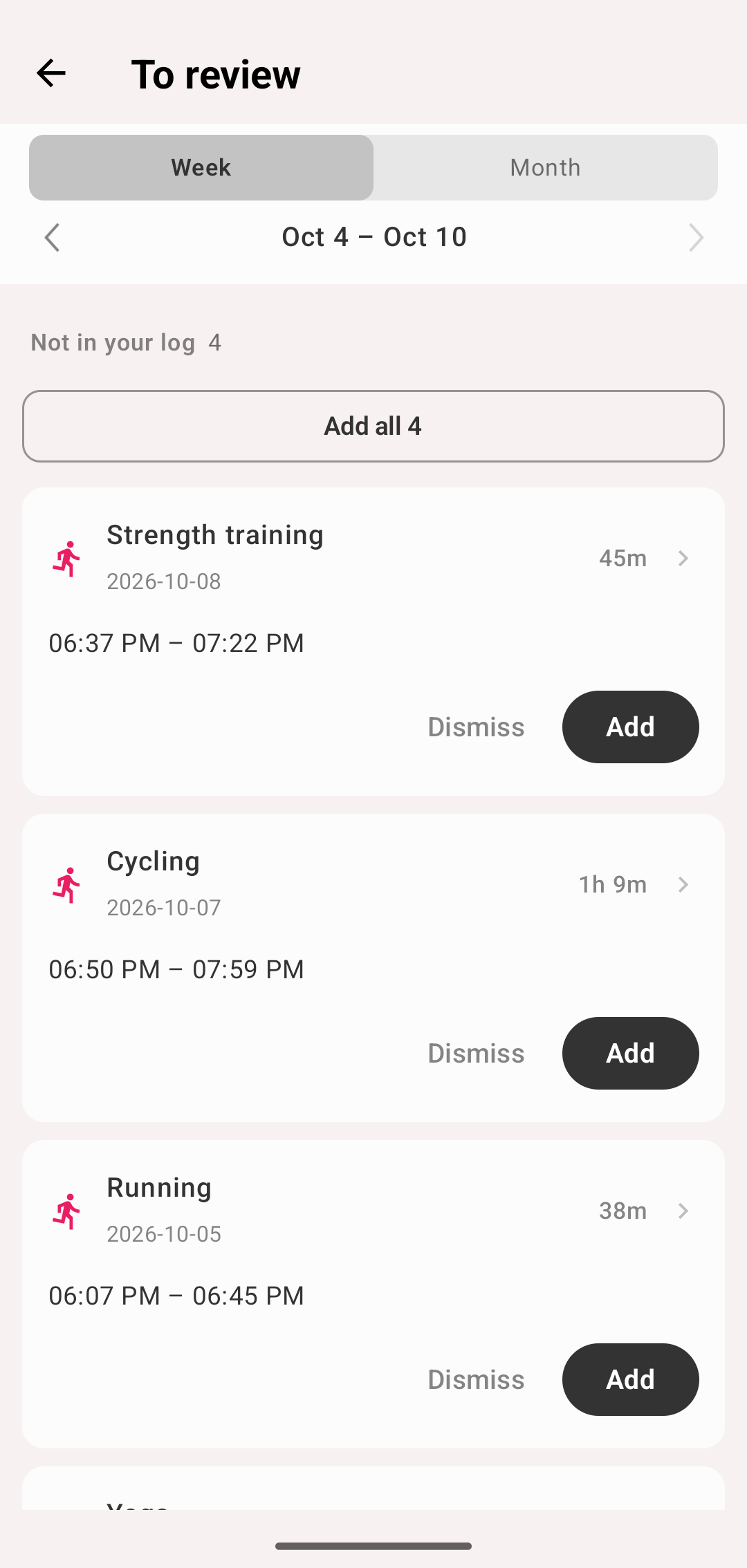
To review
Sleep statistics
More → Health Connect → Sleep. Switch between week and month and page with the arrows:
- Bars — each night by sleep stage, with the average line. Nights that are not in your log are faint. Tap a day, then tap again to open the night
- Sleep schedule — when you went to bed and woke up
- Summary — average Time asleep, Sleep score, Bedtime, Wake up, Consistency (±minutes), Deep and REM share, Nights (X of Y logged)
Naps are shown in the bars but not counted in the summary. Use Refresh from Health Connect in the menu to read the data again.
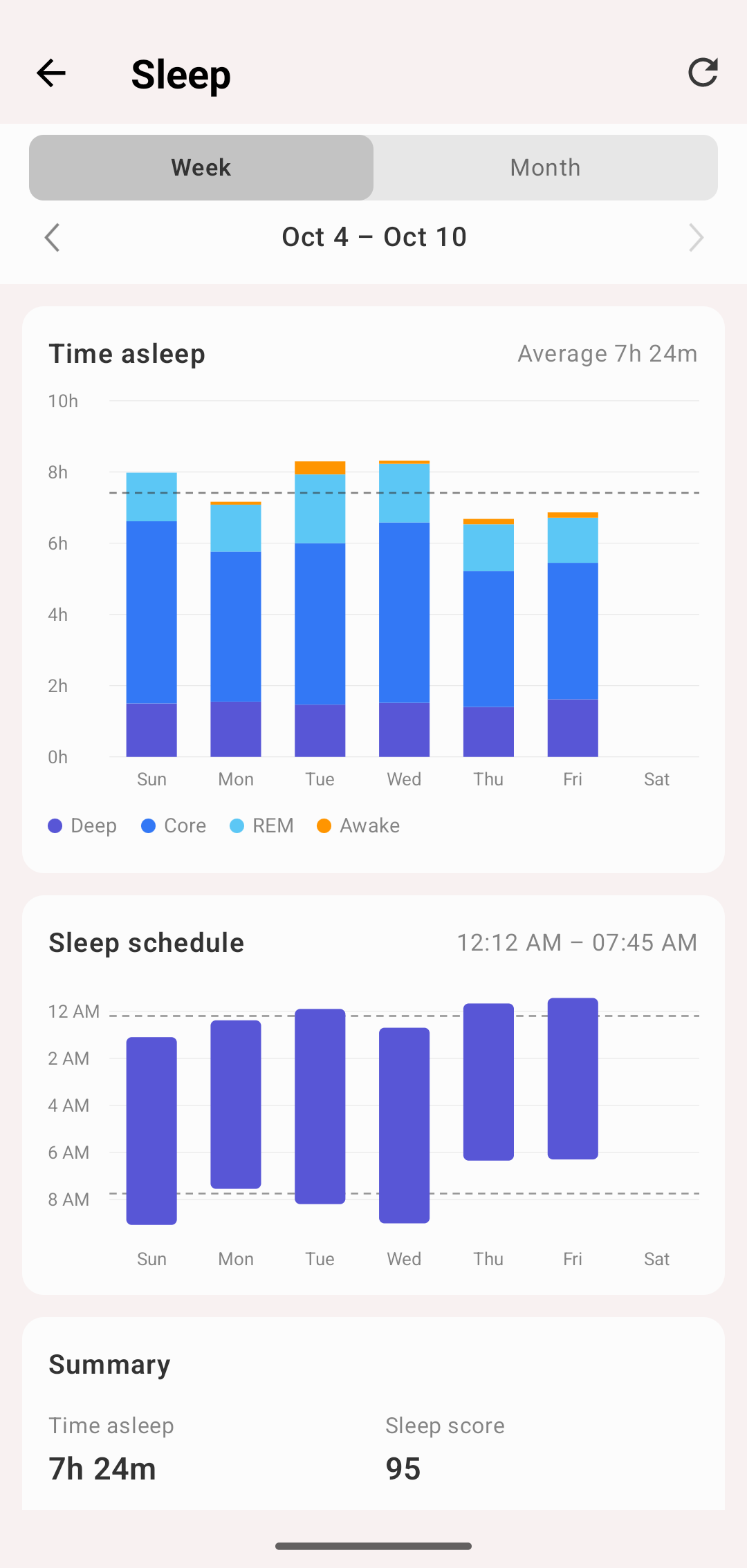
Sleep statistics
Sleep score
The app's own estimate of a night, from 0 to 100:
| Part | Weight | Full score | Zero |
|---|---|---|---|
| Duration (time asleep) | 40 | 7h 30m – 9h 30m | 4h or less |
| Efficiency (asleep ÷ in bed) | 20 | 90% | 65% |
| Deep & REM (share of the night) | 20 | 40% | 15% |
| Recovery (lowest heart rate of the night vs. your average resting heart rate over the last 30 days) | 20 | At or below it | 15 bpm above it |
Above 9h 30m, duration loses 10% per extra hour. A part without data — no stages, or no resting heart rate — is left out, and the other parts count for more.
Rating: 85–100 Excellent, 70–84 Good, 50–69 Fair, below 50 Poor.
Workout statistics
More → Health Connect → Workouts. Shows every workout recorded in Health Connect, mapped or not. Use the chips at the top to filter by workout type.
- Volume — by Time, Distance or Active energy
- Time in zones — time in each heart rate zone
- Training load — per day, with Last 7 days, 4-week average and their Ratio. The ratio is grey below 0.8, green from 0.8 to 1.3, orange from 1.3 to 1.5 and red from 1.5
- Summary — Workouts, In your log (X of Y, mapped types only), Total time, Distance, Active energy, Average heart rate, Training load
Tap a day to see its workouts.
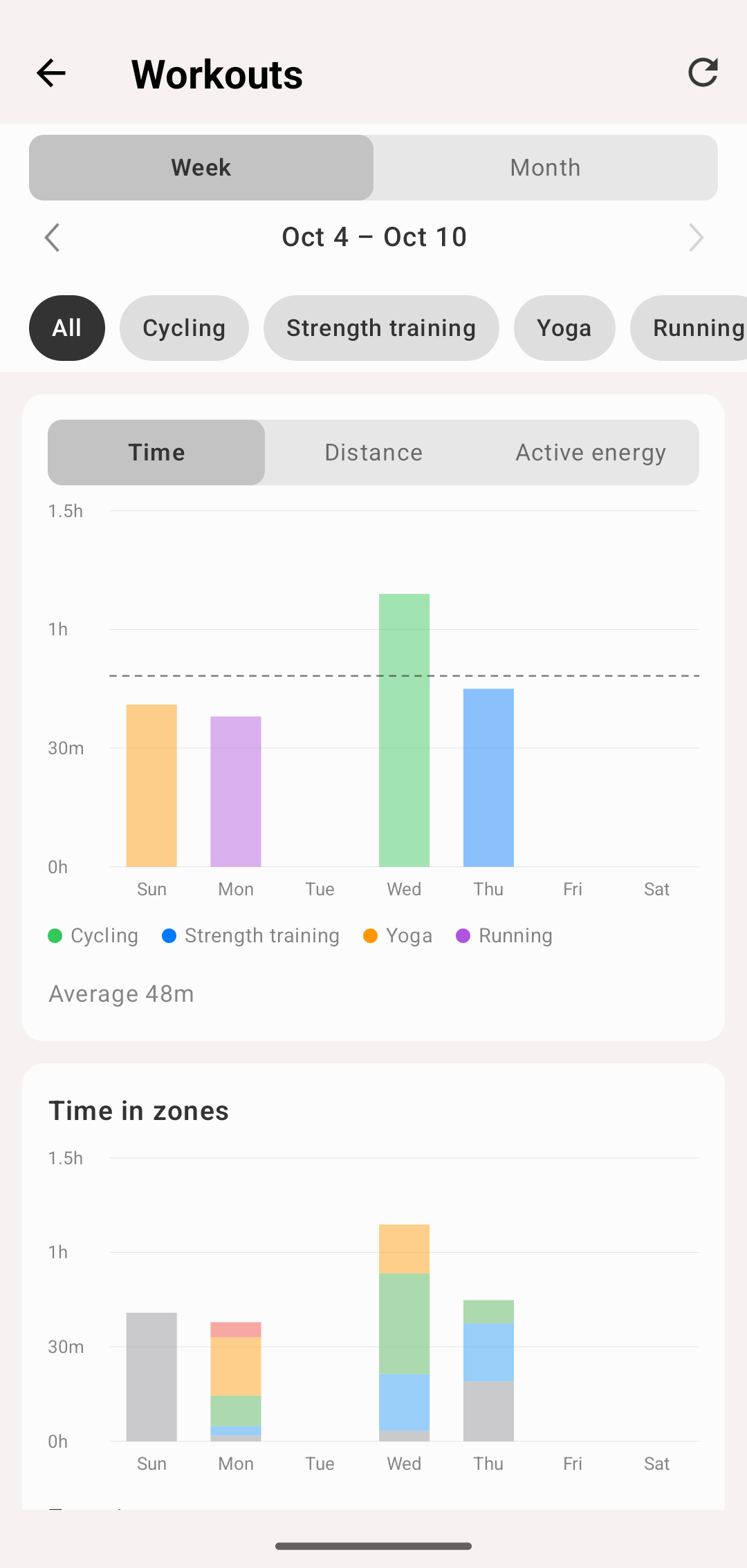
Workout statistics
Info
Training load = minutes in each zone × the zone's number. Workouts without heart rate count as zone 2.
Heart rate zones
More → Health Connect → Heart rate zones, or Zone settings… in the workout details.
Model:
| Model | Zones |
|---|---|
| % of max heart rate (default) | Five zones at 60, 70, 80 and 90% of your max heart rate |
| Heart rate reserve | Karvonen: five zones at 60–90% of the range between your resting and max heart rate |
| Threshold | Five zones at 85, 90, 95 and 100% of your threshold heart rate |
| Custom | 2 to 7 zones; you type each boundary (30–220 bpm) |
Max heart rate — Source:
- Formula — from your Age: 220 − age (default) or one of the other formulas. Without an age, 190 bpm is used
- Measured in Health Connect — the highest reading in the last year
- Manual
Resting heart rate: From Health Connect or Manual. Without data, 60 bpm is used.
Resulting zones shows the bpm range of each zone. Changes apply at once.
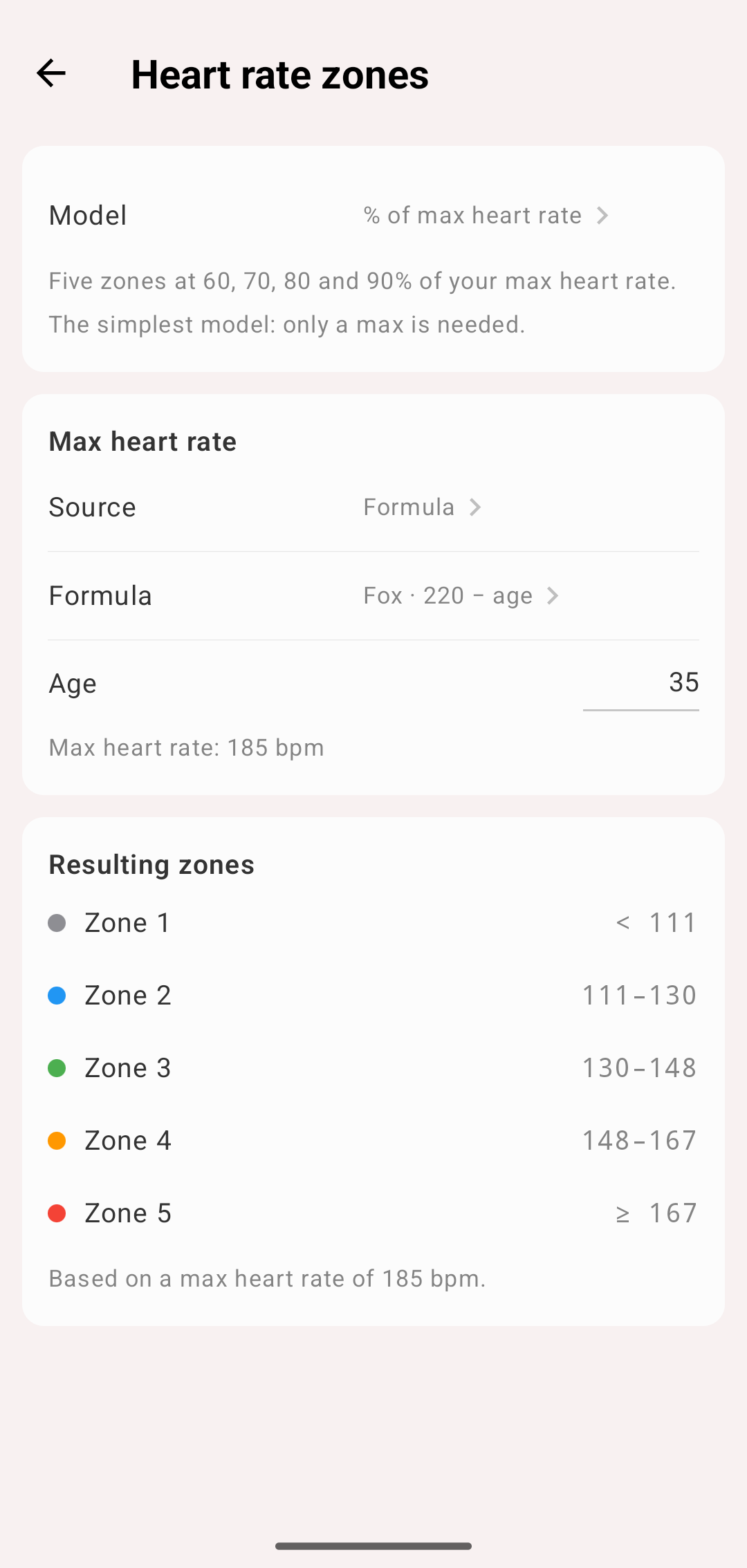
Heart rate zone settings
Your data and other devices
- Health data — sleep stages, heart rate, workout details — is read from Health Connect on this device. It is not uploaded or synced
- Activities you add or update from a card are ordinary activities: they sync to your other devices like any other activity
- The Health Connect settings (sleep type, workout mapping, zones) are stored on this device. Set them up on each Android device
- Units are metric: km, km/h, min/km, kcal