Filters and Export
The Statistics view of the History tab answers "where did the time go" for any period. Filters narrow it down to the types and tags you care about, you can save them for next time, and from the same place you export the result to a file.
Filters
A filter keeps only the activity types and tags you picked: "only work", or "only the things I tagged client A". It changes the statistics and the list of records alike, and the comparison with the previous period uses it too.
Tap the filter button in the History toolbar to open the filter menu:
- Export — see Export below
- Add filter — create and save a new filter
- Cancel — turn the active filter off. Shown only while a filter is active
- Your saved filters — tap one to apply it
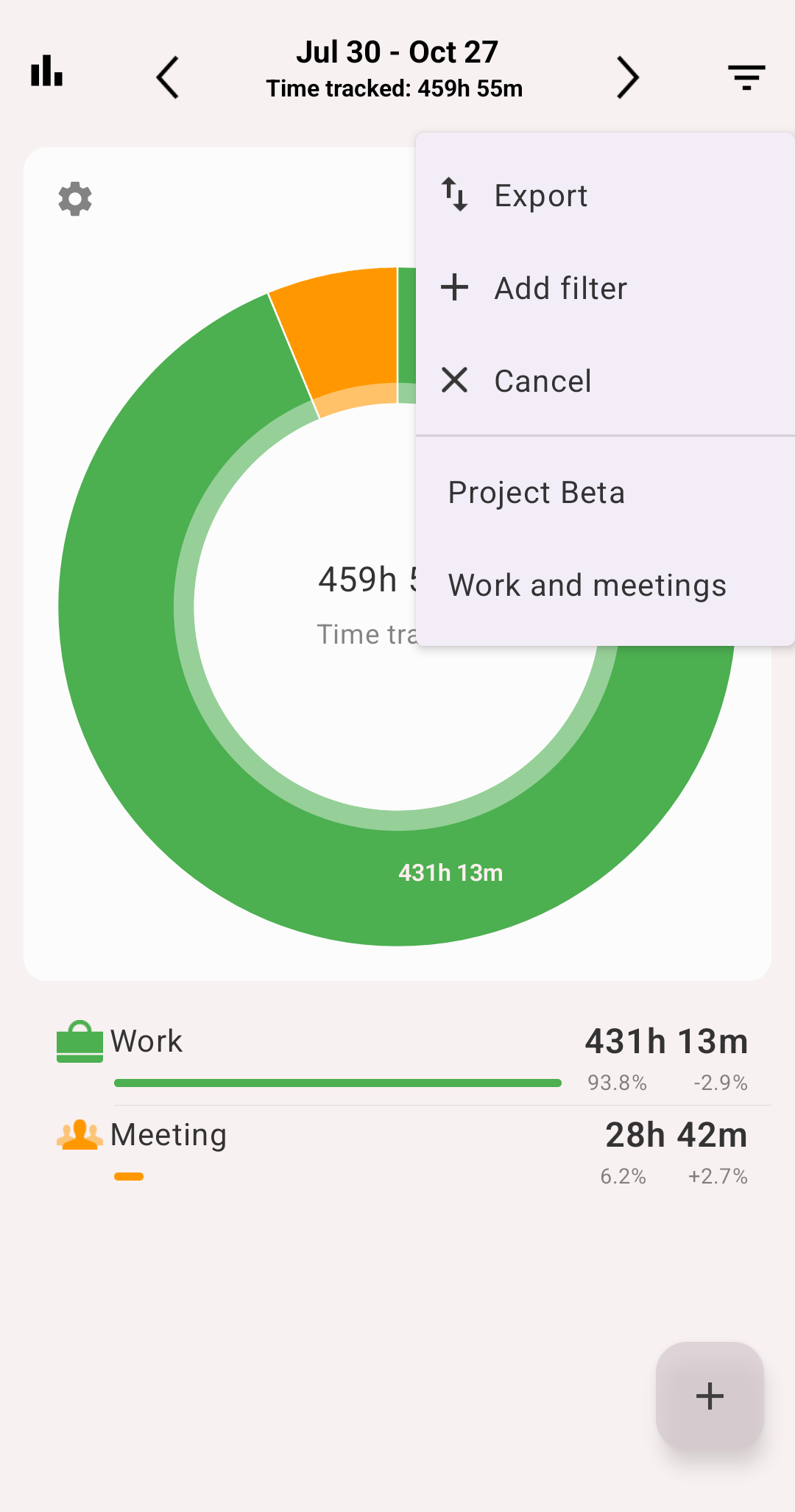
The filter menu
Saving a filter
- Open the filter menu and tap Add filter
- Enter a name
- Pick the activity types, the tags, or both
- Tap Save
The filter is saved in the filter menu: tap it there to apply it, and next month pick it again instead of setting it up from scratch. An active filter is marked on the filter button.
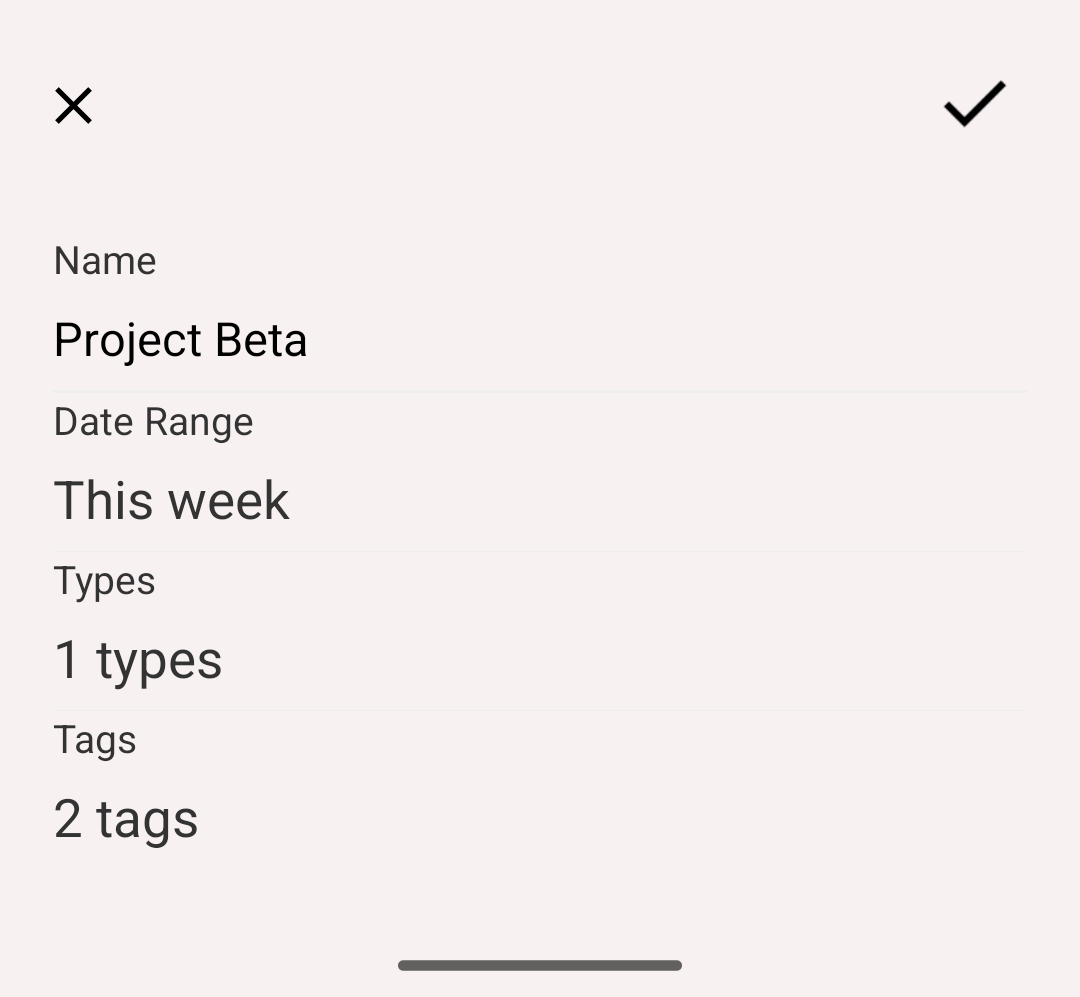
A new filter
Info
Without a premium subscription you can save up to two filters.
Export
- Choose the period, and apply a filter if you need one
- Open the filter menu and tap Export
- Choose the format — CSV or HTML
- Choose what to do with the file — Send by email or View
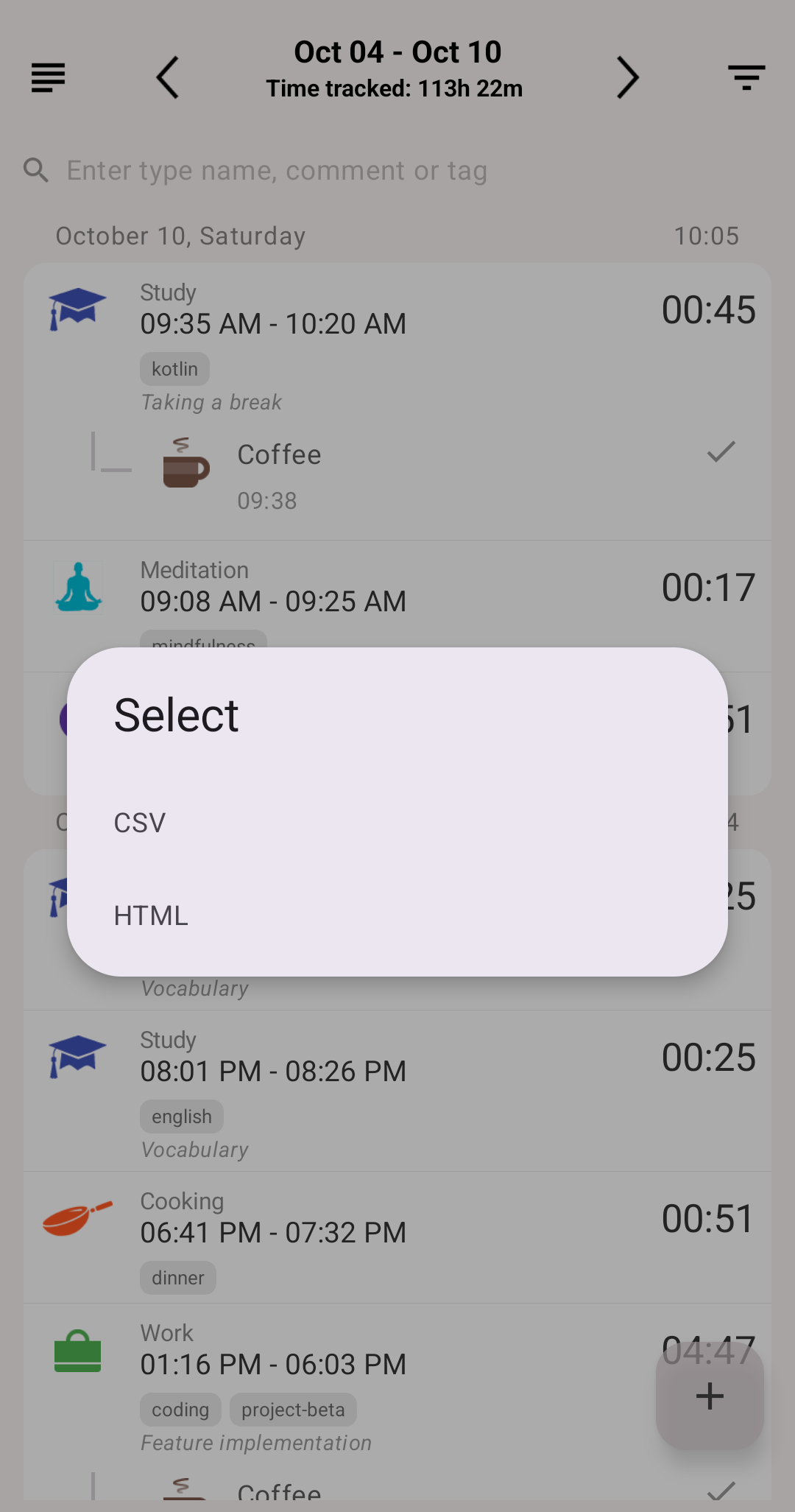
Choosing the export format
The file has every record of the period that passes the filter — type, start, finish, duration, comment and tags — followed by the totals by activity type. When the statistics are grouped by tags or by a list field, the totals follow that grouping too. Custom fields get columns of their own.
Export settings
Several options in Settings change how the file looks:
- History order — ascending or descending
- Separate groups column in csv report — puts the group hierarchy in its own CSV column
- CSV duration format — how durations are written
- Display seconds in CSV report — include seconds in exported times
- Custom CSV — your own date format for the CSV file, for example
dd.MM.yyyy
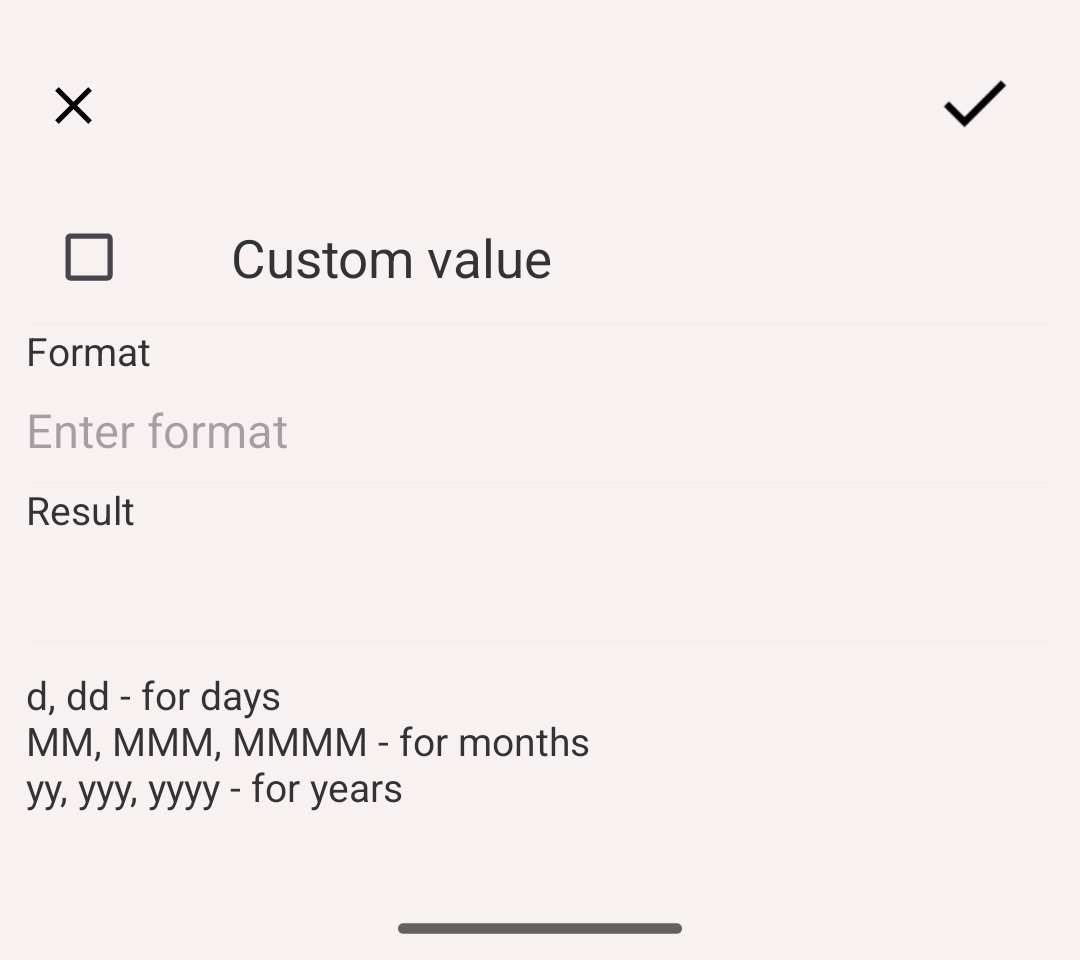
Custom CSV date format