Calendar
The app can copy your activities into a calendar on your device, so your tracked time shows up next to your meetings in Google Calendar or any other calendar app.
The copy goes one way only: from aTimeLogger to the calendar. Events you create or change in the calendar app don't come back into aTimeLogger.
Calendar export is a premium feature.
Setting it up
- Open Settings → Calendar
- Allow calendar access when the app asks for it
- Tap a calendar from the list of calendars on your device
- Pick the activity types whose activities should go to that calendar
Each calendar in the list shows the types sent to it, or No types. If the list is empty, add a calendar on your device first.
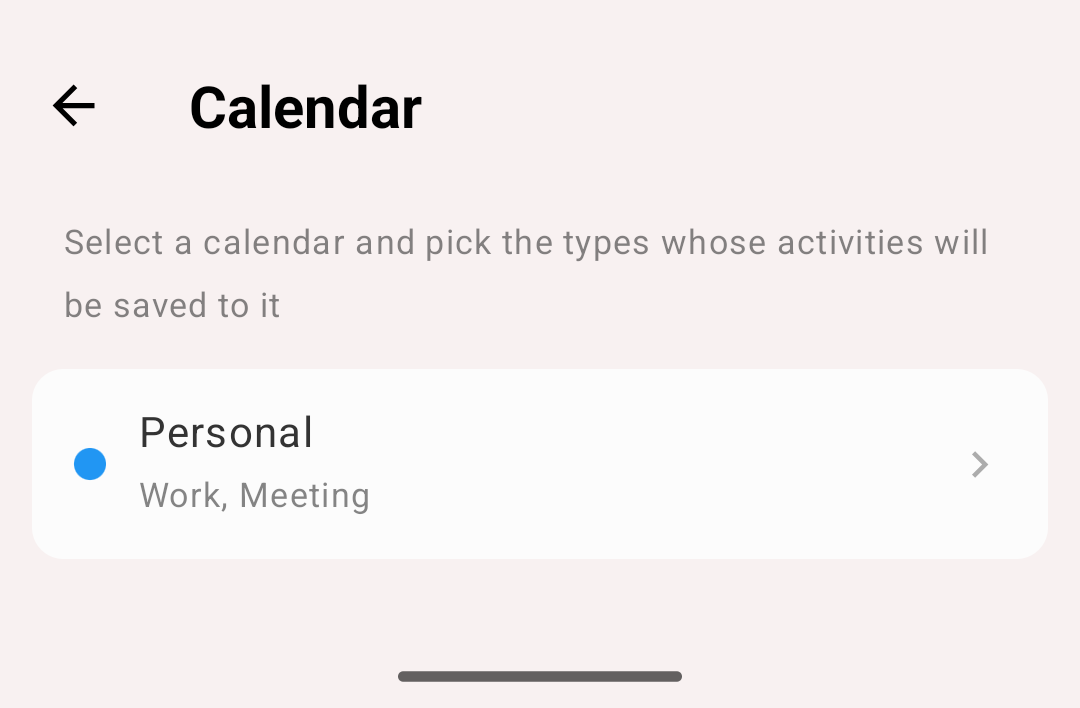
A calendar and the types sent to it
What goes into the calendar
- Every interval of an activity becomes a calendar event with the same start and end
- The event title is the activity type name
- The activity comment goes into the event description
When you edit an activity, its events are updated too.
Warning
Deleting an activity in the app does not delete its events from the calendar. Remove them in the calendar app if you need to.
Example
Send your Work and Meeting types to a shared "Work" calendar, and your team sees when you were busy without you entering anything twice.