Backup & Restore
Protect your data with local backups and cloud sync.
Automatic Data Syncing (Premium)
Recommended Method:
- Sign up for an account (More → Account → Sign Up)
- Subscribe to Premium Sync
- Data automatically syncs to cloud
- Accessible from all devices
- No manual backup needed
See Sync for details.
Manual Backup
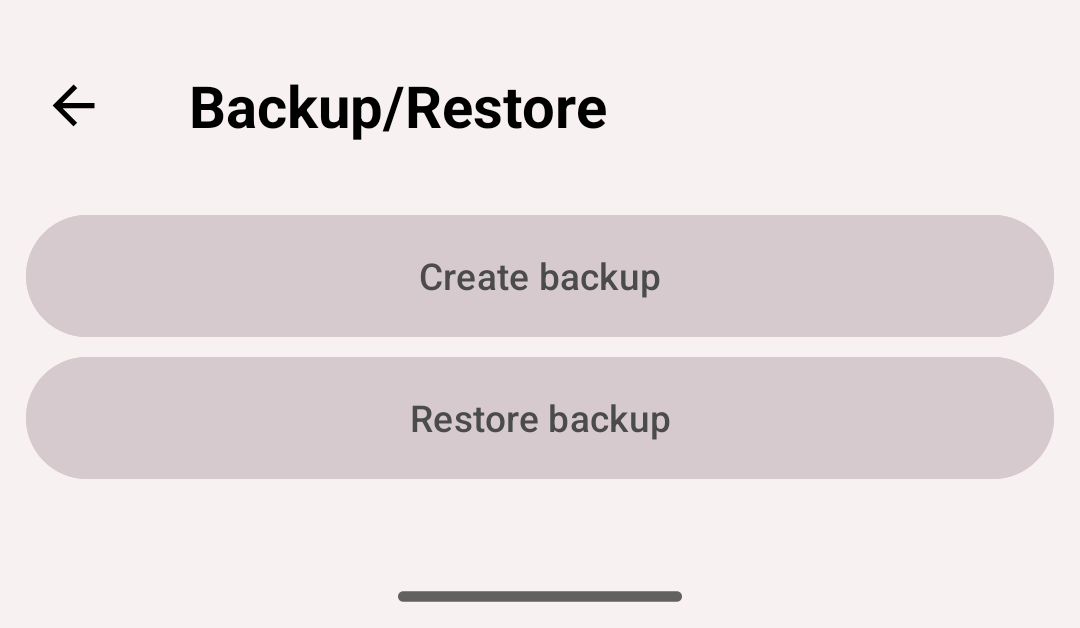
Backup and restore
For users without subscription:
Creating a Backup
- Open More → Backup/Restore
- Tap Create backup
- Android's share menu opens. Pick where to keep the file: for example, save it to Google Drive or email it to yourself
The file name ends with .ttbkp. Keep backups in more than one place, and make a fresh one before you change phones.
A backup has your activity types and groups, activities with their intervals, comments and tags, goals, saved filters and custom fields. It doesn't have todos, custom field values in activities, goal alerts or settings. Occurrence types come back as types with a timer.
Restoring Data
- If you are signed in, sign out first: restoring works only without an account
- Open More → Backup/Restore and tap Restore backup
- Pick the backup file. Its name must end with
.ttbkp, or the app ignores it - Confirm with Restore backup. All data on the phone, todos included, is deleted and replaced with the backup
- When Restoring... disappears, the data from the backup is in the app
Restoring from old aTimeLogger
A backup from the original aTimeLogger app is a file whose name ends with .atl2bkp. Restore it the same way, with Restore backup.
The app takes the activity types and groups, and all activities with their intervals and comments. Goals and settings don't come over. See Migration for all the steps.
Exporting records
A backup is for restoring the app. To open your records in a spreadsheet, export them as CSV or HTML from the History tab instead — see Filters and Export.
Backup Responsibility
Remember: If using manual backups, YOU are responsible for storing backup files securely. Save to multiple locations (cloud + local).