Custom Fields
Custom fields attach extra data to your records: the distance of a run, money spent, an hourly rate, how well you slept. The app adds them up for you, shows them in statistics and puts them into exports, so aTimeLogger tracks more than time.
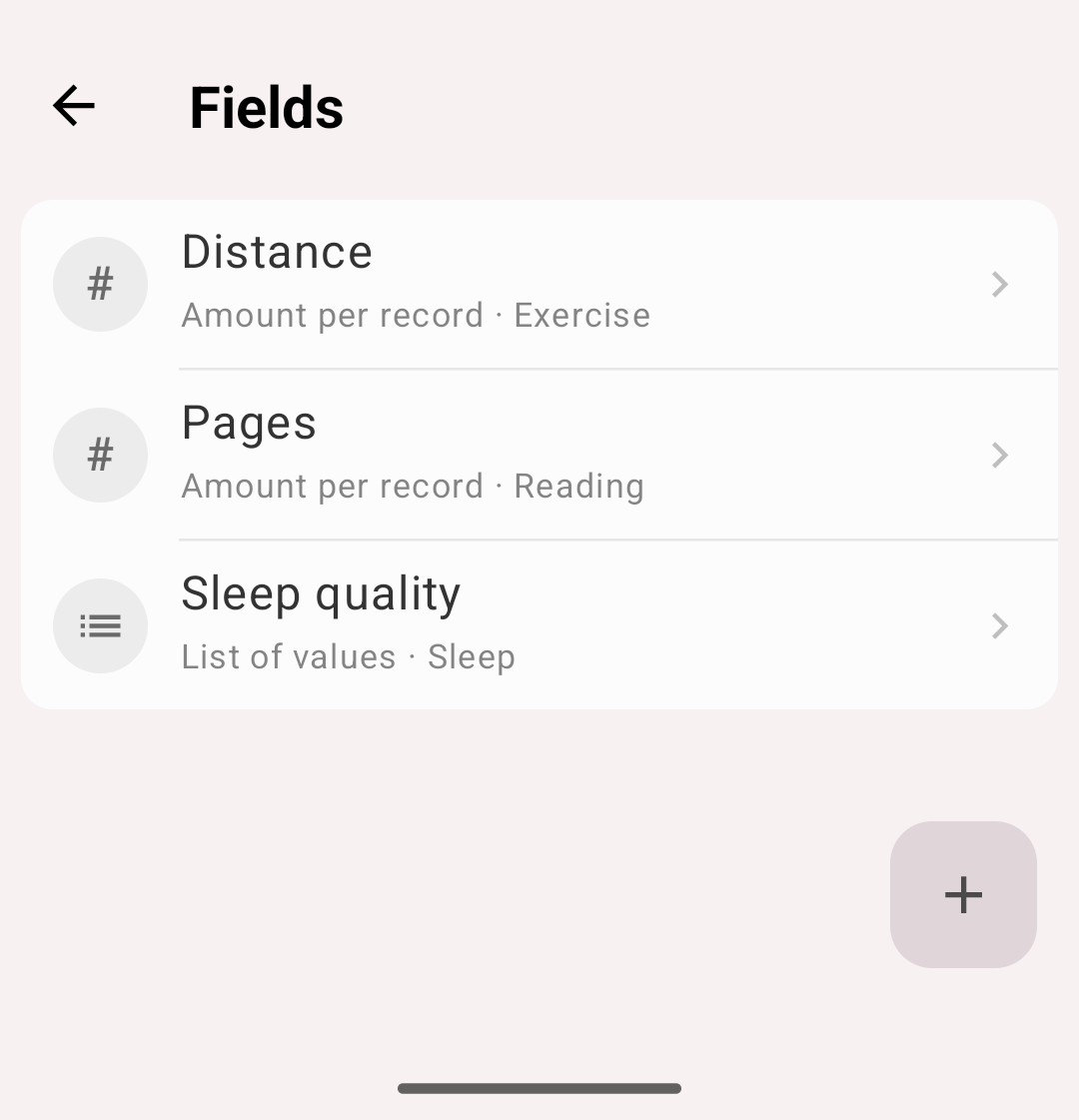
Custom fields
Field types
| Type | What it stores | Example |
|---|---|---|
| Amount per record | A number entered once per record. Amounts add up | Distance of a run, money spent on a purchase |
| Amount per hour | A rate, multiplied by the time tracked | An hourly rate of 20 on Freelance: 3 hours tracked give 60 |
| List of values | One value picked from a list you define | Sleep quality: Good, OK, Bad |
Creating a field
- Open More → Fields and tap '+'
- Enter the Name and choose the Field type
- For a list field, add its Values. A list field needs at least one value
- Under Activity types, pick the types the field belongs to. For an amount field you can enter a default value for each type: it is used when you don't enter one, so set it to your usual hourly rate or the price you usually pay
- Tap Save
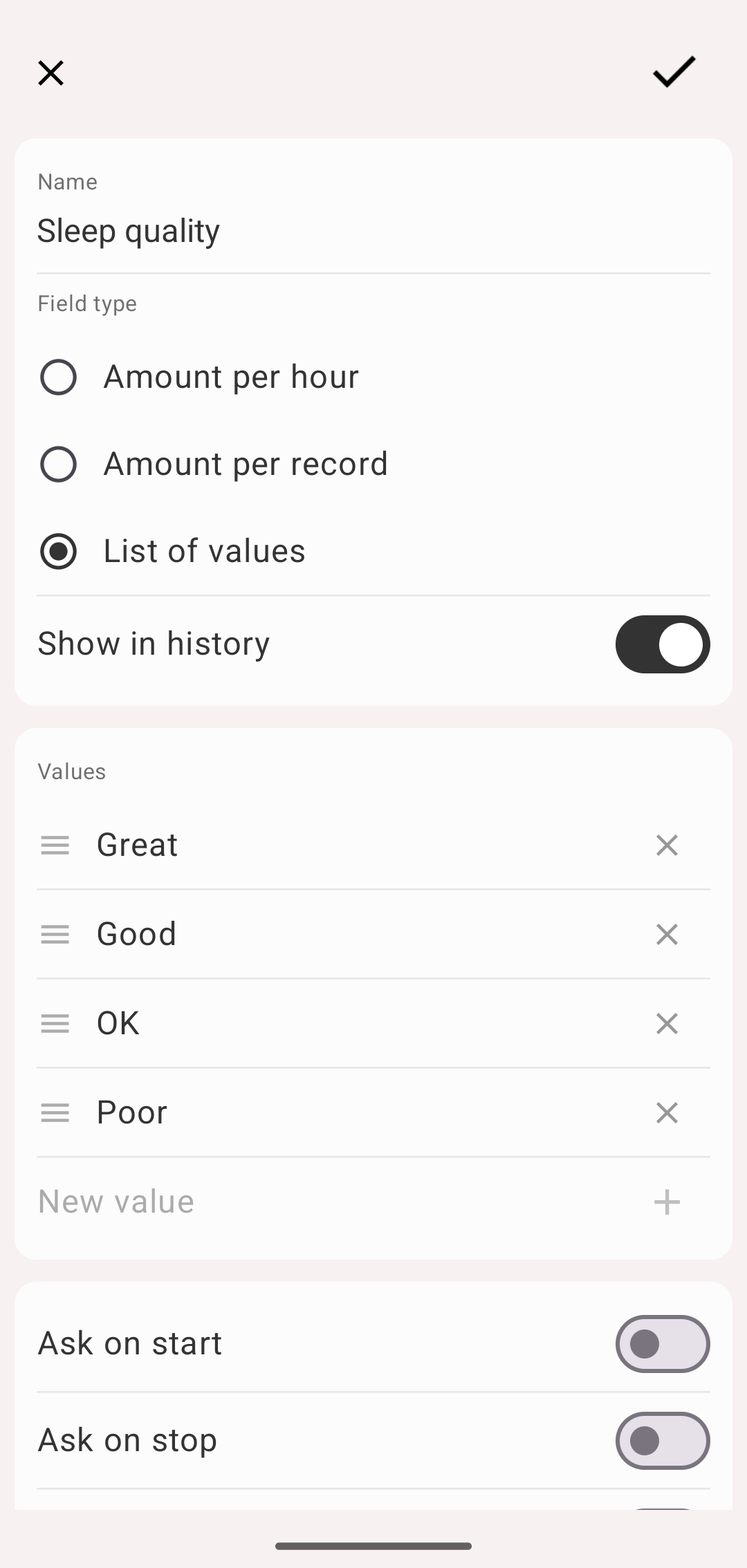
Editing a list field
Options
- Ask on start, Ask on stop, Ask on pause — the app asks for the field's value right when you start, stop or pause an activity of one of its types
- Show in history — the value is shown on the record in the History list
To delete a field, open it and use Delete.
Entering values
The Edit activity screen shows a row for every field of the activity's type. Enter the value there, or let the app ask for it with the Ask on options.
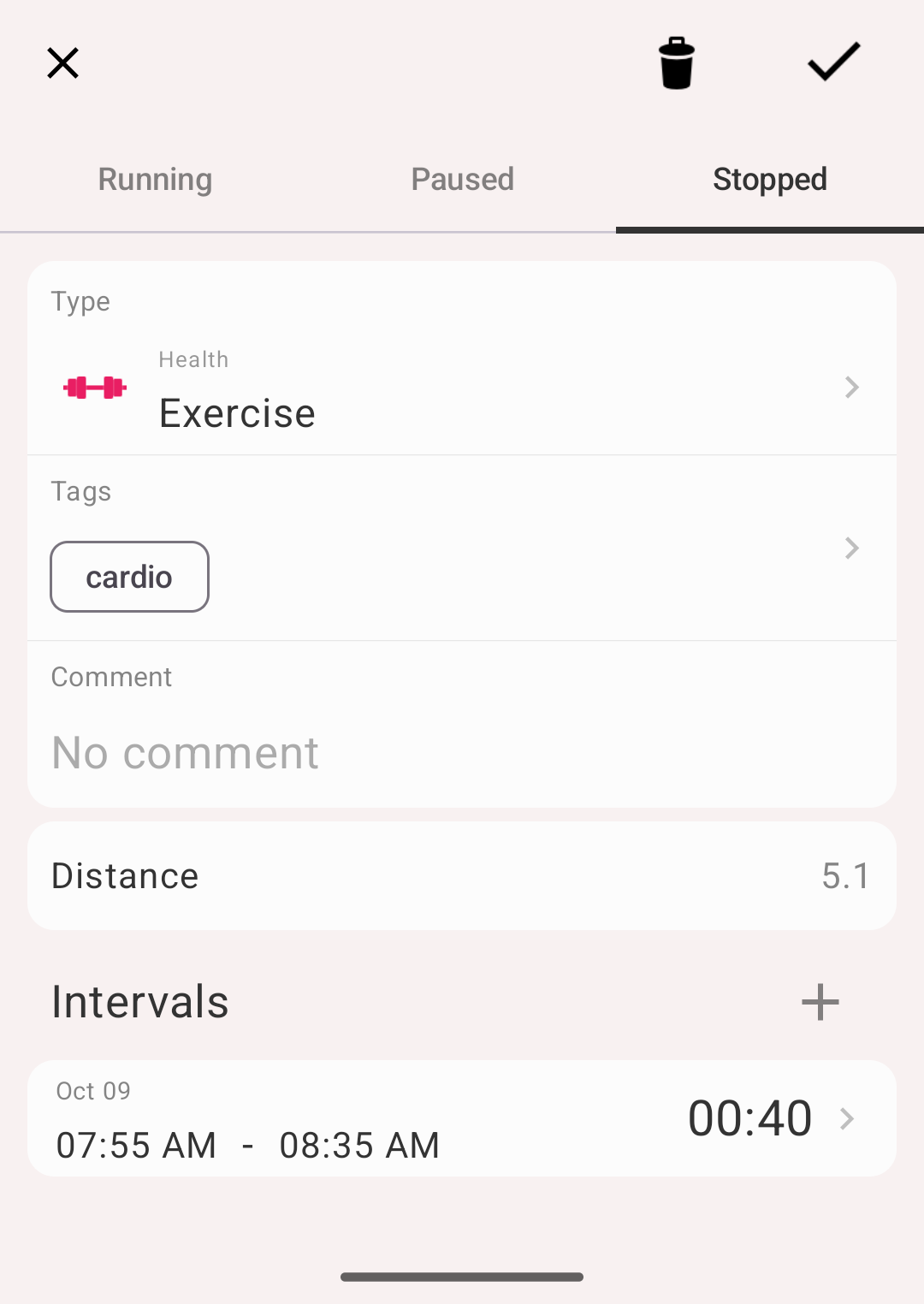
A field's value on an activity
Field details
Tap a field in More → Fields to see its numbers for a period: the Total, the Average/day and the Average/activity, with the field's history below. Moving through earlier periods is a premium feature.
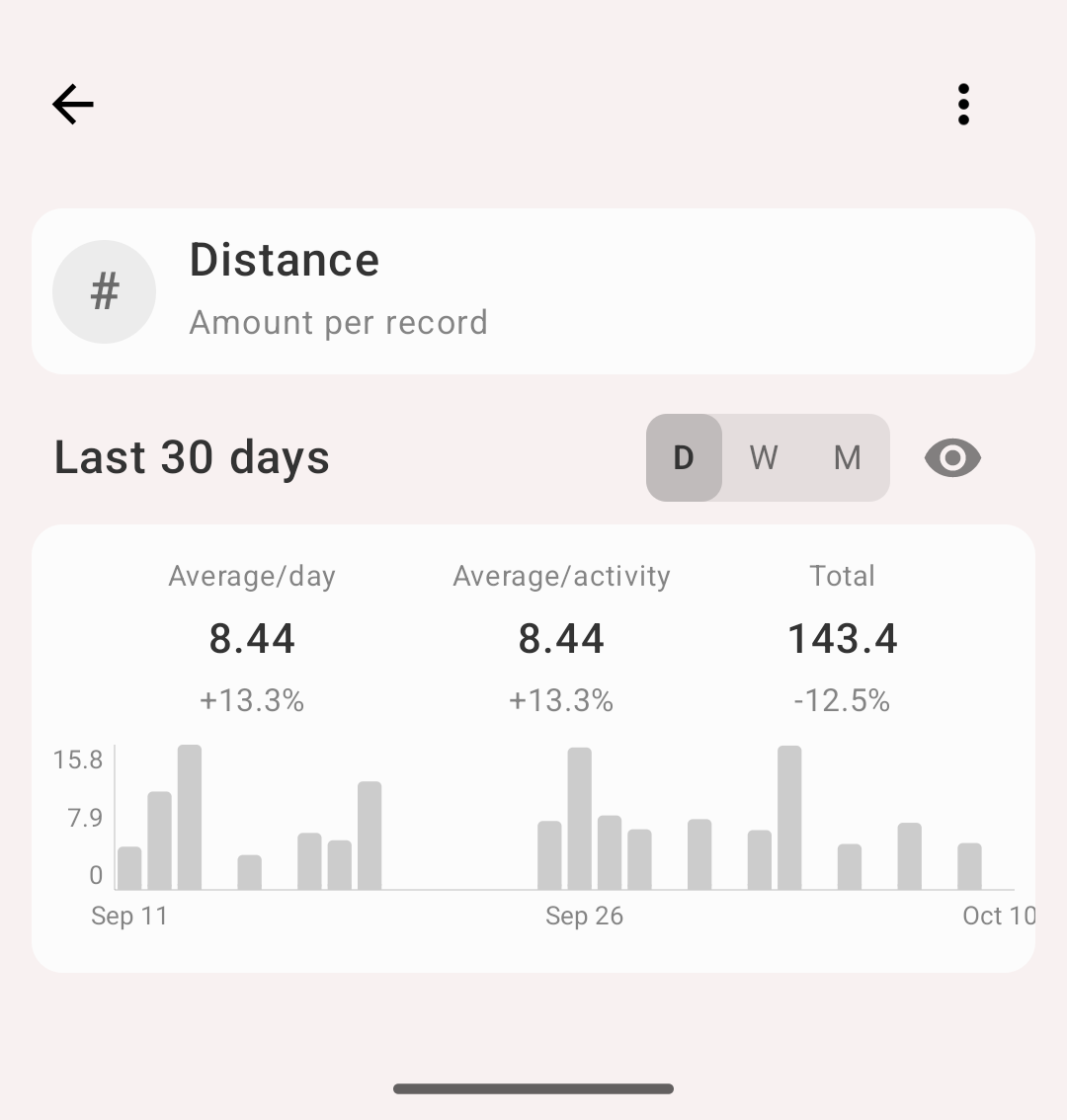
Field details
Fields in statistics
The Statistics view of the History tab can be built on your fields instead of time. Open the chart options with the gear:
- Metric — besides Duration and Count, every amount field is listed. Pick one and the pie and the bars show the field's sums: the kilometres you ran by type or by tag, or the money you earned by project
- Group by — besides Types and Tags, every list field is listed. Pick one and the statistics are split by the field's values. Records without a value go under No value
Both are premium features. A filter narrows them down like any other statistics.
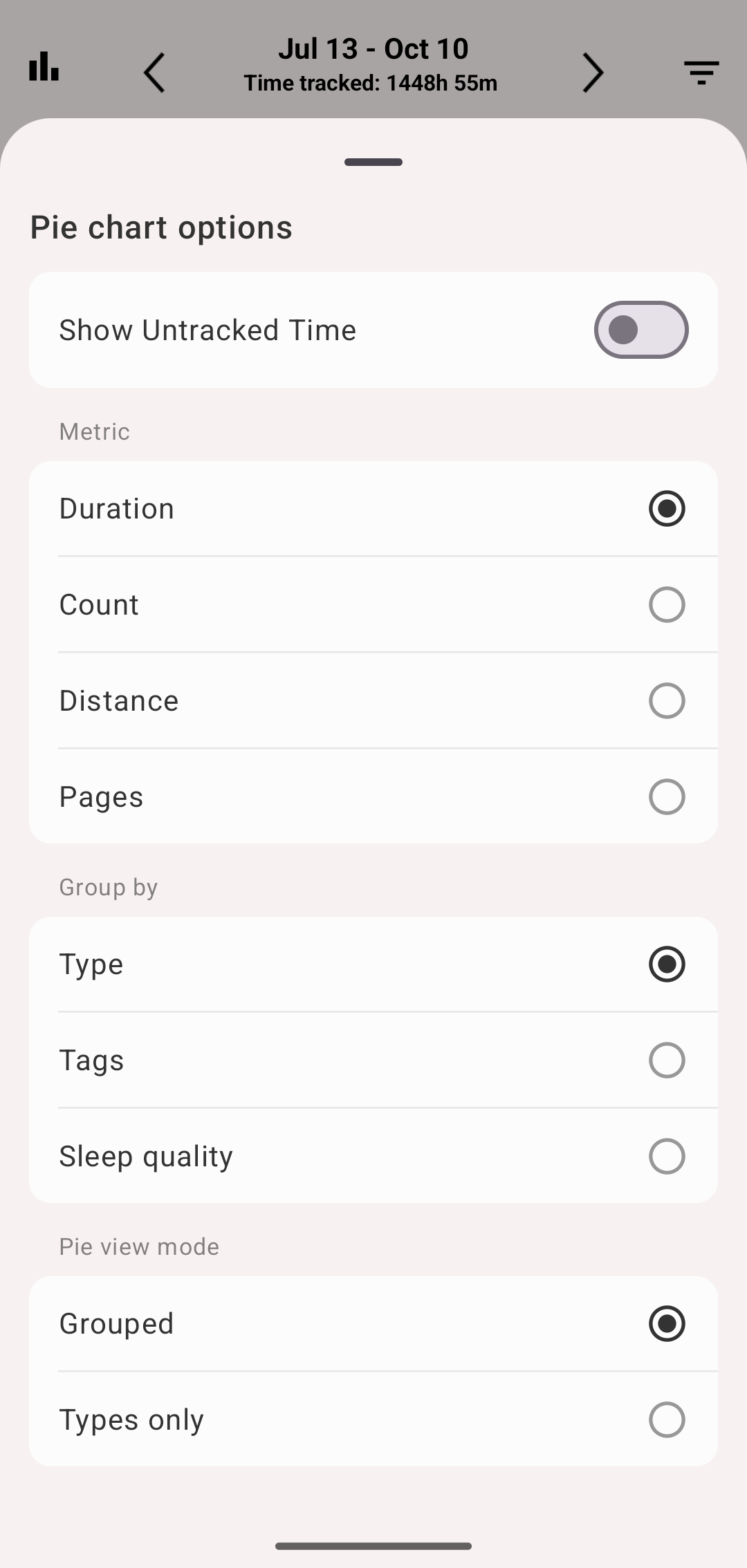
Fields in the chart options
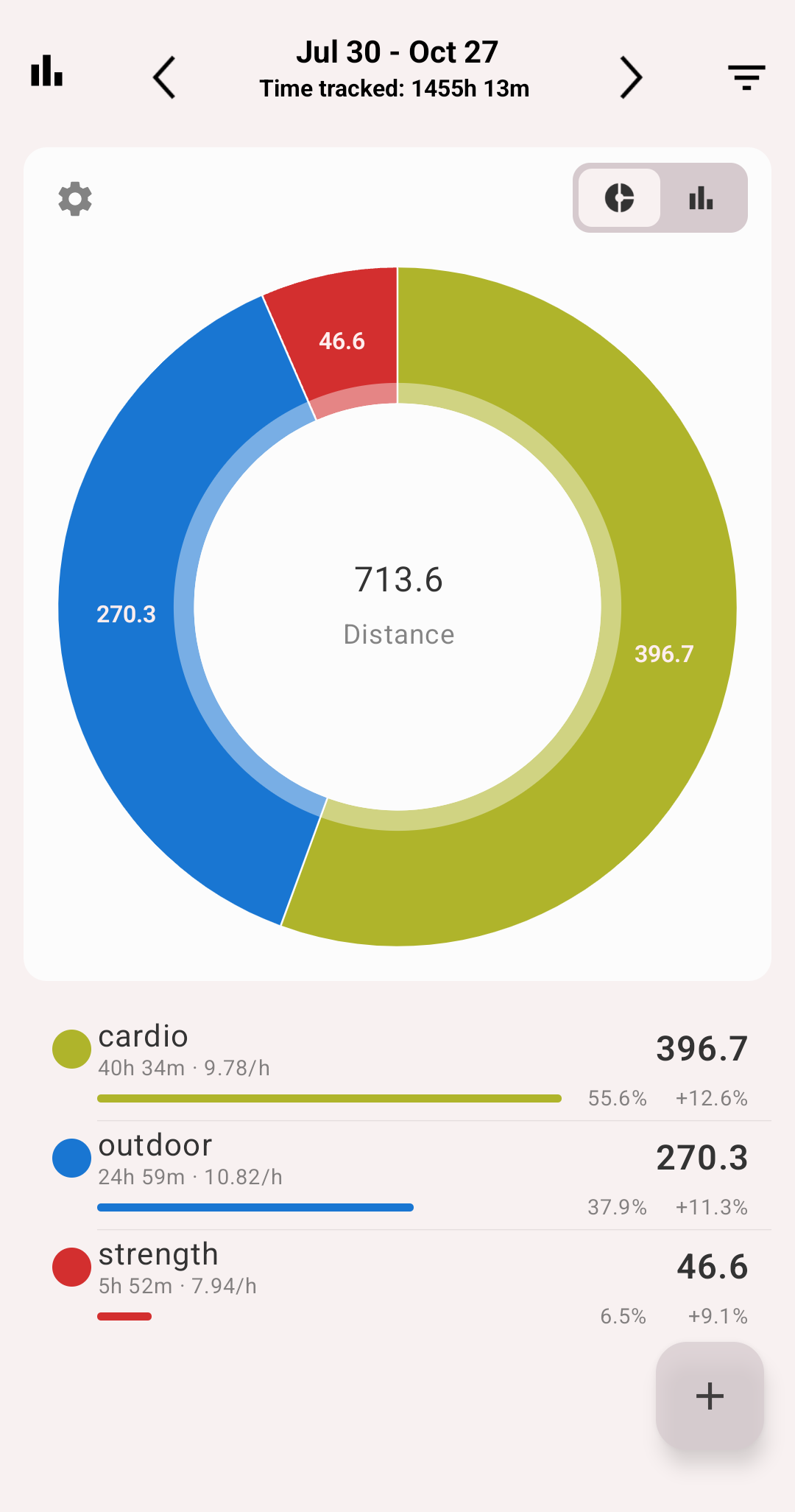
Kilometres run, by tag
Export
In a CSV export, every list field of the exported types gets its own column with each record's value. An amount field gets a column when it is the statistics' metric, and the totals at the end of the file then follow the statistics too. See Filters and export.