Activities
The Activities tab is the main screen of the app — the one you open most often. It's where you start, pause and stop tracking, and it's worth setting it up to match the way you work.
The tab has a mode selector at the top. Depending on the selected mode you get a different screen:
| Mode | What it does |
|---|---|
| Usual | Standard time tracking — grid of activity types, running activities on top |
| Pomodoro | Pomodoro technique timer — see Pomodoro |
| Countdown | Focus timer with a fixed duration — see Countdown Timer |
| Todo | Task list linked to activity types — see Todo List |
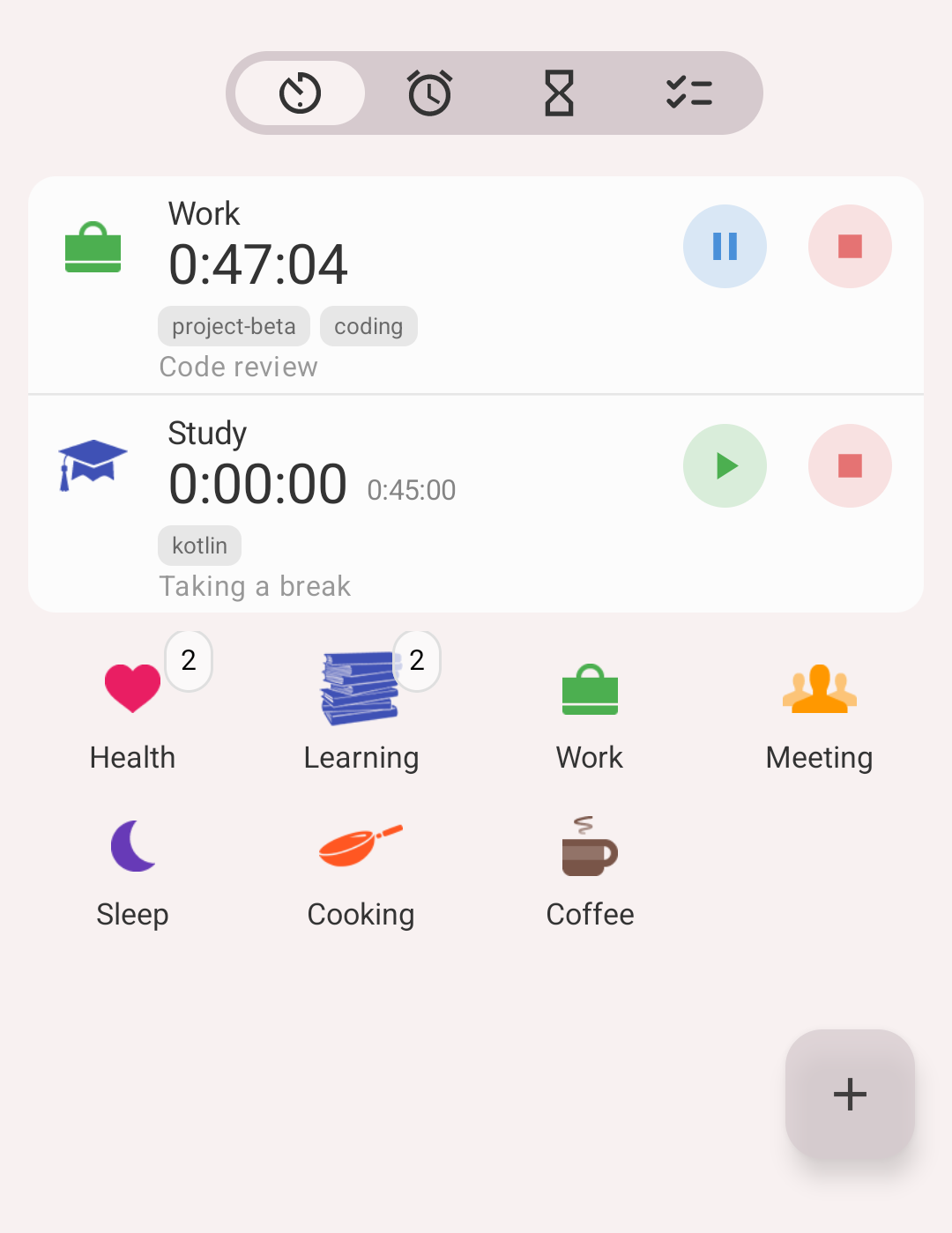
Mode selector at the top of the Activities tab
Info
The Todo segment is only visible when the Todo mode is turned on in Settings. Pomodoro and Countdown require a premium subscription.
Usual mode
How to start a new activity?
Tap the activity type icon in the grid. The activity starts immediately and appears as a card at the top of the screen.
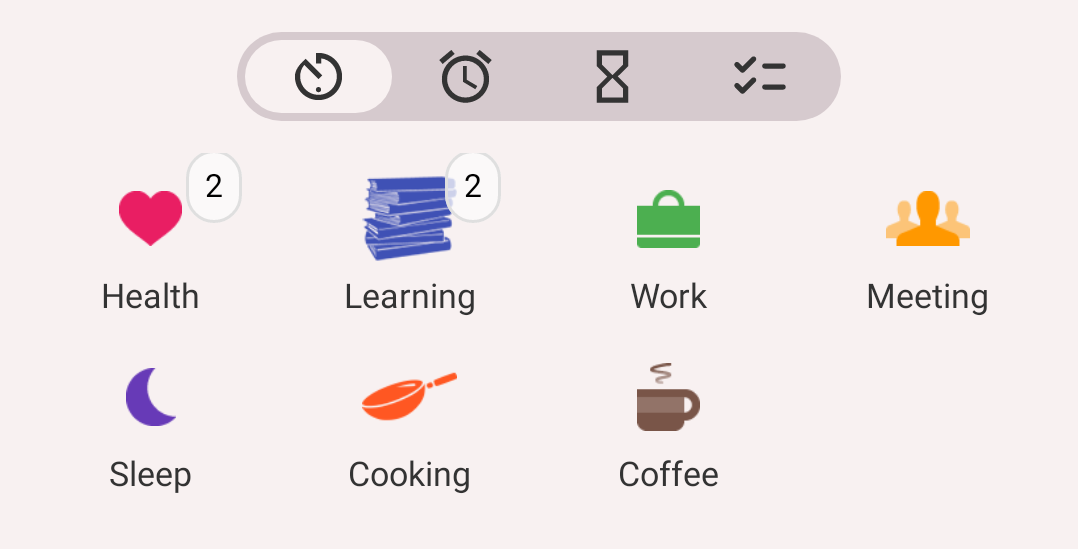
Nothing running: the groups and the types
If the grid contains groups, tapping a group opens the types inside it. A "back" item appears as the first cell of the grid to return one level up.
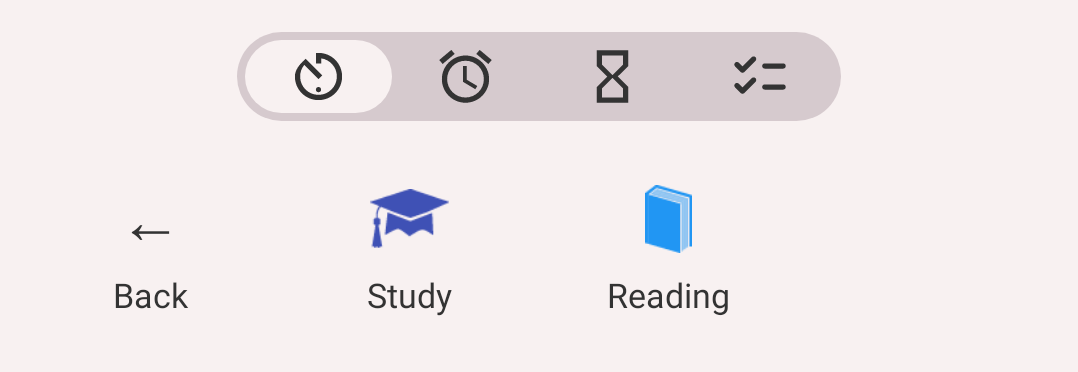
Inside the Learning group: Back, then its types
How to stop or pause a running activity?
Every running or paused activity is shown as a row at the top of the screen with two buttons on the right:
- Pause (blue) — pauses the activity. It stays on the Activities tab and can be resumed later. When paused, this button turns into a green Resume button.
- Stop (red) — finishes the activity and moves it to the History screen.
Tapping anywhere else on the row opens the Edit activity screen.
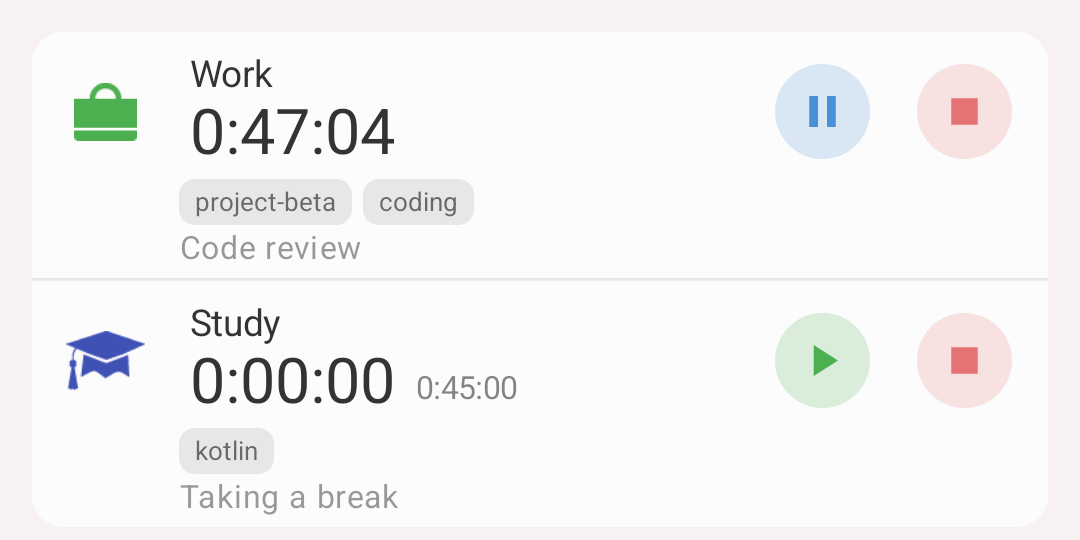
Work is running: Pause and Stop. Study is paused: Resume and Stop
Pause vs Stop
- Pause — closes the current interval and keeps the activity on the Activities tab so you can resume it. The interval is already visible in History.
- Stop — closes the current interval and moves the activity to the History screen.
You can change the status back from stopped to paused: find the activity on the History screen, tap it and change the state at the top of the edit screen.
If you are not familiar with intervals, read Main Concepts.
Occurrence types
Activity types marked as occurrence are not tracked with a timer — they record the fact that something happened (took a pill, drank water, had a coffee).
Tapping such a type logs one occurrence instantly. A confirmation appears at the bottom of the screen:
- Undo — removes the record you just logged.
- Tapping the rest of the confirmation opens the record for editing (time, comment, tags).
The message disappears on its own after a few seconds.
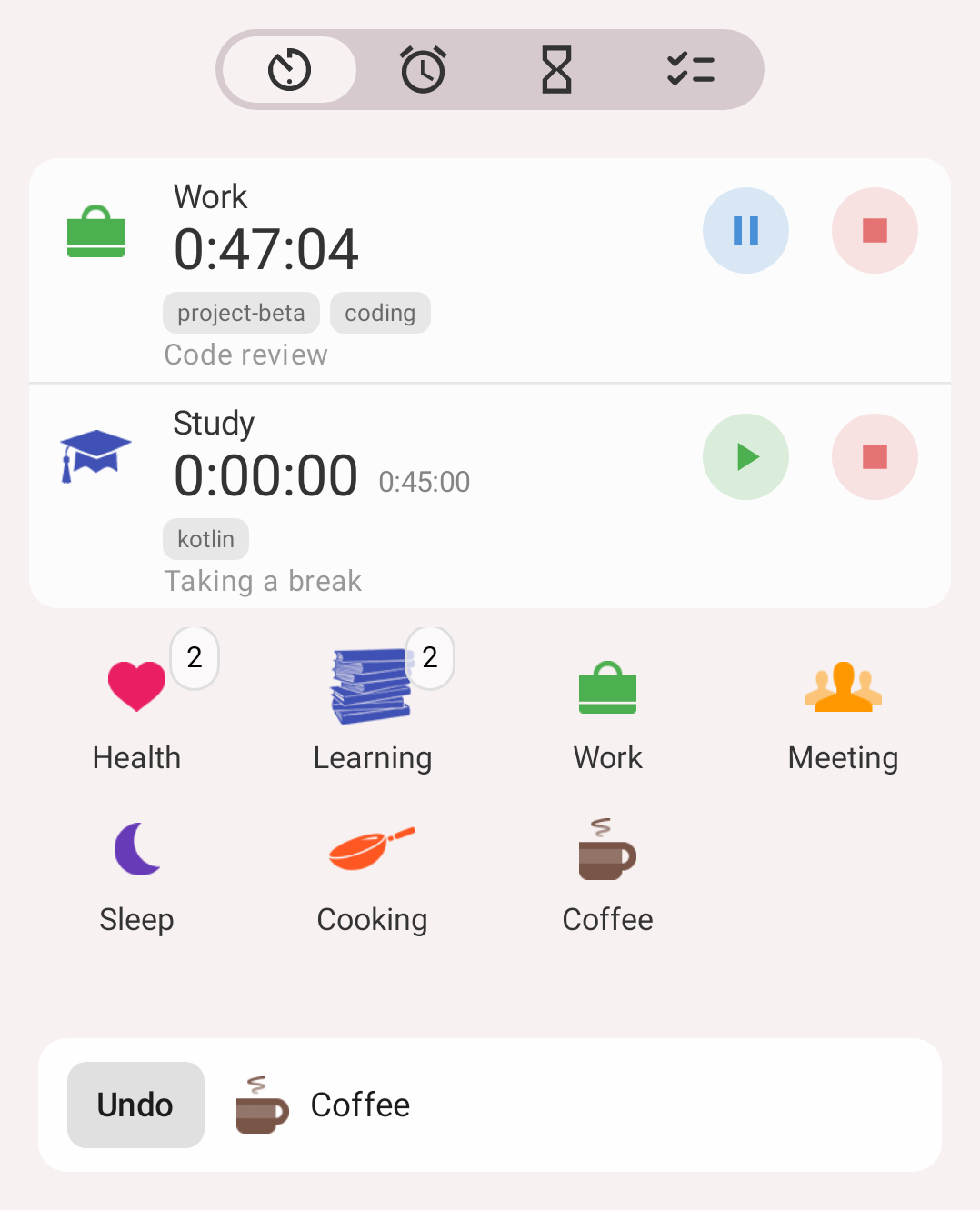
After tapping Coffee: Undo at the bottom
Info
Occurrence types require a premium subscription. Read more in Types and Groups.
What to do if you forgot to start an activity
Tap the '+' button in the bottom right corner — the Edit activity screen opens with a start time already filled in:
- If nothing is running, the start time defaults to the end of your last record today, so there is no gap.
- If something is already running, the start time defaults to now.
Select the activity type, correct the time if needed and tap 'Save'.
You can also add a record from the History screen if it happened on another day.
How to edit an activity
- Step 1: Tap the activity row — the 'Edit activity' screen opens
- Step 2: Change what you need:
- Activity type
- State — running, paused or stopped
- Start time and intervals (add, edit, delete)
- Comment
- Tags
- Custom field values
- Step 3: Tap 'Save' in the top right corner
- Delete activity: tap the red 'Delete' button at the bottom
For a type mapped in Health Connect, a Health section under the intervals shows the sleep or workout your watch recorded at the same time.
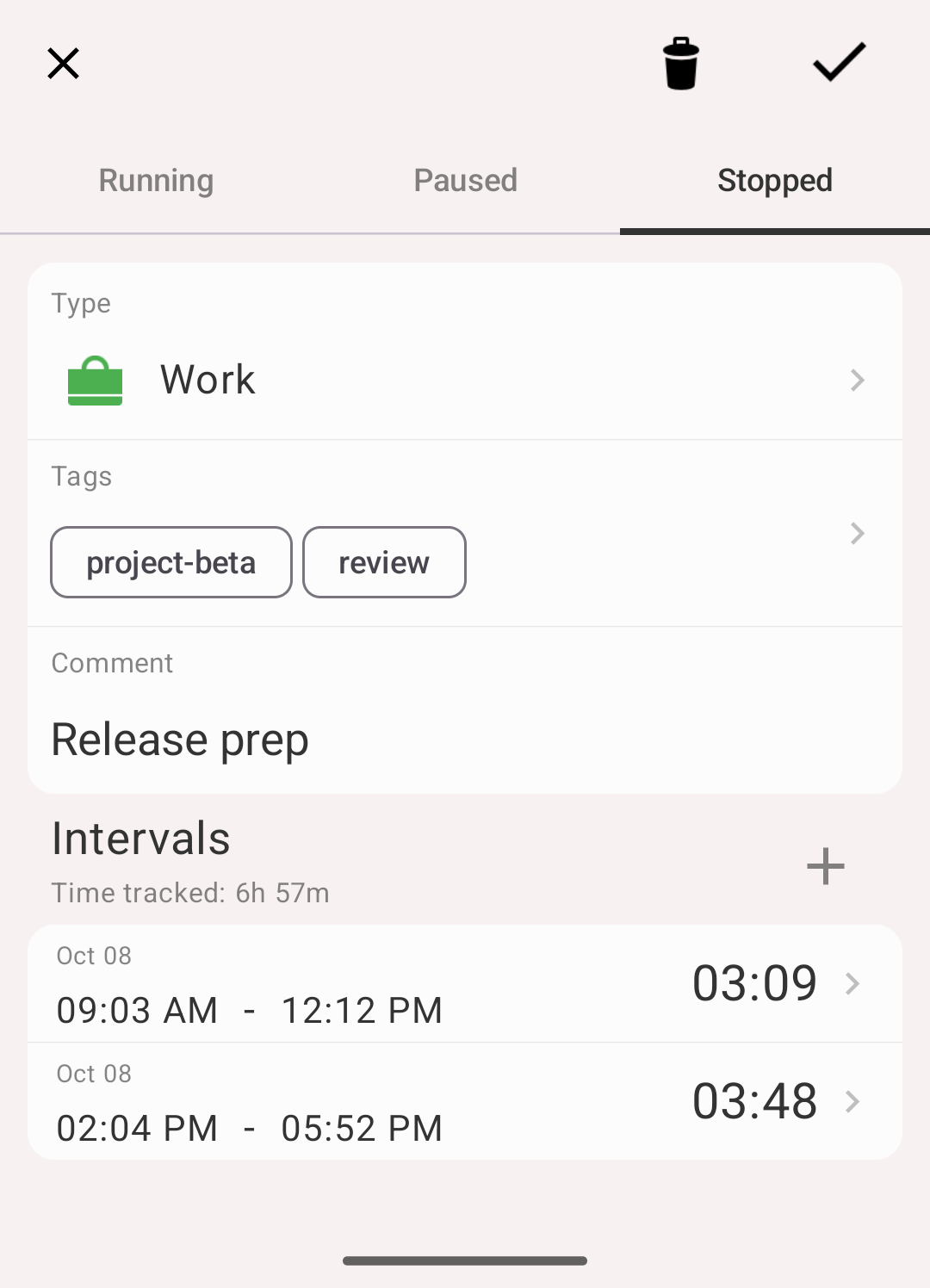
Edit activity screen
Info
If you need to edit or delete many activities at once — see Batch operations
Adding comments or tags
There are two ways:
- On the 'Edit activity' screen — described above.
- Ask automatically on start or stop. In Settings → Comment on start and Settings → Comment on stop you choose the activity types for which the app should pop up a comment dialog. The dialog appears the moment such an activity is started or stopped, so you don't need to open the edit screen at all.
Info
Turn on Settings → Comment autosuggest to get your previously used comments suggested while typing.
Simultaneous activities
Sometimes you do several things at once — for example, reading on the bus. The app supports this.
By default, running activities are paused when you start a new one. You can change that in Settings → Action on start:
| Value | Behaviour when you start a new activity |
|---|---|
| Pause (default) | Running activities are paused and stay on the Activities tab |
| Stop | Running activities are stopped and move to History |
| None | Running activities keep running — everything is tracked in parallel |
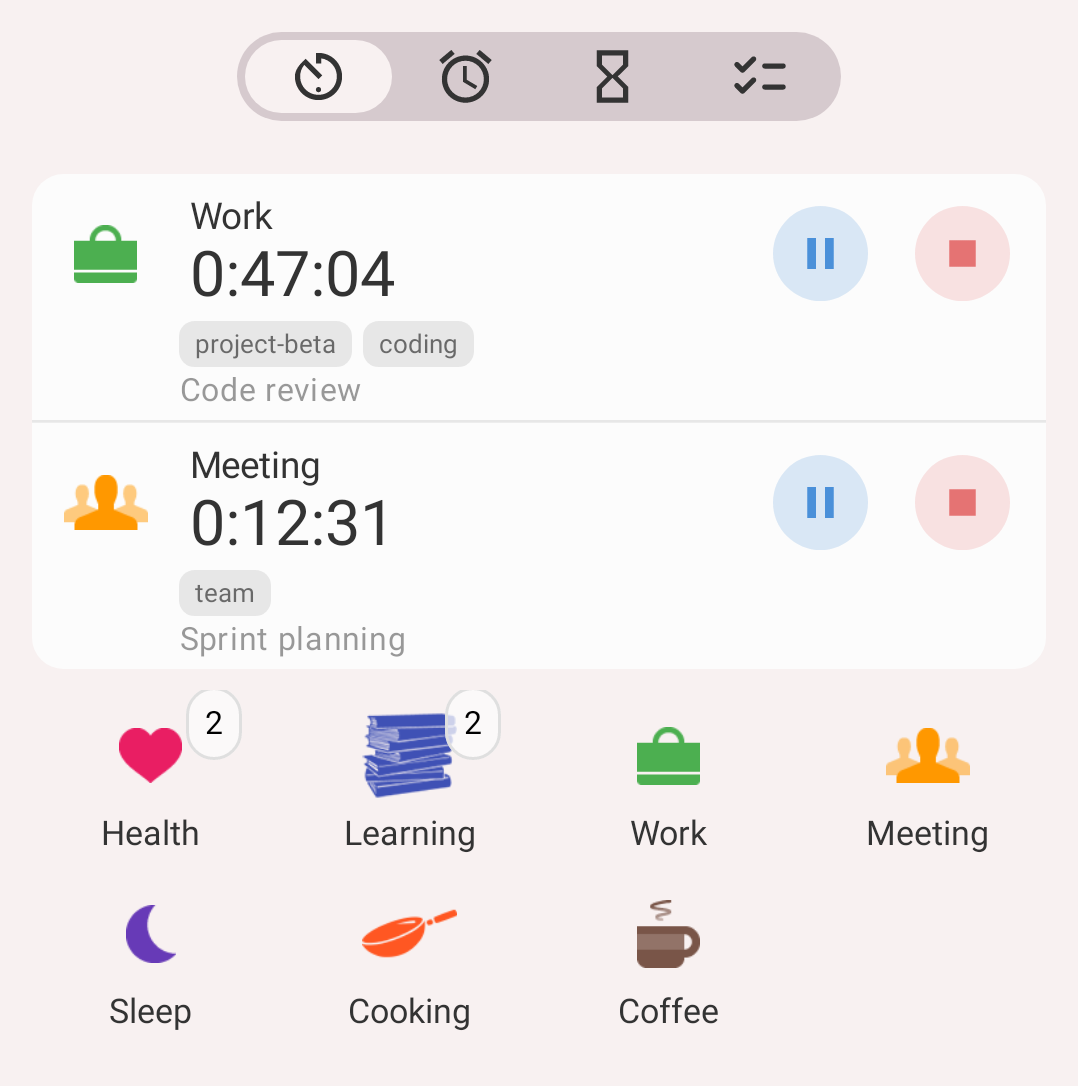
Work and Meeting running at the same time
Info
Simultaneous activities affect how statistics are calculated. Read more in Statistics.
Main and secondary timers
An activity row can show two timers: a big one and a small one next to it.
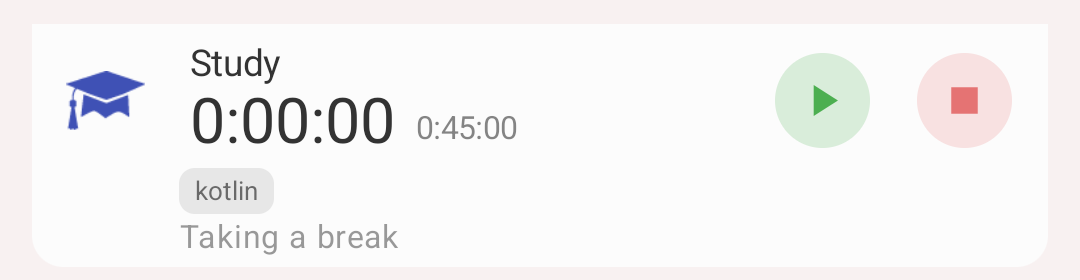
Big timer 0:00:00, small timer 0:45:00
- Main timer, the big one — by default Running: the time since the activity was last started or resumed. Study above is paused, so nothing is running and it reads 0:00:00. Set it to Total to see all the time recorded in the activity instead
- Secondary timer, the small one — by default Total: all the time recorded in the activity so far. Study has 45 minutes recorded before the pause. It can also show Running, or be turned off with No timer
The small timer appears only when it says something the big one doesn't. An activity started once and still running, like Work in the picture above, has the same running and total time, so it shows only the big timer.
Both are set in Settings → Main timer and Settings → Secondary timer.
Customizing the grid
Icons per row
Settings → Icons per row when select activity type — from 1 to 6 (4 by default).
Choosing 1 switches the grid to a list layout: one activity type per row, with a larger tap area and full type names.
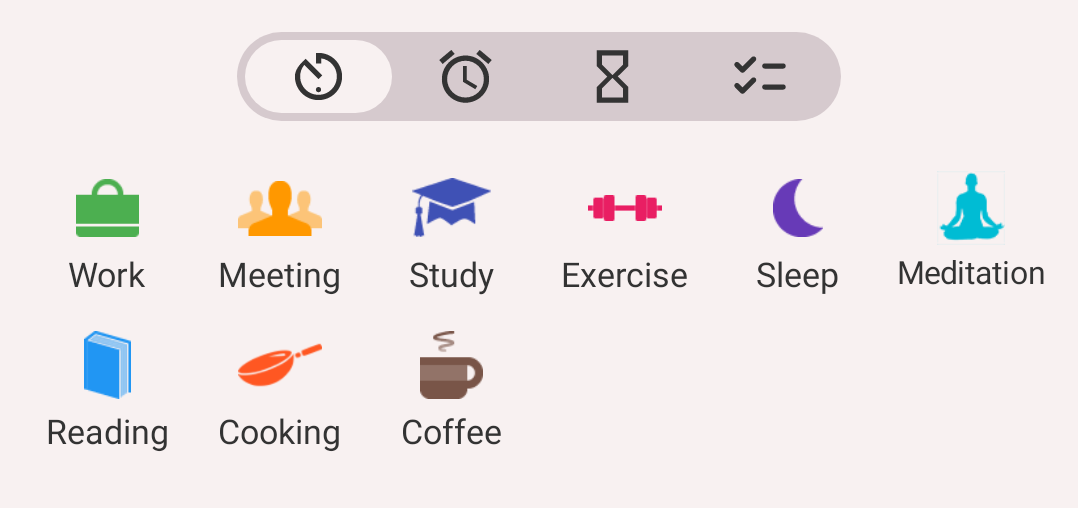
6 icons per row
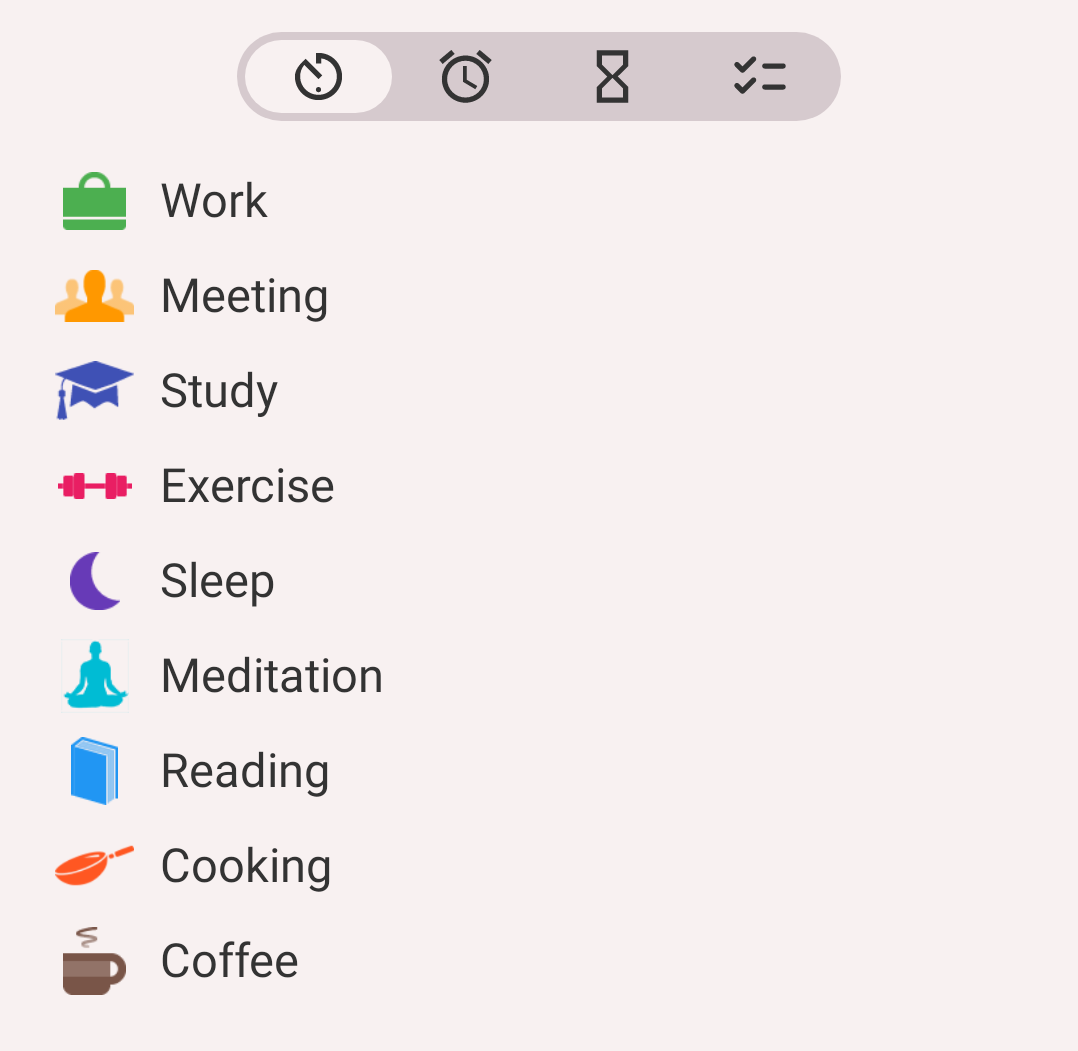
1 per row: a list
Display or hide groups
Groups help you organize types (useful when you have many of them) and are used in statistics. If you only need groups for statistics and prefer to see all types at once, turn off Settings → Groups on activities tab — the grid will then show every activity type flat, without folders.
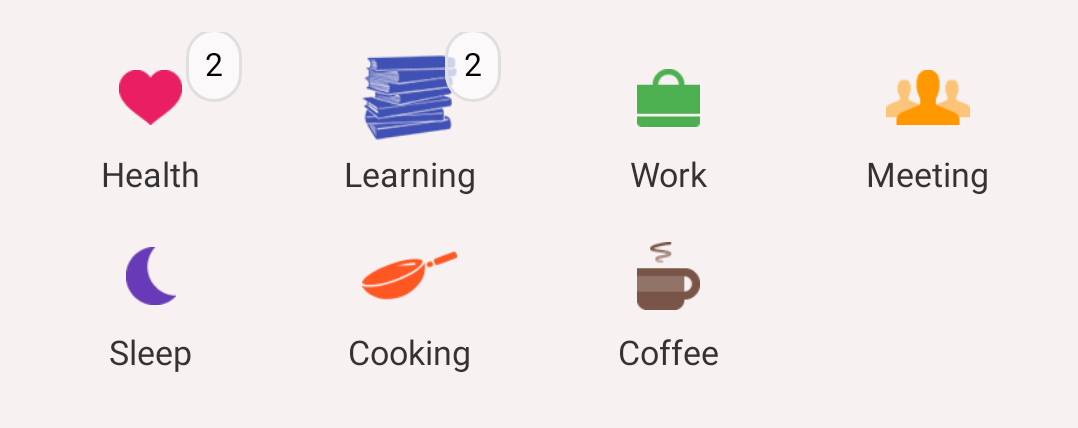
Groups shown: Health and Learning hold their types
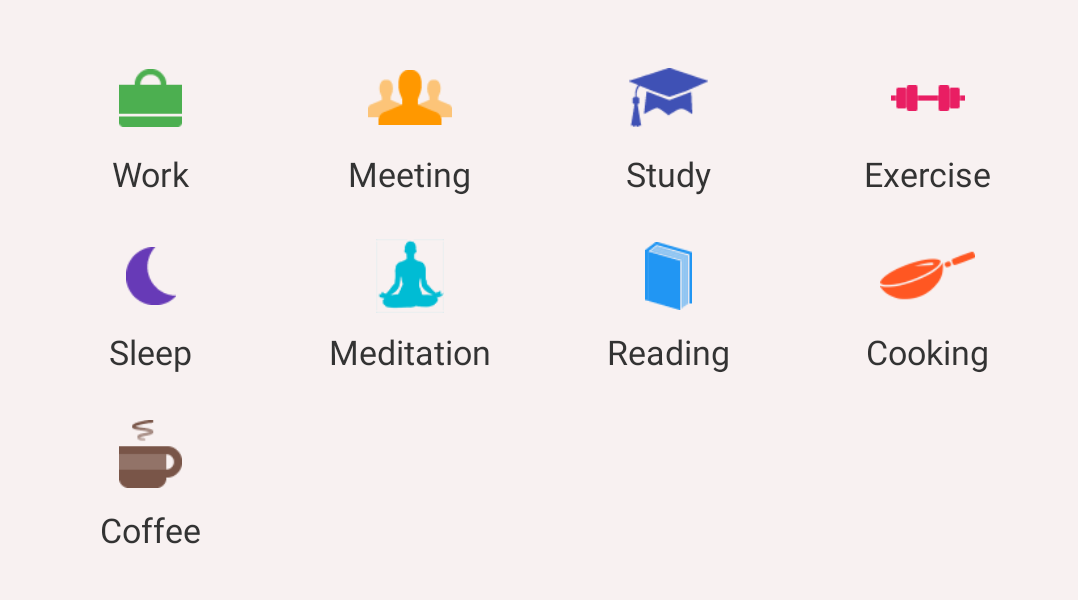
Groups hidden: every type on the grid
Show full path for type
Purpose: show the whole path from the group to the activity type.
Example: you have a group Project 1 containing a Documentation type, and a group Project 2 containing another Documentation type. With this option on, the running activity shows Project 1 / Documentation instead of just Documentation. Off by default.
Configured in Settings → Show full path for type.
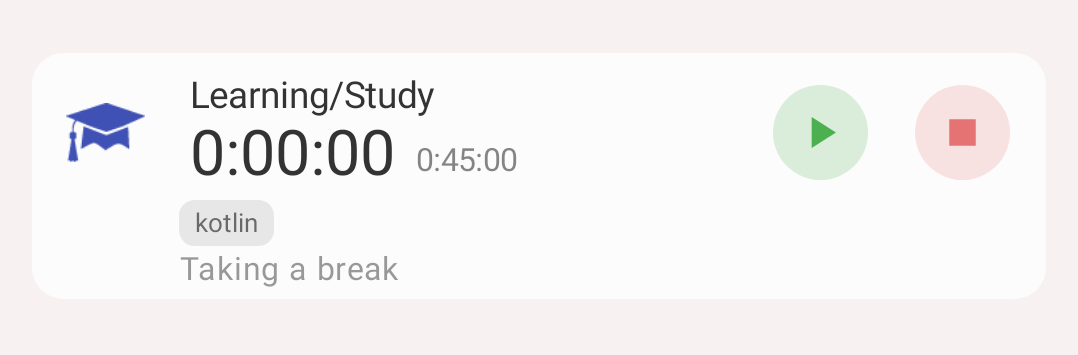
Study shown with its group: Learning/Study
Other settings that affect this screen
Minimal duration
Purpose: prevents saving activities started by mistake.
How it works: if an activity is paused or stopped and its duration is shorter than the configured value, it is not saved. If the activity already has intervals logged, the new short interval is discarded but the activity itself stays.
Values: None (default), 10 seconds, 1 minute, 5 minutes — in Settings → Min. duration.
Warn on actions
With Settings → Warn on actions enabled, the app asks for confirmation before starting, stopping, pausing or resuming an activity. Useful if you often tap the wrong icon.
Activities in notification bar
Settings → Activities in notification bar controls what is shown in the Android notification panel:
- Running (default) — only running activities
- Running and paused — both
- None — no notification
The notification lets you stop or pause an activity without opening the app.
Keep screen on
Settings → Keep screen on prevents the screen from turning off while the Activities tab is open and something is being tracked.
Floating timer
Settings → Floating timer shows a small timer overlay on top of other apps, so you can see the running activity while working elsewhere. Android asks for the "display over other apps" permission the first time.
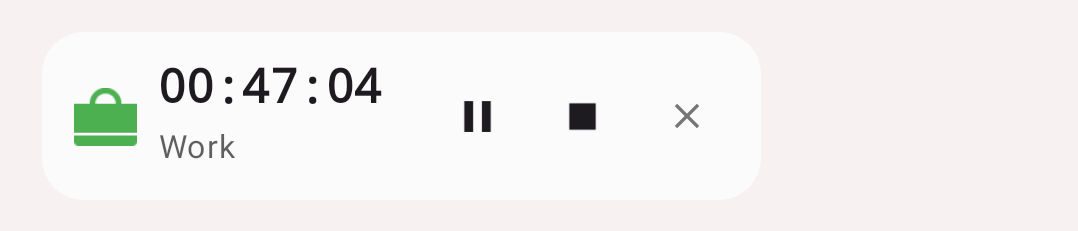
The floating timer: Work, its timer, pause, stop and close
Pull to refresh
Pull the Activities screen down to force a sync with the server. Available for accounts with sync enabled — see Sync.
Delete activity
See How to edit an activity — the red 'Delete' button at the bottom of the edit screen.