Todo List
The Todo mode turns your activity types into a short list of things to do today. Each todo is linked to an activity type, so completing it also starts tracking — you don't plan in one app and track in another.
Turning it on
The Todo tab is hidden by default. Enable Settings → Show Todo mode, then pick Todo in the mode selector at the top of the Activities tab.

Todo in the mode selector
Two kinds of todos
| Kind | Use it for | Due |
|---|---|---|
| One-time | Something you do once — "Call the dentist" | A due date, if you want one |
| Recurring | A habit — "Exercise", "Read" | Repeats on the weekdays you choose |
A one-time todo disappears from the list once completed. A recurring todo comes back on every day you selected, and its completion is tracked separately for each day — completing it today doesn't mark it done tomorrow.
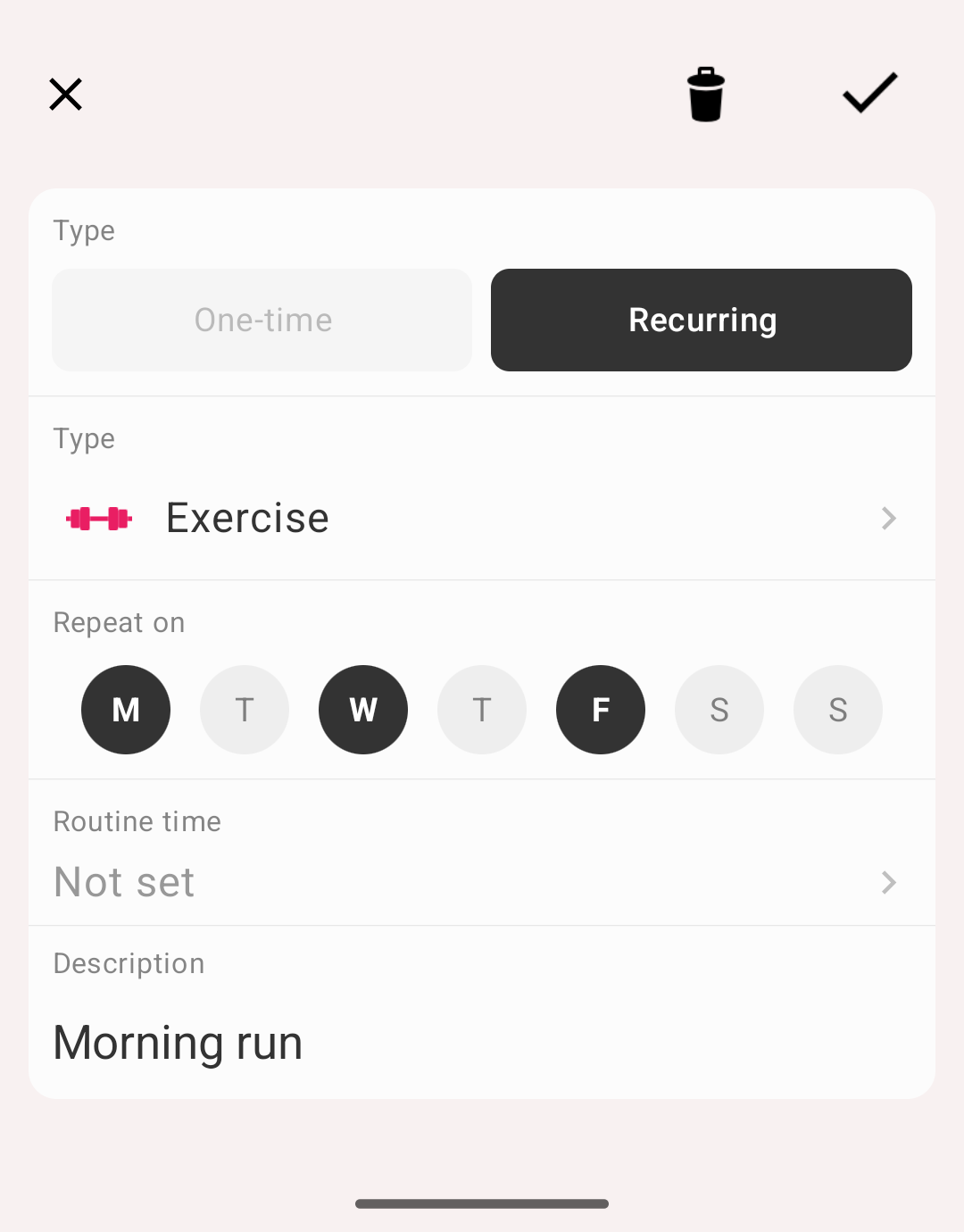
One-time or recurring
Creating a todo
- Switch to Todo mode
- Tap the '+' button in the bottom right corner
- Choose One-time or Recurring
- Pick the activity type the todo belongs to
- Set the due date (one-time) or the weekdays it repeats on (recurring). A one-time todo can also have No due date
- Optionally add a description — it becomes the comment of the activity when you start it
- Tap Save
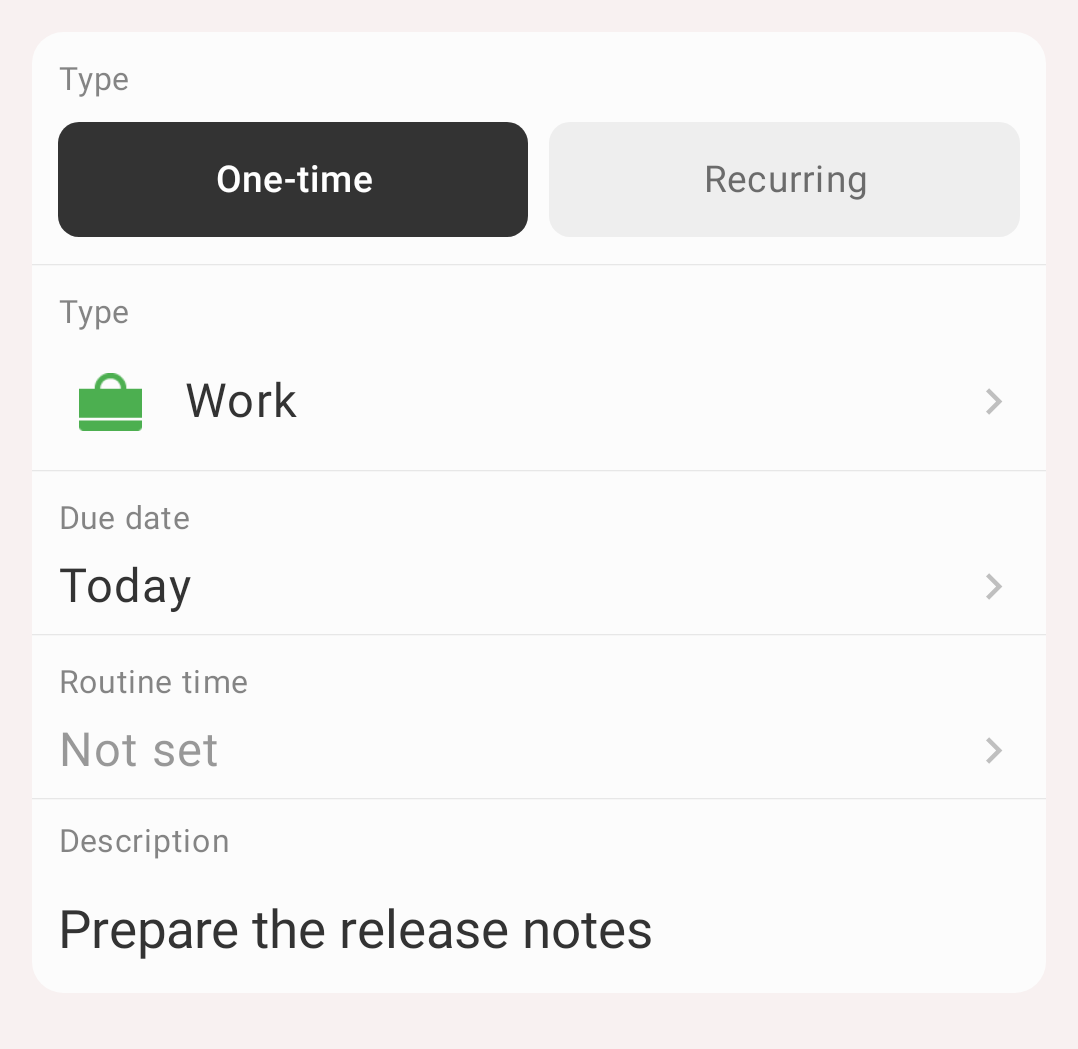
A one-time todo: type, due date, routine time, description
The list
Todos are grouped into three sections:
- Today — what's still to do today, including anything overdue: its date is shown in red as Overdue
- Completed today — what you've already finished, shown greyed out
- Later — todos scheduled for another day
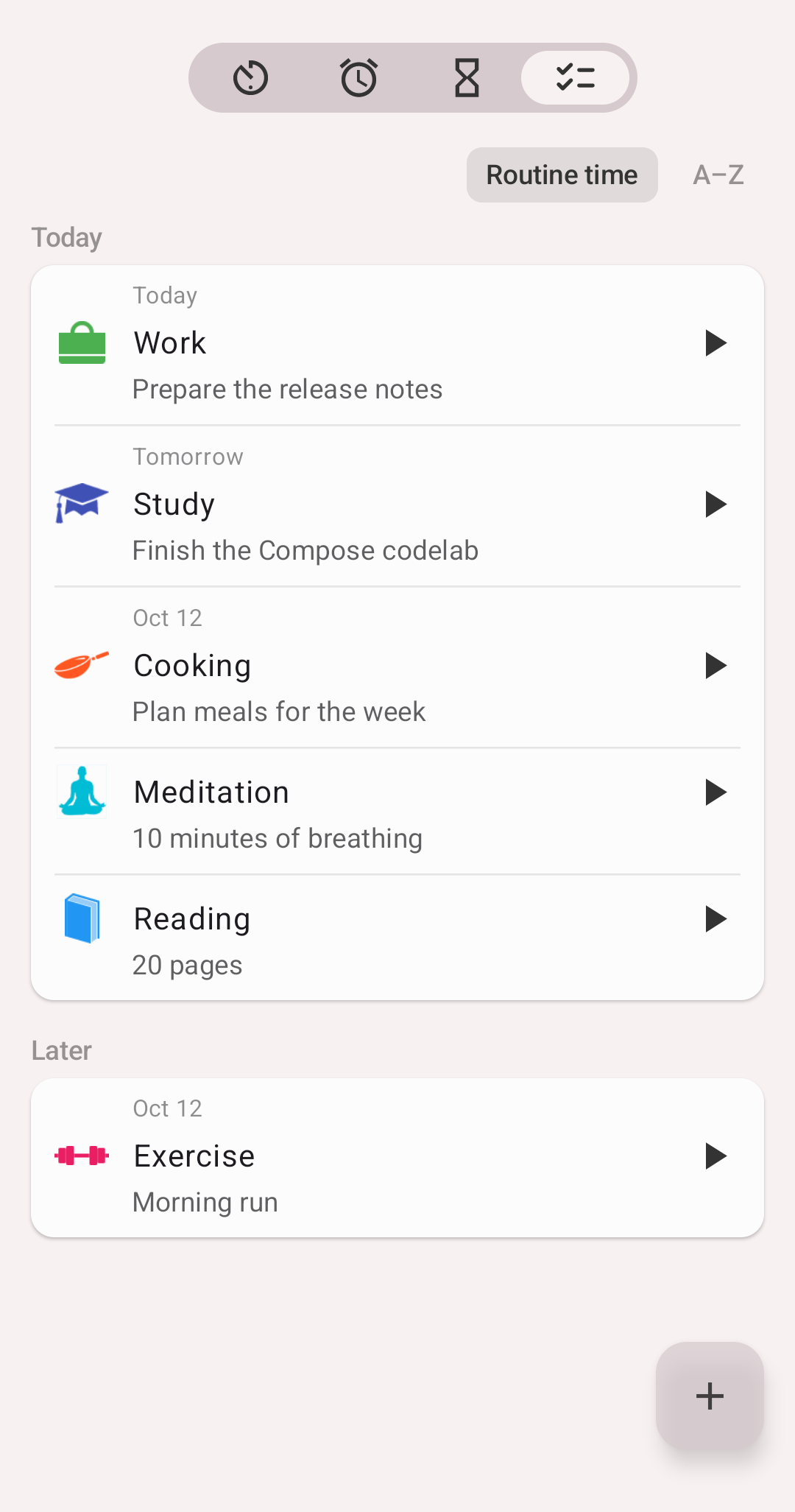
Todo list with all three sections
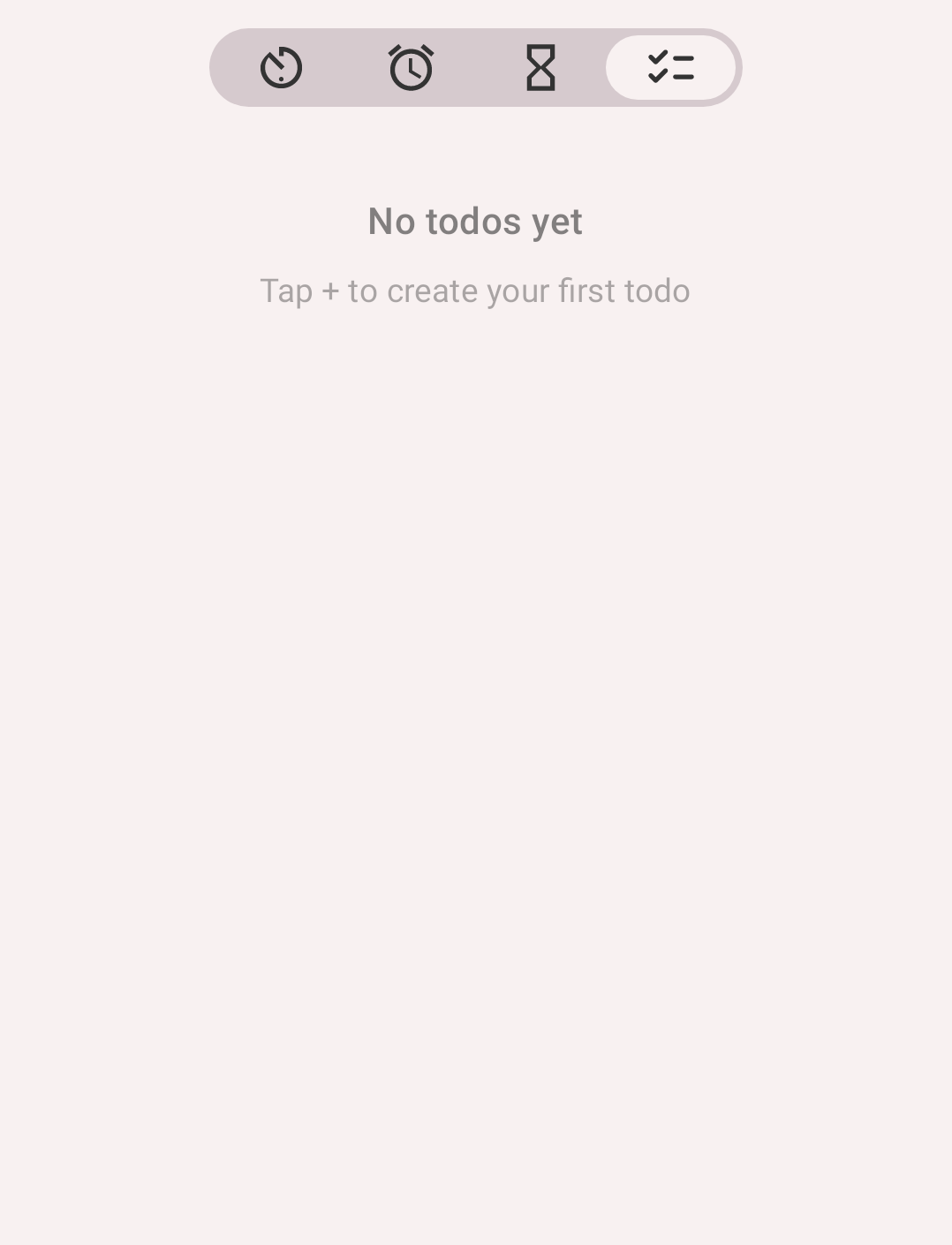
No todos yet
Completing a todo
Tap the action button on the todo row:
- For a normal activity type, this starts tracking that type and marks the todo done. The todo's description is used as the comment of the new activity.
- For an occurrence type, it logs one occurrence and marks the todo done — nothing is started, since occurrences have no duration.
Tapping the row itself opens the todo for editing.
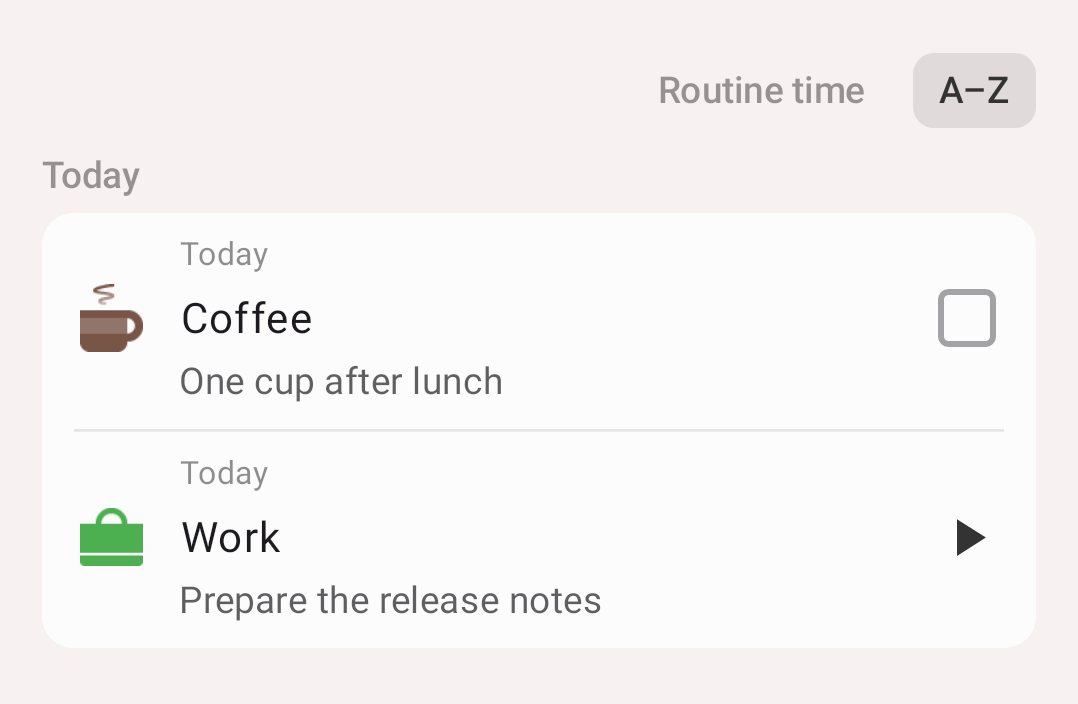
Coffee is an occurrence type: a check. Work starts with the play button
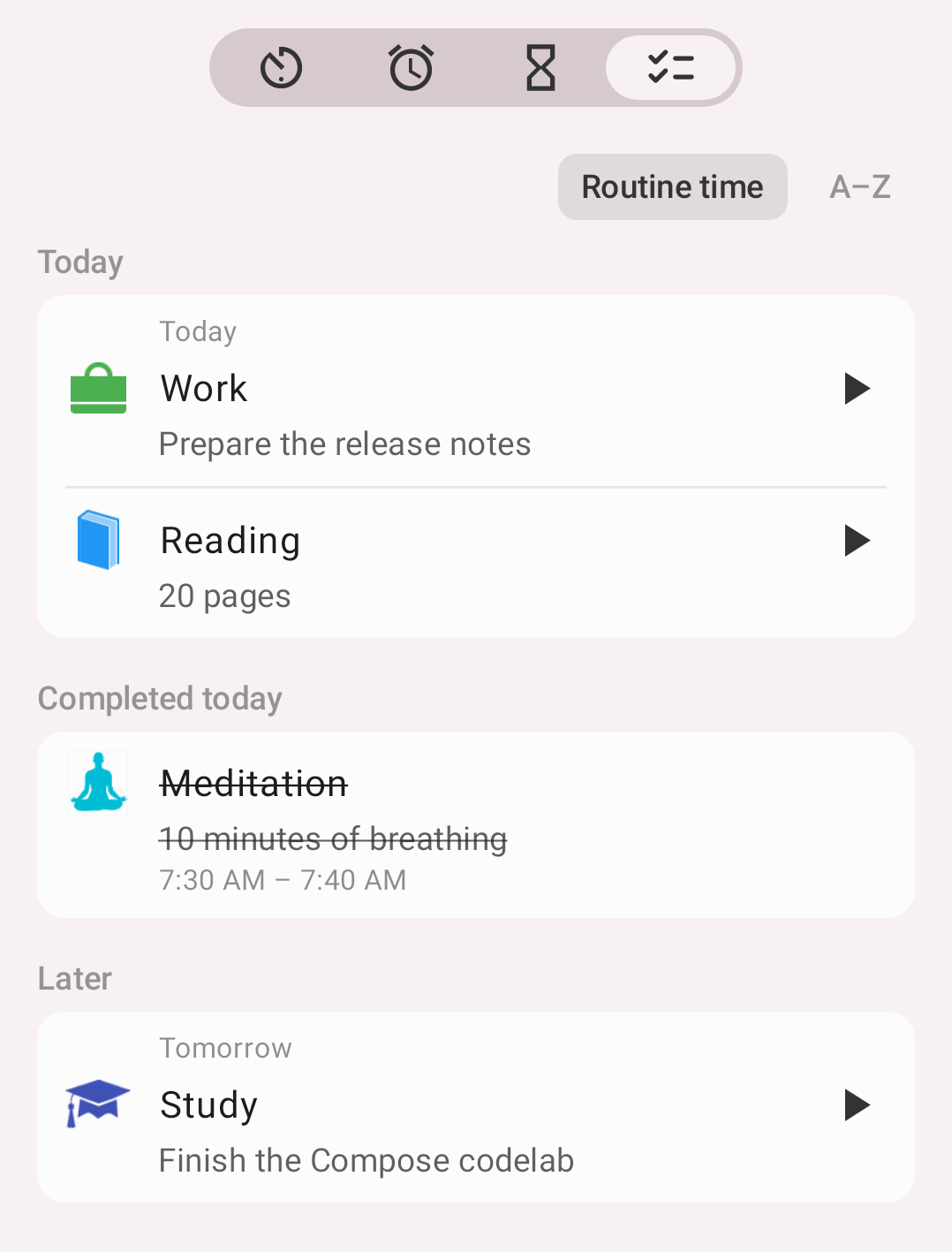
Breathing done this morning: moved to Completed today
Info
Starting an activity from a todo requires a premium subscription.
Editing and deleting
Tap the todo to open it. Change the type, date, weekdays or description and tap Save. To remove it, use the delete action — a confirmation is shown first.
Todo widget
There is a home screen widget for todos, so you can see today's list and start activities without opening the app. See Widgets.