History
The History tab shows everything you have already logged. It is both a diary and the place where you fix mistakes — wrong type, forgotten record, an activity you left running overnight.
Choosing the period
At the top of the screen you pick the period you are looking at:
- Day, Week, Month or Year
- Last 30 days and Last 90 days — rolling periods. They always open as the 30 or 90 days ending today, and the arrows move them by 30 or 90 days. The title shows the dates, for example Sep 02 – Oct 01
- ⬅️ and ➡️ move to the previous or next period
With the bottom navigation bar you can also swipe sideways: swipe left for the next period, right for the previous one.
Info
Switching from a larger period to a smaller one keeps you in the same place — going from March to Day view lands you inside March, not on today. Selecting the same period again brings you back to the current day/week/month.
The app remembers the selected period type. After a restart, the History tab opens on the current period.
Where the swipe works
The swipe changes the period in the List, Statistics and Blocks views. In Statistics, a drag that starts on the bar chart selects bars instead. The swipe is off in Calendar and Daily entry (and the old Daily total view), which use their own drags.
Info
With the top tabs navigation, a sideways swipe moves between the tabs, so use the arrows to change the period. While History shows the Calendar, the tabs don't move on a swipe — the drag belongs to the calendar.
View modes
The same period can be displayed in several ways. Tap the view button to switch:
| View | What it shows |
|---|---|
| List | Chronological list of records with times, tags and comments |
| Statistics | The pie and the bars on one card — see Statistics |
| Calendar | Day laid out as a timeline, the way a calendar app shows events |
| Daily entry | Bar chart with one bar per day, always by day |
| Blocks | The day as a grid of 15-minute blocks, coloured by type — one glance tells you where the time went |
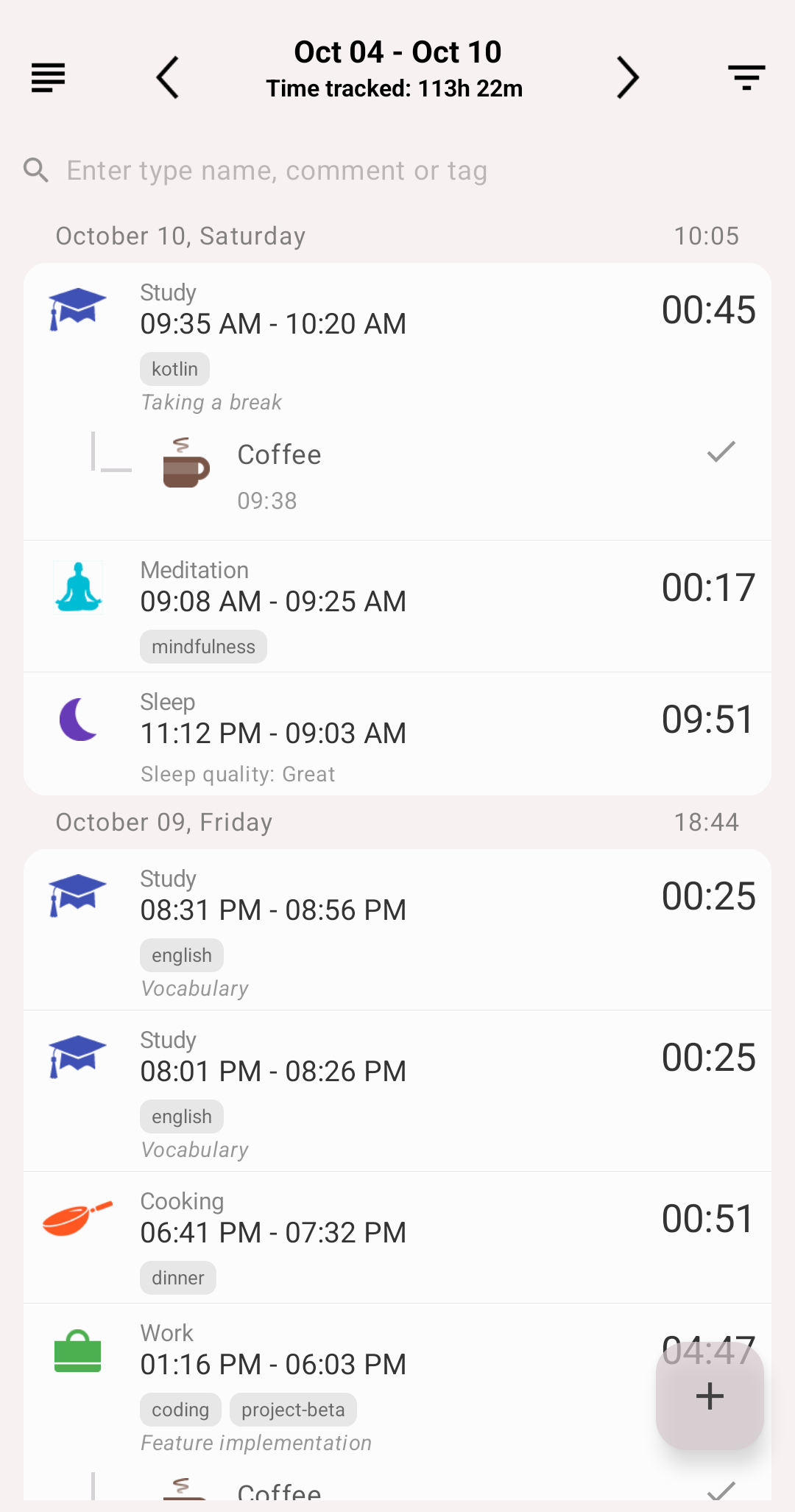
List view
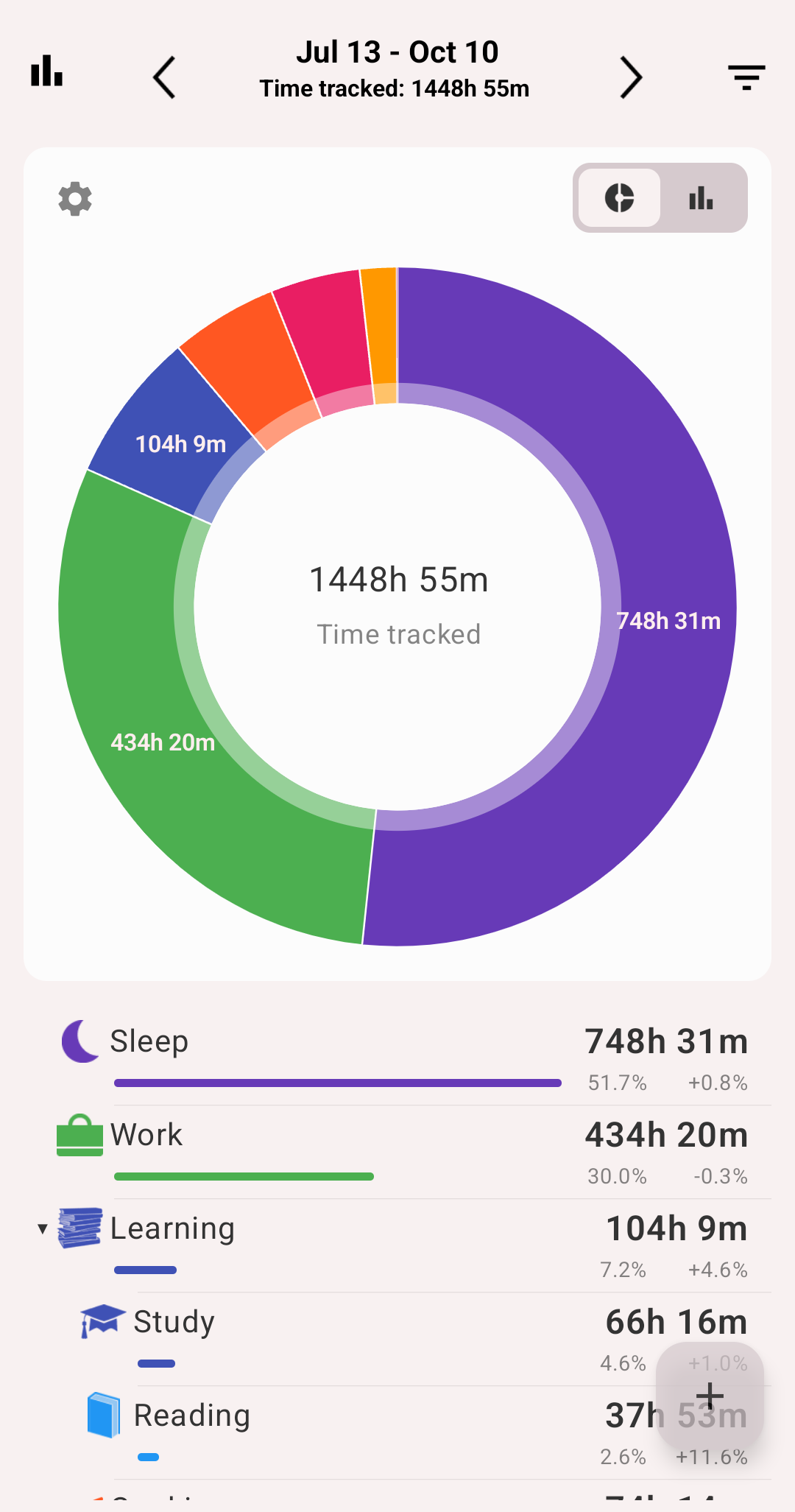
Statistics view
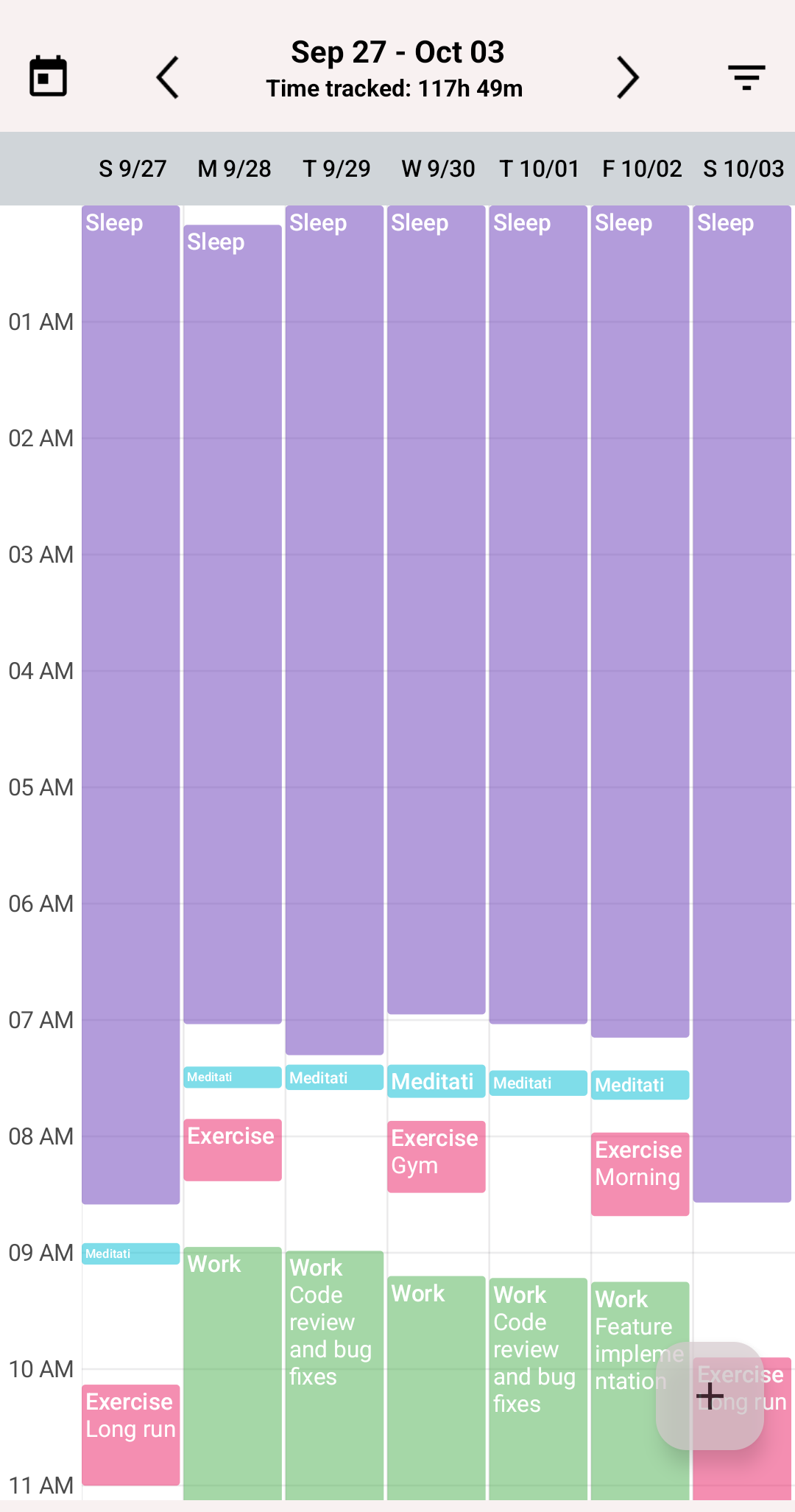
Calendar view
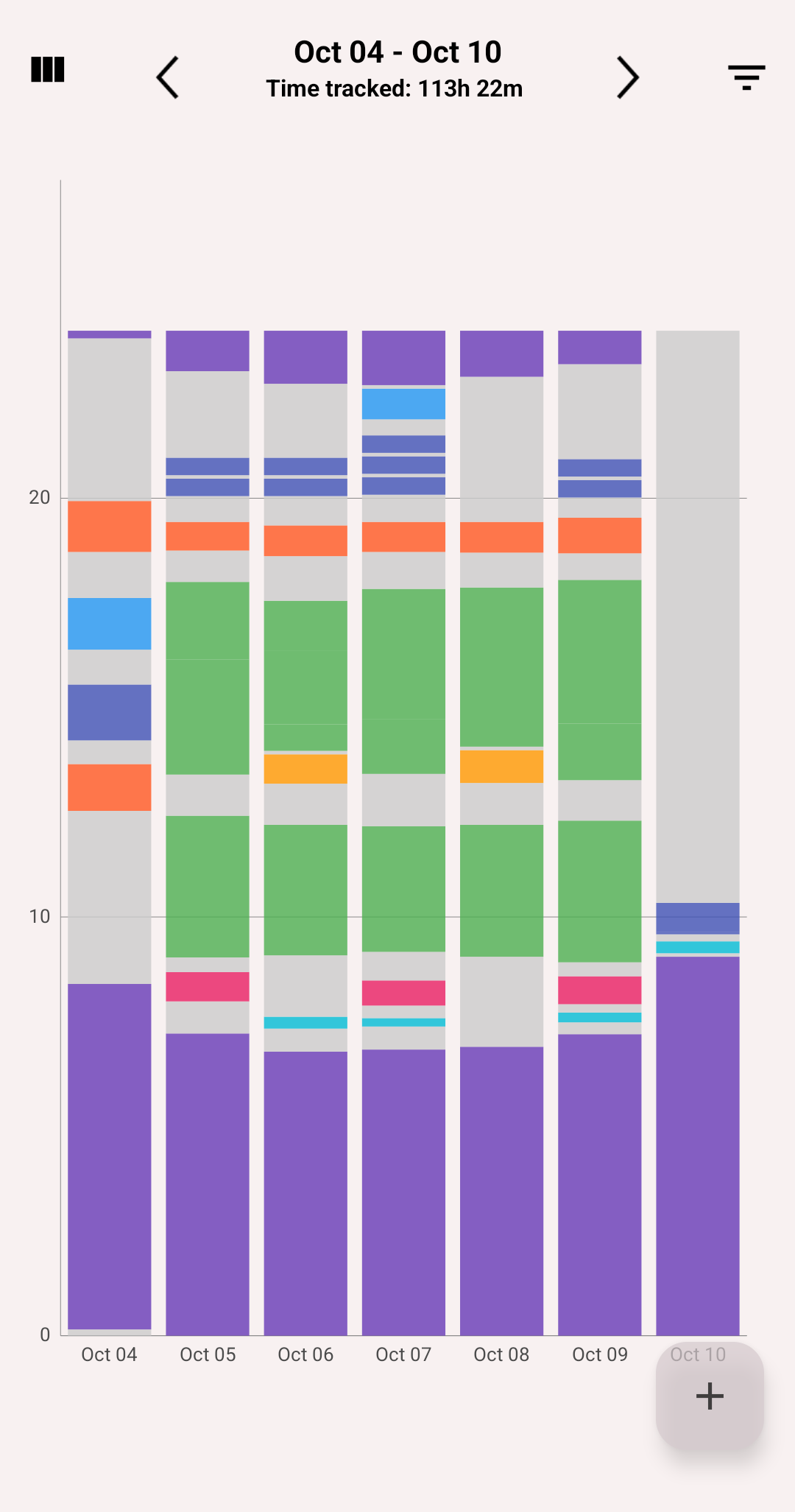
Daily entry view
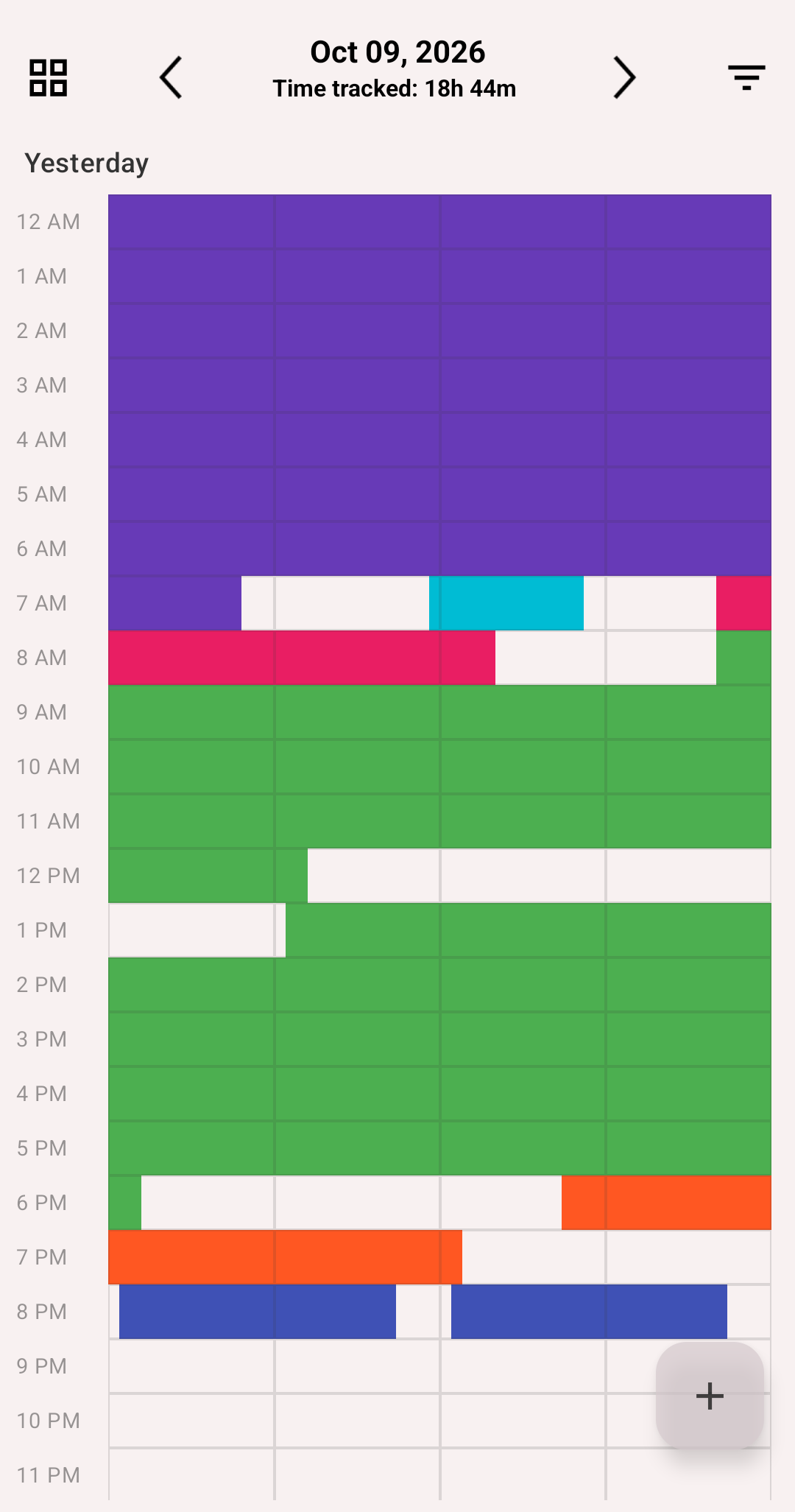
Blocks view
Info
The Blocks view requires a premium subscription.
Info
The Statistics view replaces the older Pie, Daily total and Statistics views. To bring them back, turn on Settings → History → Old statistics screens — see Old statistics screens.
Adding a record
Tap the '+' button to open the Edit activity screen with an interval already prepared:
- If the period already has records, the new interval starts at the end of the last one — so there is no gap
- If the period is empty, it starts at the beginning of the period
Knowing this makes filling in a forgotten day much faster: add records one after another and only correct the end time each time.
Editing a record
Tap a record to open the Edit activity screen, where you can change:
- Activity type
- State — running, paused or stopped
- Intervals — add, edit or delete them
- Comment and tags
- Custom field values
For a type mapped in Health Connect, a Health section under the intervals shows the sleep or workout recorded at the same time.
Long-press a record for the quick menu with Edit and Delete.
Info
To change or delete many records at once, use Batch operations.
Search
Use the search field at the top of the list to find records by type name, comment or tag.
By default the search looks inside the selected period. Turn on Settings → Full search to search across all of your data instead.
Filters and export
Filters narrow the list and the statistics down to chosen types and tags, and the same menu exports the period to CSV or HTML. See Filters and Export.
Settings that affect this screen
- Multi-Day Records — a record crossing midnight can be shown primarily on its main day or on both days
- Day start — when your day begins; set it to 4:00 if you regularly go to bed after midnight
- History order — newest or oldest records first
- Old statistics screens — show the old Pie, Daily total and Statistics views instead of the new Statistics view
- Pie view mode — Grouped or Types only, the same option as in the chart options
- Display data in pie chart — names and percents on slices bigger than 5%, in the old Pie view only
Multi-Day Records and Day start also change how numbers are calculated — see Statistics.