Statistics
Statistics answer the question the app exists for: where did the time actually go. They show up in several places, all calculated the same way:
- History tab → Statistics — the pie and the bars for any period, described below
- Type details and type history — see Types and Groups
- Tag history — see Tags below
- Goal details — see Goals
- Field details — see Custom Fields
Before trusting any number, it's worth understanding the two things that change it: intersections and multi-day records.
How statistics are calculated
Overlapping records
If you track several activities at the same time, the app has to decide whether the overlap is counted once or twice.
Example. Bus ride 10:00–11:00, Reading 10:20–11:00.
Intersections off — each activity is counted in full:
| Bus ride | 1 h |
| Reading | 40 min |
| Total tracked | 1 h 40 min |
Intersections on — the overlap is reported as its own combination:
| Bus ride only | 20 min |
| Bus ride + Reading | 40 min |
| Total tracked | 1 h |
This is controlled by Settings → Intersections in statistics.
Info
With intersections off, a day can add up to more than 24 hours — that is expected, not a bug.
Records that cross midnight
An activity running from 22:00 to 07:00 belongs to two days. The app splits it: 2 hours on the first day, 7 hours on the second.
Two settings control this:
- Multi-Day Records — show the record primarily on its main day, or on both days
- Day start — when your day begins. If you usually go to bed at 2 a.m., setting the day start to 4:00 keeps your evening in one piece instead of splitting it in two.
Info
If you want to measure a night's sleep as one number regardless of midnight, use a goal with the per activity period instead of a daily total. Week and month bars already count each night once — see Periods and bar width.

Day start set to 4:00 am
Statistics screen
Open the History tab, tap the view button and select Statistics.
The screen is one card with a chart and a list under it. The card header has:
- ⚙️ Gear (left) — chart options, see Chart options
- D / W / M (right, bars only) — bar width, shown only when the period allows more than one. See Periods and bar width
- Pie / Bars switch (right) — the app remembers your choice
Pie
- The center shows the total and the label Time tracked
- Values are written on the slices that have room for them
- Tap a slice to see its name, value and percent in the center. Tap it again to clear the selection
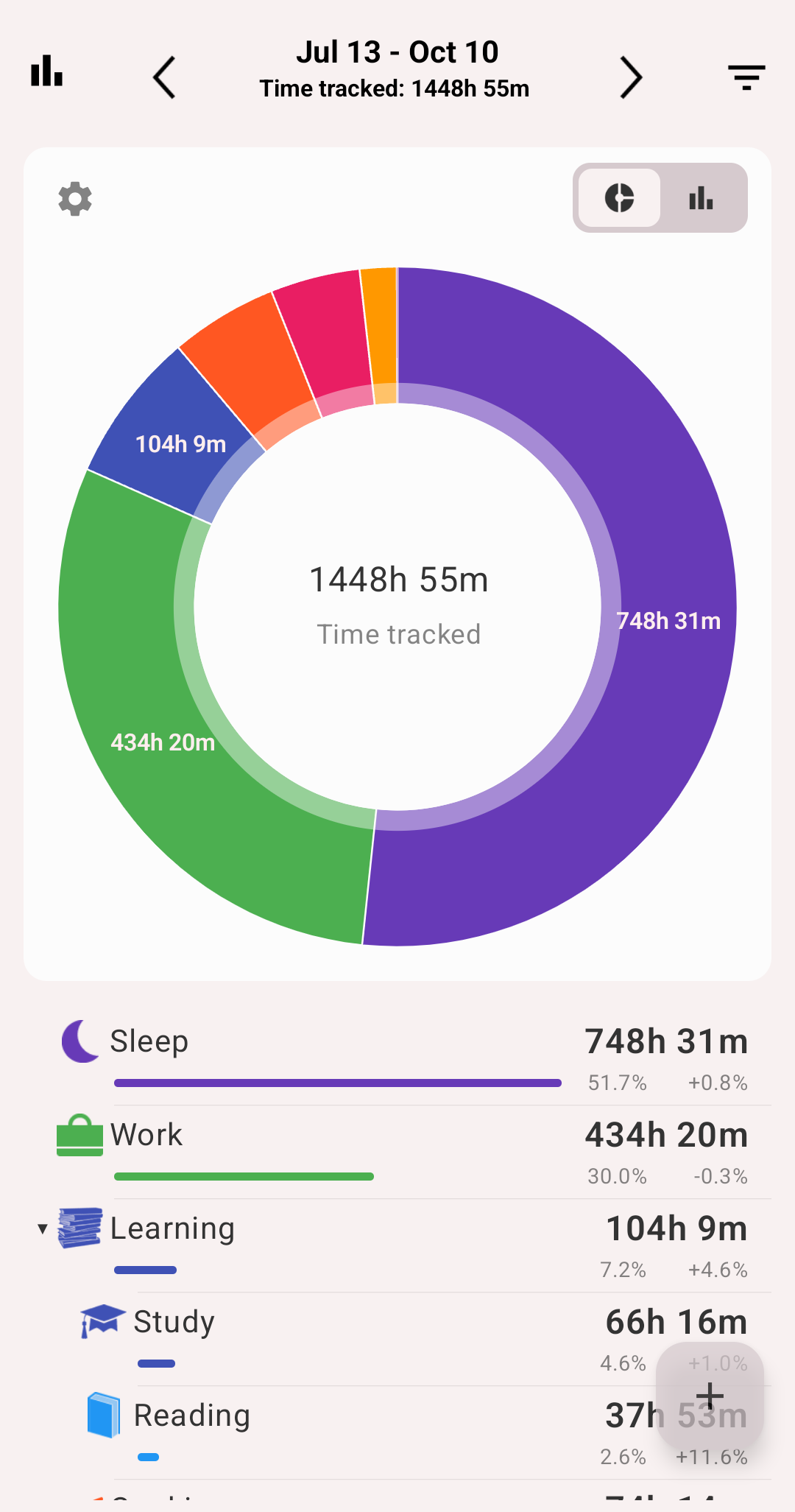
The pie and the rows under it
Under the pie there is one row per slice, in the same order:
- Icon, name and value (duration or count)
- A coloured bar, as long as the row's value relative to the biggest row
- After the bar, two numbers:
- Share of the total, for example
35.2%— the same share the slice has in the pie - Change against the previous period, for example
+12.5%or-30.0%. A type that is new in this period shows+100%, a type that disappeared shows-100%
- Share of the total, for example
The previous period is the period of the same length right before the current one: yesterday for a day, last week for a week, the 30 days before for Last 30 days. The active filter applies to both periods.
- With Grouped, the rows are a tree: tap a group row (▶) to expand it and see its types, tap again (▼) to collapse it. A type's share is of the whole total too
- With Types only, the rows are a flat list of types, like the pie
- With Show Untracked Time on, Untracked time is the last row. It counts in the total, like its slice in the pie
Bars
- One bar per day, week or month — see Periods and bar width
- Each bar is stacked by type, group or tag. The stacks are sorted by their total for the whole period, so a type keeps its place and colour from bar to bar
- The vertical axis uses whole hours (or whole numbers when counting occurrences)
- Tap a bar to dim the other bars and show its breakdown under the chart: the day, week or month as a title and the list of its types or tags. Tap the bar again to clear the selection
In the breakdown of a bar:
- With Grouped, groups open the same way as the rows under the pie, at every level. A group you opened stays open when you tap another bar
- With Show Untracked Time on, Untracked time is the last row: the bar's days minus what was tracked. The bars themselves don't include it
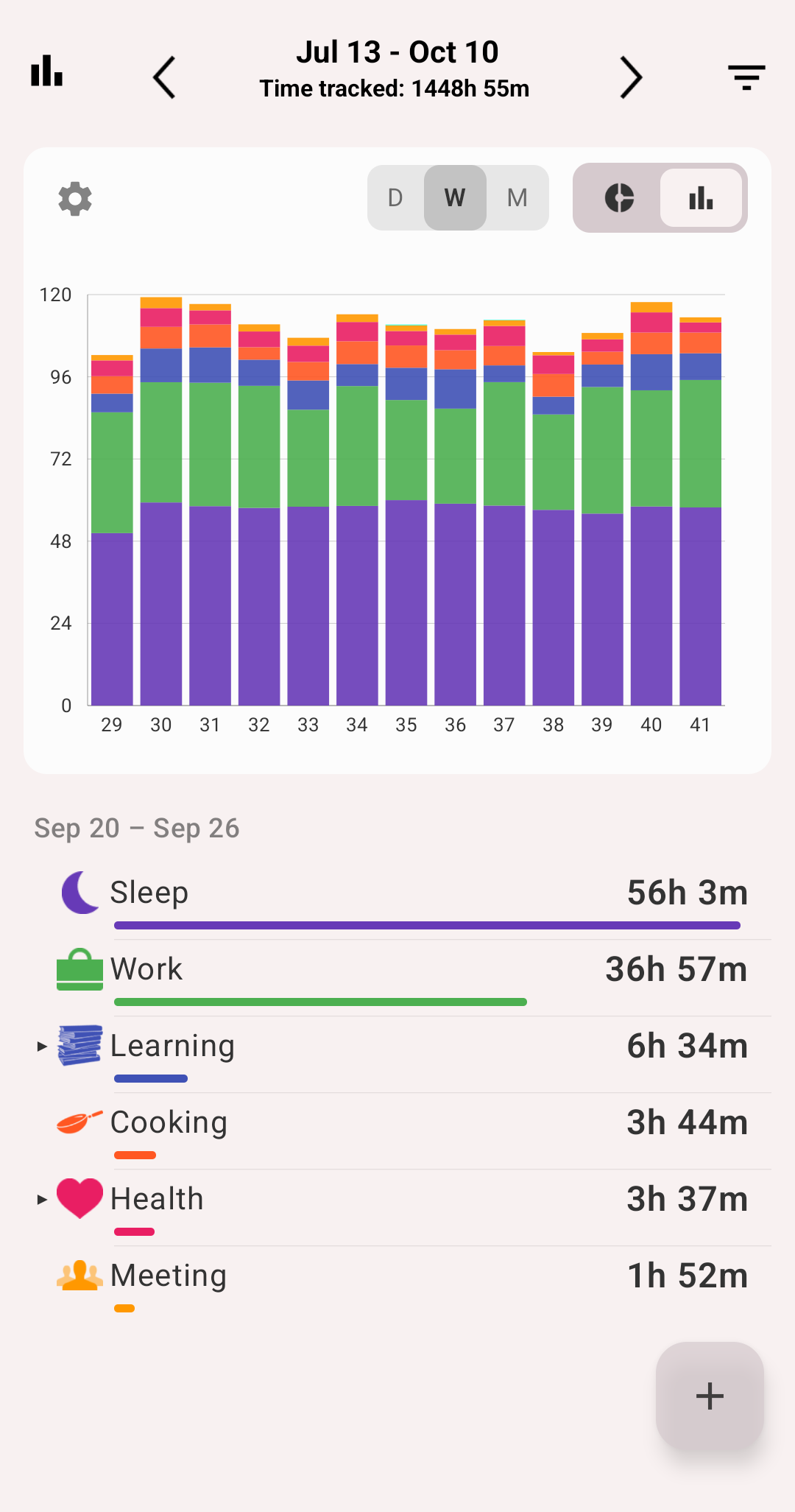
Week bars and the breakdown of a tapped bar
Info
The bars require a premium subscription. Without it, they show sample data under a purchase prompt.
Chart options
Tap the ⚙️ gear to open Pie chart options. The options apply to both the pie and the bars. Every choice applies at once and closes the sheet.
| Option | Values | Notes |
|---|---|---|
| Show Untracked Time | On / Off | Adds the untracked part of the period as the last slice and the last row, and as the last row of a bar's breakdown. Shown only for Type + Duration |
| Metric | Duration / Count / your amount fields | Count counts occurrences instead of time. An amount field sums the field instead, see below. Premium |
| Group by | Type / Tags / your list fields | Tags builds the chart from tags instead of types. A list field splits it by the field's values, see below. Premium |
| Pie view mode | Grouped / Types only | Grouped sums types into their groups (top-level groups in the bars). Only for Type |
Statistics by custom fields
If you use custom fields, the statistics can be built on them as well as on time:
- Metric: every Amount per record and Amount per hour field is listed after Duration and Count. The pie, the bars and the rows then show the field's sums, for example the kilometres you ran by type or the money you earned by project. There is no untracked time in a field's sums
- Group by: every List of values field is listed after Type and Tags. The chart is then split by the field's values, for example by sleep quality. Records without a value go under No value
The metric and the grouping can be combined: the distance you ran, split by how you felt.
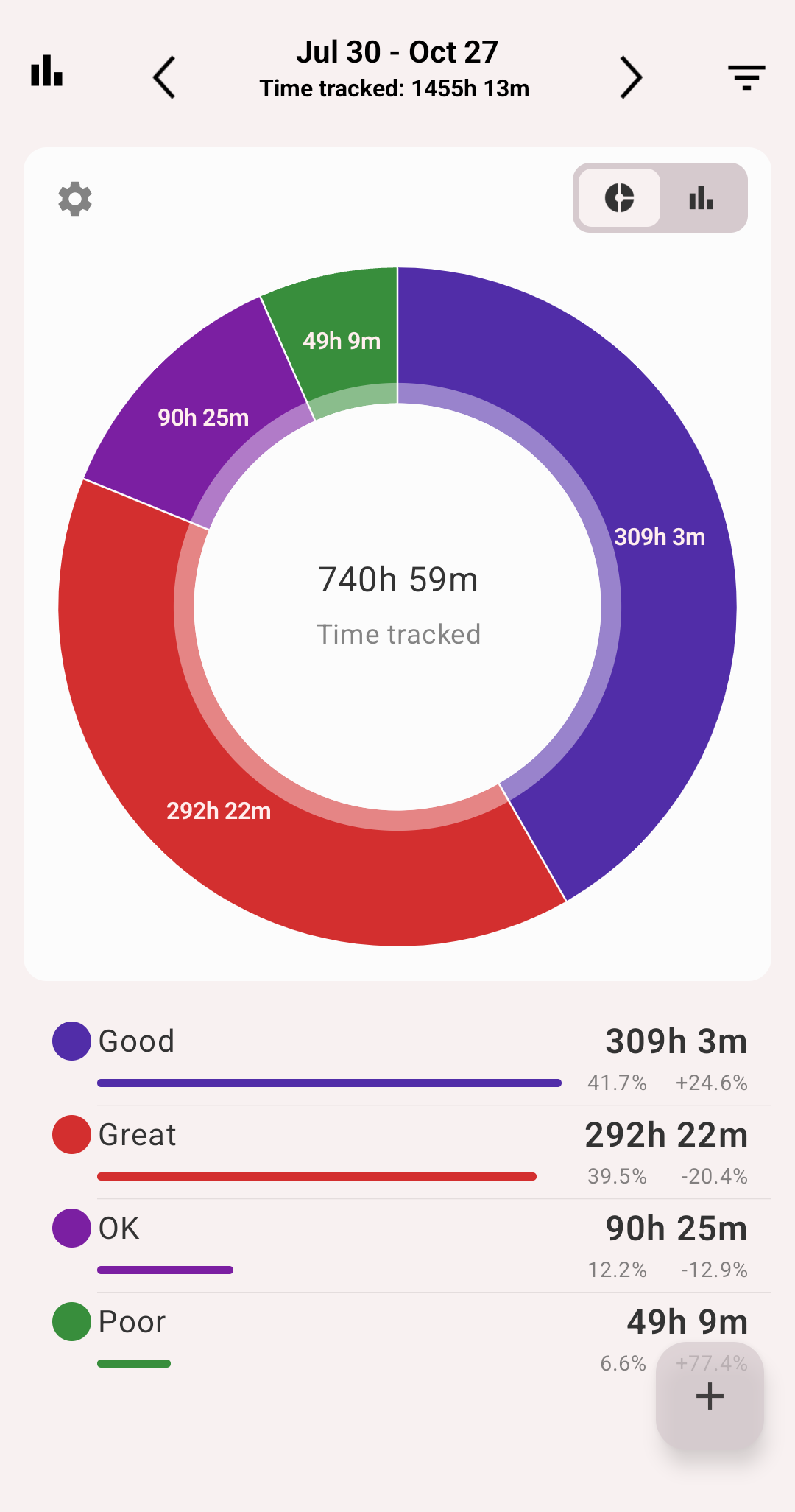
Time slept, split by the Sleep quality field
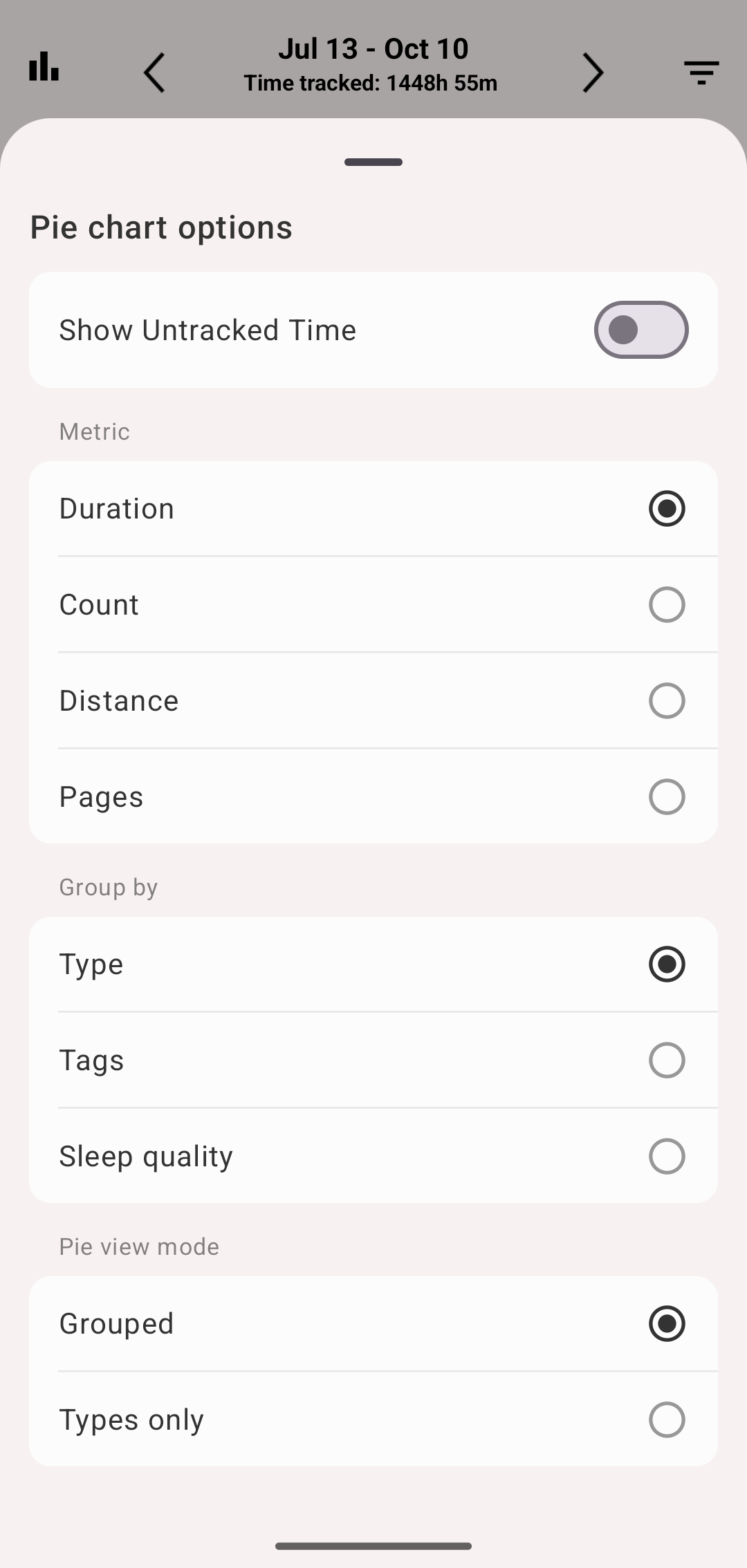
Chart options
Periods and bar width
Bar width is how much time one bar covers: a day, a week or a month. The app picks it by the length of the period:
| Period length | Default bar | You can also choose |
|---|---|---|
| Up to 34 days (Day, Week, Month, Last 30 days) | Day | Week, from 14 days |
| 35–199 days (Last 90 days) | Week | Day; Month, from 60 days |
| 200 days and more (Year) | Month | Day, Week |
- The D / W / M switch appears only when there is more than one choice
- The app remembers your choice. If the next period is too short for it, the default is used
- Weeks start on the first day of week from your settings
- Week bars are labelled with the week number. Month bars are labelled with the month, and with the year when the bars cross a year
- Tap a bar to see its full title, for example Sep 14 – Sep 20 or September 2026
Info
Week and month bars of a type or tag count each record once. A night of sleep from 11 pm to 7 am is split over two days, but it is one sleep in the week.
Duration vs Count: an example
Five records logged in one day:
| Activity | Time |
|---|---|
| Sleep | 01:00 – 08:00 |
| Work / Programming | 08:00 – 12:30 |
| Work / QA | 12:30 – 13:00 |
| Dinner | 13:00 – 14:00 |
| Work / QA | 14:00 – 19:00 |
Metric: Duration, Grouped, Show Untracked Time on:
- Work — 10 h (Programming 4 h 30 m, QA 5 h 30 m)
- Sleep — 7 h
- Dinner — 1 h
- Untracked — 6 h
Metric: Count:
- Work — 3 (Programming 1, QA 2)
- Sleep — 1
- Dinner — 1
With Types only, the pie and the rows show Programming and QA as separate types, without the Work group.
Same data, two very different stories — which is why the metric switch matters.
Hourly distribution
Shows at what time of day a type usually happens: the share of its time in each of the 24 hours. Open it on the type history screen, under the chart. It follows the selected period.
Hourly distribution is a premium feature.
For the whole day across all types, use the Blocks view of the History tab. It shows the day as coloured blocks from morning to night; over a week or a month it makes patterns obvious — when you actually start working, how fragmented the day is, where the evening goes.
Tags
Every chart can be built from tags instead of types. This is what makes tags worth using: the same "Work" type split by client, project or context. See Tags.
On the History tab:
- Open the Statistics view
- Tap the ⚙️ gear and select Group by → Tags (premium)
- The pie, the rows and the bars now show tags instead of types
- Apply a filter to limit the statistics to some tags
For one tag: open More → Tags, tap a tag, then tap the eye icon. The tag history works like the type history: the period header with D / W / M / 30d / 90d, the bar or line chart with the bar width switch, the averages and the total with the change against the previous period, and the tag's records grouped by day.
Old statistics screens
The Statistics screen replaces three older views of the History tab: Pie, Daily total and Statistics (total). To bring them back, turn on Settings → History → Old statistics screens.
- With the setting on, the view menu shows Pie, Daily total and Statistics instead of the new screen
- When you switch the setting, the History tab keeps showing the same data: the old Pie or Statistics view opens the new screen on the pie, and Daily total opens it on the bars (and back)
- Settings → History → Display data in pie chart affects only the old Pie view