Start in 5 Minutes
Five steps from a fresh install to knowing where your day went. Each one links to the page with the details.
1. Look at your activity types
The app starts with a set of activity types: Work, Sleep, Sport and the like. Open the Types tab to rename them, change their icons, or add your own with the '+' button. Put related types into a group, such as Health for exercise and meditation. See Types and Groups.
2. Start tracking
On the Activities tab, tap a type when you start doing it. It moves to the top with a timer running. Start something else and the first one pauses by itself — or keep both running, see Simultaneous activities.
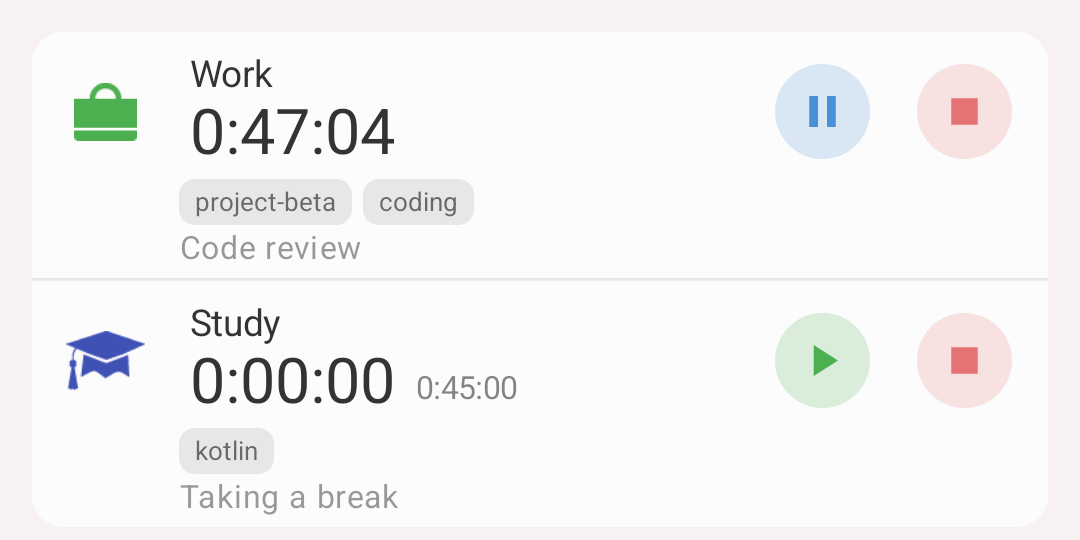
Work is running, Study is paused
3. Pause or stop
- Pause (blue) when you take a break: the activity stays on the tab, and Resume (green) carries on in the same record
- Stop (red) when you are done: the record moves to History
Forgot to start on time? Tap '+' on the Activities tab and enter the times yourself. See Activities.
4. See where the time went
Open the History tab and pick the Statistics view: a pie of your types for the day, the week or any other period, and how each one changed against the period before. See Statistics.
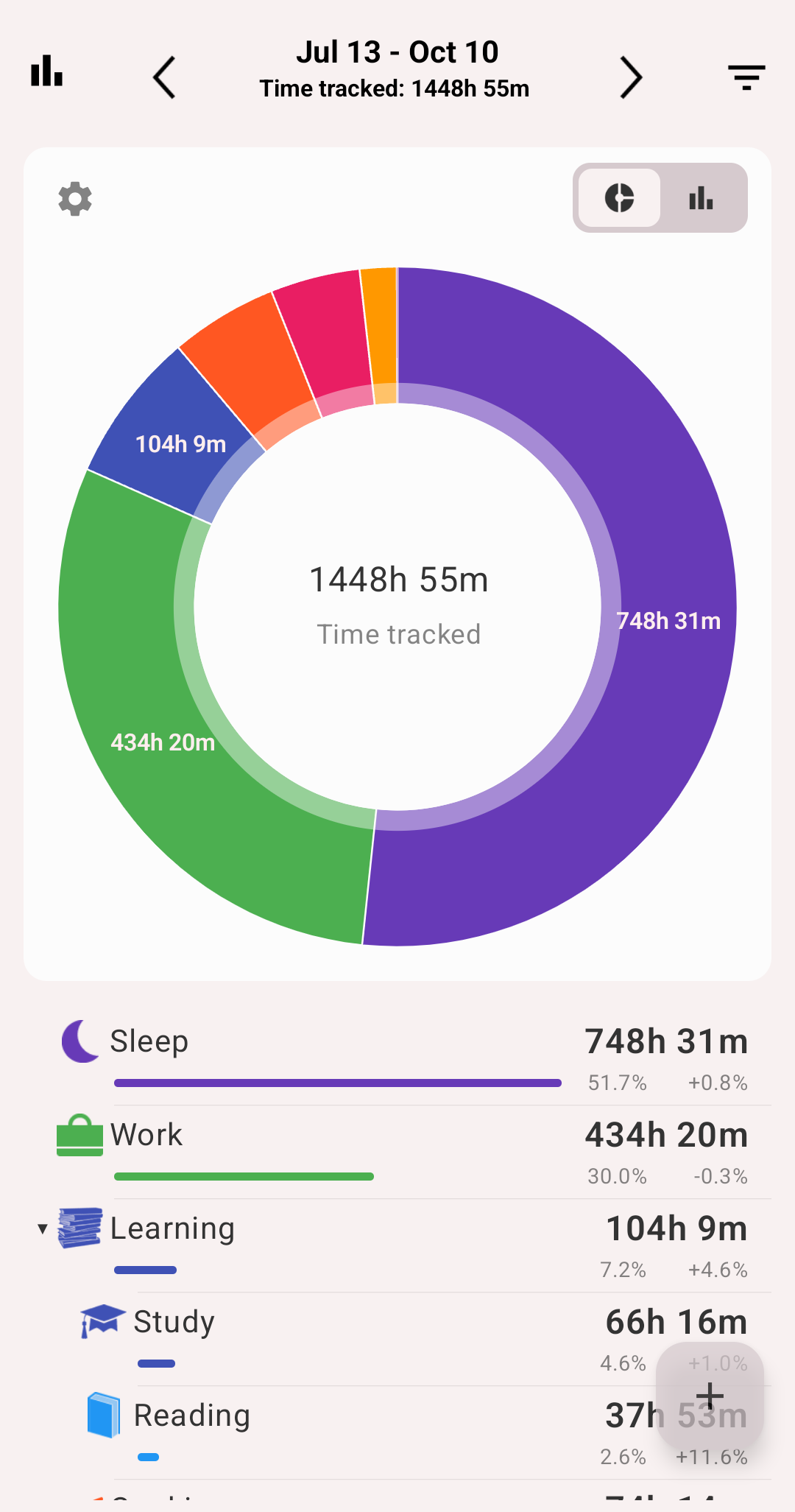
The Statistics view
5. Set a goal
On the Goals tab, tap '+' and set a target: at least 30 minutes of exercise a day, or no more than 2 hours of social media. The Goals tab shows how far along you are. See Goals.
Next
- Keep your data safe with a backup, or sync it with your other devices
- Put your activities on the home screen with widgets
- Count more than time with custom fields