Sync
[Premium Feature]
Sync keeps your data the same on all your devices: iOS, Android, macOS and the web. Creating an account is free. Syncing needs the Premium Sync plan.
Setting Up Sync
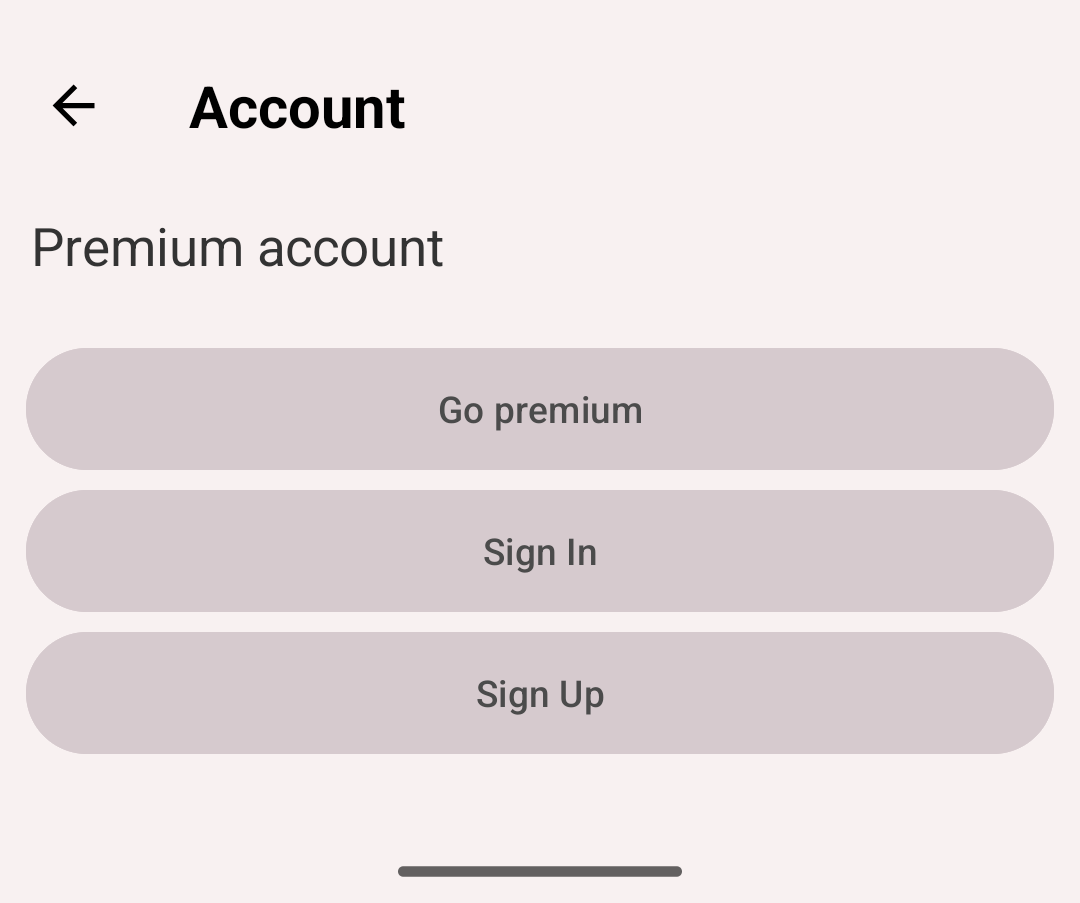
Account screen: sign in or sign up
Create Account
During first launch:
- On the welcome screen, tap Sign Up
- Enter your email, your password, and the password again
- Tap Sign Up
The app then signs you in with the new account.
Later:
- Go to More → Account
- Tap Sign Up
- Enter your email, your password, and the password again
- Tap Sign Up
Sign In to Existing Account
- More → Account → Sign In
- Enter your email and password
- Tap Sign In
- Your data syncs automatically
Forgot the password? Tap Forgot password? on the sign-in screen.
How Sync Works
Automatic sync:
- When the app starts
- After every change you make: starting, stopping, editing or deleting activities, and changes to types, goals, tags, custom fields, filters and todos
- When you change something on another device, the server tells this device to sync. This needs Google Play services
Manual sync:
- Pull down the Activities tab
- More → Account → Force Sync
Synced data:
- Activities and intervals, with comments, tags and custom field values
- Activity types and groups
- Goals and their alerts
- Custom fields
- Saved filters
- Todos
NOT synced:
- Settings, including Pomodoro, Remind me, theme and language. Set them up on each device
- Health Connect data: it stays on the device. Activities you add from it sync like any other activity
Plans
- Premium Sync — all premium features, and your data synced between your devices
- Premium — all premium features on this device, without sync
- Free — no sync. Keep your data safe with backups
Multi-Device Usage
Scenario: Using iPhone, Android, and Web
- Create account on first device
- Sign in on other devices with same credentials
- All changes sync automatically
- See same data everywhere
Best Practices:
- Keep app updated on all devices
- Force sync if data seems stale
- Sign out before restoring backup
- Check sync status in Account screen
Offline Mode
How it works:
- The app works fully without internet
- Your changes are kept on the phone
- They are sent at the next sync: when you change something, start the app, pull down the Activities tab or tap Force Sync
Sync status:
More → Account shows the time of the last sync and whether everything is synced:
- Last sync: 5 minutes ago. All records synced.
- Last sync: 5 minutes ago. Unsynced records: 3. — these changes are only on this phone so far
Troubleshooting Sync
If sync not working:
- Check connection: Ensure internet connectivity
- Force sync: More → Account → Force Sync
- Check subscription: Ensure Premium Sync is active
- Contact support: More → About → Contact support
Common Issues:
- Sync requires 'Premium Sync' plan → your account has no sync. Tap Subscribe or see Plans
- Subscription expired → renew in Google Play
- No internet → your changes wait on the phone and sync at the next sync
- The app asks for your password again → enter it, and sync goes on