Backup & Restore
Your records are a history of your days, so keep a copy somewhere other than the phone. There are two ways:
- Sync. With an account and a plan that includes sync, your records are on our server and on all your devices. See Sync.
- A backup file, which you make yourself on More → Backup/Restore. It is free. The app doesn't make backups on its own.
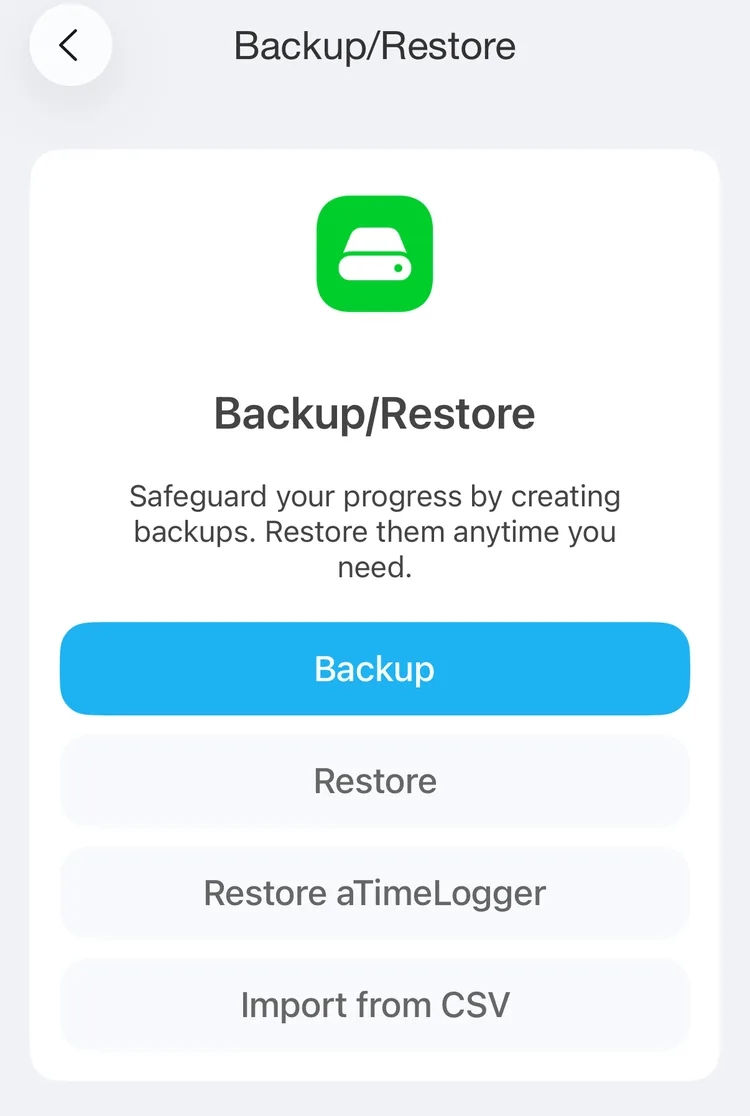
Backup/Restore
Creating a backup
- On the More tab, tap Backup/Restore.
- Tap Backup.
- The share sheet opens. Save the file to the Files app, in iCloud Drive for example, or send it to yourself.
The file is named after the time it was made, like backup-27-Oct-2026_14_30.ttbkp. Keep backups in more than one place, and make a fresh one before you change phones.
What a backup holds
A backup holds:
- activity types and groups, archived ones included, with their names, icons, colours, order and tags
- activities with their intervals, comments, tags and the numbers entered in custom fields
- goals: name, Reach or Limit, target, period, types, tags and alert sound
- custom fields and the types they belong to
- saved filters
It doesn't hold:
- todos
- settings, the calendar settings included
- the alerts and the days of the week of goals
- the choices of list fields, and the values picked from them
Occurrence types come back as types with a timer.
Restoring a backup
Warning
Restoring deletes all data on this iPhone, todos included, and replaces it with the backup. You can't undo it.
- If you are signed in, sign out first: More → Account → Sign Out. The restore changes only this iPhone, and the next sync would mix the backup with your account's data.
- On the More tab, tap Backup/Restore, then Restore.
- Pick the backup file, a file whose name ends with
.ttbkp. - The app asks Restore backup? Tap Restore.
- After a few seconds the app says Restore completed.
If the file is not a backup, the app says Restore failed and your data stays as it was.
Before it restores, the app saves a copy of its current database in its folder of the Files app, On My iPhone → aTimeLogger Pro. You can't restore it yourself, but it holds your data as it was: keep it until you are sure the restore went right, and send it to support if it didn't.
Old aTimeLogger backups
Restore aTimeLogger restores a backup of the classic aTimeLogger app. See Migration.
Backup or export?
A backup is for restoring the app. To open your records in a spreadsheet, export them as CSV or HTML from the History tab instead. See History. Exporting is a premium feature.
Import from CSV works the other way round: it adds the records of a CSV file to the ones you have. See Migration.