Remind Me
It's easy to forget to start or stop an activity. Remind me sends a notification every so often that asks What are you doing now?, at the hours you choose.
Turning it on
- Open Settings → Features → Remind me.
- Turn on Remind me.
- Tap Hours and pick the hours when reminders may come. None are picked at first, so no reminders come until you pick some.
Options
- When: which reminders you get.
- Always (the default): whether or not something is running
- Running: only while an activity is running. Paused activities don't count.
- Not running: only while nothing is running
- Interval: how often: 5 min, 15 min, 20 min, 30 min (the default), 60 min or 120 min.
- Hours: the hours of the week when reminders may come. See below.
- Alert sound: No sound or one of the app's sounds, alarm1 by default. Picking a sound plays it.
Hours
The Hours screen is a grid: a column for each day of the week, from M to Su, and a row for each hour of the day.
- Tap a cell to turn that hour of that day on or off.
- Tap an hour on the left to turn it on for every day, or off for every day when it is already on for all of them.
Changes are kept as you tap. An hour covers its whole 60 minutes: for reminders on weekdays from 9:00 to 18:00, turn on the rows from 9 AM to 5 PM in the columns M to Fr.
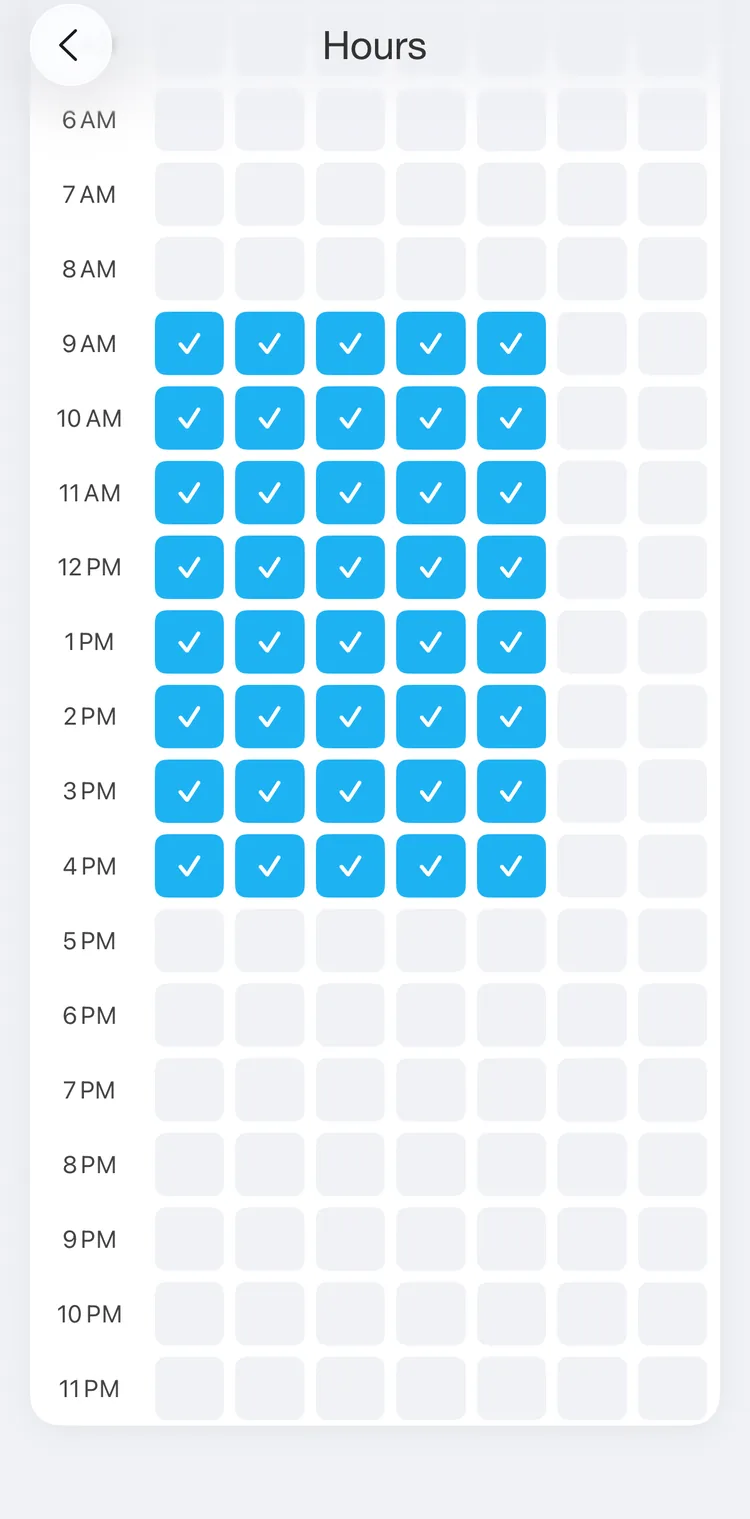
Reminders from 9 to 5 on weekdays
How reminders come
- Reminders start one Interval after you leave the app and come only during the hours you picked. None come while the app is open.
- When uses what is running when you leave the app. With Running, leave it with an activity running; with Not running, leave it with nothing running.
- Tap a notification to open the app and start or change what you are tracking.
If reminders stop after you haven't opened the app for a while, open it again, then leave it to resume reminders.