AI Assistants: ChatGPT and Claude
Connect aTimeLogger to ChatGPT or Claude and ask about your time in plain language: where it went, how this week compares with the last one, where to find an hour for something new. The assistant can also start and stop timers, log time you forgot and fix a record's times. Its answers can come as cards with your activities' colors and icons: running timers with Pause and Stop buttons, day and week timelines, trends and reports. See them on atimelogger.pro/mcp.html.
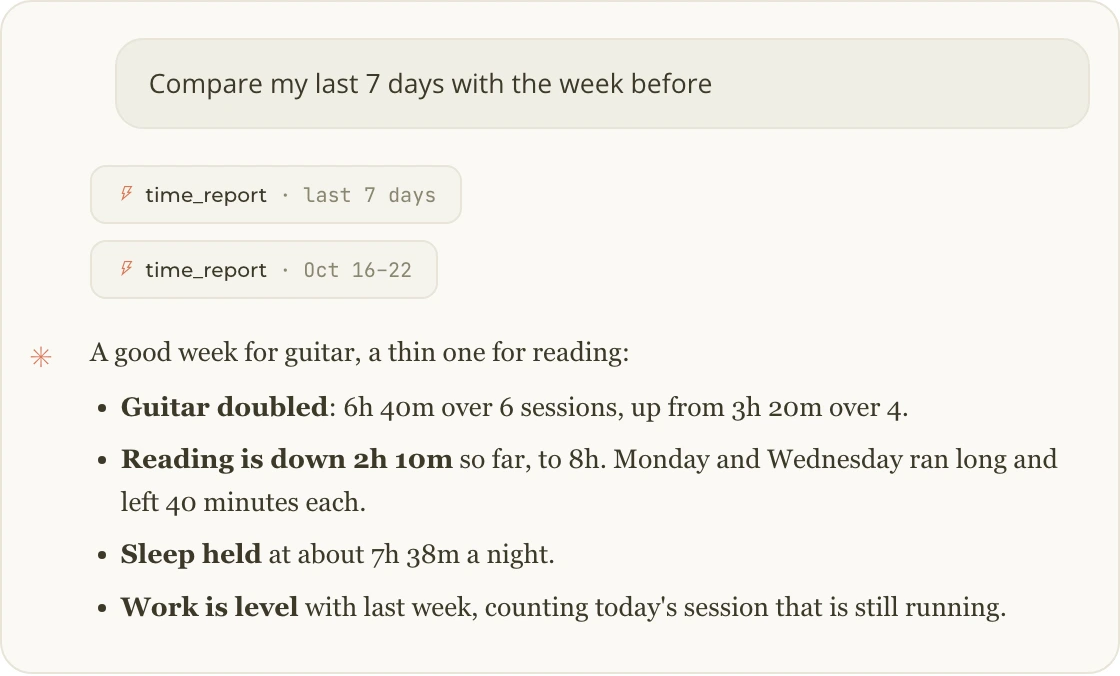
Comparing two weeks in Claude
What you need
- An aTimeLogger account, see Sync.
- Claude or ChatGPT.
The connector's address is:
https://app.atimelogger.pro/mcp
Connecting Claude
- Open Settings → Connectors and click Add custom connector.
- Name it aTimeLogger, paste the address and add it.
- Click Connect, sign in with your aTimeLogger account and allow access.
Once connected on claude.ai, aTimeLogger works in the Claude desktop and mobile apps too.
Connecting ChatGPT
- Open Settings → Apps and add a new app.
- Name it aTimeLogger, paste the address and choose OAuth sign-in.
- Sign in with your aTimeLogger account and allow access.
What the assistant may do
When you sign in, you choose its access:
- Read your timers, history, reports and activity types. This is always included.
- Write: start, pause and stop timers, log past records, change a record's times, comments and tags, and create or archive activity types. Untick it to keep the assistant read-only.
To disconnect, remove aTimeLogger in ChatGPT or Claude, or in the web app under Settings → Connected apps.
aTimeLogger sends nothing to any AI provider on its own. Your records reach a conversation only when you ask your assistant about them.
What you can ask
The assistant reads your records, not only totals, so it can compare and explain:
- "Compare my last 7 days with the week before."
- "Am I sleeping less on workdays?"
- "When does my workday really start and end?"
- "Where could I find 3 more hours a week for guitar?"
It can also act and show:
- "What am I tracking right now?"
- "Start Work. I actually began at 11:30."
- "Stop whatever is running and start Reading."
- "Log Reading yesterday from 22:00 to midnight."
- "Yesterday's swim was 6:30 to 7:30, not 7:00 to 7:45."
- "Add a comment to that record: finished chapter 5."
- "Show my week."
- "How did my sleep change this month?"
- "Add Ukulele to my Hobbies." It asks before creating an activity type.
- "How do I set up a goal?"
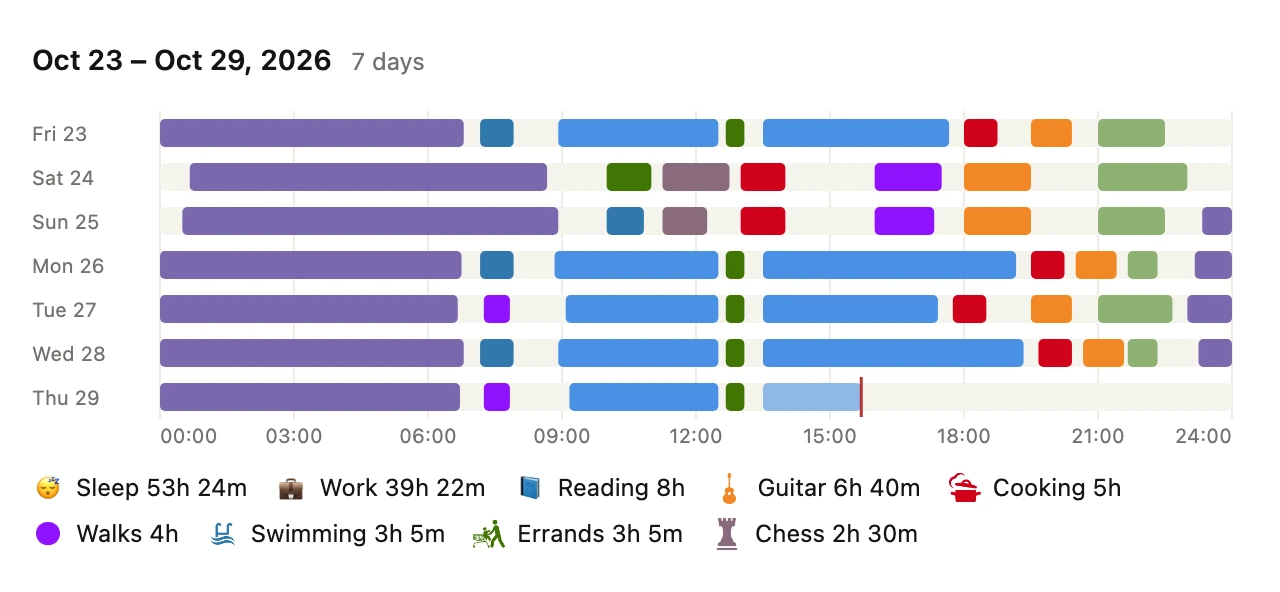
"Show my week" answered with a card
Activity names are matched automatically: "start dev" finds your Development type.
Limits
- The assistant can't delete records or activity types. To delete, use the app.
- Starting a timer can't add a comment. Ask for the comment afterwards.
- A running timer's current stretch can't be moved. Stop it first; the stop can be backdated.
- A timeline shows at most 14 days, and history is read at most 100 days at a time.
Running it yourself
For developers who want to run everything on their own computer or server, the aTimeLogger MCP server is open source. It works with Claude Code, Claude Desktop, Cursor, VS Code and other MCP clients. It answers in text: the cards, creating activity types and the sign-in come with the connector above.
It needs a personal access token. In the web app, open Settings → API Tokens and click Generate token. It is shown only once, so copy it right away. You can revoke it on the same page at any time. API access is part of the Premium Sync plan.
Treat the token like a password: whoever has it can read and change your records.
Follow the setup instructions for your assistant.